


The Amazon Echo Show supports many streaming, communication, and smart home services. Even when not in use, it can display a single image or a slideshow of your favorite photos.
Key video platforms include Prime Video, Hulu, YouTube, Tubi, and more. Many users wonder if Netflix works on Echo Show, and the answer is yes. Most models, including the 8, 10, 15, and 1st or 2nd Gen Echo Show 5, as well as Echo Shows with built-in Fire TV like the 15 and 21, can access Netflix on the screen. You can say, "Alexa, open Netflix," or tap it from the Video tab. The first time you open it, a native Netflix app will load, and you'll need to sign in. After that, you can browse and watch movies and shows directly on the Echo Show.
Netflix is not supported on the 3rd Gen Echo Show 5. In that case, users may use ViWizard Netflix Video Downloader to unlock Netflix downloads and upload them to the "My Video" skill. This guide will show how to use Netflix on all Echo Show devices without needing a tablet or TV.
Part 1: How to Watch Netflix on Supported Echo Show Models
Most Amazon Echo Show models let you watch Netflix directly on the screen. On supported devices, the Netflix app appears under the Video tab. Streaming quality is up to 540p SD resolution, which works well for casual viewing on the built-in display. It is not full HD, but it is suitable for everyday watching.
Netflix on supported Echo Show devices allows you to browse recommended genres, search for specific titles, and scroll through categories. The interface is simple to navigate. You can fast forward or rewind using the progress bar and exit a title with the back button.
The Netflix app on Echo Show is not fully featured. You can stream titles online, but offline downloads are limited.
Supported Echo Show Models:
- Echo Show (1st Generation)
- Echo Show (2nd Generation)
- Echo Show 5 (1st & 2nd Gen)
- Echo Show 8 (1st & 2nd Gen)
- Echo Show 10
- Echo Show 15
Option 1: Access Netflix from the Echo Show Home Screen
Open your Echo Show and go to the Video tab. Tap the Netflix icon to launch the app. You'll need to sign in the first time, but after that, browsing and selecting shows is easy. You can also pin Netflix to the home screen for faster access.
Step 1 From the Echo Show home screen, swipe down from the top to open the quick settings panel.
Step 2 Tap Video to see the available streaming apps.

Step 3 Tap Netflix. If it is not there, your Echo Show model does not support Netflix.

Step 4 Enter your Netflix email and password, then tap Sign In.
Step 5 Browse or search for a show or movie, tap it, and then tap Play to start watching.
Pro Tip: Pin Netflix to the Home Screen
Step 1 Swipe down from the top and tap Settings.
Step 2 Tap Home Content or Home & Clock, depending on your model.
Step 3 Turn on Video so Netflix and other apps appear on your home screen for easy access.
Option 2: Access Netflix Using Alexa Voice Commands
Say "Alexa, open Netflix", and the app will launch. You still need to sign in the first time, but after that, Alexa makes navigation effortless. You can use voice commands to start a show, pause, skip, or navigate between episodes without touching the screen.
Step 1 Say "Alexa, open Netflix". The app will open if your Echo Show supports it.
Step 2 If it is your first time, follow the on-screen steps to sign in.
Step 3 To watch a specific show or movie, say "Alexa, play [title name] on Netflix".
Step 4 Control playback with commands like "Alexa, pause", "Alexa, resume", "Alexa, rewind 30 seconds", or "Alexa, next episode".
Pro Tip: Use Alexa Shortcuts (Routines)
Step 1 Open the Alexa app on your phone.
Step 2 Tap More, then tap Routines.
Step 3 Tap the + icon to create a new routine.
Step 4 Tap Enter routine name, give it a name, and tap Next.
Step 5 Tap When this happens, choose Voice, and enter a phrase like "Watch Netflix", then tap Next.
Step 6 Tap Add action, select Custom, and type Open Netflix.
Step 7 Choose your Echo Show under Choose device.
Step 8 Tap Save. You can now say your phrase to open Netflix immediately.
Part 2: How to Watch Netflix on Unsupported Echo Show Models
Some Echo Show models do not include the native Netflix app or built-in streaming features. However, there are still workarounds that allow access to Netflix content.
Unsupported Echo Show Models:
- Echo Spot
- Echo Show 21
Workaround 1: Stream Netflix Using the Silk Browser

If your Echo Show does not support Netflix, like the 3rd Gen Echo Show 5, open Silk, go to www.netflix.com, and sign in. In my experience, streaming with the Silk browser works fine for casual viewing, though it can be a little slower than the native app.
Step 1 Say "Alexa, open Silk". This opens the Silk browser.
Step 2 In the address bar, go to www.netflix.com.
Step 3 Tap Sign In and enter your Netflix details.
Step 4 Browse the site and tap a show or movie.
Step 5 Tap Play to start watching. Some Echo Show models may not support Netflix in the browser.
Workaround 2: Upload Video Content Using an Alexa Skill (My Video)
You can also download Netflix shows with ViWizard Netflix Video Downloader and upload them to Dropbox as personal video files like MP4. Use ViWizard to save Netflix content to your computer, then upload it to Dropbox. Link your Dropbox account to the "My Video" Alexa skill and ask Alexa to play your "My Video" folder on Echo Show or Fire TV. Setting this up takes a little time, but offline viewing on any Echo Show is worth it for a movie night.
ViWizard Netflix Video Downloader is free to try on Windows and Mac, and it has extra features worth exploring.

Key Features of ViWizard Netflix Video Downloader
Free Trial Free Trial* Security verified. 5, 481,347 people have downloaded it.
- Download Netflix movies and TV shows as MP4 or MKV files
- Preserve HD, 4K, HDR video, audio tracks, and subtitles
- Accelerate downloads when saving long videos or complete seasons
- Remove ads automatically during video downloads
- Save Netflix videos for playback on different devices
Step 1Sign in to Your Netflix Account
Download and install the ViWizard Netflix Video Downloader on your computer. Launch the software and then select "Sign in." Once you've signed in, you'll have access to all of Netflix's content, including movies, TV series, documentaries, anime, and original content.

Step 2Configure Download Settings
Click the menu icon in the upper right corner of the ViWizard interface, then select "Preferences." The "Download" section allows you to set the output location and the video quality as 1080p, then configure the video format, language for subtitles and audio, and so on. After you've made your selections, click "OK" to make the changes.

Step 3Start the Download
Search the specific show or movie you want to watch in ViWizard's built-in Netflix web player. Next, select the episodes you want to download. Click the "Download" button to begin the procedure.
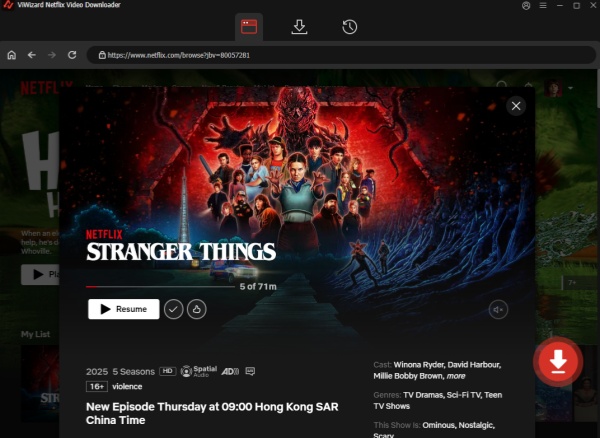
Step 4View and Play Downloaded Netflix Videos
Once the download is completed, click the folder icon next to the video title on the right side. Then, you can follow the steps below to get ready to watch Netflix videos on your Echo Show devices.

Step 5Watch Downloaded Netflix Videos on Echo Show
After downloading videos from Netflix to your computer using the ViWizard Netflix Video Downloader, you can upload them to Dropbox and then watch them on your Echo Show via the Alexa skill called My Videos. The steps are as follows:
Step 1 Open the Alexa app on your phone. Tap More, then tap Skills & Games.
Step 2 Search for My Video, tap it, and tap Enable to Use.
Step 3 Link your Amazon account with Dropbox. A folder called Dropbox > Apps > MyVideo will be created.
Step 4 Upload your own video files to the MyVideo folder. Netflix downloads will not work due to protection.
Step 5 In the Alexa app, tap More, then tap Routines, and tap the + icon.
Step 6 Tap Enter routine name, type a name, and tap Next.
Step 7 Tap When this happens and choose a trigger, like a voice phrase.
Step 8 Tap Add action, select Skills, then Your Skills, and choose My Video (second option).
Step 9 Select your Echo Show under Choose device.
Step 10 Tap Save.
Step 11 Say "Alexa, ask My Video to play [video name]" and your selected video will play on your Echo Show.
Part 3: How to Control Netflix on Echo Show with Alexa
Watching Netflix on Echo Show is possible, but options depend on your device. Compatible models allow direct streaming, while other models can download Netflix titles using ViWizard Netflix Video Downloader and play them through creative solutions like Dropbox and My Video Skill.
| Main Function | Sub-Category | Voice Command Examples |
|---|---|---|
| App Control | Open / Launch | "Alexa, open Netflix." "Alexa, launch Netflix." |
| Content Search - By Title | "Alexa, play Stranger Things on Netflix." "Alexa, find The Crown on Netflix." "Alexa, watch Wednesday on Netflix." |
|
| Content Search | By Genre | "Alexa, show me comedy movies on Netflix." "Alexa, find action series on Netflix." "Alexa, show horror movies on Netflix." |
| By Actor | "Alexa, show me movies with Tom Cruise on Netflix." | |
| By Director | "Alexa, find movies by Christopher Nolan on Netflix." | |
| Content Search | Netflix Categories | "Alexa, show Netflix Originals." "Alexa, show trending on Netflix." "Alexa, show new releases on Netflix." |
| Content Search | Recommendations | "Alexa, recommend a movie on Netflix." "Alexa, suggest something to watch on Netflix." "Alexa, what should I watch on Netflix?" |
| Playback Control | Play / Pause | "Alexa, pause." "Alexa, play." "Alexa, resume." "Alexa, stop." |
| Episode Navigation | "Alexa, next episode." "Alexa, previous episode." "Alexa, restart." |
|
| Skip / Jump | "Alexa, skip intro." "Alexa, rewind 30 seconds." "Alexa, fast forward 2 minutes." |
|
| Device Control (Echo Show) | Volume | "Alexa, turn up the volume." "Alexa, turn down the volume." "Alexa, set volume to 30%." "Alexa, mute." |
| Screen Brightness | "Alexa, brightness up." "Alexa, brightness down." |
Part 4: How to Fix Netflix Not Showing on Echo Show
This is a common issue for many Netflix users on Echo Show, regardless of model. Here's how to fix Netflix not appearing or not working:
Restart Your Echo Show: Unplug the device for 30 seconds, then plug it back in to clear temporary glitches.
Check for Updates: Go to Settings > Device Options > Check for Software Updates and install the latest version to make sure your Echo Show is up to date.
Check the Video Tab: Swipe down from the top, tap Video, and see if Netflix appears in the list of apps.
Disable Unneeded Netflix Skills: Open the Alexa app, tap More > Skills & Games, find any Netflix-related skills, and disable them, as they are not needed for the app.
Confirm Netflix: Return to the Video tab on your Echo Show and verify that Netflix is now showing.
Conclusion:
Watching Netflix on Echo Show is possible, but options depend on your device. Compatible models allow direct streaming, while other models can download Netflix titles using ViWizard Netflix Video Downloader and play them through creative solutions like Dropbox and My Video Skill.
You May Be Interested


Dave Henry, a multimedia technologist at ViWizard, focuses on delivering the best solutions for digital media challenges, including audio and video conversion, media optimization, and troubleshooting.

Leave a Comment (0)