



If you have ever tried to move an Apple Music playlist to another computer, you may have noticed that the export option is easy to miss. Apple Music lets you export a selected playlist through File > Library > Export Playlist, or export your entire library with its playlists and library information.
The key point is that the export does not include the actual songs. The XML file stores the information needed to recreate the playlist, while unavailable items may be left out when you import it on another computer.
If you need to move or back up a playlist, Apple's built-in export and import options can handle it. If you want the actual songs as local audio files or want to move the playlist to another streaming service, you need a different method. This guide covers exporting playlist information, saving it as a text file, saving songs as local audio files with ViWizard Apple Music Converter.
Part 1. Can You Export an Apple Music Playlist?
Yes. Apple Music lets users save copies of playlists to use on a different computer. You can export a playlist as an XML file containing playlist information, then import it on another computer to recreate the same playlist in a compatible music library. The XML file saves a readable, text-based copy of the playlist information, including track metadata, library organization, user stats, and file paths. However, it does not contain the songs or music videos themselves. Apple Music also notes that "Unavailable items are removed from the list."
So, exporting an Apple Music playlist does not export songs as MP3 or other audio formats. If you want the actual Apple Music songs as local audio files, Apple's playlist export does not provide that option. ViWizard Apple Music Converter fills this gap by helping you save Apple Music tracks as common audio files for local use.

Need Apple Music in more flexible audio formats? ViWizard Apple Music Converter helps Apple Music subscribers create a personal music library with seamless music backup.
Part 2. How to Export an Apple Music Playlist
On a Mac, select a playlist in the Music app and choose File > Library > Export Playlist, then select XML and save it. On Windows, iTunes offers the same option through File > Library > Export Playlist. The XML file contains the playlist information needed to recreate it in another compatible music library.
Export an Apple Music Playlist from iTunes
01Open iTunes on your Windows PC.
02Select the playlist you want to export from the sidebar.
03Go to File > Library > Export Playlist.

04In the Format pop-up menu, select XML.

05Enter a name for the playlist file, select a location on your computer, and click Save. The XML file contains the playlist information, but not the actual songs or music videos.
Export an Apple Music Playlist from the Music App
01Open the Music app on your Mac.
02Select the playlist you want to export from the sidebar.
03Go to File > Library > Export Playlist.
04Open the Format pop-up menu and select XML.
05Name the file, select a folder for it, and click Save. The exported file contains the playlist information rather than the actual songs or music videos.
Part 3. How to Import an Apple Music Playlist
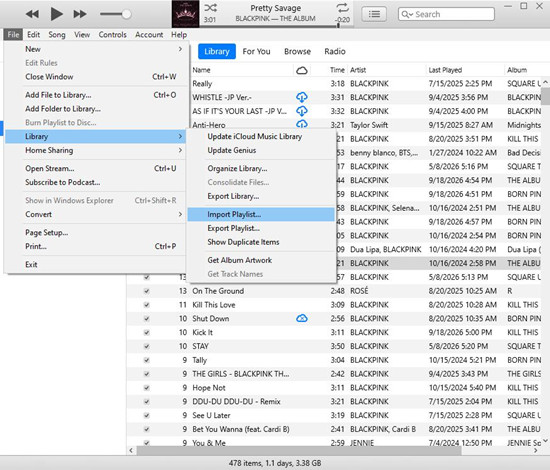
You can import an exported XML playlist into the Music app on Mac or iTunes on Windows. On Mac, choose File > Library > Import Playlist, then select the XML file. The app uses the playlist information to recreate the playlist with songs available in the current library. Unavailable or unmatched tracks may not be added, so the imported playlist may not contain every item from the original.
Import an Apple Music Playlist in iTunes
01Open iTunes on your Windows PC.
02Go to File > Library > Import Playlist.
03Locate and select the exported XML file.
04Click Open to import the playlist. iTunes can add only songs and music videos that are already available in your library, so unavailable items are removed.
Import an Apple Music Playlist in the Music App
01Open the Music app on your Mac.
02Go to File > Library > Import Playlist.
03Locate the exported XML file and select it.
04Import the file to recreate the playlist in Music. Only songs and music videos already available in your library can be added, while unavailable items are removed.
Part 4. How to Export an Apple Music Playlist as Text Files
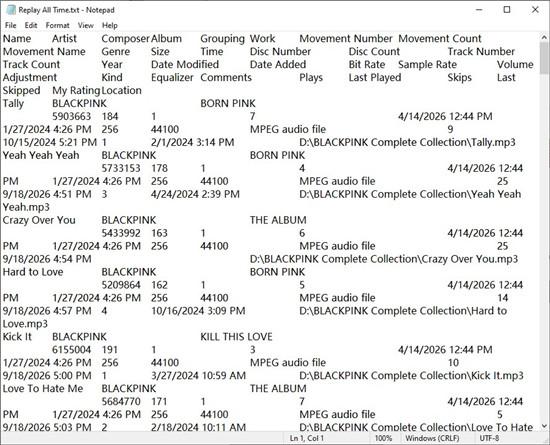
You can also export a playlist as a text file. Select the playlist in the sidebar, then choose File > Library > Export Playlist. In the Save as type menu, make sure Text files is selected, then save the file. This exports the playlist information in a readable text format, which can be useful for viewing or documenting details such as song titles, artists, and albums.
Export an Apple Music Playlist as a Text File from iTunes
01Open iTunes on your Windows PC.
02Select the playlist you want to export from the sidebar.
03Go to File > Library > Export Playlist.
04In the Save as type pop-up menu, select Text files.

05Name the file and save it to your computer. iTunes exports the information from each item's Info window, including details that may not be visible in the library.
Export an Apple Music Playlist as a Text File from the Music App
01Open the Music app on your Mac.
02Select the playlist you want to export from the sidebar.
03Go to File > Library > Export Playlist.
04In the Save as type pop-up menu, select Text files.
05Name the file and save it to your computer. The text file contains the information from each song's Info window, rather than the actual audio files.
Part 5. How to Export an Apple Music Playlist as Audio Files
For users who want the actual songs as local audio files, ViWizard Apple Music Converter can save an Apple Music playlist as audio files. After installing it on Windows or Mac, sign in through its built-in Apple Music Web Player, select the playlist, choose an output format such as MP3, M4A, WAV, FLAC, AIFF, or M4B, and start the conversion. The converted files are then available from the output folder or History section. This method is suited to users who want to store, back up, or organize playlist tracks as local files rather than playlist information.
Key Features of ViWizard Apple Music Converter
Free Trial Free Trial* Security verified. 5, 481,347 people have downloaded it.
- Convert Apple Music songs, playlists, albums, and artists
- Export Apple Music in 6 formats for different devices and players
- Preserve metadata and lyrics when creating music collections
- Organize converted music by artist and album
- Batch download large Apple Music collections
 Step 1: Download and Install ViWizard Apple Music Converter
Start by visiting the ViWizard website and downloading Apple Music Converter for your computer. It works on both Windows and Mac. Once installed, launch the application and sign in with your Apple Music account. You can then access your Apple Music library, including your playlists and albums, and prepare them for export as local audio files.
 Step 2: Select MP3, WAV, or FLAC as the Output Format
Choose the audio format you want for your exported playlist. You can select MP3, WAV, or FLAC based on your needs. Click the gear icon in the top-right corner to open the settings, where you can adjust options such as the sample rate, bit rate, and channel settings. Click OK to confirm your settings.
 Step 3: Select an Apple Music Playlist to Export
Browse your Apple Music library and select the playlist you want to export as local audio files. Click the "+" button to add the playlist's songs to the conversion list, then click "Add to Conversion List" to queue them. When you're ready, click "Convert" to export the selected Apple Music songs as MP3, WAV, or FLAC files.
 Step 4: Access Your Exported Apple Music Playlist Files
Once the conversion is finished, click the "History" button to view the exported files. Click the folder icon next to a file to open its location on your computer. You can then manage the playlist tracks as local MP3, WAV, or FLAC files or transfer them to compatible devices for offline playback with a local music player.
Part 6. How to Transfer an Apple Music Playlist to Another Music Service (Spotify)
If you want to move a playlist to another streaming service, Spotify offers Import your music from other apps on mobile. In Your Library, choose Import your music from other apps, select the source service, sign in and allow access, then select the playlists or songs to transfer and tap Transfer to Spotify. Spotify uses Tune My Music to match the tracks with its catalog, so the transfer moves playlist information and matched tracks rather than the original audio files. This method is suited to users who want to continue streaming their playlists in Spotify. Tracks that cannot be matched may not transfer, so the result depends on the destination catalog.
Transfer an Apple Music Playlist to Spotify
01Open the Spotify app on your mobile device and sign in.
02Go to Your Library and tap Import your music from other apps.
03Select Apple Music from the list of available streaming services.
04Sign in to your Apple Music account and tap Allow to grant Spotify access.
05Select the playlists or tracks you want to transfer.
06Tap Transfer to Spotify.
07Sign in to your Spotify account when prompted to authenticate and complete the import.
08Go to Your Library to find the imported playlists and tracks. Spotify uses Tune My Music for the transfer, so the imported tracks depend on matches available in Spotify's catalog.
Part 7. Final Thoughts
Exporting an Apple Music playlist can mean different things depending on what you want to do with it. For moving a playlist between computers, Apple's XML export and import options preserve the playlist information, while text export gives you a readable copy of the song details.
If you want to keep the actual songs as local audio files, you need a different approach, such as using ViWizard Apple Music Converter to save playlist tracks in common audio formats. If your goal is to move the playlist to another streaming service, Spotify's import option can transfer matched tracks to your Spotify library.
Choose the method that fits how you want to use the playlist, whether you need to back it up, move it to another library, keep local audio files, or continue listening on another music service.
You May Be Interested


Adam Gorden is always looking for new ways to explore music and videos. He likes trying different media tools and learning how to manage audio and video files with ease.

Leave a Comment (0)