


Is there anything free on iTunes? How can I download free movies from the iTunes Store?-- Matt from CNET Forum
The iTunes Store is a popular place to buy or rent movies, TV shows, and other digital content. However, not everything on iTunes requires payment. Depending on your region and current offers, you may also find free movies or other video content available to watch.
So, how can you find and download free movies from the iTunes Store? In this guide, we'll show you where to look for free titles, how to download available content, and what to know before watching it.
Part 1. Can You Download Free Movies on iTunes?
Yes, you can download free movies through Apple's iTunes Store, but only selected titles are offered at no cost. Other movies require payment. Apple Media Services explains that users can acquire content either for free or for a charge, with both treated as transactions.
When browsing the store, you may find free movies with a Get option. For example, Apple's instructions state, "If the item is free, tap Get." Other titles are available for purchase or rental, while a Download button may appear for movies you've previously purchased. Available titles and offers also vary by country or region.
Apple TV can make things a little confusing because it is now the home of the iTunes Store's movies and TV shows. An Apple TV+ subscription or free trial provides access to its streaming library, including Apple Originals such as Killers of the Flower Moon. However, this does not make every movie on Apple TV free. Other titles generally require a separate rental or purchase, just as they did in the iTunes Store.
Overall, free movie downloads are possible on iTunes, but finding eligible titles can be challenging because free options are limited. For example, searching for free movies may not produce a convenient list of titles available at no cost. Ultimately, your choices depend on which movies Apple offers for free in your region.
Part 2. Where to Find Free Movies on iTunes
Free movies on iTunes are available only when Apple offers specific titles at no cost. On an iPhone or iPad, open the Apple TV app and tap Store to browse featured movies, new releases, and collections, or use Search to find a title. On its details page, look for a Get button instead of a rental or purchase price.
The Apple TV tab features subscription content and Apple Originals, while Store lists movies available to buy or rent. Apple has also featured a Free for Everyone section with selected movies and TV episodes available to stream at no cost for a limited time. In the older iTunes Store app, tap Movies to browse categories and featured selections or use Search to find a title.
Using the Apple TV app on iPhone or iPad
01 Open the Apple TV app on your device.
02 Tap Store in the navigation bar.
03 Browse featured movies, new releases, and collections, or tap Search to find a specific title.
04 Select a movie to open its details page.
05 Check the available options. A Get button indicates a free title, while Buy or Rent means payment is required.
Using the iTunes Store app
01 Open the iTunes Store app on your iPhone or iPad.
02 Tap Movies to browse available titles.
03 Select Genres to narrow your search, or tap Search and enter a movie title.
04 Select a movie to open its details page.
05 Check whether Get is available or whether the movie requires a purchase or rental.
Pro Tip: Accessing Apple Originals through a free trial
01 Open the Apple TV app on your supported device.
02 Tap the Apple TV tab to browse subscription content.
03 Select an Apple Original movie or TV show.
04 Open its details page and look for Try It Free, Start Free Trial, or another available subscription offer.
05 Follow the on-screen instructions to sign in with your Apple Account and confirm the trial.
06 Once activated, browse eligible Apple Originals and select a title to start streaming.
Part 3. How to Download Free Movies on iTunes
To download a free movie, tap Get on its details page. In the iTunes Store app, authenticate with Face ID, Touch ID, or your Apple Account password if prompted, then tap the Download icon if available. Check progress under More > Downloads. In the Apple TV app, open Store, select the movie, and follow the on-screen option to get or add it. Then open Library and look under Downloaded. If needed, open the movie's details page and tap Download to save it for offline viewing.
You can also access Apple Originals through an Apple TV free trial, which provides temporary access to subscription content. Open the Apple TV app, select the Apple TV tab, and look for Start Free Trial or Accept Free Trial. Follow the prompts to sign in and confirm your subscription. The trial automatically renews at the applicable price unless canceled. It provides streaming access, not free downloads of movies listed separately for rent or purchase.
Downloading through the iTunes Store app
01 Open the iTunes Store app on your iPhone or iPad.
02 Tap Movies and select the free movie you want.
03 Open its details page and tap Get.
04 Authenticate using Face ID, Touch ID, or your Apple Account password if prompted.
05 Follow any additional on-screen instructions to complete the process.
06 If a Download icon appears, tap it to save the movie.
07 Check the download progress by tapping More and selecting Downloads.
Downloading through the Apple TV app
01 Open the Apple TV app on your iPhone or iPad.
02 Tap Store and select the movie you want to download, or open an eligible title in your library.
03 Open the movie's details page and look for the Download button.
04 Tap Download to save the movie to your device.
05 Open Library and select Downloaded to find the movie.
06 Select the title and tap Play to watch it offline.
Downloading Apple TV subscription content
01 Open the Apple TV app and tap the Apple TV tab.
02 Select an eligible movie or TV show included with your subscription.
03 Open its details page and look for the Download button.
04 Tap Download to save the movie or show for offline viewing.
05 For TV shows, select a season and tap the Download icon beside the episode you want.
06 Open Library and select Downloaded to access your saved content.
Part 4. Best Alternatives to Downloading Free Movies on iTunes
If you cannot find the movie you want on iTunes, several other services offer free movies through streaming or offline downloads. Some let you download selected titles within their apps, while others support online streaming only.
01 Hoopla: Best for Free Movie Downloads

If you want to watch a movie offline without paying for it, Hoopla is worth checking. The service works with participating public libraries, allowing eligible members to borrow selected movies and download them through the mobile app. You can then watch downloaded titles without an internet connection. Downloads expire when the borrowing period ends, and monthly borrowing limits depend on your library.
- Go to: https://www.hoopladigital.com.
- Download and open the Hoopla app on your mobile device.
- Select Sign Up and create an account.
- Find and select your public library.
- Enter your library card number and other required details.
- Browse the Video section or search for a movie.
- Select a title and click Borrow.
- Tap Download to save the movie for offline viewing.
- Open My Hoopla or Borrowed to access your downloaded movie.
02 Tubi: Best for Free Online Movie Streaming

When downloading is not essential and you simply want to watch movies for free, Tubi offers a selection of ad-supported movies and TV shows. You can stream titles through its website or app without a paid subscription. Although offline downloads are not available, the My List feature lets you save movies to watch later. Advertisements appear during playback.
- Go to: https://tubitv.com.
- Open the website or download the Tubi app.
- Browse the featured movies or click Search to find a specific title.
- Select a movie to open its details page.
- Click Play to start streaming.
- Sign in and select My List to save titles for later, if available.
03 Pluto TV: Best for Free Movies and Live TV

If you enjoy browsing movies and TV channels, Pluto TV brings both together in one service. It offers free, ad-supported on-demand movies, TV shows, and live channels through its website and app. You can select a movie to stream or browse the channel guide to find live programming. However, Pluto TV requires an internet connection and does not support movie downloads for offline viewing.
- Go to: https://pluto.tv.
- Open the website or download the Pluto TV app.
- Browse the movie selections or explore the on-demand categories.
- Select a movie to open its playback screen.
- Click Play to start watching.
- To watch live programming, open the channel guide and select a channel.
04 The Internet Archive: Best for Downloading Selected Movie Files
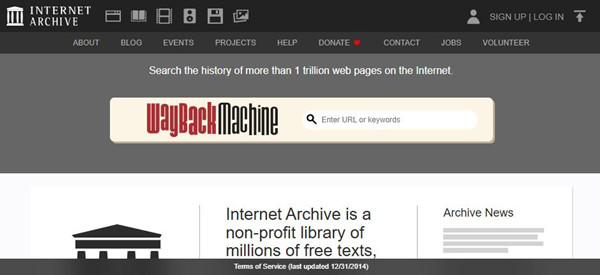
If you prefer saving an actual movie file to your device, the Internet Archive is another option. Its collection includes films that can be streamed or downloaded, depending on the files available on each item's page. Open a movie and check the Download Options panel to find available files. Before downloading or using a film, review its copyright and licensing information, since free access does not automatically allow redistribution or reuse.
- Go to: https://archive.org.
- Enter a movie title in the search bar or browse the film collections.
- Select a movie to open its item page.
- Find the Download Options panel.
- Review the available file formats.
- Click the format you want to download.
- Choose a location on your device to save the movie.
05 Kanopy: Best for Independent Films and Documentaries
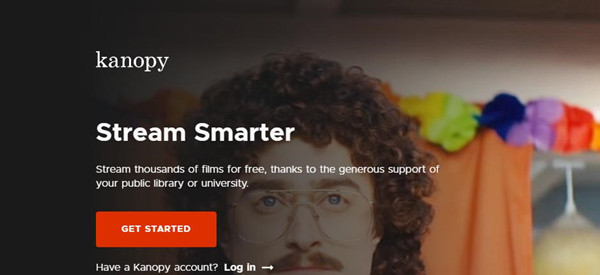
For independent films, international cinema, and documentaries, Kanopy offers a library-based streaming service. You can access it through a participating public library or university using an eligible library card or institutional account. Movies are available to stream through the website or app, but offline downloads are not supported.
- Go to: https://www.kanopy.com.
- Open the website or download the Kanopy app.
- Select Sign Up and create an account using your email address.
- Search for your public library or university and select it.
- Enter your library card details or university credentials.
- Browse the movie collections or search for a specific title.
- Select a movie and click Play to start streaming.
- Select Add to Watchlist or + My List, if available, to save it for later.
Part 5. Free iTunes Movies vs. Purchased and Rented Movies
When browsing movies on iTunes or the Apple TV app, you'll notice that titles come with different viewing options. Some are free, others require a purchase, and some are available only for rent. Although all three options may let you download a movie, they differ in cost, viewing periods, and access rights.
Comparison: Free vs. Purchased vs. Rented Movies
| What to expect | Free movies | Purchased movies | Rented movies |
|---|---|---|---|
| Cost | No charge | One-time purchase price | One-time rental fee |
| Store option | Get | Buy | Rent |
| Downloading | When available | Eligible purchases | Eligible rentals |
| Offline viewing | After downloading | After downloading | During rental period |
| Time to start watching | Depends on content terms | No rental countdown | Within 30 days |
| Access expiration | Depends on content terms | No standard rental expiration | 48 hours after playback begins |
| Redownloading | Depends on availability | Generally available | Limited to rental period |
| Long-term access | Not guaranteed | Generally available, but titles may be removed | Temporary only |
Free movies are ideal if you want to enjoy a movie without spending money. You can download eligible titles at no cost, but the selection depends on Apple's offers and your region. This means that not every movie will be available for free, and some titles may no longer be available later or qualify for another download. Purchased movies are a better choice if you plan to watch a title more than once. Once purchased, eligible movies can generally be downloaded for offline viewing and retrieved again whenever you want, although licensing changes may make some titles unavailable for redownloading.
Rentals, by comparison, work best when you only want to watch a movie temporarily. After renting a title, you have 30 days to start watching and 48 hours to finish once playback begins. You can also download eligible rentals for offline viewing, but keep in mind that the rental expiration period still applies. Ultimately, the best option depends on how you plan to watch: free downloads help you save money, purchases offer longer-term access, and rentals let you enjoy a movie for a limited time without paying the full purchase price.
Part 6. How to Keep iTunes Purchases and Rentals Permanently
After downloading free movies from iTunes, you may also want to watch them on non-Apple devices, such as Android phones, Samsung Galaxy devices, or smart TVs. However, Apple's FairPlay DRM protection restricts playback of many iTunes videos to supported devices and apps, including some purchased movies.
To enjoy more flexibility with your existing iTunes movie library, consider ViWizard M4V Converter. It converts iTunes M4V videos into common formats such as MP4, MOV, AVI, and WMV, making them playable on compatible media players and devices. The program also supports batch conversion and claims speeds of up to 30X.
Keep converted copies for personal viewing only and do not use them for commercial purposes. Also, note that conversion does not automatically remove Apple's rental expiration limits or grant additional viewing rights.

Key Features of ViWizard M4V Converter
Free Trial Free Trial* Security verified.5,481,347 people have downloaded it.
- Convert iTunes movies, TV shows, and local videos into MP4 or MKV
- Export videos in multiple formats for different devices and players
- Preserve HD, 4K video, audio tracks, subtitles, and metadata
- Customize video settings and merge multiple video clips
- Play converted iTunes videos across different devices
 Step 1: Launch ViWizard and Add iTunes Movies
Download and install the ViWizard M4V Converter program on your computer and then open it. Click the Library button on the interface to import your downloaded iTunes free TV episodes from the library.
 Step 2: Select an Output Format
Next, hit the Format icon at the bottom left corner and choose an output format like MP4 (Lossless) which is supported by most media players and mobile devices.
 Step 3: Convert and Transfer iTunes Free Videos
Now click the Convert button and ViWizard will remove the DRM and convert these free iTunes movies to MP4. Wait until the conversion ends. Then you're able to play them on any player you like, or transfer the DRM-free iTunes video to your Android phone for enjoying with a USB cable.
Part 7. Conclusion
So, can you download free movies on iTunes? Yes, although the available titles and download options depend on your region and Apple's current offerings. You can start by checking the iTunes Store for free movie offers and following the steps above to download eligible titles for offline viewing. If you can't find what you want, don't limit yourself to iTunes. Other platforms also offer free movies, giving you more choices for streaming or downloading content.
One more tip: Downloading movies is only part of the experience. You may also want to keep your existing iTunes movie collection accessible on devices beyond Apple's ecosystem. In that case, ViWizard M4V Converter can help convert iTunes M4V videos into formats such as MP4 for playback on compatible devices. Just remember that converting a rental doesn't override its expiration limits or give you additional viewing rights.
With the right platforms and tools, you can enjoy a wider selection of movies and make the most of your existing collection.
You May Be Interested





Dave Henry loves movies and all things video. He likes checking out different video formats and trying new media players to see how they change the viewing experience.

Leave a Comment (0)