


Netflix is the largest global streaming platform for viewers of all ages. Its library includes thousands of titles ranging from cute cartoons to hyper-violent horror movies. While adults can freely enjoy the endless entertainment, children may be exposed to inappropriate content such as graphic violence, explicit language, and substance use. Even some shows labeled as kids' level can be harmful due to chaotic sound effects, overly saturated bright colors, or questionable plotlines.
Then, how can parents protect children from unsuitable content? This guide provides 4 effective methods to block shows on Netflix, along with curated lists of titles to filter out or allow.
Part 1: Can You Block Shows on Netflix?
Many parents worry and ask, "Can I block shows on Netflix?" The answer is yes, absolutely. Streaming services operate under strict international regulations regarding minor safety and media ratings. Netflix is no exception.
Netflix has officially developed a full suite of native parental control features specially designed to shield young viewers from unsuitable material. For example, parents can set a Kids profile and maturity rating limits to keep all content suitable for children under a specific age. You may also set a blocked list to hide specific Netflix titles. Besides, you can use a PIN to prevent children from bypassing restrictions.
Additionally, if the built-in tools don't fully meet your needs, there are also alternative ways to fill the gaps, such as parental control apps or browser extensions. All of these can help ensure children stay away from content beyond their age level.

Part 2: How to Block Shows on Netflix
Here are 4 methods to block Netflix shows. Step-by-step tutorials are as follows.
Method 1: Use Netflix's Parental Control Tool
Netflix offers a rich set of parental control features. It's highly recommended to use all of them together, in case some content slips through or children try to bypass restrictions.
01Set a Kids Profile
In a Netflix Kid profile, only the shows, movies, and games carefully selected for children are accessible. You can follow the steps below to create a new profile for kids or turn an existing profile into a Netflix Kids profile.
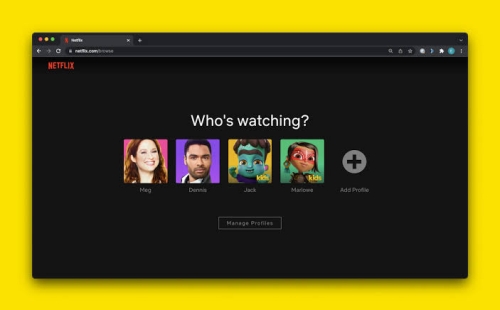
Create a New Kids Profile
01Go to the Manage Profiles bection. On mobile devices, tap My Netflix and then your profile. You will see a Manage Profiles option. Click it. On TVs or TV streaming devices, select Add Profile+ in the profile selection page. On computers, simply click Manage Profiles.
02Select Add Profile.
03Enter a name for the profile. Then, choose Kids Profile, For Kids, or Kid? to activate the Netflix Kids experience. The exact option name may vary depending on your device, but it will always be clearly marked with a visible icon.
04Tap Continue to complete the process.
Edit an Existing Profile
On Mobile Devices
01Tap My Netflix and then your profile. Select Manage Profiles.
02Tap the Edit button next to the profile you'd like to edit.
03Hit Viewing Restrictions and then choose Maturity Rating.
04Enter the password of your Netflix account.
05Select Kids Profile and click the Back icon.
06Click Restart App. Then, you can find the profile turns into a Kids profile.
On Computers
01Navigate to the Manage Profiles page, and choose a profile.
02Click Edit in the Maturity Settings section.
03Enter the password of your Netflix account.
04Choose Display the Netflix Kids experience with titles just for kids.
05Click Save to complete the change.
02Set a Maturity Rating Filter
A profile with a maturity rating can only access shows, movies and games at or below a specific rating level. This is stricter than a Kids profile.
On Mobile Devices
01Tap My Netflix in the Netflix app and then the profile name.
02Tap Manage Profiles and choose the profile you'd like to edit.
03Choose Viewing Restrictions and then Maturity Rating.
04Enter the password of your Netflix account to verify your identity. If there is no password for this account, you can also enter the code sent by Netflix to your email or mobile phone number.
05Choose a suitable maturity rating level for kids.
On Computers
01Go to the Account page and click Profiles.
02Click Adjust parental controls.
03Select the profile you'd like to edit.
04Enter your Netflix password or the code sent to your email or mobile phone number.
05Select a suitable maturity rating level. Click Save to complete the setting.
03Set Title Restrictions
After setting up a Kids profile and maturity rating, some titles may still slip through. To fix this, you can block specific shows by following the steps below.
On Mobile Devices
01Click My Netflix and then the profile name.
02Tap Manage Profiles and choose the profile you want to restrict.
03Select Block Titles.
04Verify your identity. You can enter your Netflix password directly. Alternatively, you can choose to send an email or a text. Enter the code Netflix sends to you.
05Type the name of the show or movie you want to block. Then, select the title. It will be automatically added to your blocked list. You can also remove a title by tapping the edit icon and then the delete icon.
On Computers
01Enter the Account page. Click Profiles.
02Verify your identity via your Netflix account password or the code you receive.
03Type the name of the unwanted show or movie. Then, click the title. You can remove a title by clicking the delete icon next to each title name.
04Click Save. All selected titles will be automatically removed from the profile.
04Set a PIN
To prevent children from bypassing restrictions by switching to other profiles on your Netflix account, you can set a PIN.
On both mobile devices and computers, go to your account and navigate to the Profile Lock page. There, you can add, edit, or remove a profile PIN. A Netflix account password or a verification code sent by Netflix is required to confirm your identity.
Please remember to set a PIN for every profile of the Netflix account. Especially, when adding a profile Lock to the main profile, you must select "Require PIN to add new profiles" to stop children from creating a new profile.
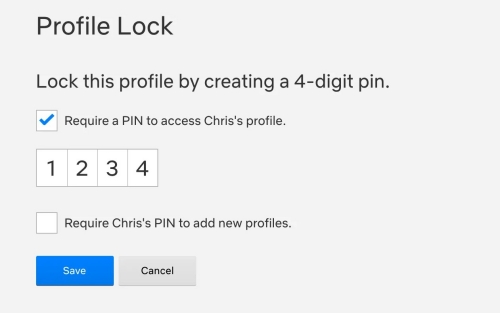
Finally, refresh to make sure your settings are picked up by switching to another profile or signing out of your device.
05Supplementary Settings
Turn Preview Autoplay off
Though children can't access the blocked content after you finish the above settings, they can see some inappropriate content in the autoplay preview. For both mobile devices and computers, go to the profile you want to restrict. Find the Autoplay Preview button. You can turn the setting on or off by clicking the switch next to it.
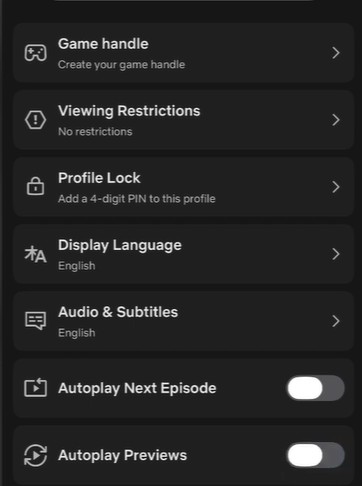
Delete Specific Watch History
If children have previously watched inappropriate titles, Netflix will continue recommending related content even after you block them. Therefore, check and clean up the watch history if needed.
A web browser is required. Go to the Account page. Click Profiles and choose a profile. Click Viewing activity. You can see a list there. Click the delete icon next to each item to delete it. The Netflix recommendations will update within 24 hours.
Delete Specific Downloaded Titles
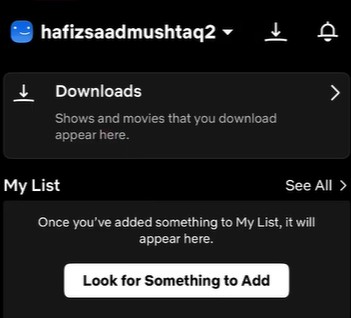
Inappropriate titles that have been downloaded to your device will remain accessible even after all the above settings. To remove them, open the Netflix app on your mobile device, tap Downloads, select the titles by tapping the icon next to each, then tap Delete Download.
Method 2: Use Browser Extensions
If your children only watch Netflix on a web browser, some users recommend using browser extensions such as an element blocker.
With an element blocker like uBlock Origin, you can remove specific elements from the Netflix webpage. Simply right-click on a show's cover and block that element. Your children will no longer see or click it. This works similarly to blocking ads on a webpage. However, if you want to block all unwanted titles, you may need to browse through the entire Netflix site and block them one by one.
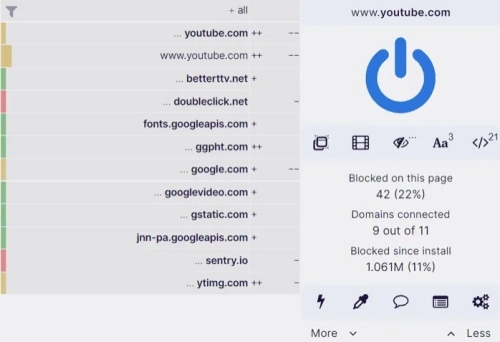
You can also use a Netflix video filter extension to block low-rated videos. Some may suggest a URL blocker, but note that this will block the entire Netflix website. It means you won't be able to see any content after blocking Netflix. This may not meet your needs if you want to watch Netflix, but it's helpful to cultivate a good watching habit. You can block Netflix for a specific time when children are not allowed to watch.
Method 3: Use Parental Control Apps
As shared by some parents, you can also use parental control apps to monitor your children's viewing activity. It may not be workable for you to block videos, but it can help you stop children from watching unsuitable shows once you find that they watch them.
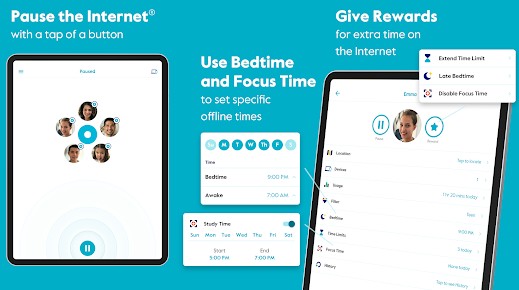
This kind of app, such as mSpy, can monitor every tap of mobile devices and see what kids have searched for. Also, it can record the screen time across all apps. With the information, you can know what your children are watching and how much time they spend. Then, you can choose to make an interface once you find that there is something wrong with your children.
Method 4: Use DNS / Router Blocking
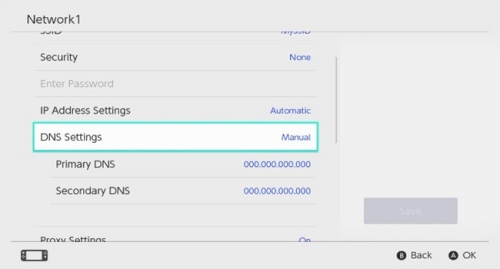
DNS / Router blocking can help parents stop children from accessing Netflix on all devices linked to the home Wi-Fi. This may be used as a second layer for blocked Netflix titles. If you want to control the screen time of your children, this way absolutely works.
You can choose a DNS service provider such as CleanBrowsing. Then, enter the DNS settings. Enable the domain blocking feature and add Netflix domains to the blocked list. Also, you should add Netflix domains to your firewall in case some devices bypass DNS requests. Then, Netflix will be unavailable on all devices. However, this method may fail to work as Netflix may update its IP addresses.
Part 3: What Shows to Block on Netflix
Now, all methods are clearly explained. Ready to get started? But which Netflix shows should you block? To evaluate and identify, here are some tips.
- First, base your decisions on your child's age. For children under 9 years old, it's enough to offer several limited, carefully selected shows. However, their needs change as they grow. For example, they want to know about love.
- Second, pay attention to the plot, including the character dynamics.
- Third, consider the language, such as whether there is violence and whether the tone is suitable.
- Finally, follow your first instinct. If you feel something is wrong, then quit it.
Additionally, the following table lists some inappropriate shows.
| Age Group | Unsuitable Titles |
|---|---|
| Under 12 | Greenhouse Academy |
| Under 10 | She-Ra and the Princesses of Power The Hollow |
| Under 9 | Lost in Space (family mode) Kipo and the Age of Wonderbeasts |
| Under 8 | The Last Kids on Earth Trollhunters Carmen Sandiego The Dragon Prince The Spiderwick Chronicles |
Part 4: What Shows to Recommend for Kids
After blocking inappropriate content via the above methods, the next critical step is filling your kids' viewing profile with age-appropriate, wholesome, educational, and entertaining series. To pick truly suitable child-safe shows, parents can evaluate in the following ways.
- First, prioritize age matching. Toddlers under 6 need slow pacing, simple dialogue, and soft visuals. Kids aged 7–12 can follow mild adventures and basic plots, while teens 13+ fit growth-focused series with light family conflict.
- Second, favor positive core values. Choose stories that highlight friendship, teamwork, environmental awareness, empathy, and courage, and avoid bullying, aggression, or inappropriate romantic subplots.
- Third, seek gentle conflict resolution and bonus educational value. Opt for content that resolves conflicts calmly, and prioritize series covering science, nature, history, English learning, or critical thinking for meaningful daily viewing.
- Lastly, consider reviews. Websites like Common Sense Media provide detailed reviews of each title. You can choose suitable titles based on others' experiences.
To save you time, here is a curated list of highly recommended Netflix shows for different age groups.
| Age Group | Recommended Titles |
|---|---|
| Ages 2-4 | Team Zenko Go Chip and Potato CoComelon Lane |
| Ages 5-7 | Kung Fu Panda: The Dragon Knight Free Rein: Valentine's Day Pokémon |
| Ages 8-9 | Gymnastics Academy: A Second Chance Rilakkuma's Theme Park Adventure Dogs in Space |
| Ages 10-12 | Pirate Gold of Adak Island Man vs. Bee Young Sheldon |
Part 5: Best Alternative Way to Get More Control of Netflix Contents
Now we have learned 4 ways to block Netflix shows. However, some of these methods are complicated to get all set up. Additionally, while these settings do help filter out certain Netflix titles, they can't block every inappropriate show on the platform. Some content may still slip through, and children often find ways to bypass parental controls. To address this, a simple solution is to download carefully selected titles in advance. That way, the problem is solved entirely.
ViWizard Netflix Video Downloader is a professional tool for downloading Netflix TV shows, movies, or anime in MP4 format. These downloaded titles can be played offline anytime, anywhere. Therefore, parents can restrict kids to only watching these selected titles. No more worrying about inappropriate content. No complicated steps involved. Then, how about having a free trial now?

Key Features of ViWizard Netflix Video Downloader
Free Trial Free Trial* Security verified. 5, 481,347 people have downloaded it.
- Download Netflix movies and TV shows as MP4 or MKV files
- Preserve HD, 4K, HDR video, audio tracks, and subtitles
- Accelerate downloads when saving long videos or complete seasons
- Remove ads automatically during video downloads
- Save Netflix videos for playback on different devices
 Step 1: Unlock Netflix Library
Launch ViWizard Netflix Video Downloader. Log in to your Netflix account as you do in a web browser. Then the Netflix library will be accessible in the built-in Netflix web player.
 Step 2: Customize Your Download Preferences
You can find a hamburger icon in the top-right corner. Click it to adjust settings. You can set up the format MP4. You can also choose a preferred audio channel, audio language, subtitle language, etc. Then, click OK to save your changes.
 Step 3: Choose the Content and Download
You can search for a specific video in the search bar or paste its URL in the address bar. Once you open the content, click the download icon in the bottom-right corner. Adjust video quality, audio settings, and subtitle settings if needed. Click the Download button to initiate the download process.
 Step 4: Access Your Downloaded Videos
Click the history icon to enter the history section. All your downloaded content is listed here. Click the file folder icon to the right of each title. Then, you can get its file location on your computer.
Conclusion:
Netflix's parental controls and other methods are all useful to protect children from inappropriate content on Netflix. However, they may be complicated to set up and may still leave some titles slipping through the cracks. Downloading Netflix shows can give you the most control over Netflix content. Therefore, it's highly recommended to watch carefully selected titles offline with ViWizard Netflix Video Downloader.
You May Be Interested


Dave Henry loves movies and all things video. He likes checking out different video formats and trying new media players to see how they change the viewing experience.

Leave a Comment (0)