


If you have ever downloaded a movie or show on Netflix, you might have wondered, "Can I keep this forever?" It feels like once it is on your device, it should be yours to watch anytime. But Netflix works on a monthly subscription, not a lifetime purchase.
Downloaded Netflix content does not last forever. Some shows expire in days, others in weeks. Sometimes a favorite series might disappear if Netflix loses the license. This is the reality of streaming and it can be frustrating.
Can you keep Netflix content permanently? Not through the app alone. The best option is to download and convert it to a DRM-free format like MP4. ViWizard Netflix Video Downloader can help. It also lets you create physical backups, such as burning videos to DVDs or moving them to a USB drive. Compared to buying digital copies from iTunes or Amazon, ViWizard allows you to store content forever without worrying about expiration or subscription plans. Let's dive in.
Part 1. Can Netflix Downloads Be Permanent?
Netflix downloads make it easy to watch movies or shows offline. However, downloads are managed under Netflix's subscription system and content licensing rules. Expiration timers, device limits, and changing licensing agreements can affect how long a downloaded title stays available. Because of this, downloads may need to be renewed from time to time to continue watching offline. In most cases, they are not permanent.
Can Netflix Contents Be Permanent?
The Netflix library is always changing. While many Netflix Originals stay available, licensed movies and TV shows move in and out of the catalog. Some Originals may also leave if licensing agreements end.

Netflix sometimes shows warnings when titles are about to leave. However, even if a title has already been downloaded, access is still controlled by licensing rules and will not remain accessible indefinitely. If a title leaves the service, downloaded content will also expire.
Can Netflix Downloads Be Permanent?
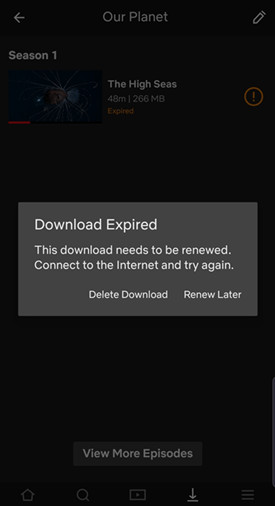
Netflix downloads are not designed to be permanent. Unwatched downloads usually stay available for about 30 days. After you start watching, you typically have around 48 hours to finish. These limits are controlled by Netflix's digital rights management system, which protects content and limits access to authorized devices and active subscribers.
There are also limits on how many downloads can be stored on a device. Ad free plans usually allow over 100 downloads, while ad supported plans allow fewer. When the limit is reached, older downloads may be removed automatically. Some users may also see "too many devices" messages even when using only one device, which reflects how Netflix tracks downloads for licensing reasons.
Bottom Line
Because of these restrictions, Netflix downloads are mainly designed for offline viewing during an active subscription and may need to be renewed from time to time. If a title leaves Netflix or the download period ends, the file will stop working and must be downloaded again if it is still available in the catalog.

Need Netflix movies and TV shows for offline viewing? ViWizard Netflix Video Downloader helps Netflix subscribers across all plans save movies and shows with a simple and reliable video downloading solution. Download your favorites and enjoy them beyond the official app.
Part 2. How to Keep Netflix Downloads Forever
Some downloads may remain available longer than others, but none are permanent. For users who want longer access, ViWizard Netflix Video Downloader provides another option. It allows you to save available Netflix titles as MP4 files so they can be stored on a computer or transferred to other devices for long term viewing.
Tool Required: ViWizard Netflix Video Downloader
ViWizard Netflix Video Downloader is a computer program that downloads Netflix videos and converts them into standard video files for offline viewing on different devices. Users select content from Netflix such as movies, TV shows, documentaries, or anime, choose MP4 or MKV for their devices, and start downloading.
ViWizard Netflix Video Downloader supports Full HD, 4K Ultra HD, and HRP. This allows users to keep Netflix videos and build personal video collections without needing to renew downloads. It works on both Windows PC and Mac, and a free trial is available for testing.
Key Features of ViWizard Netflix Video Downloader
Free Trial Free Trial* Security verified. 5, 481,347 people have downloaded it.
- Download Netflix movies and TV shows as MP4 or MKV files
- Preserve HD, 4K, HDR video, audio tracks, and subtitles
- Accelerate downloads when saving long videos or complete seasons
- Remove ads automatically during video downloads
- Save Netflix videos for playback on different devices
Step 1Access Netflix Content through ViWizard

Launch ViWizard Netflix Video Downloader on your laptop and access the integrated Netflix Web Player. Sign in with your Netflix account details to unlock the vast library of movies, TV shows, documentaries, anime, and originals.
Step 2Customize Download Settings

Within the ViWizard interface, access the settings by clicking on the hamburger icon at the top right corner. Select "Preferences" and navigate to the "Download" section. Here, customize your download preferences, including video format, codec, quality, audio channel, language, and subtitles. Save your settings by clicking "OK."
Step 3Search and Select Content

Return to the ViWizard Web Player and use the search bar to find specific shows or movies you wish to save permanently. Alternatively, paste the Netflix URL or code of the content you intend to download. Open the desired video to proceed.
Step 4Initiate Download Process

Once you've chosen the content, click "Download" to begin the process. You can also add content to the download queue by selecting "Add to List." ViWizard will automatically download individual episodes or full seasons for TV shows, as well as entire movies. Wait for the downloads to finish; they will be saved as MP4 or MKV files on your computer.
Step 5Access Downloaded Content

Navigate to the "Converted" section within the ViWizard interface to find all completed downloads. Click the "Folder" icon next to each title to locate and access the downloaded files on your laptop. These files are now permanently saved, allowing you to enjoy your favorite Netflix content offline and without any limitations.
Part 3. How to Back Up Netflix Downloads Permanently
For viewers who want more control over their downloaded movies or shows, saving content outside the Netflix app can help. Once videos are in common formats like MP4, they can be moved, copied, or backed up to other storage. This prevents losing a favorite title if it leaves the platform or the download expires.
Option 1: Store on External Drives
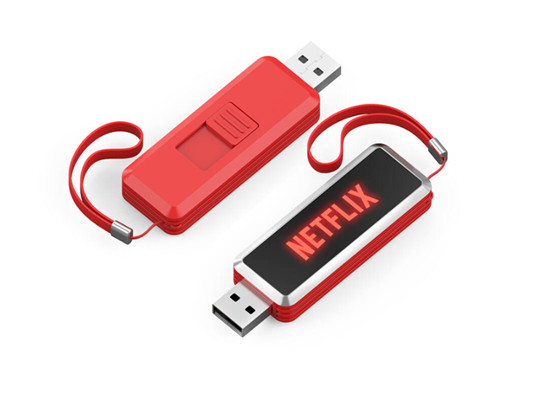
Move the video files to an external drive such as a USB stick or portable hard drive. Connect the drive to a computer, drag the files over, and they are ready to play on any compatible device. Even a small collection works, and keeping a second drive as backup ensures nothing is lost.
Connect a USB flash drive or portable hard drive to your computer.
Open File Explorer on Windows or Finder on Mac and go to the folder where your MP4 Netflix videos are saved.
Select the video files and drag them to the external drive listed in the sidebar.
Wait for the files to finish copying before ejecting the drive so the videos remain safe and ready to play on any compatible device.
Option 2: Burn to DVD or Blu‑ray
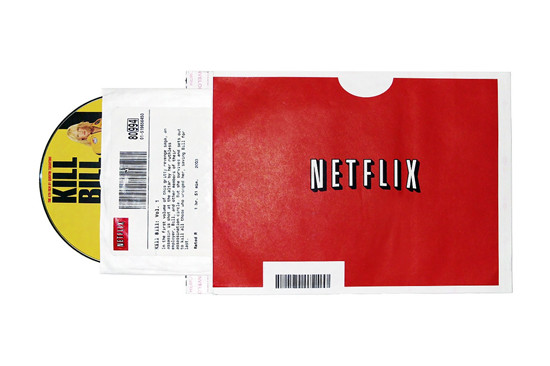
For a physical backup, burn the files to a DVD or Blu‑ray using disc‑burning software. Insert a blank disc, add the video files, and burn it. The process takes longer and errors can happen, but once done, the disc can be stored in the real world instead of relying on streaming.
Insert a blank DVD or Blu ray disc into your computer's disc drive.
Open your disc burning program and choose the Data Disc option so the videos are saved as files instead of being converted to another format.
Add the MP4 video files to the burn list in the program window.
Tap Burn, and the software will write the videos to the disc so they can be stored physically instead of depending on streaming access.
Option 3: Archive on a Home Media Server

For larger collections, set up a home media server with software like Plex or Jellyfin. Move the files to the server and it will organize them automatically, adding posters, episode titles, and descriptions. The server then streams videos to TVs, phones, or tablets around the house without searching through individual files.
Install and open media server software such as Plex or Jellyfin on your computer or home server.
In the server dashboard, select Add Library or Add Media Folder and choose the folder that contains your saved Netflix video files.
Let the server scan the folder, which will organize the videos with titles, posters, and episode information.
Once the scan finishes, open the server app on your TV, phone, or tablet to browse and stream the videos across your home network.
Option 4: Save in Cloud Storage
Back up the files to cloud services such as Google Drive, Dropbox, or OneDrive. Upload the files to a folder to protect against hardware failure or accidental deletion. Uploading large collections takes time, and more storage may require a Premium subscription. The files can then be downloaded on any device.
Open a cloud storage service such as Google Drive, Dropbox, or OneDrive in your browser or desktop app.
Click Upload or New Folder and select the MP4 Netflix videos from your computer.
Wait for the upload to finish so the files are stored online and protected if your local device fails.
Sign in to the same cloud account on another device to download the videos again whenever you need them.
Option 5: Transfer to Portable Devices
Move the files to phones, tablets, or other portable devices for offline viewing. Unlike offline playback in the Netflix app, most apps support MP4 files. Once transferred, videos can be watched anywhere, making this convenient for flights, travel, or places with limited internet. This method keeps a few favorite movies or episodes always accessible.
Connect your phone or tablet to your computer using a USB cable.
Open the device in File Explorer or Finder and locate its Movies or Videos folder.
Drag the MP4 Netflix video files from your computer into that folder so they are stored directly on the device.
Disconnect the device and open a video player app, and the videos will be ready to watch offline during travel or anywhere without internet access.
Part 4. Best Practice to Maintain Your Netflix Downloads
Downloading Netflix movies for long-term access is ideal for building a personal library, but sometimes short-term access is enough. There are practical ways to keep your downloads ready to watch offline anytime.
Step 1: Download Netflix Videos on Your Phone or Tablet
Step 1 On your iPhone, iPad, or Android phone, tap the Netflix app on the home screen to open it.
Step 2 When prompted, enter your Netflix account email and password to sign in.
Step 3 Tap the Search icon at the bottom of the screen or browse the Home tab to find the movie or show you want to watch offline.
Step 4 Open the title page and tap the Download button. Netflix will save the video to your device so you can watch it later without an internet connection.
Step 5 Tap the Downloads icon in the bottom menu to see all the movies and episodes stored on your device.
Step 2: Check When Your Netflix Downloads Expire
Step 1 In the Netflix app, tap the Downloads icon in the bottom navigation bar to open your downloaded titles.
Step 2 Tap the movie or episode in the list to view its details and playback options.
Step 3 Under the title, look for the expiration message that shows how long the download will stay available on your device.
Step 4 If you start playing the video, the viewing period may become shorter depending on the license for that title, so it helps to check the expiration notice before watching.
Step 3: Renew Netflix Downloads to Keep Them Available
Step 1 In the Netflix app, tap the Downloads icon to open your offline library.
Step 2 Find the movie or episode that shows an Expired message or a notice that the download will expire soon.
Step 3 Tap the Download status icon next to the title and choose Delete Download to remove the expired copy from your device.
Step 4 Return to the title page and tap the Download button again. Netflix will download a new copy and reset the viewing period as long as the title is still available and your subscription remains active.
Conclusion:
Keeping Netflix downloads ready for offline watching becomes much easier once the videos are saved as normal video files. To begin, download the Netflix videos as standard video files using ViWizard Netflix Video Downloader. After that, the files can be stored on external drives, burned to discs, organized on a home media server, backed up to cloud storage, or transferred to portable devices for travel. Each option helps keep your collection accessible and ready to play whenever you want.
You May Be Interested




Dave Henry, a multimedia technologist at ViWizard, focuses on delivering the best solutions for digital media challenges, including audio and video conversion, media optimization, and troubleshooting.

Leave a Comment (0)