


Netflix is a global streaming platform famous for its exceptional videos. Today, over 780 million people around the world actively use Netflix. Beyond its brilliant library of movies and shows, Netflix's gaming service is also well worth exploring.
As Netflix officially launched its mobile gaming function in 2021, more and more users have been attracted. Today, in 2026, Netflix boasts a great number of hot titles, including Red Dead Redemption, Dead Cells, Unhinged, and Netflix Stories. This article addresses common questions about Netflix games and shows you how to play them on TV, computers, and mobile devices.
Part 1. Can You Play Games on Netflix
Following Netflix's expansion of its gaming service to smart TVs and web browsers in 2025, you can now enjoy Netflix games on mobile devices, TVs, and computers. All are included in your membership. No more extra cost.
However, there are still limitations for Netflix gameplay feature on TVs and computers. The service is restricted to compatible smart TV models and supported countries. Besides, to play on TV, a mobile device is required to be used as a game controller. It should be noted that Netflix does not support any physical gamepads or other controllers.
While the TV and web selection is currently limited, Netflix offers a massive library of over 120 mobile games. You can enjoy party games with your friends or family. Puzzles are also perfect for exercising your brain and passing the time. If you want to jump into intense action games, the library also covers.
To help you get started, we have listed some recommended titles below. You can also search for a favorite game directly in the Netflix game library.
| Game Category | Gams |
|---|---|
| Top Party Games | Boggle Party Pictionary: Game Night Tetris Time Warp Party Crashers: Fool Your Friends |
| Top Puzzels | Keysmash Jigsaw Shapes Crossover Sudoku Storyteller Paper Trail |
| Top Action Games | Red Dead Redemption Into the Breach Tomb Raider Reloaded POINPY Bowling Ballers Moonlighter |
Part 2. How to Play Netflix Games on TV
Picked out a Netflix game already? Here's how to play it on your TV.
Requirements for Netflix Gaming on TV
To start, you should first make sure your TV device is compatible with Netflix games. Supported devices include Amazon Fire TV, Google Chromecast with Google TV, LG TVs, Roku, Samsung smart TVs, etc.
Next, keep in mind that the Netflix Gaming feature is available in limited countries, such as America, Canada, Australia, and Germany. You can check the list of supported countries in the Netflix help center.
Steps for Netflix Gaming on TV
01Open Netflix and look for the Game option. Select it.
02Find the game you're interested in. Select it and click Play Games.
03Connect your mobile device as a controller. You can follow the tips on your screen to finish the connection. Step-by-step tutorials are mentioned below in this article.
04Start playing.
Part 3. How to Play Netflix Games on Computers (PC & Mac)
For Netflix games on computers, only two browsers, Chrome and Edge, are supported. Besides, make sure you're in a country where Netflix supports the game function.
Netflix Website
Netflix provides a cloud gaming function for its computer users. You can play games without any downloads on the Netflix website.
01Sign in to your Netflix account on a Chrome or Edge browser.
02Find and click Games at the top of your screen.
03Click the game you choose.
04Click Play Game to launch the game.
05Connect your mobile device as a controller if you don't want to use a keyboard and mouse. Then, have a fun time.
BlueStacks Emulator
Games for Netflix cloud gaming are limited to a small number. To access all Netflix games, you can choose a reputable emulator to play mobile Netflix games on your computer.
It's easy to download BlueStacks by searching for it on Google. Finish the installation and launch it. Then, you can use it as a tablet. Therefore, just enjoy your game time the same as on your mobile device.
Part 4. How to Play Netflix Games on Mobile Devices (iOS & Android)
For mobile devices, Netflix's game library is the largest. However, there are still device limits. Device requirements vary for different games. In general, the Android phone or tablet should be at least Android 9. For iPhones, iOS 17 or later is recommended. For an iPad, it should be iPadOS 17 or later.
Play from the Netflix App
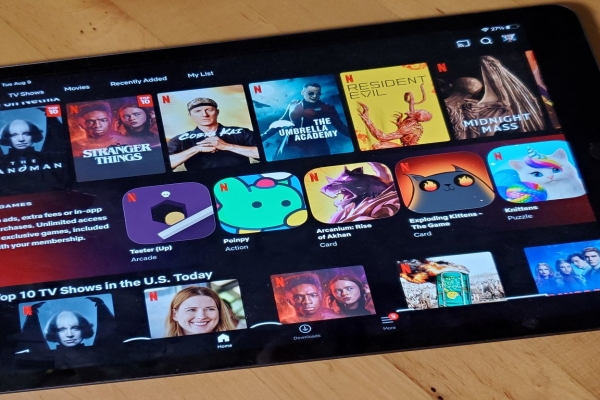
01Launch Netflix on your phone or tablet. Find Mobile Games. On Android devices, you may also see a Games shortcut at the top. Go to the game section if you do not see any.
02Tap a game and then Get Game (or sometimes Play Game for iOS devices).
03Hit Install in the Play Store. For iOS devices, tap Get or a Cloud icon in the App Store.
04When the installation is complete, tap Open.
05Open the game from the Mobile Games row or the Games shortcut (Android only) in the Netflix app. Alternatively, tap its icon on the home screen of your device.
Play from the Play Store or the App Store
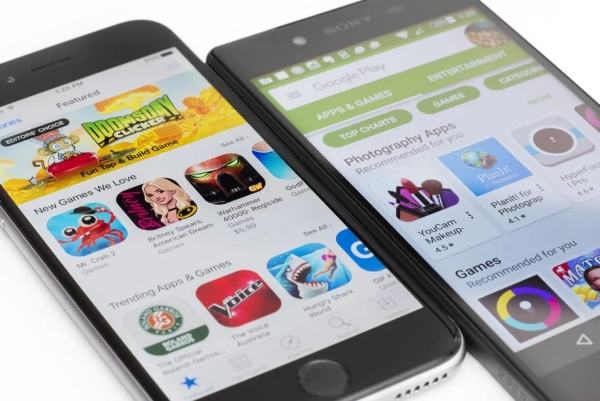
01Open the Play Store on Android and the App Store on iOS.
02Search for a specific Netflix game or see all available Netflix games.
03Choose a game. Then, hit Install in the Play Store. For iOS users, hit Get or a Cloud icon.
04After installation, tap Open to start playing instantly. You can also open the game by tapping Mobile Games (or alternatively Games on Android) in the Netflix app. The game can also be accessed through its icon on your device's home screen.
Part 5. How to Use the Mobile Device as a Controller
As mentioned above, you'll need to connect a mobile device as a controller. When playing Netflix games on TV, a mobile phone or tablet is required. On a computer, you can choose between a mobile device or your keyboard and mouse.
For Android Devices
01Make sure the Netflix app is installed on your phone or tablet.
02Select the game you'd like to play, and choose Play Game on your TV or computer. A QR code will pop up.
03Scan the QR code with the camera of your device. Tap the link.
04Again, scan the QR code with the camera. Your device will be automatically connected as a controller.
05Start playing with your phone or tablet.
For iOS Devices
01Download and install the Netflix Game Controller app in the App Store.
02Choose a game and click Play Game on your TV or computer.
03Scan the QR code on the TV or computer screen with your camera app.
04Tap the pop-up Netflix controller notification on your iPhone or iPad.
05Enjoy your playing.
Bonus: How to Play Netflix Videos Anytime, Anywhere
Now you get all the ways to enjoy Netflix games on TVs, computers, and mobile devices. Even though your device is incompatible, it's still available to play games on Netflix through an emulator.
Then, as its game function has limited supported devices and countries, there are also restrictions for users to watch Netflix videos. It's rather annoying when you're ready for a cozy movie night, only to find Netflix won't play. Therefore, how can you enjoy Netflix videos anytime, anywhere?
ViWizard Netflix Video Downloader is a professional desktop software to download Netflix TV shows, movies, anime, documentaries and more in MP4 and MKV format. The downloaded Netflix movies or shows can be played on all devices without internet and the Netflix app. No more interruptions from Netflix restrictions. Let's have a free trial now.

Key Features of ViWizard Netflix Video Downloader
Free Trial Free Trial* Security verified. 5, 481,347 people have downloaded it.
- Download Netflix movies and TV shows as MP4 or MKV files
- Preserve HD, 4K, HDR video, audio tracks, and subtitles
- Accelerate downloads when saving long videos or complete seasons
- Remove ads automatically during video downloads
- Save Netflix videos for playback on different devices
 Step 1: Log in to Netflix
Launch ViWizard Netflix Downloader and enter the credentials of your Netflix account in the built-in Netflix web player.
 Step 2: Adjust Download Settings
Adjust download settings as you like by clicking the menu button. You can make the video format MP4. You can also choose preferred video quality, audio channel, language, etc.
 Step 3: Select Target Content and Initiate Download
Search for the content you'd like to download in the built-in Netflix web player as you do in any browser. Click the download icon once you find a target video. Confirm settings for video quality, audio, and subtitles. Click the dropdown arrow to change a setting. To start downloading instantly, click Download.
 Step 4: Manage Downloaded Netflix Videos
Press the history icon and you can see all downloaded Netflix videos. Click the folder icon to the right of every item to open it in your local folder. If you can't find a specific video, just search for it in the search bar.
Conclusion:
Whether you prefer playing on a TV, computer, or mobile device, Netflix makes it accessible across all three platforms. With just a few simple steps, you can dive into party games, puzzles, or action-packed adventures from the comfort of your own screen.
If you also want to enjoy Netflix videos across all devices, ViWizard Netflix Video Downloader helps. By downloading preferred videos to MP4, you can enjoy your favorite Netflix movies or shows anytime and anywhere.
You May Be Interested


Dave Henry loves movies and all things video. He likes checking out different video formats and trying new media players to see how they change the viewing experience.

Leave a Comment (0)