


VLC Media Player is a free, lightweight tool known for its wide support of video and audio formats and customizable features. It can play almost any video or audio file, supports subtitles, and includes an audio equalizer.
Many users keep returning to VLC for regular video playback because of its clean interface and reliability. It can even stream media by entering a video URL, but Netflix is different. Netflix videos are protected by strict Digital Rights Management, so you cannot open a Netflix movie in VLC and watch it directly.
The solution is ViWizard Netflix Video Downloader. This guide shows how to download Netflix movies or shows and convert them into regular video files like MP4 or MKV. These files work perfectly in VLC, and you can transfer them to almost any device, including Windows, Mac, Android, iPhone, iPad, or Linux, while keeping all the features VLC offers.

Need Netflix movies and TV shows for offline viewing? ViWizard Netflix Video Downloader helps Netflix subscribers across all plans save movies and shows with a simple and reliable video downloading solution. Download your favorites and enjoy them beyond the official app.
Part 1. Can You Play Netflix in VLC Media Player?
Similar to MPC Media Player, you cannot directly stream Netflix content in VLC Media Player. Netflix uses strict DRM (Digital Rights Management) encryption and proprietary web technologies to prevent unauthorized copying, which makes it impossible for third party players like VLC to decode its streams.
VLC supports many audio and video formats such as MP4, MKV, AVI, MOV, FLV, and WebM, but it cannot recognize encrypted streaming content.
However, there is a workaround. You can download Netflix content and convert it to a format VLC can read, such as MP4 or MKV, for offline playback. This can be done using a Netflix video downloader called ViWizard Netflix Video Downloader, which converts Netflix movies and shows into regular video files compatible with VLC.
Part 2. Best Workaround to Play Netflix Videos in VLC Media Player
Netflix titles are protected by DRM, which prevents them from being opened in players like VLC. For users who want to play Netflix videos in VLC Media Player, ViWizard Netflix Video Downloader provides a practical solution by saving Netflix movies, TV shows, and other content locally on Windows or Mac computers.
How Does ViWizard Netflix Video Downloader Work for VLC Playback?
Users log in to the built in Netflix web player in ViWizard, choose the output format and other settings, add videos to the conversion list, and start downloading. The conversion speed is faster than real time screen recording.
Once saved to local storage, the downloaded videos can be organized easily and played in VLC Media Player. The files can keep up to 1080p HD or 4K UHD depending on the output settings, with audio preserved in formats such as 5.1 surround sound that VLC also supports.
Key Features of ViWizard Netflix Video Downloader
Free Trial Free Trial* Security verified. 5, 481,347 people have downloaded it.
- Download Netflix movies and TV shows as MP4 or MKV files
- Preserve HD, 4K, HDR video, audio tracks, and subtitles
- Accelerate downloads when saving long videos or complete seasons
- Remove ads automatically during video downloads
- Save Netflix videos for playback on different devices
Part 3: How to Play Netflix Videos in VLC Media Player on Windows
Windows users have the easiest workflow. After downloading and converting Netflix videos to MP4 or MKV with ViWizard Netflix Video Downloader, you can open them directly in VLC Media Player. Playback is smooth and offline, with subtitles, playback speed, and audio adjustments. Large storage on Windows makes it easy to keep multiple movies or episodes organized.
Locate the converted Netflix video file (for example MP4) on your computer.
Right-click the file, then select Open with > VLC media player.
Alternatively, open VLC media player directly.
Click Media in the top menu bar, then choose Open File….
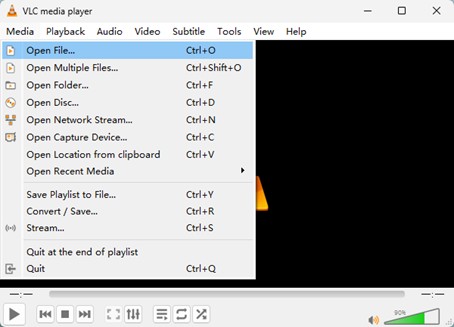
Browse to your video file and click Open.
You can also drag and drop the video file directly into the VLC window.
Wait for the video to load, then press Play if it does not start automatically.
Part 4: How to Play Netflix Videos in VLC Media Player on Mac
On Mac, the process is similar. Converted Netflix videos can be opened directly in VLC Media Player. You can use subtitles, adjust audio, and control playback speed. Macs generally provide enough storage for an offline Netflix library, and files can be transferred to other devices if needed.
Open Finder and locate your video file.
Control-click (or right-click) the file, then choose Open With > VLC media player.
Alternatively, open VLC media player from your Applications folder or Dock.
Click File in the top menu bar, then select Open File….
Select your video file and click Open.
You can also drag and drop the file into the VLC window or drop it directly onto the VLC icon in the Dock.
Wait for the video to load, then it should start playing automatically.
Part 5: How to Transfer and Play Netflix Videos in VLC Media Player on Linux
Linux users need to convert Netflix videos on Windows or Mac first. Transfer MP4 or MKV files via USB, external storage, or network folder. VLC on Linux will play them normally with subtitles, audio, and speed controls.
Transfer the converted Netflix video files to your Linux computer using a USB drive or external storage device.
Open your file manager and move the files into a folder such as Videos.
Open VLC media player on your Linux system.
Click Media in the top menu, then choose Open File….
Navigate to the folder where your videos are stored.
Select the video file and click Open.
Wait for the video to load, then press Play if it does not start automatically.
Part 6: How to Transfer and Play Netflix Videos in VLC Media Player on Android
Android devices can play Netflix videos after transferring converted files from a computer via USB, wireless transfer, or cloud storage. VLC recognizes MP4 and MKV files and plays them smoothly. Using a microSD card helps manage storage for a small offline Netflix library.
Connect your Android device to your computer using a USB cable.
On your phone, select File Transfer (MTP) mode when prompted.
Open your phone storage on the computer.
Copy the video files into a folder such as Movies or Downloads.
Safely disconnect your phone from the computer.
Open VLC for Android on your device.
Tap Videos at the bottom of the screen.
Browse the list or tap Browse to find your file.
Tap the video to start playback.
Part 7: How to Transfer and Play Netflix Videos in VLC Media Player on iPhone or iPad
iPhone and iPad require transferring converted videos from a computer using Finder, iTunes, cloud services, or wireless transfer. Once imported, VLC plays them with subtitles, playback speed, and gesture controls. Videos are stored in the app but play offline for easy viewing anywhere.
Connect your iPhone or iPad to your computer using a USB cable.
- On Mac, open Finder, select your device, then go to the Files tab.
- On Windows, open iTunes, select your device, then go to File Sharing.
From the app list, select VLC for Mobile.
Drag and drop the video files into the VLC Documents area.
Wait for the transfer to finish, then safely disconnect your device.
Open VLC for Mobile on your iPhone or iPad.
Tap Videos or All Files at the bottom or in the menu.
Tap the video file to start playing.
Part 8: How to Use VLC Media Player Like Netflix for Streaming
VLC media player is not only a video player, but it can also work like a simple offline streaming tool when you organize your video files properly. By loading a folder or playlist, you can watch multiple videos in a continuous flow without opening each file one by one.
In the Dock or Start menu, tap VLC Media Player to open it on your device.
When the app launches, ignore or close any pop-ups if they appear, then go to the top menu and click Media (on desktop) or tap Menu (on mobile).
Tap Open File… or Open Folder…, then browse to the folder where your video files are stored, such as Downloads or Videos.
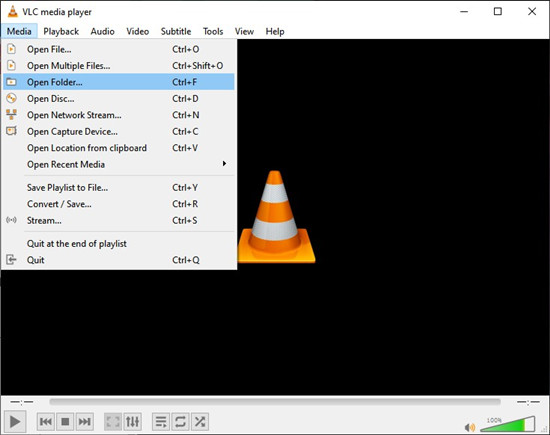
Select a video file, or choose a folder if you want to load multiple videos at once, then tap Open to start playback.
If no playlist appears automatically, open the Playlist view to see all loaded videos inside VLC.
Tap any video in the playlist to start continuous playback, similar to a streaming queue.
If you want a nonstop viewing experience, turn on Repeat or Loop in the playback controls so videos keep playing one after another.
If your library does not show correctly, go back to the file view and make sure you are viewing the correct folder before selecting again.
Bonus: Tips and Tricks for Playing Netflix Videos in VLC Media Player
Tip 1: How to Enhance Video Quality, Substitles & Audio
There are some tips can help you watch Netflix on VLC more enjoyable. You can adjust the video quality, subtitles, or audio according to your preference.
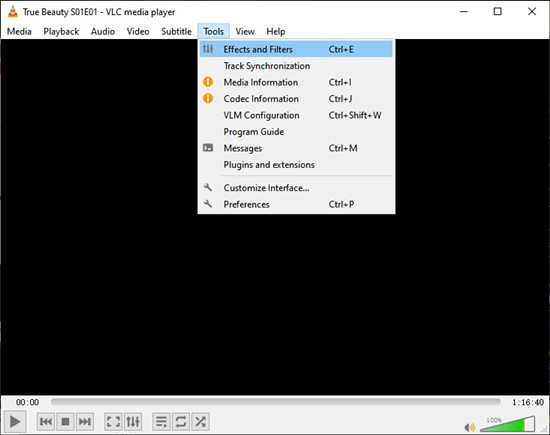
1. Customize Play Settings: Go to Tools and then click Effects and Filters. Here, you can adjust brightness, contrast, sharpness, add watermarks, and use the equalizer for audio.
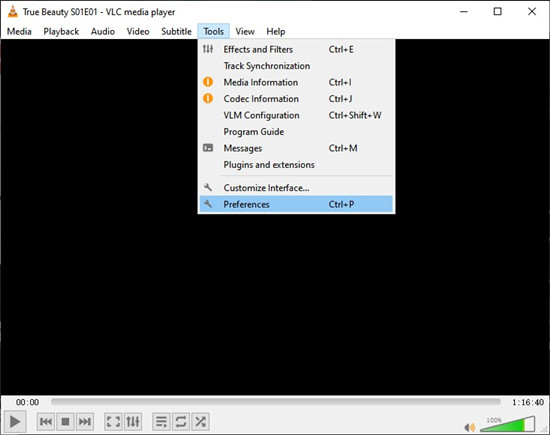
2. Improve Video: For heavy files, try changing Video Output to OpenGL. This is helpful to improve video quality. Navigate to Tools > Preferences > Show All > Video > Output Modules, enabling hardware acceleration, and adjusting FFmpeg threads.
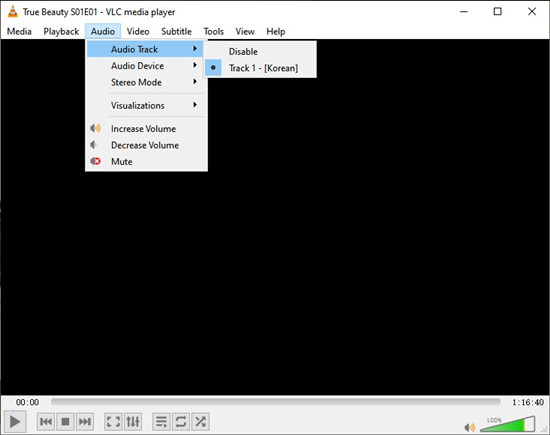
3. Audio Adjustment: The downloaded videos support Dolby Atmos 5.1 surround sound for an immersive viewing experience in VLC Media Player. You can go to the VLC interface and select Audio > Audio Track to configure your preferred audio setting.
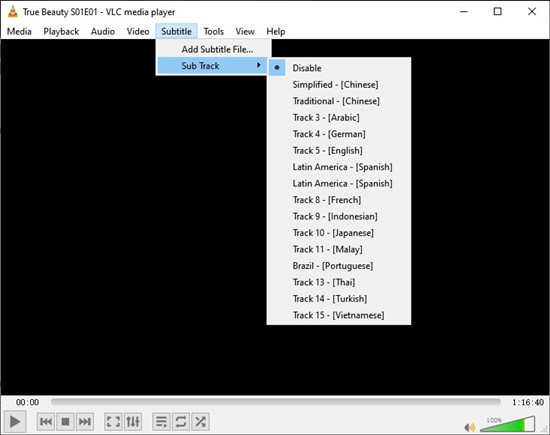
4. Embedded subtitles adjustment: VLC will typically display them without requiring any additional steps from you. But you can close it in the "Subtitle" menu in the upper bar, and click on Sub Track > Disable.
Tip 2: How to Use AI-powered subtitles or translation
If you want to get subtitles translated or generate subtitles for Netflix downloaded videos without subtitles, the AI-powered tool can help you get subtitles on VLC. To get or translate Netflix subtitles, just generate subtitles externally, then use them in VLC. Please follow the steps below:
Step 1 Generate or translate subtitles with a local tool (e.g., OpenAI's Whisper-based apps). After generation, name the .srt like the video (e.g., tv shows .srt) and place it next to the file.
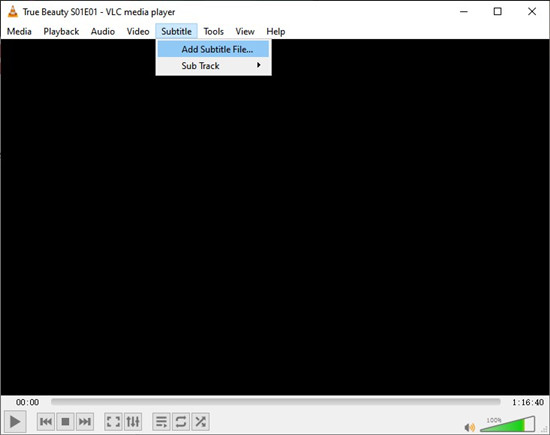
Step 2 Open VLC and then find Subtitle. Here, you can see the Add Subtitle File icon. Just select your .srt and confirm it.
Conclusion:
Watching Netflix on VLC Media Player offers a flexible, offline solution that lets you enjoy high-quality Netflix content without needing an internet connection. With the help of ViWizard Netflix Video Downloader, you can save movies and shows in MP4 or MKV formats compatible with VLC, complete with Full HD or Ultra HD quality and Dolby Atmos sound. By following these steps, you can easily watch your favorite Netflix content on VLC, making movie nights more versatile and accessible anytime, anywhere.
You May Be Interested


Dave Henry, a multimedia technologist at ViWizard, focuses on delivering the best solutions for digital media challenges, including audio and video conversion, media optimization, and troubleshooting.

Leave a Comment (0)