


Spotify is not just about music anymore. It has also become a popular destination for podcasts. Over the years, Spotify has expanded its podcast offerings, giving listeners access to shows across a wide range of topics. Whether you use a free or Premium account, you can explore a variety of podcasts directly on Spotify, although some features and content availability may vary by account, device, and region.
You do not always need an internet connection to listen to podcasts. In this guide, we will show you how to download Spotify podcasts for offline listening, from individual episodes to entire shows where supported. You will also learn how to manage your podcast downloads, use settings such as "Download Audio Only" or "Automatic Downloads" where available, and save podcast audio as regular files rather than relying solely on in-app downloads.
Part 1. Can You Download Podcasts from Spotify?
Both Spotify Premium subscribers and free users can download podcasts for offline listening, although some shows require Premium. Downloads let users listen to eligible episodes without an internet connection, making them useful for travel, commuting, and areas with limited connectivity.
Following a podcast adds it to your library, but individual episodes must be downloaded for offline listening. You need sufficient device storage and must connect to the internet at least once every 30 days to keep downloads available. For video podcasts, mobile users can choose to download audio only or video using the "Auto-download episodes" setting, while the desktop application downloads only audio. However, downloading podcasts for offline listening does not guarantee ad-free playback or allow exporting episodes as ordinary audio files. To do this, users need a suitable conversion tool, such as ViWizard Spotify Music Converter.

Need Spotify music for offline listening? ViWizard Spotify Music Converter helps Spotify Premium and free users save songs, playlists, albums, podcasts, and audiobooks in popular audio formats with fast, reliable conversion.
Part 2. How to Download Spotify Podcasts for Offline Listening
Spotify lets users download eligible podcast episodes for offline listening through the show page or episode controls. Before starting, make sure you have an internet connection and enough device storage. Some shows may require Premium, but most don't. Video podcasts have different download options on mobile and desktop.
2.1How to Download Spotify Podcasts on Desktop
On a desktop, downloading podcasts feels straightforward and familiar. When you open Spotify on a PC or Mac, shows and episodes are laid out clearly, making it easy to scroll through entire seasons or pick specific episodes. You will notice the download option next to each episode, and once selected, the episode starts saving in the background. This setup works well if you like managing a larger library, since everything is visible at once and downloads are not limited by mobile data.
01Open the Spotify desktop app on Windows or Mac.
02Log in with your Premium or free account.
03Click "Search", then select "Podcasts" to find episodes.
04Alternatively, open a podcast show and click "Follow" to save the entire show.

05After following a podcast, it appears under "Your Episodes" in the left sidebar.
06Use the "Podcasts & Shows" filter to narrow the list if needed.

07Scroll to the episode you want to download.
08Hover over the episode and click "Download". Alternatively, click the "More" button and select "Download".

09Click "Your Library" in the left sidebar.
10Select "Your Episodes" to access your saved and downloaded episodes.

11Scroll to the top of the episode list and click "Sort by".
12Select "Release Date" to arrange episodes chronologically.
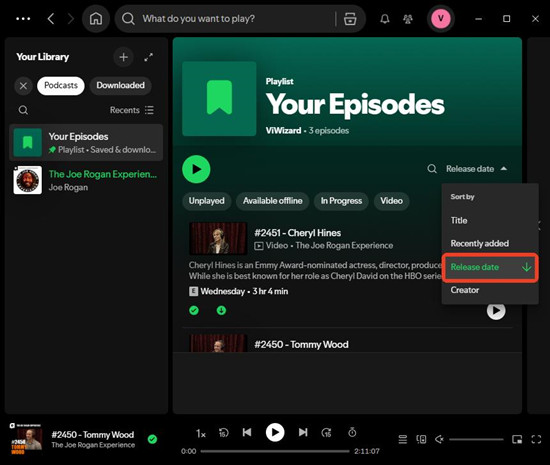
13Click "Sort by" again to toggle between ascending (oldest to newest) and descending (newest to oldest) order.
14Play downloaded episodes from "Your Episodes".
2.2How to Download Spotify Podcasts on iPhone and Android
On mobile devices, the experience shifts toward convenience. Whether you are using an iPhone or an Android phone, podcasts can be downloaded with just a few taps while you are listening or browsing. Episodes save directly to your device and fit easily into everyday routines.

01Open the Spotify app on your iPhone or Android device.
02Log in with your Premium or free account.
03Tap "Search" and enter the podcast or episode name.
04Open the podcast from the search results.
05Tap "Follow" to add the show to your library or "Add" for individual episodes.
06Find the episode you want to download.
07Tap the "Download" button next to the episode.
08Tap "Your Library" at the bottom of the screen.
09Tap "Your Episodes" to view saved episodes.
10Swipe down to reveal the search bar and "Sort" option.
11Tap "Sort", then choose "Release Date".
12Tap "Sort" again to toggle ascending (oldest to newest) or descending (newest to oldest) order.
13Play downloaded episodes from "Your Episodes".
Part 3. How to Save Spotify Podcasts as Audio Files
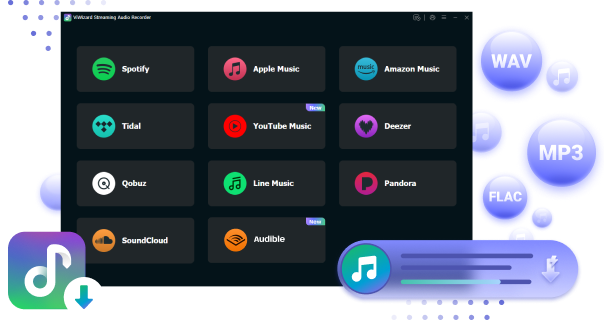
There are times when keeping podcasts inside Spotify is not enough. If you want to save Spotify podcasts as MP3 files and take them anywhere, you will need extra help. ViWizard Spotify Music Converter allows both Premium and free users to download music, podcasts, and eligible audiobooks at 15x faster speeds than real-time recording.
ViWizard Spotify Music Converter supports multiple formats, including MP3, M4A, M4B, WAV, AIFF, and FLAC. Audio quality stays intact, and episode titles, cover art, and metadata are preserved. After installing the Windows or Mac version, you can convert and download podcasts for offline listening and transfer them to smartphones, tablets, MP3 players, TVs, or other devices.
Key Features of ViWizard Spotify Music Converter
Free Trial Free Trial* Security verified. 5, 481,347 people have downloaded it.
- Convert Spotify songs, playlists, albums, podcasts, and audiobooks
- Export Spotify music in 6 formats for different devices and players
- Support Spotify Premium and free accounts for music conversion
- Preserve music metadata when organizing converted collections
- Batch download Spotify playlists and large music libraries
 Step 1: Download and Install ViWizard Spotify Music Converter
First, download ViWizard Spotify Music Converter for your computer. Be sure to choose the correct version for your operating system (Windows or Mac). After the download is complete, run the installer and follow the on-screen prompts to install the software. Once installed, open ViWizard to start the conversion process for your Spotify podcasts and save them as MP3s for offline listening.
 Step 2: Add Spotify Tracks for Conversion
When ViWizard opens, log in to your Spotify account within the app. Once you're logged in, browse through your Spotify library, including Podcasts and Your Episodes, to find the podcasts you want to download. Click on the "+" icon located at the bottom-right corner to add your selected episodes to the conversion list. The app will automatically load them and prepare for conversion.
 Step 3: Choose Output Format and Settings
Next, click the three horizontal lines in the top-right corner to open the Preferences menu. Under Conversion, select the output format you want, such as MP3, WAV, or FLAC. Since MP3 is widely compatible with most devices, it's a solid choice for offline listening. For the best audio quality, set the bitrate to 320kbps. You can also adjust other settings like sample rate and channels to suit your preferences.
 Step 4: Convert and Download Spotify Music
Once your settings are finalized, click the Convert button to begin the conversion process. ViWizard will convert your selected Spotify podcasts at speeds up to 15x faster than traditional tools. You can monitor the progress as each podcast episode is converted. Once the conversion is finished, navigate to the output folder to find your newly converted MP3 files ready for offline use.
Part 4. How to Manage Spotify Podcast Downloads
Managing Spotify podcast downloads helps users save storage space, control mobile data usage, and keep episodes ready for offline listening. Spotify provides several useful options, from automatically downloading new episodes to choosing audio-only downloads and removing episodes no longer needed.
4.1How to Automatically Download Spotify Podcast Episodes
Mobile users can enable Auto-download episodes for followed podcasts. Once enabled, new episodes download automatically as they are released, so there is no need to check for updates or download them manually. Users can also choose how many upcoming episodes to download, from one to ten or all new episodes.
On mobile (iPhone and Android)
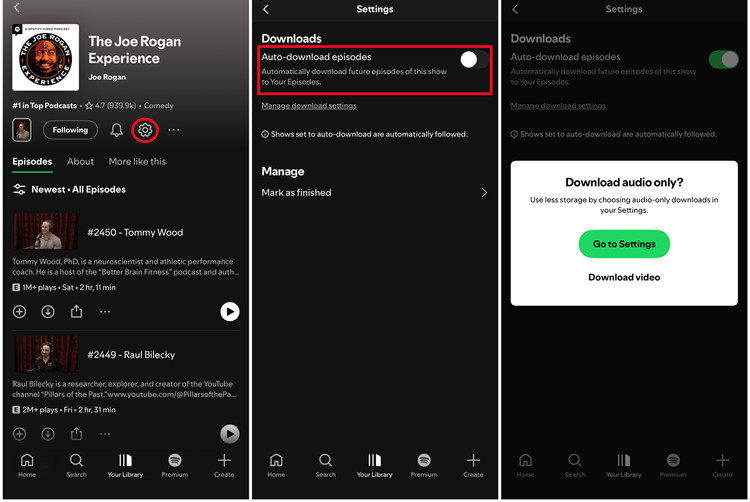
01Open Spotify and go to Your Library.
02Open the podcast you follow.
03Open the podcast's settings or download controls.
04Turn on Auto-download episodes.
05Open Manage download settings and choose how many upcoming episodes to download.
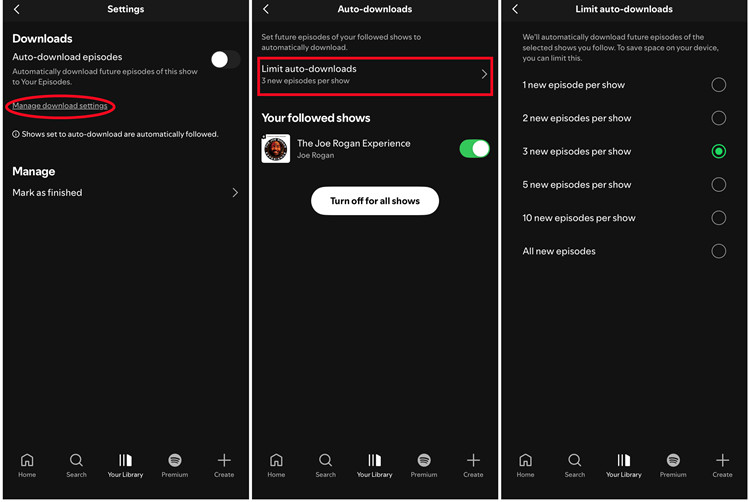
06New episodes will download automatically when available.
4.2How to Download Spotify Podcast Audio Only
Some podcasts include video, but many listeners focus on audio. On mobile, users can download only the audio portion of video podcasts to save storage space and data, especially when following shows like The Joe Rogan Experience. Spotify also offers an audio-only streaming setting that controls whether video podcasts play video automatically over Wi-Fi or remain audio-focused. Under Downloads and streaming, enable the audio-only download option for video podcasts if available. Desktop downloads contain audio only, so video cannot be watched offline.
On mobile (iPhone and Android)
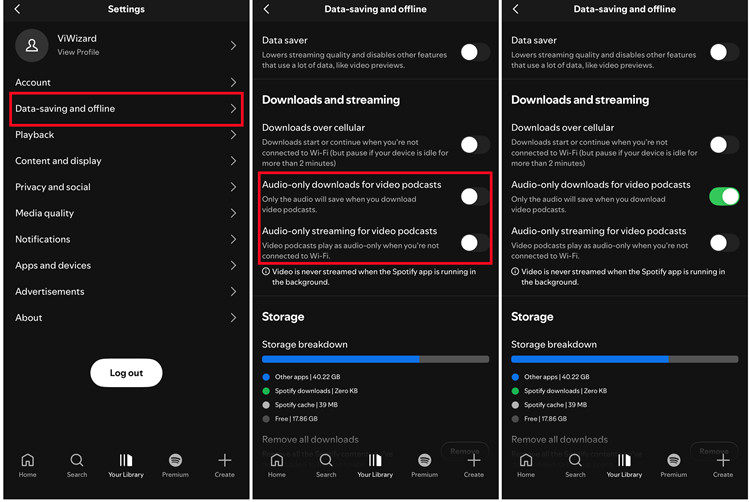
01Open Spotify and tap your profile picture.
02Select Settings and privacy → Data-saving and offline.
03Under Downloads and streaming, turn on Audio-only downloads for video podcasts.
04To save data while streaming, turn on Audio-only streaming for video podcasts.
05Find the podcast and open the episode you want.
06Tap Download to save the episode for offline listening.
On desktop
01Open Spotify and find the video podcast.
02Open the episode and click Download.
03Play the downloaded episode from your library. Desktop downloads contain audio only, so video cannot be watched offline.
4.3How to Download Spotify Podcast Episodes Using Mobile Data
Spotify uses Wi-Fi by default. To allow mobile downloads, open Settings and privacy → Data-saving and offline → Downloads and streaming, and enable Downloads over cellular. Downloads can then use a supported mobile connection, consuming data and potentially incurring roaming charges.
On mobile (iPhone and Android)
01Open Spotify and tap your profile picture.
02Select Settings and privacy → Data-saving and offline.
03Under Downloads and streaming, turn on Downloads over cellular.
04Find the podcast episode you want.
05Tap Download to download it using mobile data.
4.4 How to Find Downloaded Spotify Podcast Episodes
Downloaded episodes are easy to find in Your Episodes in the library on mobile and desktop. Users can also filter content by selecting Podcasts and then Downloaded, where available. This keeps offline episodes easy to access without an internet connection.
On mobile (iPhone and Android)
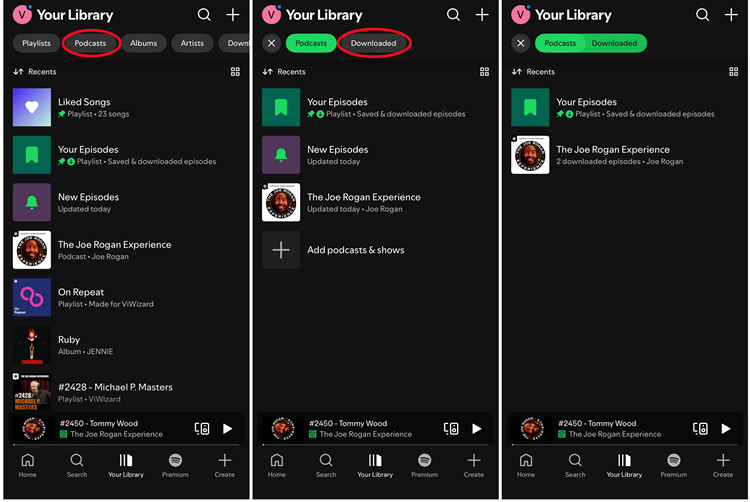
01Open Spotify and tap Your Library.
02Select Downloaded.
03If you do not see this filter, open Your Episodes or the podcast itself.
04Find the downloaded episode and tap Play.
On desktop
01Open Spotify and click Your Library.
02Open Your Episodes or find the podcast in your library.
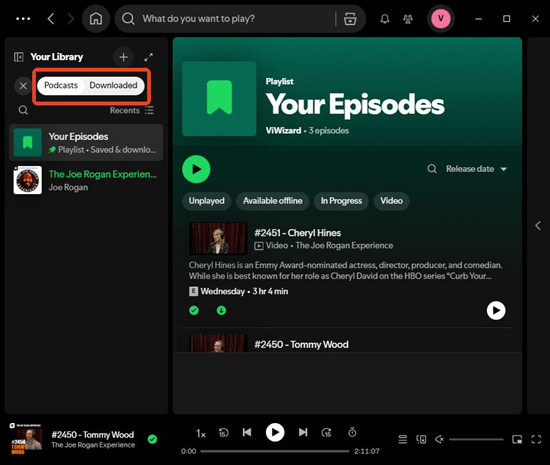
03Look for the episode's download indicator.
04Click the episode to play it.
4.5How to Listen to Spotify Podcast Episodes in Offline Mode
Offline Mode restricts playback to downloaded content, so download episodes before disconnecting from the internet. Spotify requires users to connect to the internet at least once every 30 days to keep downloads available. Offline Mode does not download episodes automatically.
On mobile (iPhone and Android)

01Download the episodes you want while online.
02Tap your profile picture and select Settings and privacy.
03Open Data-saving and offline.
04Turn on Offline mode.
05Go to Your Library and play a downloaded episode.
On desktop (Windows and Mac)
01Download the episodes you want while online.
02Open Spotify.
03On Windows, open File from the menu and select Offline Mode.

04On Mac, click Spotify in the menu bar and select Offline Mode.

05Open Your Library and play a downloaded episode.
4.6How to Delete Downloaded Spotify Podcast Episodes
Removing downloads frees device storage without necessarily unfollowing a podcast. On mobile, open Your Library → Downloaded, find the episode, tap its download indicator, and select Remove if prompted. To remove all downloads, go to Settings and privacy → Data-saving and offline → Storage → Remove all downloads. This removes all downloaded content, so delete individual episodes to keep other downloads. Removed episodes must be streamed online or downloaded again for offline listening.
On mobile (iPhone and Android)
To remove one episode:
01Open Spotify and go to Your Library.
02Open Downloaded.
03Find the episode and tap its download indicator.
04Select Remove if prompted.
To remove all downloads:
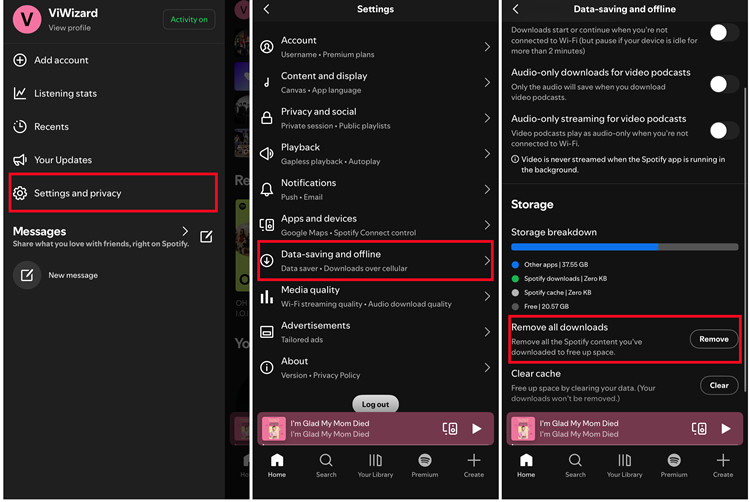
01Tap your profile picture and select Settings and privacy.
02Open Data-saving and offline.
03Under Storage, select Remove all downloads.
04Confirm if prompted.
On desktop
01Open Spotify and go to Your Library.
02Find the downloaded podcast or episode.
03Open its options and select the removal option.
Part 5. How to Fix Spotify Podcast Not Downloading
Occasionally, downloads do not finish as expected. These issues are usually caused by small settings problems or connection issues and can often be fixed with simple adjustments.
-

Change Storage Location
First, check where your downloads are being saved. If you're using an SD card, switching to your device's internal storage might help. SD cards can sometimes slow things down or cause issues with saving files. To change this, go to Settings, find Storage, switch to Internal Storage, and restart the app before trying again.
-
Check Internet Connection
A weak internet connection can also cause downloads to fail or slow down. Try running a speed test, switching to a stronger Wi-Fi network, or turning off Wi-Fi and using mobile data if necessary. If you're on mobile, make sure Download Using Cellular is turned on in Settings - or off if you only want to use Wi-Fi.
-
Verify Storage Space
Make sure your device has enough free space. If storage is low, Spotify won't be able to save new downloads. Check your phone's Storage settings to see if there's enough space. If not, delete some files or apps to free up room.
-
Reinstall App
If nothing else works, reinstalling Spotify can clear up hidden issues. Uninstall the app, restart your phone, reinstall Spotify from the App Store or Google Play, sign back in, and try downloading again.
-
Disable "Download Using Cellular"
If your downloads are still failing after all this, check for app updates or reach out to Spotify support. These steps should help get your podcasts downloading smoothly again.
Part 6. Spotify Podcast Downloads vs. Local Audio Files
| Feature | Spotify podcast downloads | Local audio files (MP3) |
|---|---|---|
| How to download | Directly in Spotify | From a podcast website or other authorized source |
| Offline listening | Yes, within Spotify | Yes, in compatible audio players |
| Internet requirements | Connect at least once every 30 days to keep downloads available | No internet required once the file is saved |
| File access | Cannot be exported as regular audio files | Can be accessed, copied, and organized as files |
| Playback | Through Spotify | Through compatible audio players |
| Storage management | Managed in Spotify | Managed through the device's file system |
| New episodes | Can be downloaded manually or automatically where supported | Usually downloaded individually |
| Best for | Convenient offline listening | Long-term storage and flexible playback |
Spotify podcast downloads let users listen offline in the app, while local audio files, such as MP3s, can be saved and played in other compatible apps. Spotify downloads are convenient for listening while travelling, commuting, or saving mobile data, but they cannot be exported as regular audio files. In contrast, local audio files can be saved in folders, kept for future use, and played in different apps. Users can get them from podcast websites that offer downloads or other authorized sources. In short, Spotify downloads are best for easy offline listening, while local audio files are better for long-term storage and personal listening.
Part 7. Conclusion
Compared with other services like Apple Podcasts, Google Podcasts, and Stitcher, Spotify has already been installed by most listeners and its interface is fairly easy to understand. Besides, Spotify always recommends some new podcasts based on the user's previous activities. That's why some people prefer to listen to podcasts on Spotify. If you're looking for a way to download Spotify podcasts to listen without limits, you're highly suggested to try ViWizard Spotify Music Converter. It will help you download and convert Spotify podcasts to MP3, WAV, FLAC, M4A, or other formats with lossless quality. You may have a try!
You May Be Interested


From new releases to old favorites, Matt Smith is always on the lookout for good music. He follows the latest in digital entertainment and shares songs and media he thinks are worth checking out.

Leave a Comment (0)