


If you receive an email from Spotify saying your account has been suspended, it often comes without warning. In many real cases, users only notice the issue when they try to log in and find they are locked out, with a short message about policy or security problems.
The message is often not very detailed, so users are left trying to understand what caused the suspension and what it means for their account. What matters most is not just the notice itself, but whether it clearly points to what you should do next. When the message is vague, it can be hard to tell if the account is temporarily blocked or needs a full review.
In many cases, suspended Spotify accounts can still be checked and restored through Spotify's official support process, which verifies ownership and reviews the situation before making a final decision. This guide will walk you through the step-by-step process to appeal your suspension and regain access to your music.
Part 1. Confirm You Are Actually Locked Out
The first step is to confirm whether you are truly locked out of your Spotify account or dealing with a normal login issue. In real-world cases, many users mistake temporary sign-outs, password problems, or device changes for a suspension. A real suspension usually prevents login entirely and shows messages like "account disabled" or "access restricted," while normal issues can still allow password reset or partial access.
Step 1 Open the Spotify app on your phone or desktop, or go to spotify.com and try signing in.
Step 2 If you see messages like "Your account has been disabled" or you are immediately logged out and cannot continue, treat this as a suspension or restriction case rather than a simple login issue.
Step 3 If you can still access your account normally, check whether the problem is limited to a specific device or network before continuing.
Part 2. Check Your Email for a Spotify Notice
Next, check the email linked to your Spotify account. In many real enforcement or security cases, Spotify sends a notice explaining that access has been restricted due to unusual activity, security concerns, or Terms of Use violations. The details are usually general rather than specific, but the email often confirms that the issue is system-triggered and must be handled through official support rather than basic login fixes.
Step 1 Open the email inbox linked to your Spotify account.
Step 2 Search for emails from Spotify using keywords like "Spotify", "account", or "disabled".
Step 3 Open any message that mentions account restriction or suspension and review it carefully, since it may include the reason for the action and a direct support or appeal link.
Step 4 If nothing appears in your main inbox, check spam, junk, or promotions folders in case the message was filtered.
Part 3. Go to Spotify Help Center
After that, go to the Spotify Help Center, which is the main entry point for account recovery. Users are guided through categories such as login issues or account access problems. Choosing the correct path matters because it determines whether you enter a simple password reset flow or a restricted account support flow, which is essential for suspension cases.
Step 1 Open your browser and go to support.spotify.com.
Step 2 On the Help Center homepage, click Log in if you see the option, then sign in with the affected Spotify account.
Step 3 Once logged in, navigate to Account help or use the search bar and type "account disabled" to surface relevant support topics.
Step 4 Open the result that matches account access or login issues to proceed to the support flow.
Part 4. Start the Automated Support Assistant
Once inside the support flow, you will usually be directed to the automated support assistant. This chatbot is the first layer of Spotify's recovery system and is used to collect account details and classify the issue. It often suggests basic troubleshooting steps first, even when the problem is related to a suspension, since its role is to filter and triage requests.
Step 1 Inside the Help Center, select Contact us or Get help from the support options shown on the page.
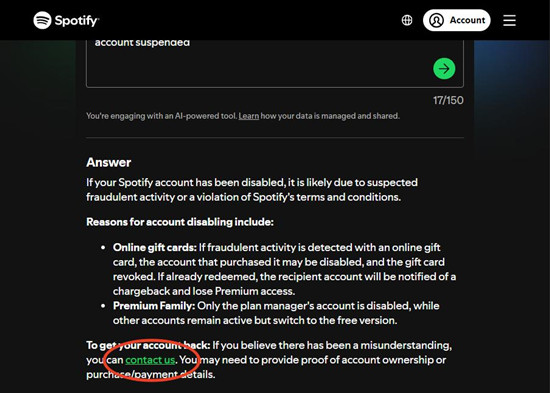
Step 2 Choose a path related to Account or I can't log in to trigger the support assistant. Alternatively, choose "Start messaging" within the "Send a message" page.
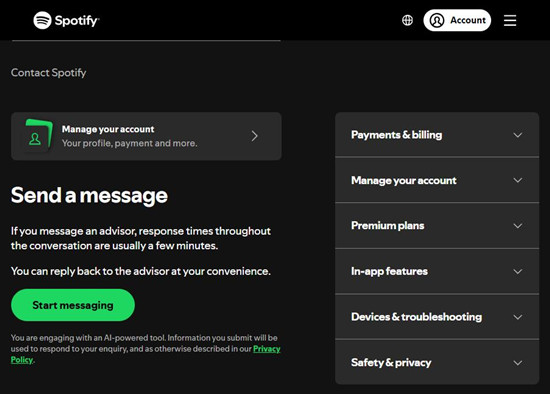
Step 3 When the chat window opens, type a clear message such as:

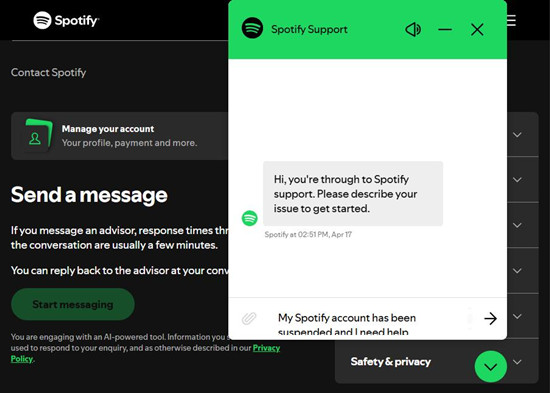
Step 4 The assistant will begin asking questions to identify your account and route your request correctly.
Part 5. Follow Identity or Account Verification Prompts
If the automated flow cannot resolve the issue, Spotify may request verification steps to confirm account ownership. These can include email confirmation, subscription checks, or recent activity verification. In some real-world cases, users may also be asked security questions such as confirming recent login activity, device or IP information, or recalling recent additions to Liked Songs. The exact prompts vary depending on account risk level, but the purpose is always to confirm that the request is coming from the legitimate account owner.
Step 1 When prompted, enter the email address linked to your Spotify account.
Step 2 Provide any additional requested details such as your username, subscription status, or recent login information.
Step 3 If asked to verify activity, confirm recent usage or devices when applicable so the system can match your account.
Step 4 Continue through each prompt until the assistant confirms your account has been located.
Part 6. Request Human Support (If Available)
In some cases, the issue may be escalated to a human support agent, although this is not guaranteed. Escalation typically happens when automated checks fail or when the account is flagged for deeper review. Human agents can view account context, but decisions are still strongly influenced by system-generated security and policy signals.
Step 1 If the automated assistant cannot resolve the issue, look for an option like I still need help or Contact support.
Step 2 Select it to see whether live chat or a support request form is available for your account.
Step 3 If live chat is offered, wait for a support agent to join the conversation and explain that your account has been suspended and needs review.
Step 4 If only a form is available, proceed to submit it as instructed on screen.
Part 7. Submit an Account Review / Appeal (If Required)
If your case involves a policy or security review, you may be asked to submit an appeal or account review request. This moves the case into Spotify's internal evaluation system rather than live troubleshooting. At this stage, users provide account details and wait for backend review, with no immediate resolution expected.
Step 1 When prompted, open the account review or appeal form provided by Spotify.
Step 2 Fill in your account email address and any required identification fields.
Step 3 Enter a short explanation of your issue, such as requesting a review of a suspension decision.
Step 4 Submit the form and wait for a confirmation message or email acknowledging your request.
Part 8. Wait for Spotify's Decision
After submission, the account enters a waiting period while Spotify processes the review. Timelines vary depending on the type of issue, with security-related cases usually faster than policy-based ones. During this stage, repeated login attempts or multiple support requests generally do not improve results and can sometimes slow handling.
Step 1 After submitting your appeal, monitor the email inbox linked to your account for updates from Spotify.
Step 2 Do not submit multiple requests unless Spotify specifically instructs you to do so.
Step 3 Allow time for review, as responses may take anywhere from a few hours to several days depending on case complexity.
Part 9. Restore Access if Approved
If the review is approved, access is restored and you can log in normally again. In some cases, Spotify may require a password reset during reinstatement to ensure account security, but functionality is typically fully restored once the account is cleared.
Step 1 Open the email from Spotify confirming your account has been restored.
Step 2 Follow any provided link to reset your password or reactivate your account.
Step 3 Sign back into Spotify using your updated credentials and confirm that playlists and library access have returned.
Part 10. Secure Your Account After Recovery
Finally, after recovery, secure your account to prevent future issues. This includes changing your password, logging out of all devices, and reviewing connected apps. In many real cases, suspensions are linked to unusual login patterns or third-party access signals, so stabilizing account activity helps reduce the chance of repeat restrictions.
Step 1 Go to your Spotify account settings and change your password immediately after regaining access.
Step 2 Select Sign out everywhere to remove all active sessions across devices.
Step 3 Review connected apps and remove any you do not recognize or no longer use.
Step 4 Check your email security settings as well, since account recovery depends heavily on email protection.
Bottom Line:
Spotify account suspension or access restriction usually involves a structured recovery process rather than an instant fix. The key is to follow each step carefully, from confirming the issue and checking email notices to using Spotify's Help Center, automated support system, and appeal process when needed.
In most cases, access can be restored once identity or account ownership is verified. After recovery, securing your account by updating your password, signing out of all devices, and reviewing connected apps helps reduce the chance of future restrictions.
You May Be Interested


Rick Lee is the kind of person who likes to figure out why a computer is acting up. He follows useful PC tips, learns about system settings, and looks for simple fixes to common computer problems.

Leave a Comment (0)