


Amazon Music is one of the leading music streaming services globally, offering a vast library of songs, curated playlists, and exclusive content. Among its range of plans, the Amazon Music Unlimited Family Plan stands out as a great option for households.
This comprehensive guide explores the functionality of the Amazon Music Unlimited Family Plan, including setup instructions and detailed steps for joining an Amazon Music family group. Additionally, it offers advanced tips for effectively managing your Amazon Music family group and streaming Amazon Music simultaneously without a subscription. Let's get started.

Part 1. How Amazon Music Unlimited Family Plan Works
Prior to subscribing, it is essential to comprehend the features of the Family Plan and its distinctions from other Amazon Music plans. This section outlines the key benefits, pricing, and limitations to assist you in determining if it is suitable for your household.
#What Can I Get with Amazon Music Family Plan?
Here are the standout features of the Amazon Music Family Plan:
- Unlimited Access to Songs: Over 100 million tracks in various genres and languages.
- Ad-Free Listening: Enjoy music without interruptions.
- Offline Mode: Download songs and listen to them without an internet connection.
- Multi-Device Compatibility: Access the service on smartphones, tablets, smart speakers, and more.
- Personalized Profiles: Separate accounts for each family member, ensuring privacy and customized recommendations.
- Exclusive Content: Early access to new releases, live concerts, and exclusive playlists.
To know the exact difference between Amazon Music Unlimited and Amazon Prime, this post may help you.
Read More: Amazon Music Prime VS. Unlimited: What Are the Differences?
#How Much Is Amazon Music Family Plan
Upon familiarizing yourself with the features, the next important consideration is pricing. The Amazon Music Unlimited Family Plan is offered as a single household subscription rather than as individual accounts.
| Amazon Music Family Cost | Monthly | Yearly |
| Prime Members | $9.99 | $99.99 |
| Non-prime Members | $16.99 | $169.9 |
#Requirements and Limitations of Amazon Music Family Plan
The Family Plan provides flexibility by allowing each family member to maintain their own separate account for streaming Amazon Music individually. However, some users may experience difficulties when attempting to subscribe to or join the Amazon Music Family Plan. It is essential to familiarize yourself with specific guidelines before proceeding with enrollment.
Key Requirements & Limitations
- Age Requirement: Family members must be a minimum of 13 years of age.
- Residency Requirement: All members are required to reside in the same country.
- Invitations Process: The primary account holder can invite members using email or SMS.
- Switching Households: Users may switch to a new Amazon Family once every 12 months.
- Account Lockout: An adult leaving a household must wait 180 days to join another.
- Device Authorization: Devices for offline listening must be authorized to the specific Amazon account.
Part 2. How to Set Up Amazon Music Unlimited Family Plan
If you are a new Amazon Music user, you can get a free trial before being charged by Amazon. Considering that some users may have subscribed to Amazon Music Individual Plan or Amazon Prime Plan, we also provide detailed tutorial to help you to upgrade to Amazon Music Family Plan.
2.1 Access Amazon Music Family Plan for New Users
Step 1 Head to the Amazon Music Unlimited website in a browser on your computer.
Step 2 Sign in with Amazon account.
Step 3 Click on the All button at the top left corner to open the menu.
Step 4 Go to Amazon Music section under Digital Content & Devices, then click on Amazon Music Unlimited.

Step 5 In the new page, select Amazon Music Family Plan from the top menu.

Step 6 Tap on the Try it Free button in the main screen.
Step 7 Add a payment method and follow the prompts to complete the subscription.
Step 8 To invite your family members to join the family plan, you need to send invitations with email or just via Amazon Music app.
2.2 Upgrade to Amazon Music Family Plan for Prime Members
Step 1 Navigate to the Amazon offcial store website.
Step 2 Click on the Account & Lists at the top right corner
Step 3 From the pop-up menu, select the Memberships and Subscription option.

Step 4 In the new window, click on Upgrade to Family Plan and follow the prompts to complete your payment and subscription.
2.3 Upgrade to Amazon Music Family Plan for Individual Plan Members
Step 1 Launch Amazon Music desktop app and log in with your account.
Step 2 Click on your profile icon and select Settings.
Step 3 Select Manage Music Subscription under the ACCOUNT section.

Step 4 Choose Upgrade Plan and then Family Plan. Follow the instruction to complete upgrade.
2.4 Invite Others to Your Amazon Music Family Group
Step 1 Ensure you have updated your Amazon Music app at the last version and then you can launch it.
Step 2 Tap the Gear icon at the top right corner to choose My Profile tab.
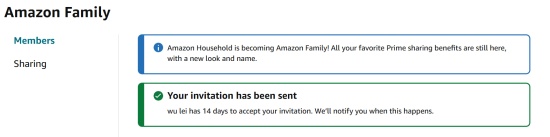
Step 3 Click Add Profile icon to invite family members to your Amazon Music family group.
Step 4 Select Invite or Remove members tab to enter the email address of your invitee in the text box.
Step 5 Tap Send Invitation button to share the invitation to your family or friends.
Part 3. How to Join Amazon Music Unlimited Family Plan (For Receiver)
If you are family members who receive an invitation, here is the step-by-step guide to allow you quick join the Amazon Music Unlimited Family Plan. Please ensure you have Amazon Music account and receive the invitation email within 7 days. After following the guide, you can get full Amazon Music Unlimited access with your own personal music profile.
Step 1 Once you received the invitation email, open it.
Step 2 Find the inserted link on email to navigate to the Amazon Music website.
Step 3 Log in with your existing Amazon Music account or choose to create a new account.
Step 4 Tap accept to proceed to allow Amazon Music authenticate your Amazon Music Unlimited Family status.
Step 5 After recognizing, you can start to stream Amazon Music Unlimited content immediately.
Part 4. How to Cancel Amazon Music Family Plan (For Inviter)
To cancel your Amazon Music Unlimited Family Plan, you can do so easily on both desktop and mobile. In this section, we will use the desktop method as an example. Please follow the steps below.
Step 1 Use a browser on your computer to go to Your Amazon Music Settings.
Step 2 In Your Amazon Music Unlimited Subscription, see the AMAZON MUSIC UNLIMITED tab, there should be a Cancel subscription button if the service is still available.

Step 3 Click on Cancel subscription, then tap on Continue to cancel. The same time there should be a Send me a reminder. To manage the accessible music from Amazon, click it to set a reminder of Amazon Music cancellation later. Follow the prompts to confirm cancellation.
Keep in mind that your access to the service will continue until the end of your current billing cycle.
Pro Tip 1: How to Manage Your Amazon Music Family Group
Subscribing is just the start; effective management of family members is crucial for a seamless experience. Within Amazon Music settings, you can invite new members, remove existing ones, resend invitation links, and track available family slots. While removing members may differ, the process for inviting new members remains similar. In this section, we will focus on how to remove members from the Amazon Music Family Plan.
Step 1 Go to Amazon Music web browser.
Step 2 Tap your profile at the top right of screen to go to Amazon Music Settings.
Step 3 Choose Your Amazon Music Settings option to manage your profile.
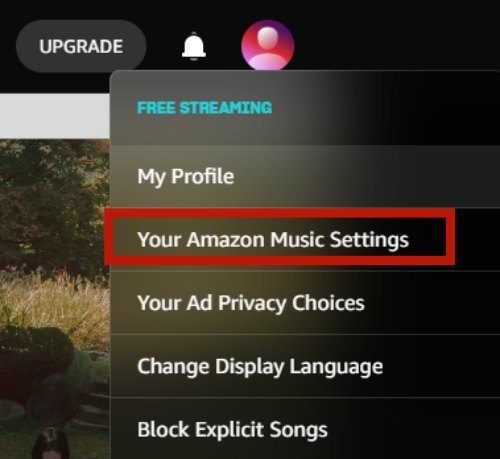
Step 4 Click Invite or Remove Members option to see the existing family members on list.
Step 5 Select the member you want to remove. Both the subscriber and the removed member will receive an email confirmation of the change.
Revoking a member's access from the Amazon Music Unlimited Family plan will solely restrict their access; it will not result in the deletion of their personal Amazon account.
Pro Tip 2: How to Stream Amazon Music on All Devices without Family Plan
If you prefer not to commit to a Family Plan but still want offline access to Amazon Music, you can use tools like the ViWizard, which is a splendid Amazon Music Downloader.
ViWizard Amazon Music Downloader allows you to download and convert Amazon Music tracks into popular formats like MP3, AIFF, or WAV, simultaneously retaining the original sound quality and ID3 tag. It's a great way to enjoy your favorite songs on any device without restrictions. Now let's dive into the exact steps to use ViWizard to stream Amazon Music tracks freely even if your subscription expires.

Download songs, playlists, albums, and your whole music library from 10 major streaming platforms, including Amazon Music, to MP3, FLAC, WAV, AIFF, M4A, or M4B with original quality and ID3 tags for permanent offline listening.
Step 1 Set the Preferences for Amazon Music
ViWizard Amazon Music Downloader offers options for you so that you can customize output tracks as you like. Just click the Menu icon at the top right corner > Preference > Convert. Now you can adjust some parameters, such as the format, channel, sample rate, and bit rate. If you want to listen to songs on multiple devices, we recommend the MP3 format as default.

Step 2 Link Your Amazon Music Account
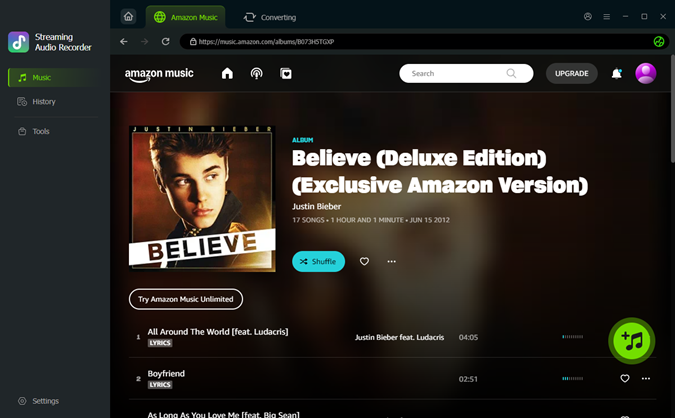
Return to the initial interface of ViWizard and tap the Amazon Music icon to enter the built-in Amazon Music web player. Follow the on-screen guide to log in or sign in with your Amazon Music account.

Step 3 Add Tracks from Amazon to ViWizard
After sign in, you can view your Amazon Music library to select the song that you want to share with your family or play in other devices. Despite searching or browser your Amazon Music library, you can paste the copied link from Amazon Music to the top of ViWizard software. After locating, youc an hit Add to List button to transfer the list to the conversion queue.
Step 4 Start the Conversion of Amazon Music
Just one-click the Convert button, and you can download Amazon songs to local files. And then you can enjoy them on multiple devices with no need of the Amazon app. After conversion, click the History icon to browse the downloaded songs. Or, you can find them in your local folder.

Conclusion
The Amazon Music Unlimited Family Plan is an excellent choice for families who love music. With its vast song library, personalized profiles, and affordable pricing, it offers incredible value. Whether you're looking to enjoy ad-free streaming, offline listening, or access exclusive content, this plan has you covered.
For those who prefer more flexibility or want to explore other options, tools like the ViWizard Amazon Music Downloader can enhance your experience further. Ready to get started? Explore the Amazon Music Unlimited Family Plan today and bring endless music to your household.
You May Be Interested


Adam Gorden is always looking for new ways to explore music and videos. He likes trying different media tools and learning how to manage audio and video files with ease.

Leave a Comment (0)