


Apple Music is a streaming service, but it also lets subscribers download music from its vast catalog for offline listening. For many Apple Music subscribers, downloading music is a simple part of everyday listening. You can add songs, albums, and playlists to your library and download them for offline listening, so you can keep listening without an internet connection. However, these subscription downloads can only be accessed within the Apple Music app rather than as regular audio files.
This post explains how Apple Music downloads work on different devices. It also looks at the difference between Apple Music subscription downloads and common audio files, and shows how a tool such as ViWizard Apple Music Converter can download Apple Music songs as files that can be used without the Apple Music app or subscription.
Part 1. Can You Download Music from Apple Music?
Yes. Apple Music subscribers can download catalog music to compatible devices, including iPhone, iPad, Apple Vision Pro, Android, Mac, and Windows PC, for offline listening. The process is simple: add music to your library, download it to your device, and play it offline. You can download individual songs, albums, or playlists, and enable Automatic Downloads to automatically download music you add to your library. Instead of getting lost in the Apple Music catalog while exploring new music, you can focus on the downloaded songs in the Downloaded section of your Apple Music library anytime.
Downloaded music is stored locally and uses device storage. You can manage your downloads in the Apple Music app, including removing them when they are no longer needed.
Part 2. How to Download Songs on Apple Music
Apple Music lets subscribers download individual songs one by one for offline listening. Add a song to your library, then use the Download option to save it for offline playback. The controls vary slightly between mobile devices and computers.
How to Download an Apple Music Song on iOS or Android
Open the Apple Music app and find the song you want. Tap Add (+) to add it to your library if needed, then tap More (...) next to the song and choose Download. Once the download finishes, you can find the song in your library and listen to it without an internet connection.
01Open the Apple Music app on your iPhone, iPad, Apple Vision Pro, or Android device.
02Tap Search in the bottom navigation.
03Tap the Search field at the top, enter the song title, artist, album, or lyrics, then select the song.
04Tap More (...) next to the song and choose Add.
05Tap More (...) again and choose Download.
How to Download an Apple Music Song on Windows or Mac
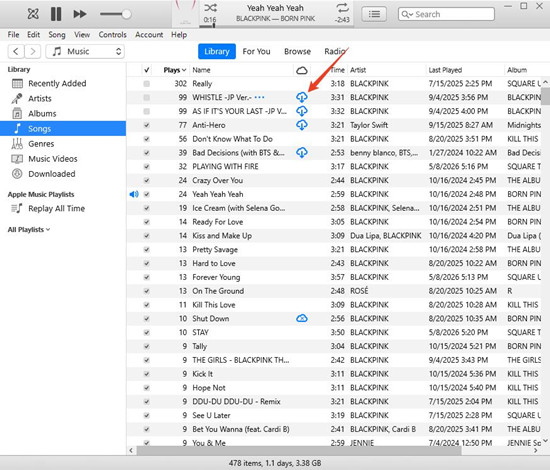
Open the Apple Music app and find the song you want. Click Add (+) if it is not already in your library, then click More (...) and choose Download. Once the download finishes, the song is available in your Apple Music library for offline playback. It is managed by the Apple Music app rather than saved as a standard audio file in your computer's regular file folders.
01Open the Apple Music app on your Windows PC or Mac.
02On Windows, select the Search field in the top-left corner; on Mac, click the Search field at the top of the window.
03Select Apple Music on the right, enter the song title, artist, album, or lyrics, then select the song.
04On Windows, select Add; on Mac, hover over the song and click Add.
05On Windows, select Download; on Mac, hover over the song and click Download.
Part 3. How to Download Albums on Apple Music
Apple Music lets you download an entire album instead of downloading its songs one by one. Add the album to your library, then use its Download option to save the available songs for offline listening.
How to Download an Apple Music Album on iOS or Android
Open the Apple Music app and go to the album you want. Tap Add (+) to add it to your library if needed, then tap More (...) and choose Download. Apple Music will download the album's available songs, which you can then play offline from your library.
01Open the Apple Music app on your iPhone, iPad, Apple Vision Pro, or Android device.
02Tap Search in the bottom navigation.
03Tap the Search field at the top, enter the album title or artist name, then select the album.
04Tap Add at the top of the album page.
05Tap Download at the top of the album page.
How to Download an Apple Music Album on Windows or Mac
Open the Apple Music app and find the album. Click Add (+) if needed, then click More (...) and choose Download. Once the songs finish downloading, you can play the album offline from your Apple Music library.
01Open the Apple Music app on your Windows PC or Mac.
02On Windows, select the Search field in the top-left corner; on Mac, click the Search field at the top of the window.
03Select Apple Music on the right, enter the album title or artist name, then select the album.
04Select Add at the top of the album page.
05Select Download at the top of the album page.
Part 4. How to Download Playlists on Apple Music
Apple Music lets you download playlists so their available songs can be played offline. Instead of downloading each song individually, you can add the playlist to your library and use its Download option.
How to Download an Apple Music Playlist on iOS or Android
Open the Apple Music app and find the playlist you want. Tap Add (+) to add it to your library if needed, then tap More (...) and choose Download.

01Open the Apple Music app on your iPhone, iPad, Apple Vision Pro, or Android device.
02Tap Search in the bottom navigation. On iPhone and iPad, Search is at the bottom right.
03Tap the Search field at the top, enter the playlist name, artist, or keyword, then select the playlist.
04Tap Add at the top of the playlist page.
05Tap Download at the top of the playlist page.
How to Download an Apple Music Playlist on Windows or Mac
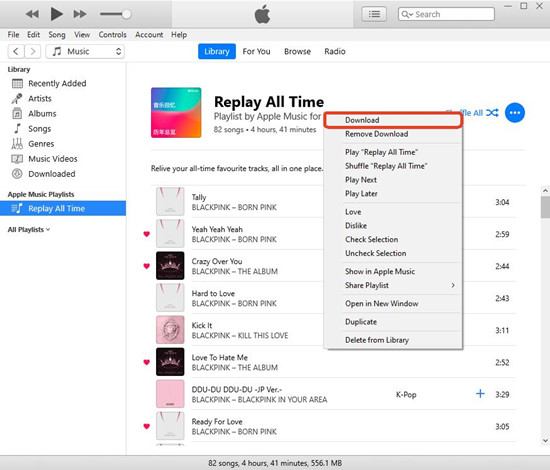
Open the Apple Music app and find the playlist. Add it to your library if needed, then click More (...) and choose Download. Once the songs finish downloading, they will be available for offline playback through your Apple Music library. If the playlist changes later, newly added songs may need to be downloaded separately.
01Open the Apple Music app on your Windows PC or Mac.
02On Windows, select the Search field in the top-left corner; on Mac, click the Search field at the top of the window.
03Select Apple Music on the right, enter the playlist name, artist, or keyword, then select the playlist.
04Select Add at the top of the playlist page.
05Select Download at the top of the playlist page.
Part 5. How to Download Apple Music Songs to Files
Apple Music downloads are designed for offline playback in the Apple Music app, not as regular audio files for transfer to other devices. Depending on your settings, downloads may use AAC or Apple Lossless Audio Codec (ALAC), both stored in an .m4a container. However, subscription downloads remain protected by Apple Music and cannot be opened or transferred as standard audio files.
To save Apple Music songs as local files, you can use an Apple Music downloader such as ViWizard Apple Music Converter. It can download songs, albums, and playlists to a Windows PC or Mac and convert them to MP3, M4A, WAV, FLAC, AIFF, or M4B for local storage and transfer.
How to Download Apple Music Songs to Your Computer with ViWizard
Open ViWizard Apple Music Converter on your PC or Mac and use its built-in browser to connect to your Apple Music library. Browse or search for songs, albums, or playlists, then select multiple tracks for batch downloading. Choose an output format and folder in Preferences, select the music you want, and click Convert. ViWizard will download and convert the selected content into standard audio files with metadata and save them to your chosen folder for management or transfer to other compatible devices.

Key Features of ViWizard Apple Music Converter
Free Trial Free Trial* Security verified. 5, 481,347 people have downloaded it.
- Convert Apple Music songs, playlists, albums, and artists
- Export Apple Music in 6 formats for different devices and players
- Preserve metadata and lyrics when creating music collections
- Organize converted music by artist and album
- Batch download large Apple Music collections
 Step 1: Download and Install ViWizard Apple Music Converter
Start by visiting the ViWizard website and downloading the Apple Music Converter for your computer. The software is compatible with both Windows and Mac. Once installed, launch the application and sign in using your Apple Music account. This gives you access to your Apple Music library, including playlists and albums, for conversion.
 Step 2: Select MP3, WAV, or FLAC as the Output Format
Next, choose your desired output format. You can select MP3, WAV, or FLAC depending on how you plan to use the downloaded music. Click the gear icon in the top-right corner to open the settings. Here, you can adjust audio preferences such as sample rate, bit rate, and channel options to control the quality and file size. Once you're satisfied with the settings, click OK to confirm your choices.
 Step 3: Choose the Apple Music Songs to Download
Now that your settings are in place, browse your Apple Music library and select the songs, albums, or playlists you want to download as audio files. Click the "+" button to add your chosen songs to the conversion list. Once you've selected everything you need, click "Add to Conversion List" to queue them for conversion. When you're ready, press the "Convert" button to start the process. ViWizard will convert your selected Apple Music songs to the chosen format, such as MP3, WAV, or FLAC.
 Step 4: Access Your Downloaded Apple Music Files
Once the conversion is complete, click the "History" button to view your converted files. You can access them by clicking the folder icon next to a file. From there, you can manage the MP3, WAV, or FLAC files on your computer or transfer them to compatible devices for offline listening.
Part 6. Apple Music Subscription Downloads vs. Common Audio Formats
| Feature | Apple Music Subscription Downloads | Common Audio Files |
|---|---|---|
| Examples | Apple Music offline downloads | MP3, WAV, FLAC |
| How obtained | Downloaded through the Apple Music app | Converted from Apple Music with a downloader such as ViWizard Apple Music Converter |
| Playback | Apple Music app | Compatible audio players |
| File management | Managed within Apple Music | Managed as regular audio files |
| Portability | Limited to supported Apple Music playback environments | Can be transferred to compatible devices and players |
| Audio formats | Apple Music-supported formats, including AAC and ALAC | User-selected formats such as MP3, WAV, or FLAC |
| Best for | Convenient offline listening | Independent storage, transfer, and playback |
Apple Music subscription downloads and common audio files such as MP3, WAV, and FLAC serve different purposes. The main difference is simple: Apple Music downloads provide offline access within the subscription service, while common audio files provide greater control over the downloaded audio itself.
An Apple Music downloader such as ViWizard Apple Music Converter can convert Apple Music tracks into common audio formats such as MP3, WAV, and FLAC. These files can then be stored on a computer, transferred to compatible devices, and used with other audio software, giving you more control over how your music is stored, transferred, and managed.
You May Be Interested


Adam Gorden is always looking for new ways to explore music and videos. He likes trying different media tools and learning how to manage audio and video files with ease.

Leave a Comment (0)