


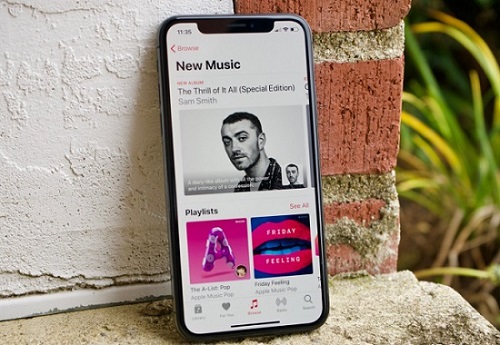
Apple Music gives you access to millions of songs, but streaming is not always convenient with an unstable or unavailable internet connection. Apple Music lets subscribers listen to music offline by making songs available on their devices.
With an active Apple Music subscription, you can listen to songs, albums, and playlists offline on your iPhone, Android device, Mac, or Windows PC. Add music to your library and make it available for offline listening using Wi-Fi or mobile data; you can then access it from the Downloaded section without Wi-Fi or mobile data. Offline listening requires an active subscription, and downloaded content remains available only within the Apple Music app.
In this guide, we'll show you how to listen to Apple Music offline on different devices and explore options for converting Apple Music songs to MP3.
Part 1. Can You Listen to Apple Music Offline Without Internet?
Yes. Apple Music supports offline listening for subscribers on supported devices, including iPhone, iPad, Apple Watch, Mac, Android devices, and Windows PCs. According to Apple, subscribers can add music from the Apple Music catalog to their library and "download it to your device to listen offline." You can stream music with an internet connection or download it beforehand for offline playback. Songs, albums, and playlists can be downloaded and played without Wi-Fi or mobile data, making offline listening useful for airplane travel, underground transportation, outdoor activities, or areas with unstable network coverage.
Offline listening is a subscription feature, so you need an active Apple Music subscription to continue accessing downloaded catalog music. Downloaded music can only be played within the Apple Music app.
Part 2. How to Add and Listen to Apple Music Offline on iPhone and iPad
Open the Apple Music app on your iPhone or iPad and find the song, album, or playlist you want to save. Tap Add to add albums or playlists to your library, or tap the More (...) button next to a song and select Add. Then tap Download to save the music for offline listening. For individual songs, open the More (...) menu and choose Download.
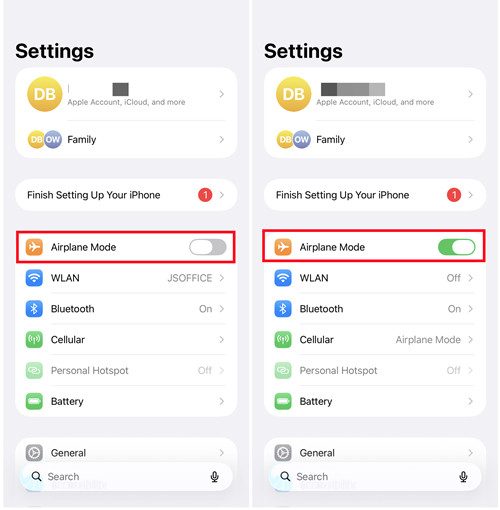
To find your saved music, go to Library > Downloaded. When traveling or entering areas with limited connectivity, you can enable Airplane Mode to turn off Wi-Fi and cellular connections while still playing downloaded Apple Music content through the app.
01Open the Apple Music app on your iPhone or iPad.
02Tap the Search tab and find the song, album, or playlist you want to download.
03Tap Add to add an album or playlist to your library, or tap the More (...) button next to a song and select Add to Library.

04Open Library and select Songs, Albums, Playlists, or another category.
05Tap the More (...) button next to the item you want to save.
06Tap Download to download the music for offline listening.

07Go to Library > Downloaded to view your downloaded music.
08Turn on Airplane Mode from Control Center or Settings, then open Apple Music and play your downloaded songs offline.
Part 3. How to Add and Listen to Apple Music Offline on Android
Open the Apple Music app on your Android device and find the song, album, or playlist you want to download. Tap Add to save albums or playlists, or tap the More (...) button next to a song and select Add. After adding the music, tap Download to save it for offline playback. For individual songs, open the More (...) menu and choose Download.
After downloading, open the Downloaded section in your Apple Music library to access saved content. Your downloaded songs remain available without Wi-Fi or mobile data, making offline listening convenient for travel, commuting, and other situations without an internet connection.
01Open the Apple Music app on your Android device.
02Tap the Search tab and find the song, album, or playlist you want to save.
03Tap Add to add an album or playlist to your library, or tap the More (...) button next to a song and select Add to Library.
04Open Library and select the music category containing your saved content.
05Tap the More (...) button next to the song, album, or playlist you want to download.
06Tap Download to save the music for offline playback.
07Open Library > Downloaded to find your downloaded content.
08Turn on Airplane Mode from Quick Settings or Settings, then return to Apple Music and play your downloaded music offline.
Part 4. How to Add and Listen to Apple Music Offline on Mac
Open the Apple Music app on your Mac and find the music you want to download. Hover over a song and click Add, or click Add at the top of an album or playlist page to add it to your library. After adding music, click Download to save it for offline listening.
Downloaded songs, albums, and playlists remain organized in your Apple Music library, allowing you to access them without streaming.
01Open the Apple Music app on your Mac.
02Use Search to find the song, album, or playlist you want to download.
03Click Add to add the music to your library.
04Open Library and locate the song, album, or playlist you added.
05Click the Download button next to the item you want to save.
06Open your Apple Music library to access downloaded songs, albums, and playlists for offline playback.
Part 5. How to Add and Listen to Apple Music Offline on Windows PC
On Windows PC, Apple Music downloads can be managed through the Apple Music app or iTunes for Windows. Both methods allow you to add music to your library, download songs, albums, and playlists, and access saved content offline.
01Launch iTunes for Windows.
02Select Music from the media selector in the top-left corner.
03Search for the song, album, or playlist you want to download.

04Click the More (...) button next to the item and select Add to Library.

05Open your music library and locate the added content.
06Click the Download button next to the song, album, or playlist.

07Select Downloaded from the sidebar to view your offline music.

Part 6. How to Add and Listen to Apple Music Offline on Apple Watch
On Apple Watch, you can add music through the Apple Watch app on your iPhone or the Music app on your watch. After adding music, download it to your Apple Watch for offline listening without an internet connection or nearby iPhone.
01Open the Apple Watch app on your iPhone.
02Tap My Watch > Music.
03Under Playlists & Albums, tap Add Music.
04Browse and select the albums or playlists you want to add.
05Tap Add to add the music to the download queue.
06Open the Music app on your Apple Watch.
07Browse Home or tap Back > Search to find the music you want.
08Open the song, album, or playlist.
09Tap More Options and select Add to Library.
10Tap More Options again and select Download.
11Wait for the music to finish downloading.
Part 7. How to Add and Listen to Apple Music Offline on Apple Vision Pro
On Apple Vision Pro, you can add music through the Apple Music app and download it for offline listening. This lets you listen to songs, albums, and playlists without an internet connection.
01Open the Apple Music app on your Apple Vision Pro.
02Use Search to find the song, album, or playlist you want to download.
03Select the music you want to save.
04Tap Add to add the music to your library.
05Open Library and locate the added content.
06Tap the Download button next to the song, album, or playlist.
07Wait for the music to finish downloading.
08Open your library to access the downloaded music and listen offline.
Part 8. How to Download Apple Music with an Apple Music Downloader for Offline Listening
You may expect downloaded Apple Music songs to appear as regular audio files like MP3, WAV, or FLAC that can be moved between devices. However, Apple Music downloads remain inside the Apple Music app and cannot be accessed as standalone audio files.
For more flexible offline listening, some users choose to convert Apple Music songs to MP3. ViWizard Apple Music Converter can save Apple Music songs, albums, playlists, and artists in common formats, including MP3, WAV, FLAC, AIFF, M4A, and M4B.
Connect your Apple Music library through the built-in Apple Music Web Player, add the content you want, select an output format, and start converting. With batch conversion at up to 17× faster speed, converted files can be stored locally and transferred between devices for offline personal use, even without an active Apple Music subscription.

Key Features of ViWizard Apple Music Converter
Free Trial Free Trial* Security verified. 5, 481,347 people have downloaded it.
- Convert Apple Music songs, playlists, albums, and artists
- Export Apple Music in 6 formats for different devices and players
- Preserve metadata and lyrics when creating music collections
- Organize converted music by artist and album
- Batch download large Apple Music collections
 Step 1: Download and Install ViWizard Apple Music Converter
Start by visiting the ViWizard website and downloading the Apple Music Converter for your computer. The software is compatible with both Windows and Mac. Once installed, launch the application and sign in using your Apple Music account. This will give you access to your entire library, including playlists and albums, ready for conversion.
 Step 2: Select MP3 as the Output Format
Next, choose your desired output format. MP3 is ideal for compatibility across different devices, including phones, tablets, and computers. To do this, click the gear icon in the top-right corner to open the settings. Here, you can adjust audio preferences like sample rate, bit rate, and channel options to tailor the quality and size of your files. Once you're satisfied with the settings, click OK to confirm your choices.
 Step 3: Choose the Songs to Convert
Now that your settings are in place, browse your Apple Music library and select the tracks, albums, or playlists you want to keep for offline use. Click the "+" button to add your chosen songs to the conversion list. Once you've selected everything you need, click "Add to Conversion List" to queue them for conversion. When you're ready, press the "Convert" button to start the process. ViWizard will begin converting your selected Apple Music files to MP3 format, and the conversion should only take a few minutes, depending on how many files you've chosen and the speed of your computer.
 Step 4: Access and Enjoy Your Converted Music
Once the conversion is complete, click the "History" button to view your converted files. You can easily access them by clicking the folder icon next to the file. From here, you can transfer the MP3 files to any device for offline listening, such as your smartphone or portable music player.
Part 9. Apple Music Offline Downloads vs. Apple Music MP3 Downloads
| Feature | Apple Music Offline Download | Apple Music Converter |
|---|---|---|
| How it works | Downloads music inside the Apple Music app | Converts Apple Music songs into regular audio files |
| Output format | Apple Music app downloads only | MP3, WAV, FLAC, AIFF, M4A, M4B, and more |
| Offline playback | Available only in the Apple Music app | Playable with more music players and devices |
| Device flexibility | Limited to Apple Music-supported devices | Files can be transferred between compatible devices |
| Music management | Managed through Apple Music Library | Managed as local audio files |
| Best for | Simple offline listening within Apple Music | Flexible offline listening and personal music management |
Apple Music makes offline listening easy by allowing subscribers to download songs, albums, and playlists directly within the Apple Music app. However, these downloads remain limited to the Apple Music ecosystem and cannot be accessed as regular audio files like MP3 or WAV. For users who want more flexibility to store, transfer, or play Apple Music songs on different devices, converting them into common audio formats can be a better option.
ViWizard Apple Music Converter helps convert Apple Music songs, albums, playlists, and artists into MP3, WAV, FLAC, AIFF, M4A, and M4B formats while preserving metadata. With batch conversion and up to 17× faster speed, it allows you to create a more flexible offline music library and play your favorite Apple Music tracks on more devices.
Try ViWizard Apple Music Converter to save Apple Music songs in the format you need for offline listening.
You May Be Interested
Download Songs, Albums & Playlists from Apple Music

How to Fix Apple Music Not Playing Offline

How to Listen to Apple Music in Airplane Mode

How to Listen to Pandora Offline? [No Premium]

Enable Tidal Offline Mode for iOS/Android/Windows/PC [Forever]

How to Listen to YouTube Music Offline with/without Premium

Adam Gorden is always looking for new ways to explore music and videos. He likes trying different media tools and learning how to manage audio and video files with ease.

Leave a Comment (0)