


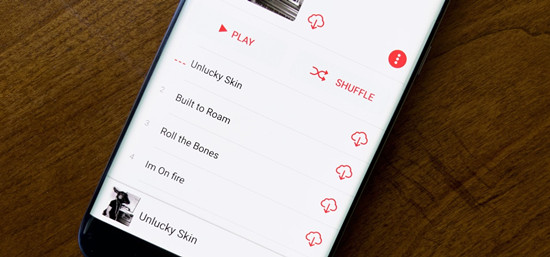
If you have music from different sources, iCloud Music Library can be a handy way to bring your personal music collection and Apple Music content together in one library. You can add music from your computer, let iTunes match or upload eligible files, and manage them alongside the music already in your Apple Music library.
iCloud Music Library is useful if you have both Apple Music tracks and music files you already own. Once you know how iCloud Music Library handles them, it becomes easier to keep your collection organized and make the most of the music you have. This guide explains how iCloud Music Library works in iTunes for Windows and how to set it up, manage your music, check file status, and handle common library issues.
Part 1. What Is iCloud Music Library?
iCloud Music Library is the cloud-based music library used by iTunes for Windows with an Apple Music or iTunes Match subscription. It stores music added from Apple Music and eligible music files from your computer that are matched or uploaded. Once stored in iCloud, users can access, stream, or download the music on supported devices signed in with the same Apple Account. It is not a backup service, so users should keep a separate backup of their original music files.
Part 2. How Does iCloud Music Library Work?

In iTunes for Windows, iCloud Music Library makes your iTunes music library available in iCloud. With an Apple Music or iTunes Match subscription, it can store up to 100,000 songs, excluding iTunes Store purchases, with individual files up to 200 MB. Matched songs are stored at iTunes Plus quality, 256 Kbps DRM-free AAC, while unmatched songs are uploaded at their original quality. It can also keep purchased music videos, playlists that include only songs, and Smart Playlist rules in the cloud.
To turn it on, go to Edit > Preferences > General in iTunes for Windows and select iCloud Music Library. Once enabled, eligible songs can be made available through iCloud for access or download on supported devices signed in with the same Apple Account.
Part 3. How to Turn On iCloud Music Library
On Windows, iCloud Music Library is called Sync Library in the current Apple Music app, while iTunes for Windows uses the older iCloud Music Library name.
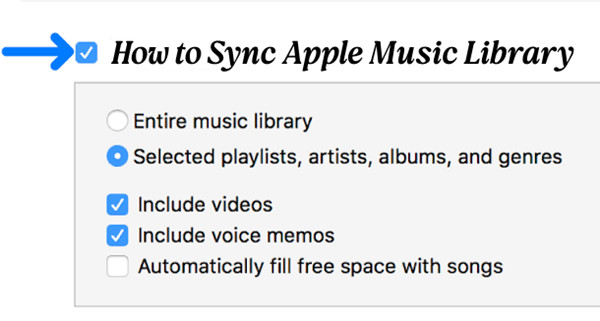
To use it, sign in with the same Apple Account linked to an Apple Music or iTunes Match subscription. In Apple Music, go to Sidebar Actions > Settings > General, turn on Sync Library, and wait for the cloud music library to update. The status appears as Updating Cloud Music Library at the bottom of the sidebar. Once enabled, you can access the library on other supported devices signed in with the same Apple Account.
01Open iTunes on your Windows PC. Go to Account > Sign In, then enter the Apple Account linked to Apple Music or iTunes Match.
02Go to Edit > Preferences > General.
03Select iCloud Music Library, then click OK. iTunes will start updating your library.

04Wait for the update to finish. You can then access your music on other supported devices signed in with the same Apple Account.
05If you don't see iCloud Music Library, choose Account and check that you're signed in with the correct Apple Account. You also need an active Apple Music or iTunes Match subscription. The feature may not be available in every country or region.
Part 4. How to Turn Off iCloud Music Library
To stop syncing on Windows, go to Sidebar Actions > Settings > General in Apple Music and turn off Sync Library. In iTunes for Windows, turn off iCloud Music Library instead. Turning off Sync Library can remove downloaded music from the device, so back up any music you need first. If you're troubleshooting sync problems, check your Apple Account, subscription, network connection, and library status before turning the feature off and on again.
01Open iTunes and go to Edit > Preferences.
02Click General.
03Clear iCloud Music Library, then click OK.
04To remove a song from iCloud Music Library, select it, go to More > Delete from Library > Delete Song.
05Before deleting a song, check whether you have a local copy. Deleting it from iCloud Music Library can also remove it from other iPhone or iPad devices using the same library.
06To manually sync music with an iPhone, iPad, or iPod, turn off iCloud Music Library first. Manual syncing is unavailable while it is on.
Part 5. How to Use iCloud Music Library
Once iCloud Music Library is turned on, you can manage your iTunes library on Windows and work with music stored on your computer or in the Apple Music catalog. You can add local music, let iTunes match or upload files, check their iCloud Status, find duplicates, and update the library when recent changes are not showing.
Option 1: Add Music to Your iCloud Music Library

To add a music file from your computer, right-click the song in iTunes and choose Add to iCloud Music Library. If you previously removed the cloud version, a crossed-out cloud icon labeled Removed appears next to the file. The original file remains on your computer. Right-click the song again and choose Add to iCloud Music Library to reupload it and replace the mismatched version.
Option 2: Match or Upload Music to iCloud Music Library

When you add music files from your computer, iTunes checks whether they can be matched with songs in the Apple Music catalog. Matched songs use the corresponding catalog version, while unmatched songs are uploaded from your computer. This lets you add an existing personal music collection without uploading every song manually.
Option 3: Check Matched and Uploaded Music in Your iCloud Library

After iTunes processes your music, check the iCloud Status to see whether each file was matched, uploaded, is waiting, or has been removed. If a song is still waiting, keep iTunes connected to the internet while it processes.
Option 4: Find Duplicate Music in Your iCloud Music Library
If the same song appears more than once in your iTunes library, check the song information and iCloud Status before removing either copy. Duplicate entries can come from different files and may have different cloud states, so they are not necessarily identical.
Option 5: Update Your iCloud Music Library

If recently added, matched, or uploaded music does not appear as expected, select Update iCloud Music Library in iTunes to process recent changes. If music is still missing, check the file, iCloud Status, account, and internet connection.
Part 6. How to Access Your Apple Music Library Without a Subscription
iCloud Music Library requires an Apple Music or iTunes Match subscription, so it does not provide continued access to a synced Apple Music library after the subscription ends. You can still access eligible purchased or locally stored music through other methods, depending on the content. If you want to keep supported Apple Music tracks as local audio files instead of relying on subscription-based library access, ViWizard Apple Music Converter provides a separate format conversion option.
ViWizard Apple Music Converter is a desktop application for Windows and Mac that converts Apple Music songs, albums, playlists, and artists into common audio formats such as MP3, FLAC, and WAV. The converted files are saved locally, so you can manage them as regular audio files in your own collection rather than relying on access through your Apple Music subscription.

Key Features of ViWizard Apple Music Converter
Free Trial Free Trial* Security verified. 5, 481,347 people have downloaded it.
- Convert Apple Music songs, playlists, albums, and artists
- Export Apple Music in 6 formats for different devices and players
- Preserve metadata and lyrics when creating music collections
- Organize converted music by artist and album
- Batch download large Apple Music collections
 Step 1: Download and Install ViWizard Apple Music Converter
Start by visiting the ViWizard website and downloading the Apple Music Converter for your computer. It works on both Windows and Mac. Once installed, launch the application and sign in with your Apple Music account. This gives you access to your Apple Music library, including playlists and albums, so you can save selected music as local audio files.
 Step 2: Select MP3, WAV, or FLAC as the Output Format
Next, choose a format that works with the devices and music players you use. You can select MP3, WAV, or FLAC depending on your needs. Click the gear icon in the top-right corner to open the settings. Here, you can adjust options such as the sample rate, bit rate, and channel settings to control the audio quality and file size. When you're happy with the settings, click OK to confirm.
 Step 3: Choose the Apple Music Songs to Convert
Now browse your Apple Music library and select the songs, albums, or playlists you want to save as local audio files. Click the "+" button to add your selections to the conversion list, then click "Add to Conversion List" to queue them. When you're ready, click "Convert" to start converting the selected Apple Music content to MP3, WAV, or FLAC files.
 Step 4: Access Your Local Apple Music Files
Once the conversion is finished, click the "History" button to view your converted files. Click the folder icon next to a file to open its location on your computer. You can then manage the MP3, WAV, or FLAC files as local music and transfer them to compatible devices for playback without relying on iCloud Music Library or keeping your music available through the Apple Music library.
Part 7. Conclusion
iCloud Music Library lets you access and manage your iTunes music library across supported devices. On Windows, you can add music, match or upload files, check their status, manage duplicates, and update the library when needed.
Since iCloud Music Library requires an Apple Music or iTunes Match subscription, you can use ViWizard Apple Music Converter to convert supported Apple Music tracks to local MP3, FLAC, or WAV files if you want to keep them in your own collection.
You May Be Interested



Adam Gorden is always looking for new ways to explore music and videos. He likes trying different media tools and learning how to manage audio and video files with ease.

Leave a Comment (0)