


Netflix's "casting" function allowed its users to stream content from their phone to a TV. Unfortunately, Netflix has killed the function, unless subscribers are using older casting devices.
There is a new help page on the Netflix official website, which first says that the Netflix streaming service "no longer supports casting shows from a mobile device to most TVs and TV-streaming devices." However, the mirror function is definitely convenient to most Netflix users. Netflix quietly ended this service, which is unfriendly to users. So, what else ways to cast Netflix to TV?
Part 1. Why Can't I Cast Netflix to My TV?
A representative for Netflix has responded to this query, stating that Netflix is discontinuing casting support for mobile device playback management since it wasn't a feature utilized by a sufficient number of subscribers. The representative mentioned that Netflix occasionally needs to phase out features that are no longer extensively adopted so as to allocate resources to those that offer greater value. Netflix refrains from disclosing any data regarding the number of users who have employed the casting function, nor does it reveal details about how this feature consumes resources in comparison to other features available on the platform.
Then, some areas will have a mini description under the thumbnail, so you can look through the mini description to decide watch it or not.
Part 2. TV Models That Support Netflix Casting from Phone
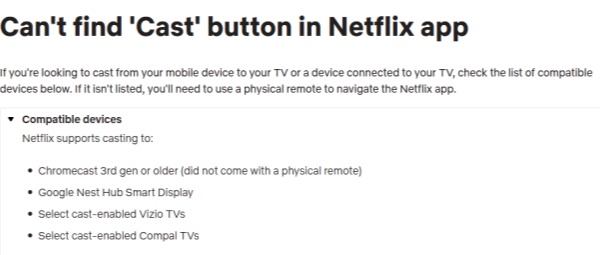
At present, only a narrow set of old devices works with Netflix phone casting. These device are listed as follows:
- Chromecast devices (3rd gen or older) without a physical remote
- Google Nest Hub smart displays
- Select cast-enabled Vizio TVs
- Select cast-enabled Compal TVs
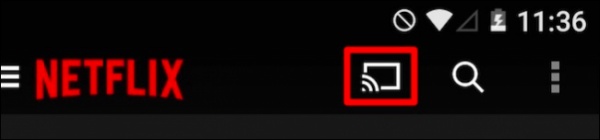
Meanwhile, only subscribers with Netflix's ad-free plans starting at $17.99 per month can use the casting feature. Netflix users with an ad-supported Standard subscription ($7.99 per month) will be unable to cast from their phones even if they own Chromecast devices.
Part 3. Workarounds to Cast Netflix to TV
Although Netflix ended the casting feature on most Smart TVs, we can still mirror the content by the following 4 ways. In these ways, you can cast your Netflix TV shows or other content easily.
Workaround 1: Use Built-In Netflix App on TV
Netflix recommends that people use the official Netflix smart TV app. At first, your smart TV or streaming device is connected to your home Wi-Fi network. Search for the Netflix app on your TV's home screen or app store. Then, install the app and open it. After that, log in to your Netflix account using your email and password. Finally, you can stream the content and tap play on what you want to watch.
Currently, most smart TVs are compatible with Netflix. You can just sign in to your account on the TV so that you can stream Netflix on a big screen. Unfortunately, this way means you can't control Volume controls, playback buttons, closed captioning controls, or any other settings by means of your phone anymore if you're streaming on the TV. However, you can be fine with logging in to Netflix on your own TV, but when you are in a hotel or other place, it is easy to forget to sign your account out of the strange TV. So, we just recommend you sign in to your Netflix account on your TV.
Workaround 2: Download and Transfer Netflix Shows & Movies to TV
With all the limitations, one option is to use a video downloader program to save shows and movies from Netflix to your computer. Without worrying about streaming restrictions, you can cast or transfer the downloaded files to any TV that supports video casting or local file playing
One of the best Netflix video downloaders we recommend is called ViWizard Netflix Video Downloader. It lets you download content from Netflix and save it as high-quality MP4 or MKV files on your computer, which means you can store your favourite footages and watch them wherever, even offline.
The following is a simple tutorial on ViWizard Netflix Video Downloader:

Key Features of ViWizard Netflix Video Downloader
Free Trial Free Trial* Security verified. 5, 481,347 people have downloaded it.
- Download Netflix movies and TV shows as MP4 or MKV files
- Preserve HD, 4K, HDR video, audio tracks, and subtitles
- Accelerate downloads when saving long videos or complete seasons
- Remove ads automatically during video downloads
- Save Netflix videos for playback on different devices
Step 1Install with Your Netflix Account
At first, open the ViWizard Netflix Video Downloader. In this window, you can enter Netflix with your email and password. Click "Sign in". Then, you can look through all the Netflix content, including movies, TV series, and the original creations.

Step 2Choose the Video Parameters
After installing, click the hamburger icon (three horizontal lines) in the upper right corner of the ViWizard interface and open "Preferences". In the "Download" section, you can set up the video quality as the highest, and the encoding type, video format (MP4 or MKV) and audio quality, language, and so on. In addition, you can choose embedded subtitles and independent subtitles as you need. Click "OK" to save your changes.

Step 3Search for the Content You Want
Next, search the content on Netflix in the Search bar by keywords, title, or URL. Just like you use Netflix on a web browser. And select the episodes or Season you desire to download.

Step 4Initiate the Download
Then, when you're chosen, click "Download" to begin. If you don't want to download now, you can choose "Add to List" and download it later. Don¡¯t worry, ViWizard can automatically download the content, so you can spend your time on other things while waiting.

Step 5Play Downloaded Netflix Videos
You can find the downloaded content by opening the History section. The downloaded content will be presented there. Subsequently, you can play the downloaded Netflix video in its highest and best quality on your TV or any other device. Also, you can cast the content to any smart TV without limitation.

Workaround 3: Use Screen Mirroring Apps
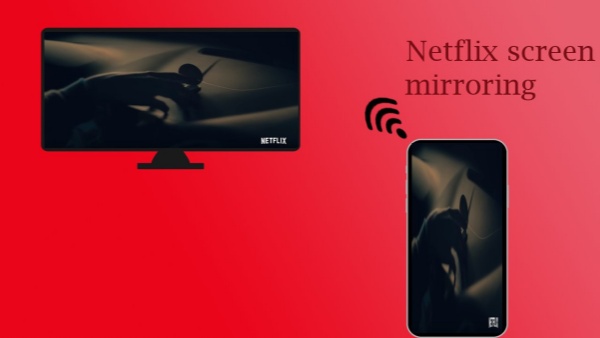
If you want to watch Netflix from your phone but on a big screen TV, screen mirroring apps are definitely the way to go. However, AirPlay and Screen Mirroring are no longer supported by Netflix officially. Luckily, there are still some applications that can mirror the content, like Apower mirror, Any mirror.
Step 1Ensure both devices are on the same Wi-Fi network.
Step 2 For Android: Swipe down from the top of the screen to open Quick Settings and find the "Cast," "Screen Mirroring," or "Smart View" option. For iPhone: Open the Control Center by swiping down from the top-right corner and tap "Screen Mirroring".
Step 3 Choose your smart TV you want to cast from the list of available devices.
Step 4 On your TV's input or source menu, select the option for the screen mirroring apps.
Step 5 Once connected, you can open the Netflix app on your phone and start playing content you want to cast.
Workaround 4: Use a Direct Cable Connection
If there isn't a Chromecast-compatible device, you can choose to use an HDMI cable and adapter to connect your phone to the TV and mirror what's on your screen. The easiest option is a USB-C to HDMI adapter. If your phone has a USB-C port, you can plug this adapter into your phone, plug an HDMI cable into the adapter, and then connect the cable to the TV. We have a detailed guide below:
Step 1 Look for an HDMI port on your TV. Check your phone for either a USB-C port (common on newer Android and iPhones) or a Thunderbolt port.
Step 2 Now, you can prepare the adapter for your phone's port. You will also need to prepare a standard HDMI cable to connect the adapter to your TV.
Step 3 Plug the adapter into your phone's charging or data port. This will occupy the port, so you may not be able to charge your phone at the same time.
Step 4 Then, plug one end of the HDMI cable into the adapter, and the other end into an available HDMI port on your TV.
Step 5 Next, use your TV remote to navigate to the source menu and select the HDMI port you plugged the cable into.
Step 6 Open the Netflix app, choose a show or movie, and start playing it. Your phone's screen should now be mirrored on the TV.
A cable or adapter connection doesn't support automatically playing the next episode.
Part 4. Conclusion
Our article provides 4 methods to help you cast Netflix on your big-screen TV. Built-in Netflix apps, Netflix downloading, screen mirroring, and cable connection are all good options. But for true flexibility, Netflix downloading is best. Therefore, we recommend you use ViWizard Netflix Video Downloader. With it, all the processes become really simple. You'll be able to save your favourites forever, mirror them whenever you like, and stream them in the best quality!
You May Be Interested


Dave Henry, a multimedia technologist at ViWizard, focuses on delivering the best solutions for digital media challenges, including audio and video conversion, media optimization, and troubleshooting.

Leave a Comment (0)