


You may want to download a Netflix movie for a long flight, save a favorite show for offline viewing, or keep a title available after its Netflix download expires. However, Netflix's official download feature comes with limits, and third-party downloaders vary widely in speed, quality, price, and features.
In this guide, we'll cover 15 free and paid Netflix downloaders in 2026, from simple Netflix-focused tools to multi-platform downloaders and recording software. We'll explain what each tool offers and where it falls short, then compare all 15 in a side-by-side table covering speed, price, output quality, safety, and key features. Let's dive in.
Part 1. Can You Download Netflix Movies for Free?
No, Netflix does not offer a way to download movies and TV shows as permanent video files for free. If you are a Netflix subscriber, you can download movies and TV shows directly through the Netflix official app on supported devices, including iOS, Android, Fire OS, and Windows 10/11. However, these downloads come with several DRM-enforced restrictions:
Download limits: Standard with Ads plans allow up to 15 downloads per device each calendar month, while Standard and Premium ad-free plans support up to 100 active downloads per device.
Device limits: Depending on your subscription, downloads can be stored on 2 to 6 registered devices at the same time.
Expiration: Downloads are temporary. Unwatched titles may expire after 7 to 30 days, while titles you start watching typically expire 48 hours after playback begins.
DRM protection: Netflix downloads are stored in a protected format and can only be played through the Netflix app. You cannot transfer them as MP4 or MKV files to a USB drive or another media player.
If you want more flexibility, third-party Netflix downloader tools such as ViWizard can save Netflix videos as MP4 or MKV files. This way, you can play them on devices and keep them beyond the normal download expiration period. However, there are some trade-offs as well. In the next part, we will cover 15 Netflix downloaders' features and their limitations in more detail.
Part 2. 15 Best Netflix Downloader Apps
If you want more control over your Netflix downloads, dedicated Netflix downloader software is worth considering. Unlike Netflix's built-in download feature, these desktop tools generally save videos as regular files such as MP4 or MKV, so you can manage and play them without media players. They also tend to offer more control over video quality, subtitles, audio tracks, and output settings. Below, we compare 15 popular Netflix downloaders, starting with ViWizard Netflix Video Downloader.
Top 1. ViWizard Netflix Video Downloader
ViWizard Netflix Video Downloader is a dedicated tool for downloading Netflix movies, TV shows, documentaries, anime, and other titles on Windows and Mac. It saves videos as local MP4 or MKV files, giving you more flexibility than Netflix's built-in download feature. Depending on your Netflix subscription and the available title, it can preserve up to 1080p HD or 4K UHD video quality, along with 5.1 Dolby Atmos audio and subtitles. It can also remove ads from supported titles, while the downloaded files can be played with compatible media players such as VLC. Let's see how to use ViWizard to download Netflix videos.

Key Features of ViWizard Netflix Video Downloader
Free Trial Free Trial* Security verified. 5, 481,347 people have downloaded it.
- Download Netflix movies and TV shows as MP4 or MKV files
- Preserve HD, 4K, HDR video, audio tracks, and subtitles
- Accelerate downloads when saving long videos or complete seasons
- Remove ads automatically during video downloads
- Save Netflix videos for playback on different devices
 Step 1: Sign in to Netflix
Open ViWizard Netflix Video Downloader on your Windows PC or Mac and click Sign in. Log in with your Netflix account to browse available movies and TV shows.
 Step 2: Choose the Download Settings
Click the hamburger icon in the upper-right corner and select Preferences. Under Download, choose MP4 or another available format, then adjust the video quality, encoding, audio, language, and subtitle settings.
 Step 3: Find and Download a Video
Now search for the Netflix title you want to download or paste its URL into the address bar. You can also browse in the built-in Netflix web player to find an interesting show. Then, click the download icon, select episodes, and click Download.
 Step 4: Find the Downloaded Video
When the download finishes, click the folder icon next to the title. You can then find the saved Netflix video in your local folder and play it with a compatible media player.
- Built-in Netflix browser for searching and downloading
- Saves videos as MP4 or MKV files
- Supports up to 1080p video
- Supports multiple audio tracks and subtitles
- Offers H.264 and AV1 codec options
- Includes SRT subtitle export
- Available for Windows and Mac
- Paid software with limited trial features
- Performance may be affected when Netflix changes its platform or protections
- Not designed for managing very large video libraries
- May offer fewer advanced controls than some specialized tools
Top 2. FreeGrabApp
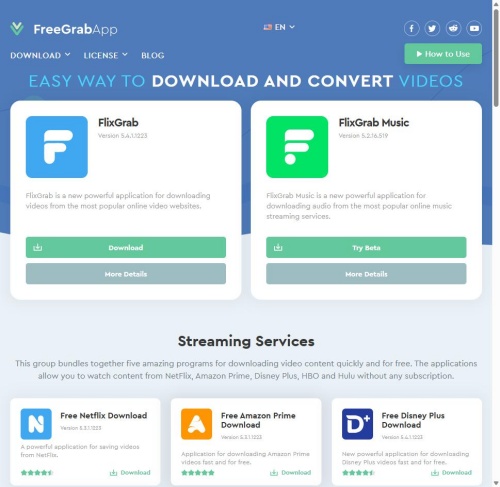
FreeGrabApp is a Windows desktop program for downloading movies, TV shows, and other videos from Netflix for offline viewing. It often separates its tools by streaming service, so the Netflix version focuses specifically on Netflix rather than combining every platform into one application. It has a copy-and-paste workflow. It also offers options for subtitles and supported surround-sound or audio-description tracks.
01Install and open FreeGrabApp.
02Sign in to your Netflix account within the app if prompted for authorization.
03Go to Netflix in your web browser, find the movie or TV show episode you want, and copy the URL from the address bar.
04Switch back to FreeGrabApp and click Paste to insert the link.
05Select your preferred video quality/resolution and subtitle language.
06Click Download and wait for the process to finish.
- Simplifies video downloading
- Supports external SRT subtitles
- Retains original audio tracks
- Offers a free trial
- Provides multiple quality options
- Limits free downloads
- Requires separate service licenses
- Supports Windows only
- Restricts licenses to one PC
- Faces DRM-related download errors
Top 3. KeepStreams
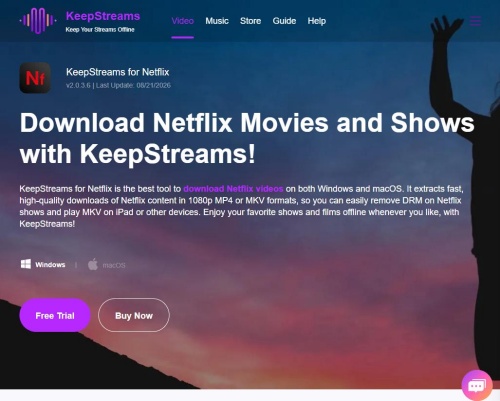
KeepStreams is a desktop video downloader for Windows and Mac that supports Netflix, Amazon Prime Video, Disney+, and other subscription streaming services. It is designed for users who want to save streaming videos as regular files. Compared with screen-recording tools, KeepStreams is built around direct stream processing. Depending on the title and source, it offers options for video resolution and audio tracks, subtitles, and other download settings.
01Download and install KeepStreams on your Windows PC or Mac.
02Launch KeepStreams, select Netflix from the VIP Services menu, and sign in to your Netflix account.
03Search for the movie or TV show you want to download and open it.
04Select your preferred video quality, audio track, and subtitle language.
05Click Download Now to save the Netflix video to your computer.
- Supports multiple streaming services
- Preserves high-quality video
- Saves videos as MP4 or MKV
- Processes multiple episodes in batches
- Supports various audio and subtitle options
- Removes ads during supported downloads
- Requires a paid license
- Consumes considerable storage for high-quality videos
- Faces interruptions from DRM updates
- May raise terms-of-service concerns
Top 4. Audials One
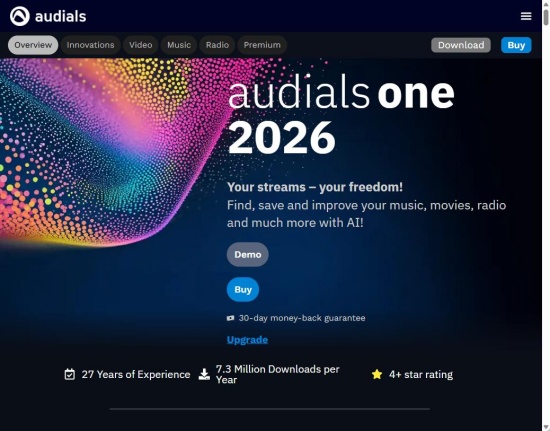
Audials One is a Windows multimedia suite that works more like a digital video recorder than a traditional Netflix downloader. It can capture streaming movies and TV shows while they play and save the recordings as local video files. Audials One also has tools for recording music and radio, converting media, and organizing saved content in one library. While the recording feature makes Audials One more time-consuming, this downloader plays a broader role as an all-in-one media recording and management tool.
01Download and install Audials One on your Windows PC.
02Open Audials One and select Video Streaming, then choose Netflix.
03Select your preferred recording settings, including the video format, resolution, and available ad-handling options.
04Open the desired Netflix movie or TV show in the integrated browser and start playback.
05Let Audials One record the video from beginning to end, then find the finished recording in your local video library.
- Records streaming videos during playback
- Supports multiple media formats
- Removes or skips supported advertisements
- Organizes recordings into a media library
- Combines video, music, and radio tools
- Supports Windows only
- Requires real-time video playback
- Consumes more system resources during recording
- Requires paid upgrades for newer versions
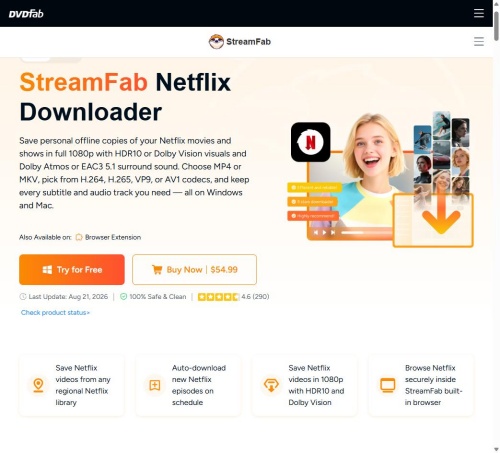
Top 5. StreamFab
StreamFab is a desktop video downloader developed by DVDFab for saving movies and TV shows from popular streaming services such as Netflix, Amazon Prime Video, and Disney+. It supports more than 40 streaming platforms and saves downloaded videos as standard MP4 or MKV files. It focuses on video quality, audio and subtitle options, and batch downloads. You can download videos up to 1080p or 4K resolution, which depends on your streaming plan.
01Download and install StreamFab on your computer.
02Open StreamFab and click VIP Services in the left-side menu.
03Select Netflix from the list of supported streaming services.
04Sign in to your Netflix account through the built-in browser.
05Search for the movie or TV show you want to download and open it.
06Select the desired movie, episode, or season when the download window appears.
07Click Download Now to start saving the selected Netflix videos to your computer.
- Supports high-quality video downloads
- Preserves multiple audio tracks
- Saves subtitles as SRT files
- Downloads entire seasons in batches
- Removes ads from supported downloads
- Preserves metadata for media servers
- Requires a paid license
- Increases costs for multiple service modules
- Faces interruptions from DRM updates
- Consumes considerable system resources
- Uses substantial storage for batch downloads
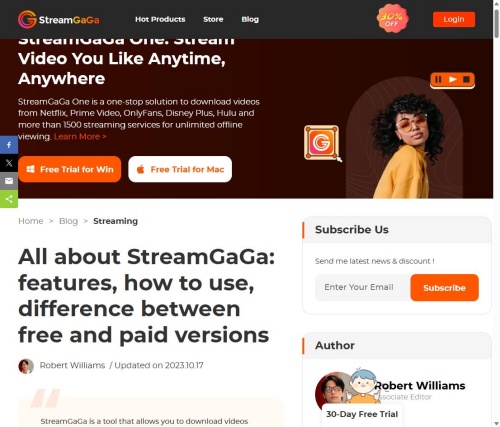
Top 6. StreamGaGa
StreamGaGa is a desktop video downloader for Windows and Mac that supports Netflix and many other subscription streaming services, such as Disney+, Amazon Prime Video, and HBO Max. It can save movies and TV shows as standard MP4 or MKV files. StreamGaGa focuses on premium streaming services and its built-in browser. You can sign in to Netflix, browse for a title, and choose the available video quality, audio tracks, and subtitles all inside StreamGaGa. And this software supports batch downloads.
01Download and install StreamGaGa on your Windows PC or Mac.
02Open StreamGaGa, click VIP Services, and select Netflix.
03Sign in to your Netflix account through the built-in browser.
04Search or browse for the movie or TV show you want to download.
05Play the selected video and choose the available video resolution, audio language, and subtitle options from the settings window.
06Click Download Now to start downloading the video, or choose Add to Queue to download multiple titles.
- Supports Windows and Mac
- Saves videos as MP4 or MKV
- Supports high-resolution downloads
- Preserves multiple audio and subtitle tracks
- Downloads multiple episodes in batches
- Removes ads from supported downloads
- Requires a paid license for full features
- Requires desktop-to-mobile file transfers
- Faces interruptions from streaming-service updates
- Depends on continued platform compatibility
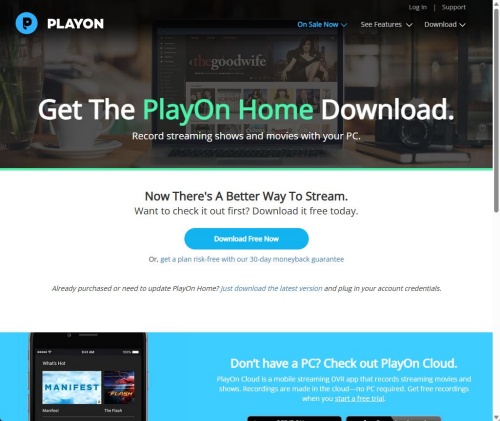
Top 7. PlayerOn
PlayOn is a streaming video recorder and DVR-style software that can record movies and TV shows from services such as Netflix and save them as standard MP4 files. PlayOn records the video as it plays, similar to a traditional DVR. The saved MP4 recordings do not have the same expiration behavior as Netflix's in-app downloads. PlayOn also offers PlayOn Home for Windows and PlayOn Cloud for cloud-based recording.
01Download and install PlayOn Home on your Windows PC, or use PlayOn Cloud on a supported mobile device.
02Open PlayOn and go to the Channels or streaming services section.
03Select Netflix and sign in with your Netflix account.
04Search for the movie or TV show you want to save.
05Click Record for a single episode or Record All to record multiple episodes from a series.
06Wait for the recording to finish, then find the completed MP4 file in your PlayOn video library.
- Saves videos as MP4 files
- Keeps recordings from expiring
- Transfers videos across compatible devices
- Skips ads on supported content
- Provides DVR-style recording
- Records videos in real time
- Requires a Windows PC for PlayOn Home
- Keeps the computer running during recording
- May include account identification screens
- Requires additional storage for local recordings
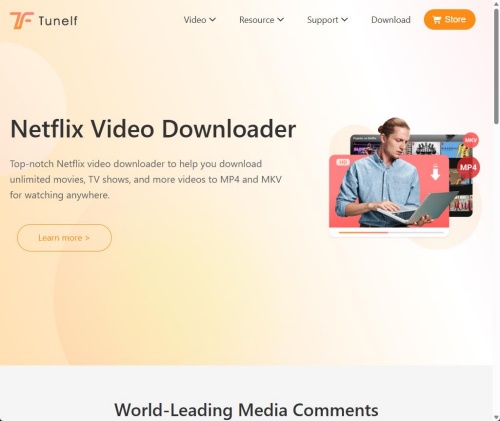
Top 8. Tunelf Netflix Video Downloader
Tunelf Netflix Video Downloader is a desktop tool for Windows and Mac that downloads movies and TV shows from Netflix and saves them as standard local MP4 and MKV files. You can sign in to Netflix directly inside the program, search for a title, and configure the available video, audio, and subtitle settings. It also supports batch downloads.
01Download and install Tunelf Netflix Video Downloader on your Windows PC or Mac.
02Open Tunelf and sign in with your active Netflix account.
03Search for the movie or TV show you want to download, or paste its Netflix link into the search bar.
04Choose the available MP4 or MKV format, video quality, audio track, and subtitle settings.
05Click Download to save the selected Netflix video to your computer.
- Exports videos as MP4 or MKV
- Preserves high-quality video and audio
- Downloads multiple episodes in batches
- Provides flexible audio and subtitle options
- Saves videos without official download expiration
- Requires a paid license for full features
- Requires an active Netflix subscription
- Faces compatibility issues after platform updates
- May conflict with streaming-service terms

Discover if Tunelf Netflix Video Downloader is the right choice for downloading Netflix videos. Explore its features, pricing, and reviews in this detailed analysis.
Top 9. MovPilot
MovPilot is a paid desktop video downloader for Windows and Mac that supports Netflix and other streaming platforms. It saves movies and TV shows as standard MP4 or MKV files, so you can play the files on compatible media players. You can sign in to Netflix inside the software, search for a title, and select the content you want to download.
Compared with some competitors, it offers a clean and beginner-friendly interface, although its maximum video quality may be lower depending on the platform and title.
01Download and install MovPilot Netflix Video Downloader on your Windows PC or Mac.
02Open MovPilot and sign in to your Netflix account through the built-in browser.
03Search for the movie or TV show you want to download, or paste its direct Netflix URL.
04Click the Settings or gear icon and choose the available MP4 or MKV format and video quality.
05Click the Download button next to the movie or episode you want to save.
- Provides a clean and beginner-friendly interface
- Saves videos as MP4 or MKV
- Downloads entire TV seasons in batches
- Retains multiple audio tracks and subtitles
- Supports Windows and Mac
- Limits the free trial to short video previews
- Provides up to 1080p depending on the source
- Restricts licenses to a single computer
- Requires updates after platform security changes
Top 10. TuneBoto Video One
TuneBoto Video One is an all-in-one desktop video downloader for Windows and Mac. It supports Netflix and many other streaming platforms like Prime Video, Disney+, Hulu, Max, and more. It saves the videos as MP4 or MKV and supports quality adjustments and subtitle settings before downloading.
01Download and install TuneBoto Video One on your Windows PC or Mac.
02Open the program, select Netflix, and sign in to your Netflix account through the built-in browser.
03Click the Gear icon to choose the available MP4 or MKV format, video quality, audio language, and subtitle settings.
04Search for the movie or TV show you want to download by entering its title or pasting the Netflix video URL.
05Select the desired movie, episode, or season and click Download to save the videos to your local folder.
- Supports 1080p video quality
- Saves videos as MP4 or MKV
- Downloads entire seasons in batches
- Preserves 5.1 surround sound
- Exports subtitles as SRT files
- Supports multiple streaming platforms
- Requires an active Netflix subscription
- Limits the free trial to the first five minutes
- Requires a paid license for full features
- Supports desktop computers only
Top 11. CleverGet
CleverGet is a desktop video downloader for Windows and Mac. It supports online videos, movies, TV shows, and live streams from more than 1,000 websites. You can use it to save your favorite content as MP4 or MKV. CleverGet also offers a modular setup, with individual download modules for different services or an all-in-one package. It also provides a recording mode as an alternative for direct downloads.
01Download and install CleverGet on your Windows PC or Mac.
02Open CleverGet, select the Netflix icon, and sign in to your Netflix account through the built-in browser.
03Search for the movie or TV show you want to download and open the video.
04Click the Download icon when CleverGet detects the available video streams.
05Choose the available video resolution, audio tracks, and subtitle options.
06Click Download to save the selected Netflix video to your computer.

- Saves videos as MP4 or MKV
- Provides separate or embedded subtitle options
- Downloads entire seasons in batches
- Supports Windows and Mac
- Supports more than 1,000 websites
- Offers recording as an alternative download method
- Requires additional modules for some services
- Faces resolution changes after DRM updates
- Requires a relatively high upfront cost
- May receive Mac updates later than Windows
Top 12. Kigo Video Converter
Kigo Video Converter is a desktop program for downloading and converting videos from streaming platforms such as Netflix, Amazon Prime Video, and Disney+. It saves supported content as standard MP4 or MKV files for local playback. You can also use Kigo's built-in browser to access streaming services and analyze available video streams. It supports up to 1080p video, multiple audio tracks, and subtitle options depending on the sources.
01Download and install Kigo Video Converter or its Netflix downloader on your Windows PC or Mac.
02Open Kigo and select the Netflix platform or module.
03Sign in to your active Netflix account through the built-in browser.
04Search for the movie or TV show you want to download, or paste its Netflix URL into the search bar.
05Click the Download icon and choose the available video quality, audio tracks, and subtitle settings.
06Click Download to add the video to the queue and save it as an MP4 or MKV file on your computer.
- Exports videos as MP4 or MKV
- Preserves multiple audio tracks
- Supports separate subtitle options
- Downloads multiple episodes in batches
- Provides accelerated download speeds
- Removes ads from supported downloads
- Requires an active Netflix subscription
- Supports Windows and Mac only
- Limits protected streaming downloads to available resolutions
- Requires a paid license for full features
Top 13. TunePat Netflix Video Downloader
TunePat Netflix Video Downloader is a desktop program for Windows and Mac. It lets you download movies and TV shows as local MP4 or MKV files. It includes a built-in browser for you to sign in to Netflix, search for a title, and choose the available download settings. It supports batch downloading, multiple audio tracks, and subtitle options.
01Download and install TunePat Netflix Video Downloader on your Windows PC or Mac.
02Open TunePat and sign in to your active Netflix account.
03Search for the movie or TV show you want to download, or paste its Netflix URL into the search bar.
04Choose the available video quality, MP4 or MKV format, audio tracks, and subtitle languages.
05Click the Download button next to the title, or select multiple episodes for batch downloading.
- Saves videos as MP4 or MKV
- Keeps downloaded files locally
- Supports multiple audio tracks
- Provides subtitle options
- Downloads entire seasons in batches
- Supports Windows and Mac
- Requires a paid license for full features
- Limits the free trial
- Requires an active Netflix account
- Faces interruptions after Netflix updates
- May require software updates for continued compatibility
Top 14. Pazu Netflix Downloader
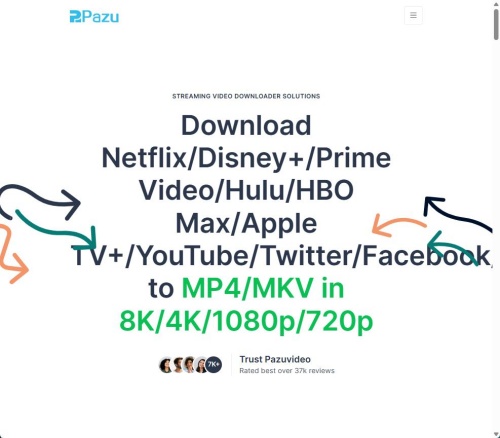
Pazu Netflix Video Downloader is a desktop program for Windows and Mac. It saves TV shows and movies as local MP4 or MKV files. Pazu mainly focuses on basic 1080p video, audio, and subtitle options rather than higher-end features. There is a built-in browser, so you can sign in to Netflix, search for a title, and download it without using Netflix's official offline-download feature.
01Download and install Pazu Netflix Video Downloader on your Windows PC or Mac.
02Open Pazu and sign in to your active Netflix account.
03Search for the movie or TV show you want to download, or paste its Netflix URL into the search bar.
04Click the Download icon and choose the available video quality, audio tracks, and subtitle languages.
05Click Download to add the title to the download queue and save it to your local storage.
- Saves videos as MP4 or MKV
- Keeps files stored locally
- Supports Windows and Mac
- Provides audio and subtitle options
- Works without the Netflix desktop app
- Limits output to available video quality
- Produces relatively large file sizes
- Restricts the free trial
- Lacks advanced download automation
- Requires updates after Netflix changes its platform
Top 15. FlixGrab+ Netflix Downloader
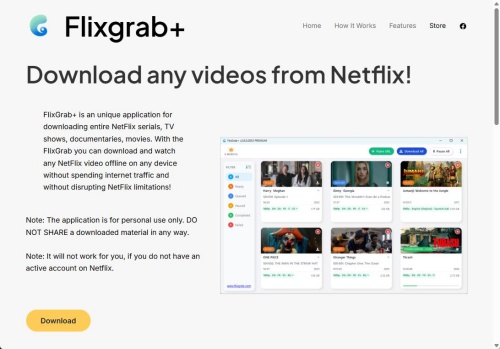
FlixGrab+, also known as FlixGrab, is a Windows desktop downloader from FreeGrabApp that focuses specifically on saving Netflix movies and TV shows as local files. It uses a simple copy-and-paste URL workflow.
Compared with tools like StreamFab or KeepStreams, it offers fewer advanced features and is limited to Windows, but its simple interface is well-suited for users who need basic Netflix downloading. All you need to do is copy a Netflix video link from your browser, paste it into FlixGrab+, choose the available quality, and start the download.
01Download and install FlixGrab+ on your Windows computer.
02Open FlixGrab+ and sign in with your active Netflix account if prompted.
03Open Netflix in your web browser and find the movie or TV episode you want to download.
04Copy the video's URL from the browser address bar.
05Return to FlixGrab+ and click + Paste to add the Netflix link.
06Choose the available video quality for the download.
07Click Download next to the video and wait for the file to finish saving to your selected folder.
- Provides a simple interface
- Uses a copy-and-paste workflow
- Saves videos as local files
- Supports multiple audio and subtitle options
- Queues multiple videos for downloading
- Supports Windows only
- Requires updates after Netflix security changes
- Limits the free version
- Offers fewer advanced features than larger suites
- May experience failed or stalled batch downloads
Part 3. Comparison Table of the Best Netflix Downloaders
The 15 Netflix downloaders above differ mainly in platform support, pricing, output quality, and downloading methods. Some focus on Netflix specifically, while others support multiple streaming services. Here's a quick comparison to help you choose the right one.
| Desktop Apps | Speed | Price | Output Quality | Safety | Key Features |
|---|---|---|---|---|---|
| ViWizard Netflix Video Downloader | Up to 30× | Paid, free trial | Up to 1080p | High | MP4/MKV, built-in browser, subtitles, batch downloads |
| FreeGrabApp | Multi-threaded | Paid, free trial | Up to 1080p | High | Simple interface, URL downloading, subtitles |
| KeepStreams | Fast | Paid, free trial | Up to 1080p/4K | High | Multi-platform support, batch downloads, audio/subtitle options |
| Audials One | Real-time recording | Paid, free trial | Up to 1080p | High | Screen recording, media library, ad skipping, format conversion |
| StreamFab | Fast | Paid, free trial | Up to 1080p/4K | High | 40+ services, batch downloads, subtitles, metadata |
| StreamGaGa | Fast | Paid, free trial | Up to 1080p/4K | High | Built-in browser, batch downloads, MP4/MKV |
| PlayOn | Real-time recording | Paid | Up to 1080p | High | DVR-style recording, MP4 files, cloud recording |
| Tunelf | Up to 10× | Paid, free trial | Up to 1080p | High | MP4/MKV, built-in browser, batch downloads |
| MovPilot | Fast | Paid, free trial | Up to 1080p | High | Built-in browser, MP4/MKV, batch downloads |
| TuneBoto Video One | Up to 10× | Paid, free trial | Up to 1080p | High | Multi-platform support, batch downloads, subtitles |
| CleverGet | Fast | Paid, free trial | Up to 1080p | High | 1,000+ sites, built-in browser, download/record modes |
| Kigo Video Converter | Up to 10× | Paid, free trial | Up to 1080p | High | MP4/MKV, batch downloading, audio/subtitle support |
| TunePat Netflix Video Downloader | Fast | Paid, free trial | Up to 1080p | High | Netflix-focused, batch downloads, audio/subtitle options |
| Pazu Netflix Downloader | Fast | Paid, free trial | Up to 1080p | High | Built-in browser, MP4/MKV, multilingual audio/subtitles |
| FlixGrab+ | Multi-threaded | Paid, free trial | Up to 1080p | High | URL-based downloads, simple interface, batch queuing |
Final Words
If you mainly want to download Netflix titles as local video files, ViWizard Netflix Video Downloader is a good option, with support for Windows and Mac, MP4/MKV output, up to 1080p or 4K quality depending on the title and subscription, and options for audio and subtitles. For broader streaming-platform support, KeepStreams, StreamFab, StreamGaGa, TuneBoto Video One, or CleverGet are worth considering. If you prefer a recording-based approach, Audials One or PlayOn take a different route.
Before choosing a tool, compare its speed, output quality, supported platforms, pricing, and available features. Keep in mind that results can vary by Netflix title, subscription plan, software version, and changes to Netflix's streaming technology. Third-party downloaders may also conflict with Netflix's Terms of Use, so check the relevant terms before using them.
You May Be Interested


Dave Henry loves movies and all things video. He likes checking out different video formats and trying new media players to see how they change the viewing experience.

Leave a Comment (0)