


As a top streaming platform worldwide, Netflix has a vast library of movies, shows, and outstanding original titles. Millions of people enjoy their favorite videos on Netflix. In 2015, to improve the experience for users with visual impairments, Netflix introduced the Audio Description feature as part of its accessibility options.
The Audio Description feature brings great convenience and inclusivity to the Netflix experience. In this article, you'll learn how to easily turn it on or off and fix glitches when the setting won't stay off.
Part 1. What Is Netflix Audio Description?
Netflix Audio Description is a brilliant accessibility feature designed for visually impaired viewers. With Audio Description, Netflix users can hear a voiceover narrator describing what is happening on the screen while enjoying Netflix videos. The description comes during the pauses in dialogue. Users can know video details from the description, including facial expressions, physical actions, outfits, and scene changes. This allows viewers to follow the story by listening to the audio description. Some have even commented that this feature can turn a Netflix video into something like an audiobook.
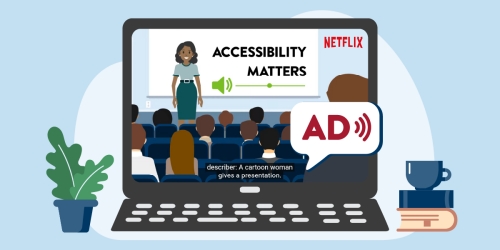
On Netflix, most original titles and many other videos support audio description. For these titles, you'll see an audio description badge or label. Additionally, users can simply search for "audio description" to browse the full list of supported titles. That's quite convenient. However, some shows in the Netflix list may not have audio descriptions for all episodes or seasons.
While this feature is incredibly helpful for those who need it, it can also be disruptive for viewers who turn it on by accident. Some users may enable it unintentionally by sitting on the remote, clicking the wrong menu option, or due to a device glitch. The unwanted narration can seriously interrupt their viewing experience. So, you may want to disable Audio Description.
Part 2. How to Turn On or Off Netflix Audio Description (All Devices)
Netflix subscribers can easily turn Audio Description on or off through the Netflix app or web player. Whether you watch Netflix on a phone, tablet, computer, smart TV, or any other device, just follow the steps below to adjust the settings to your preference.
01On Netflix, play a video that has audio descriptions.
02On mobile devices, tap your screen. On desktops, interact with your mouse by randomly moving or clicking. On other devices, press the up or down arrow on your remote.
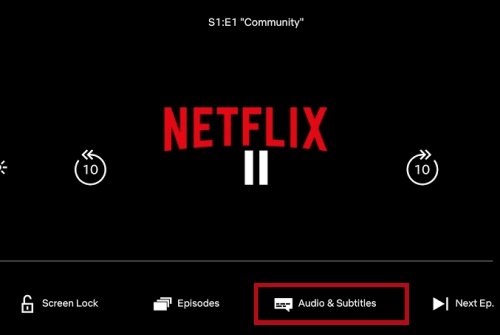
03Find the chat bubble icon, Audio & Subtitles, or the languages option. Click the option.
04In the list, choose your preferred language or audio. To turn Audio Description on, select one marked with Audio Description. To turn it off, choose one without the "Audio Description" label. For example, select English [Original] rather than English – Audio Description.
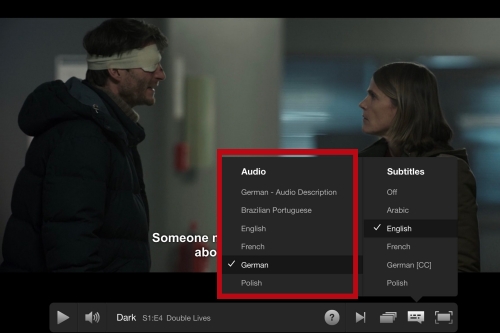
05Click Apply, Done, or Save to apply your changes.
06Play the video for 5 minutes to save the preferred settings to your Netflix profile. Otherwise, you may need to turn it on or off again the next time you watch.
Part 3. How to Fix Netflix Audio Description Not Turning Off
If you've followed the steps above and Audio Description still won't turn off, don't worry. The issue may be caused by your device's built-in accessibility features still being enabled, or there could simply be a temporary delay. To resolve the issues, here are some solutions.
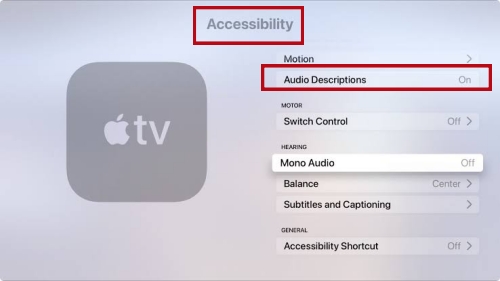
On Smart TV
If you're watching Netflix on a smart TV, try checking your device's accessibility settings. Sometimes, the voice narration isn't actually coming from the Netflix app. Instead, your TV's built-in screen reader may be overriding the app settings. Therefore, you may need to turn it off. The options vary by device, but the general steps are quite similar.
01Go to the settings section. You can simply click the menu, home, gear, or back button on your remote to access the settings section.
02Navigate to Accessibility. Scroll and select Accessibility on Roku TV and Amazon Fire TV. On other devices, click General or All settings, and then you'll find the Accessibility option.
03Toggle Audio Description off. Select the Audio Description option and turn it off. The option name may also be Screen Reader, VoiceView, Voice Guide, or Audio Guidance.
On Mobile Device
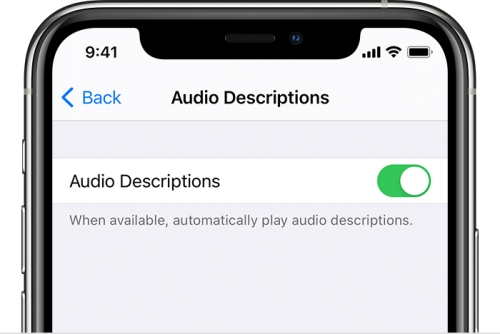
Most mobile devices have accessibility features to provide better services. Some users may accidentally turn on the device's own audio description feature. Then, they may find the narration continues even after they have changed the audio settings on Netflix. To fix this, the steps are quite simple.
01Tap the Settings app on your home screen.
02Find and tap the Accessibility button. You can also search for it to locate it quickly. On iOS 12 or earlier, tap General first, and you can select the Accessibility option.
03Toggle the switch next to Audio Descriptions off. You may need to click Audio Descriptions first on iPhone or iPad. On Android, the option can also be TalkBack or Screen Reader.
On Desktop
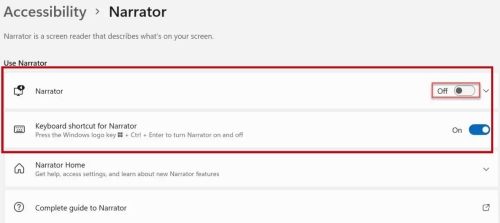
If Netflix Audio Description won't turn off on your desktop, there are a few possible causes. The first is similar to the issue on mobile devices and smart TVs. It's possible you turned on your computer's screen reader by mistake. For example, you may press the wrong keys. To check this on Windows, click Win + Ctrl + Enter. You can also search for this feature by typing in the search bar on your desktop. On Mac, open System Settings, click the Accessibility button, and make sure VoiceOver is turned off.
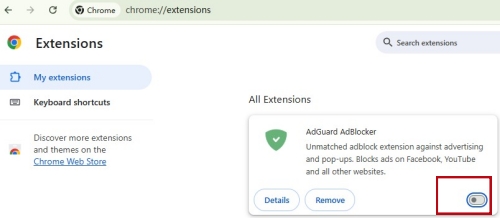
Another possible cause is browser extensions. Some extensions can interfere with Netflix settings and prevent Audio Description from staying off. Ad blockers, in particular, are among the most common culprits behind browser-related issues. Click the extensions icon in your toolbar. Alternatively, click the settings icon, then Extensions, and next Manage Extensions. Temporarily disable your extensions and refresh Netflix to see if the narrator stops.
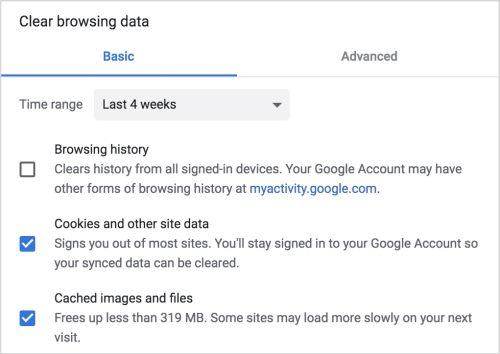
Sometimes, the outdated or corrupted temporary files can cause your browser to freeze your Netflix preferences. Therefore, you can try to clear the cookies and cache in your browser. Go to settings and click delete browsing data. You can also open the history page of your browser and clear data from there.
Part 4. How to Download Netflix Videos without Audio Description
Now you've learned how to turn on or off Netflix Audio Descriptions while watching Netflix online. Then, what if you want to enjoy your favorite Netflix movies offline without the interruption of audio descriptions? One option is to turn Audio Description off first and then start downloading, but that can be a bit cumbersome. Alternatively, here is a simpler method.
ViWizard Netflix Video Downloader can help you download Netflix titles without audio description in just one click. Simply uncheck the Preselect AD audio description option, then browse and download any videos you like directly from the built-in Netflix web player.
What's more, ViWizard Netflix Video Downloader can save Netflix shows, movies, or original titles in MP4 or MKV format. This means you can watch them on any device without the Netflix app. No more prompts from Netflix will interrupt your movie night. Plus, you can keep enjoying your favorite videos even after your Netflix subscription expires.

Key Features of ViWizard Netflix Video Downloader
Free Trial Free Trial* Security verified. 5, 481,347 people have downloaded it.
- Download Netflix movies and TV shows as MP4 or MKV files
- Preserve HD, 4K, HDR video, audio tracks, and subtitles
- Accelerate downloads when saving long videos or complete seasons
- Remove ads automatically during video downloads
- Save Netflix videos for playback on different devices
 Step 1: Access the Built-in Netflix Web Player
After launching ViWizard Netflix Video Downloader, you can see the interface of a built-in Netflix Web player. Log in to your Netflix account, and then you can freely browse Netflix as you do in a browser.
 Step 2: Check Download Settings
Click the menu icon at the top-right corner, and you'll see all the settings. Click Downloads to check video format, audio channel, and more settings. If you don't want the audio descriptions, uncheck the Preselect AD audio description option.
 Step 3: Start Downloading Netflix Titles
Find a title you are interested in, or paste the URL of your favorite Netflix video in the address bar. Once the content is opened, you can initiate downloading by clicking the download icon. Next, check your download settings again and change them if needed. Click the Download option.
 Step 4: Enjoy Your Netflix Downloads
Once it finishes downloading, access the download lists by clicking the history icon. Click the folder icon to access each title. Then, you can choose to play it on your computer or other devices.
Part 5. Conclusion
To turn on or off Netflix Audio Description, users can change the audio or language in the Netflix app. If the voice persists, you can check the accessibility settings of your device. Additionally, browser extensions and outdated or corrupted temporary files may stop your settings from updating. By disabling extensions or clearing browser data, the issue can be solved.
If you don't want to make complicated settings, it's a good choice to use ViWizard Netflix Video Downloader to get an immersive viewing experience. Just uncheck the audio description option with one click and download your favorite Netflix titles. Then, you can enjoy it anytime and anywhere.
You May Be Interested





Dave Henry loves movies and all things video. He likes checking out different video formats and trying new media players to see how they change the viewing experience.

Leave a Comment (0)