


Netflix, as the largest streaming platform, now has over 325 million subscribers globally. It's estimated that on average, each subscriber spends 2 hours a day watching Netflix videos. To meet users' demand, Netflix launched the official picture-in-picture (PiP) feature in 2016 for iOS and in 2019 for desktop browsers, which greatly improved the viewing experience.
So, how can you get picture in picture on Netflix? The method varies depending on your device. This article covers how to enable PiP on both desktop and mobile devices, so you can smoothly multitask while enjoying your favorite Netflix titles.
Part 1. What Is Netflix Picture in Picture?
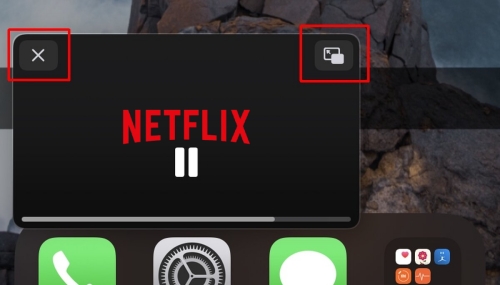
To make the most of this feature, let's first figure out what it is. With Netflix PiP, the Netflix video player can shrink into a small window that stays on top of other apps on your mobile device, or remains visible when you switch to other tabs or programs on your desktop. This allows you to keep watching your favorite Netflix shows while shopping, messaging, or gaming.
PiP also comes with a few handy controls. You can move or resize the small player window. If you feel it is too small or too large, simply use a pinch-to-zoom gesture to adjust it. If the window blocks something on your screen, you can drag it elsewhere. You can also pause, fast-forward, or rewind playback right from the mini player. Pretty convenient, right?
Part 2. Can You Picture in Picture on Netflix?
Then, can any subscribers get Netflix PiP mode on any devices? Well, not quite. There are still some restrictions to be aware of. Most notably, Netflix PiP is not available to members on ad-supported plans. You'll need an ad-free subscription to use this feature.
| Netflix Plan | Monthly Cost (U.S.) | Netflix PiP Support | Max Video Quality |
| Standard with Ads | $8.99 | No | Full HD (1080p) |
| Standard | $19.99 | Yes | Full HD (1080p) |
| Premium | $26.99 | Yes | 4K Ultra HD + HDR |
There are also device requirements to keep in mind. Netflix doesn't support PiP on certain older devices. For computers, you'll need to use a compatible browser. Supported browsers include Google Chrome, Microsoft Edge, Firefox, and Safari. You should also make sure your Netflix app or browser is up to date to avoid any issues. Device requirements at a glance:
- Android phone or tablet: Android OS 8.0 or later.
- iPhone and iPad: iOS 14 or later for iPhone. iPadOS 14 or later for iPad.
- PC: Windows 10 or later.
- Mac: macOS 10.15 or later.
Part 3. How to Enable Netflix Picture in Picture for Android & iOS
Mobile devices have become an essential part of daily life, allowing users to enjoy their favorite Netflix shows while handling routine tasks, including watching videos, sending emails, browsing the web, chatting with friends, or shopping online. Want this feature too? Follow the steps below to enable Netflix PiP.
3.1Get PiP on Netflix for Android
Although Android introduced the PiP feature earlier than iOS, it may not be turned on by default in the Netflix app. The steps below will help you enable it.
01Tap the settings app icon on the home screen and navigate to Apps.
02Find and select Special app access. This option may hide in the three vertical dots menu. Alternatively, search for Picture in picture directly in the search bar.
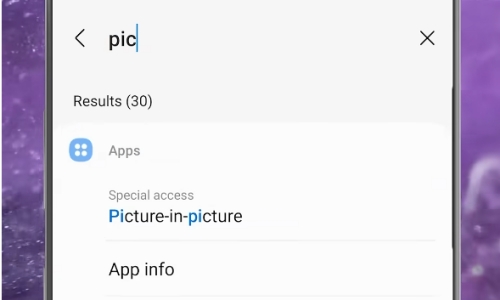
03Hit Picture-in-picture. Then, you can see a list of applications that support the feature.
04Find the Netflix app in the list.
05Toggle on the switch next to the Netflix app to enable PiP for Netflix.
06Open the Netflix app and play a title. Click the Picture-in-Picture icon. Then you can enjoy Netflix videos while doing other tasks on your mobile devices.
3.2Get PiP on Netflix for iOS
Just like on Android, PiP is a handy multitasking feature on iPhone and iPad. In fact, it's even easier on iOS. The PiP can automatically pop up without an extra click. The steps to get PiP on Netflix are as follows.
01Open the settings on your iPhone or iPad.
02Find and tap General.
03Tap Picture in Picture.
04Toggle on Start PiP Automatically.
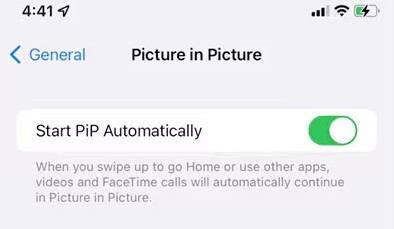
05Open the Netflix app and play a show. Go to the home screen or another app. The PiP will automatically turn on.
Part 4. How to Enable Netflix Picture in Picture for PC & Mac
As on mobile devices, PiP is a great way to multitask while enjoying your favorite Netflix shows. Below are several practical methods for PiP on the Netflix website or via the Netflix app.
4.1Enable Netflix PiP for PC
Due to recent changes to the Netflix app for Windows, the PiP feature is no longer available within the app. However, you can still get PiP with built-in browser functions, browser extensions, or Always-on-Top utilities such as DeskPins or Microsoft PowerToys.
Method 1: Use the Built-in PiP on Browsers
If you'd rather avoid complicated settings or extra clicks, the built-in PiP function in your browser is all you need. You should choose a compatible browser. Microsoft Edge is recommended, as it offers the best compatibility with Netflix. On other browsers, the Netflix video and audio quality may be restricted. The steps are similar across different browsers. Here takes Edge as an example.
01Go to Netflix and find a movie or show.
02Start playing the Netflix video.
03Find and click the PiP icon.
- You can hover your mouse over the video to see a PiP icon at the top center.
- Alternatively, click the media menu icon at the top right and next to the address bar. You can also find a PiP icon then.
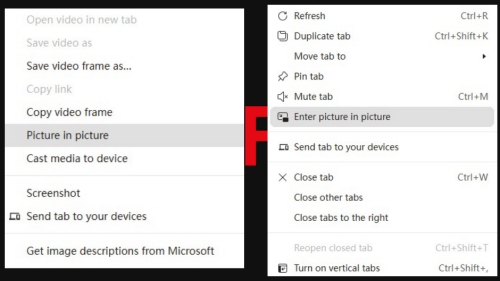
- You can also right-click the video window or the tab. Then, you can find an Enter picture in picture button or a Picture in picture button in the dropdown menu. Sometimes you may need to right-click the video twice.
Method 2: Use an Always-on-Top Utility
If the PiP mode doesn't fully meet your needs, you can use an Always-on-Top utility to keep the Netflix browser window or the Netflix app permanently on top of your screen. Then, you can see the whole Netflix webpage or the Netflix app interface while doing other tasks. In this way, you get an experience similar to the PiP.
Microsoft PowerToys
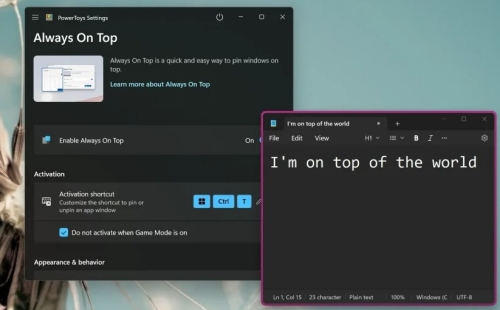
The first reputable utility recommended by Netflix users is Microsoft PowerToys. You can take advantage of its always-on-top feature to meet your needs. Steps are as follows.
01Download and install Microsoft PowerToys from the Microsoft Store.
02Go to the Always on Top tab and enable the feature.
03Play a video in the Netflix web player or the Netflix app.
04Press Win + Ctrl + T to pin the Netflix app or the browser window. You can resize the window by dragging the corners.
05Enjoy your video. To unpin, press Win + Ctrl + T again.
DeskPins
The other recommended utility is DeskPins. It's a free, lightweight, and classic tool. Steps are as follows.
01Search for DeskPins on Google and download it.
02Open the Netflix app or web player and play a Netflix video.
03Resize the Netflix web player or the app window by dragging the corners.
04Launch DeskPins and click the DeskPins icon in your system tray. Then, your cursor will change to a pin.
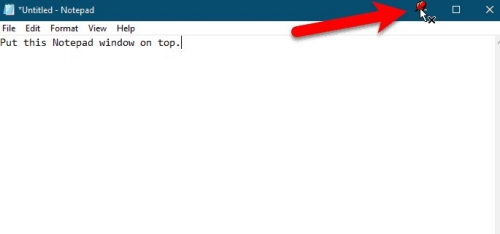
05Click the Netflix window. A red pin will appear in the top-right corner of the window.
06Enjoy your Netflix title. To unpin, hover over the red pin icon and click. Alternatively, click Ctrl + F12.
Method 3: Use Browser Extensions
As some Netflix users have reported, the built-in PiP function in browsers sometimes doesn't work with the Netflix player. To fix this, you can use a browser extension specifically designed for Netflix PiP. There are also a few added benefits to this approach.
- First, using an extension reduces browser compatibility concerns, as you can choose one that works with your preferred browser.
- Second, the PiP functionality in these extensions often isn't limited to Netflix. You can also use it when watching YouTube, Prime Video, Disney+, and more.
- Lastly, there may also be some additional functions, such as subtitles.
To get started, go to the extension store or search on Google. Find and install a reputable PiP extension. Then, for most extensions, a PiP icon will automatically appear at the corner of the video or the right edge of the Netflix player. If it doesn't, click the extension icon in your browser toolbar and toggle the feature on.
Method 4: Use a Bookmarklet
Using a bookmarklet is a highly successful way provided by ChatGPT to get PiP on the Netflix web player. The setup process is very straightforward.
01Launch your browser and press Ctrl + D. Name the bookmark whatever you like, like Netflix PiP.
02Right-click the bookmark icon you created just now and click Edit….
03Replace the URL with the code below.

04Open a Netflix Video and click the bookmark you created just now. Then, you can enjoy it in PiP mode.
4.2Enable Netflix PiP for Mac
Though there are multiple ways for you to get Netflix PiP on PC, the methods and choices for Mac are limited.
Method 1: Use the Built-in PiP on Browsers
Just like on Windows, browsers on macOS also offer a built-in PiP function. However, as some Netflix users have reported, Netflix sometimes blocks this feature. You may not see a PiP icon at all, or clicking the icon may fail to activate PiP mode.
- On Firebox, press Command + Option + Shift + ] while playing a Netflix video.
- On Chrome, click the PiP icon in the media menu, or right-click the Netflix video or the tap. However, the built-in PiP may not work sometimes on Chrome.
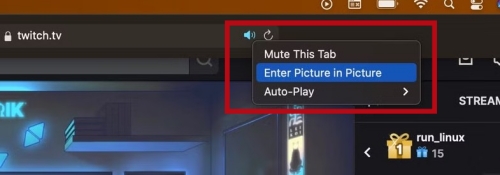
- The most guaranteed browser is Safari. Since Netflix may stop users from right-clicking, you can right-click the volume icon located inside the Safari address bar, and click Enter picture in picture in the dropdown list.
Method 2: Use Browser Extensions
As it works on Windows, the browser extension is still available on macOS. You can search for a PiP extension designed for Netflix on Google or in the extension store of your browser. According to the reviewers of Netflix users, it's recommended to choose "NetFix-PiP for Netflix" on Firefox browser, and "Picture-in-Picture Extension" on Chrome browser.
As for Safari, you should choose PiPifier. As Safari is the most recommended browser to watch Netflix on Mac with the most guaranteed PiP function, here is a step-by-step guide to enable PiP with PiPifier.
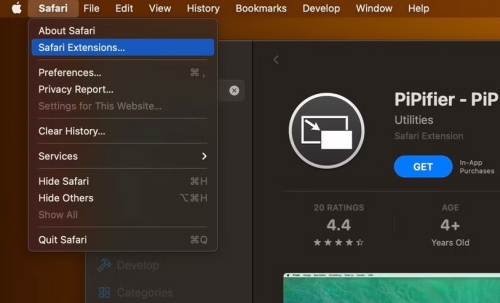
01Download PiPifier from the Mac App Store.
02Open Safari and click Settings.
03Click Extensions and check the box next to PiPifier to enable it.
04Open Netflix and play a video.
05Click the PiPifier icon in the toolbar and enjoy the Netflix video.
Part 5. How to Watch Netflix Videos with PiP Mode on All Devices
Now you have all the methods to watch Netflix in PiP mode on both mobile and desktop devices. However, as mentioned earlier in this article, the PiP feature on Netflix isn't available on all devices. What's more, it may stop working if Netflix makes changes to its service.
Then, is there a stable way for users to get PiP on all devices when watching Netflix? Yes. You can use players supporting PiP to play downloaded Netflix titles. For example, VLC media player, stable and reputable, supports PiP on both desktops and mobile devices.
To download Netflix videos, you can choose ViWizard Netflix Video Downloader. As is known to all, the videos downloaded directly through the Netflix app can only be played on Netflix due to the DRM restriction. However, ViWizard Netflix Video Downloader can help users download Netflix titles in MP4 or MKV. That's to say, the downloads can be played on all devices or players offline without the Netflix restriction.
Want to get Netflix PiP on your device? Have a Free trial now.

Key Features of ViWizard Netflix Video Downloader
Free Trial Free Trial* Security verified. 5, 481,347 people have downloaded it.
- Download Netflix movies and TV shows as MP4 or MKV files
- Preserve HD, 4K, HDR video, audio tracks, and subtitles
- Accelerate downloads when saving long videos or complete seasons
- Remove ads automatically during video downloads
- Save Netflix videos for playback on different devices
 Step 1: Enter Your Netflix Credentials
Launch ViWizard Netflix Video Downloader. A sign-in pop-up will appear in the built-in Netflix web player. Enter your email address and password to unlock the Netflix library. No personal information is stored.
 Step 2: Adjust Download Settings
If needed, click the menu button in the top-right corner to access the settings. To adjust download preferences, click the Download button. From there, you can change the video format, audio quality, language, and more.
 Step 3: Start Downloading
Once you've found a title you want on Netflix, open it and click the download icon. Then, select the episodes you'd like to download and confirm your download settings. Click the Download button to begin.
 Step 4: Locate Downloads on Your Computer
When the download is complete, click the history icon at the top-center of the interface to view all your downloaded files. To locate them on your computer, click the folder icon to the right of each item.
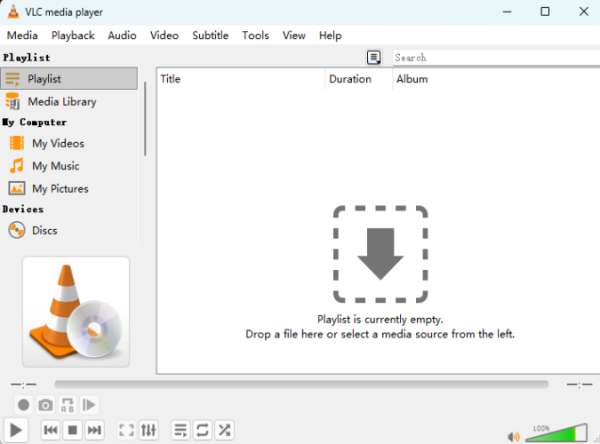 Step 5: Open a Video and Enable PiP on VLC Player
Right-click the video file and choose to open it with VLC Player. To get PiP on desktop, click View and then Always on top or Float on Top. To resize it, click Tools > Preferences> Interface, uncheck Integrate video in interface, and next click Save. Then, you can resize the VLC player. For Android, open the VLC Player, play your video, and click the PiP icon. For iOS, choose to play with nPlayer or Infuse. Steps are similar.
Part 6. Conclusion
With an ad-free subscription, users can easily get Netflix PiP on Android and iOS devices. As for Netflix users on desktop, though it's a little complicated and sometimes unstable, you can still enjoy your favorite Netflix titles in PiP mode.
To get a stable, guaranteed experience, you can also download your favorite shows or movies with ViWizard Netflix Video Downloader. Then, watch the downloads with any player supporting PiP, regardless of device, internet, or Netflix restrictions.
You May Be Interested



Rick Lee is the kind of person who likes to figure out why a computer is acting up. He follows useful PC tips, learns about system settings, and looks for simple fixes to common computer problems.

Leave a Comment (0)