


As an accessibility option, Netflix closed captions offer great help to viewers with impairments, allowing them to fully enjoy Netflix videos with the help of carefully crafted captions. The feature is also helpful for other subscribers. Closed captions are also useful if you want to watch your favorite shows without turning the sound on — so you can follow along without disturbing others. Additionally, bilingual language learners can take this feature as a tool. Pretty great, right?
So, how do you use this Netflix feature? This article explains in detail what closed captions are and how to turn them on or off. Plus, if something goes wrong with your captions, you'll find practical solutions here as well.
Part 1. What Are Closed Captions on Netflix?
Let's start with a quick overview of what Netflix closed captions actually are. Then, you can better make use of it.
Closed captions are subtitles that describe not only the dialogue, but also other audio information, such as who is speaking and what background sounds are playing. For example, if background music is playing while the two main characters are sharing an emotional moment, the captions will include a text description of that music. This helps viewers to feel the atmosphere without any audio.
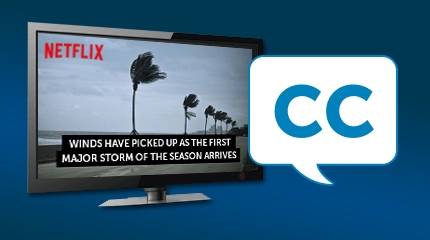
Since closed captions are designed to give Netflix users more viewing options, the choice is entirely yours. If you want more context than just dialogue or translation, closed captions are the way to go. If you find them a bit distracting, you can simply choose regular subtitles without the CC label.
Part 2. How to Turn On/Off Netflix Closed Captions (All Devices)
The good news is that you can turn Netflix closed captions on or off, no matter which device you're using. The steps are similar across all devices and quite simple.
Step 1: Open and Play a Netflix Video
If you're watching on a TV or mobile device, open the Netflix app. If you're on a desktop, go to Netflix in your browser. Then, select and play a video that supports closed captions. You can search directly for titles with closed captions and pick one from the list. To save time, you can also choose a popular title like Squid Game, Stranger Things, or Wednesday.
Step 2: Reveal the Playback Controls
On mobile devices, simply tap your screen. On a computer, the playback controls can be revealed by interacting with the mouse. On smart TVs or streaming services, you can interact with your remote by pressing up or down.
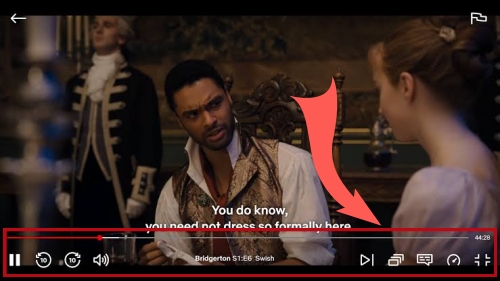
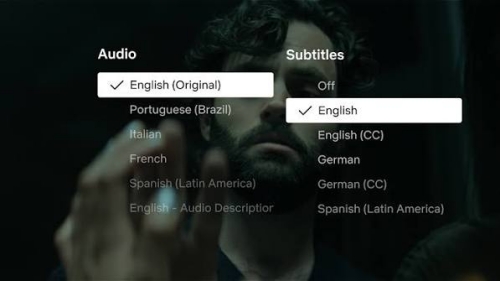
Step 3: Open the Subtitles Menu
Once the playback controls appear on your screen, look for the subtitles icon. As the name varies by device, it can appear as an Audio & Subtitles button or a chat bubble icon. Additionally, it may show up as a language option without any icon, such as the English button. On some devices, you may need to click Other first.
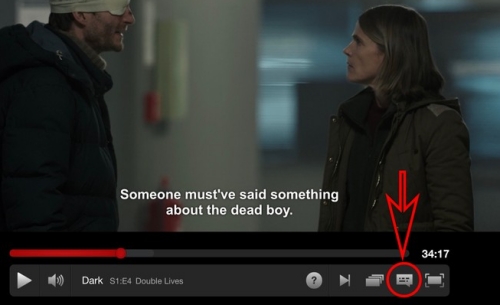
Step 4: Change Subtitle Selections
Now you can use your finger, mouse, or remote to scroll and choose a suitable subtitle type. To turn Audio Descriptions on, choose one labeled with CC. To turn them off, choose one without the CC label.
Step 5: Apply the Changes
To save this preferred setting to your Netflix profile, you should play the video for 2-3 minutes. Then, next time you watch Netflix, your subtitle choice won't change. As a tip, many Netflix users recommend playing for a full 5 minutes just to be safe, in case the update takes longer to register.
Part 3. How to Turn On/Off Netflix Closed Captions with Browser Extensions
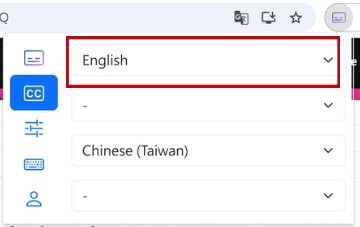
In addition to the official method, you can also use browser extensions to control your closed caption settings. Many of these extensions also support bilingual subtitles, which is especially helpful when watching foreign videos. However, while they offer great convenience for language learners, these extensions are not always free. Still, here is a step-by-step guide for this method.
01Search for a suitable browser extension in your browser's extension store or on GitHub. Be sure to check the reviews before installing.
02Download and install the selected extension. If you choose to download one from the extension store, it will be automatically added to your browser.
03Click the extensions icon on the toolbar and change the subtitle type. You can choose a subtitle labeled as CC to turn on closed captions. To turn closed captions off, switch to a subtitle without the CC label.
Part 4. How to Fix Netflix Closed Captions Not Working Properly
Sometimes, even when your settings are configured correctly, Netflix closed captions can still go wrong. For example, closed captions may be missing even though it's turned on. They can appear vertically formatted and thus block part of the screen, ruining your viewing experience. Fortunately, these issues can be solved.
4.1Closed Captions Out of Sync
It's really annoying if closed captions are out of sync when you are relying on them and listening to the audio at the same time. Here are some recommended ways that may help.
One fix is to switch Netflix subtitles. Follow the steps above, change your selected subtitles to a different option, and then turn them back.
Another approach is to refresh or update Netflix. You can log out of your Netflix account first and then log back in. Additionally, switch your Netflix profiles. You should also check whether your Netflix app or browser is up to date. If not, update it. If these methods do not work, try to clear the cache. Alternatively, remove the Netflix app and reinstall it.
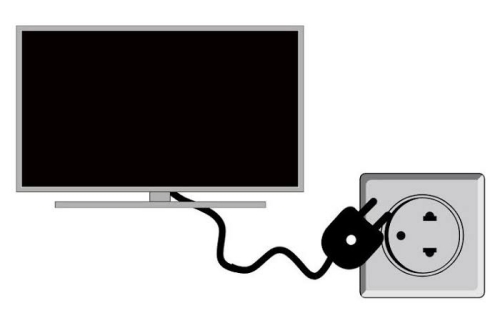
A third option is to restart your device. Restart your mobile devices or desktops by tapping or clicking the restart icon. Restart your TVs or TV streaming services by unplugging them from power and plugging them back in after several minutes.
4.2Closed Captions Weirdly Formatted
As many Netflix users share, closed captions on Netflix may sometimes appear too large or small, and even vertically formatted. To fix the issue, Netflix recommends changing the appearance settings of closed subtitles. This method usually works well. However, for the horror movie Creep, there is still no way to fix it. Or, it may be an intentional design choice meant to enhance the immersive atmosphere.
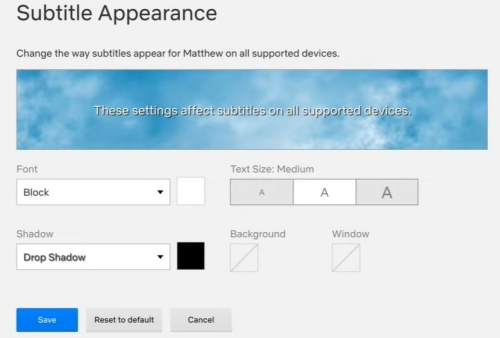
- On the desktop: Click Account and find Subtitle appearance in the Profiles section. Then you can choose a suitable appearance for the closed captions.
- On a TV or TV streaming service: Play a Netflix video. Interact with your remote to reveal the player controls interface. Then, choose the settings icon. If you can't find one, it means your device doesn't support the feature.
- On Android: Click the profile name in the My Netflix page. Tap Manage Profiles after choosing a profile. Scroll and click Subtitle Appearance. Then, you are able to change.
- On iOS: You should go to the Settings app on your device. Navigate to Accessibility and click Subtitles & Captioning. Tap Style. Choose a preferred style for your closed captions there.
4.3Closed Captions Not Loading
If the closed captions are still missing after you've turned the feature on. The most likely reason is the internet issue. You can go to other websites or apps to check your internet. Another possible cause is your subtitle appearance settings. You can navigate to the subtitle appearance section and reset it. The process is the same as the steps mentioned above to change subtitle appearance.
Bonus: How to Keep Netflix Videos Forever
Now you have all the methods to use Netflix closed captions and solve issues when the captions go wrong. Brilliant, you can easily choose any subtitles you want, which makes your Netflix experience more convenient. To offer you a better experience, here is a way to help you keep Netflix Videos forever so that you can enjoy your favorite Netflix shows or movies anytime and anywhere, if you want.
As you know, Netflix only allows you to watch downloads within the Netflix app, and the expiration period is rather short. However, ViWizard Netflix Video Downloader can download Netflix videos in MP4 or MKV format, which means the downloads can be stored on your desktop forever and accessed whenever you like. Moreover, if you want to enjoy these downloads on your mobile phone or smart TV, you can simply transfer the files to your device. What great news if you want to keep a favorite movie or show. Why not give it a try?

Key Features of ViWizard Netflix Video Downloader
Free Trial Free Trial* Security verified. 5, 481,347 people have downloaded it.
- Download Netflix movies and TV shows as MP4 or MKV files
- Preserve HD, 4K, HDR video, audio tracks, and subtitles
- Accelerate downloads when saving long videos or complete seasons
- Remove ads automatically during video downloads
- Save Netflix videos for playback on different devices
 Step 1: Access the Netflix Library
To download your favorite Netflix title, sign in to your Netflix account to access the Netflix library.
 Step 2: Choose Suitable Download Preferences
Click the three-line icon and navigate to download settings. Choose a suitable video format, audio channel, language, and subtitle. If you want caption subtitles or other types of subtitles, change it first by following the steps in Part. 2.
 Step 3: Download the Netflix Title You Want
Now search for the Netflix title you want to download or paste its URL into the address bar. You can also browse in the built-in Netflix web player to find an interesting show. Then, click the download icon, select episodes, and click Download.
 Step 4: Locate Your Saved Videos
Now the Netflix videos are saved to your desktop. You can locate them by clicking the folder icon. Alternatively, go to the output directory, and you can see them. Enjoy the video right now or open it next time you want to watch.
Conclusion:
Netflix closed captions give you more subtitle options to choose from. You can easily turn them on or off while watching a show. If they don't work properly, try restarting your device, refreshing Netflix, or adjusting the subtitle type and appearance.
For an even better Netflix experience, you can keep your favorite titles forever with ViWizard Netflix Video Downloader. That way, you can enjoy your videos whenever you want without worrying about a limited expiration period.
You May Be Interested



Rick Lee is the kind of person who likes to figure out why a computer is acting up. He follows useful PC tips, learns about system settings, and looks for simple fixes to common computer problems.

Leave a Comment (0)