


Ever wondered why Pandora seems to know exactly what song to play next? That's because Pandora stations are powered by its recommendation system, which builds personalized radio streams based on your favorite artists, songs, and genres. The more you interact with a station, the better it understands your music taste.
In this guide, you'll learn how to find, create, customize, and delete Pandora stations, as well as how to fix common station issues when they stop working. Let's get started.

Part 1. What Are the Stations on Pandora?
Pandora features personalized, endless radio streams. Based on a specific song, artist, or genre, you can make your own music experience, letting Pandora bring you similar tracks. For more details, look at this.
Start Your Stations: You can create a station by clicking Start Stations next to a song, artist, or album.
Music Genome Project: Pandora boasts its proprietary system. It can analyze traits, like melody, instrumentation, and vocal harmony, and then generate songs that have similar traits.
Thumb Ratings: You can customize your stations by giving Thumbs Up and Thumbs Down. Thumbs Up brings more similar tracks, while Thumbs Down stops a specific track from playing on the station.
Pandora Modes: You can change the vibe of your stations whenever you like. There are many modes you can choose, including My Stations, Crowd Faves, Discovery, Deep Cuts, and Newly Released.
Enrich Your Stations: You can add variety, also called "seeds", to your custom stations. The seeds can be new artists or songs to influence the algorithm.
Part 2. How to Find Your Stations on Pandora
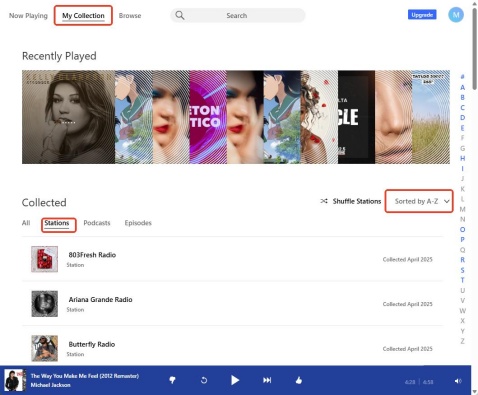
If you want to find stations on Pandora, make sure you have signed in to the Pandora app or the website. Then, you can go to My Collection and find Stations among the filters. Both Free and Premium users can sort stations via the Recent, Most Played, or A-Z toggle. Follow the simple steps on your devices now.
Find Stations on Mobile (iOS & Android)
01Open the Pandora app on your phone.
02Select My Collection in the navigation menu.
03Choose the filter button on the right side and check Stations.
04Tap the sort button to arrange the station as you like, from A-Z to Recently Played.
Find Stations on Desktop
01Choose a modern web browser (Chrome, Edge, Firefox).
02Visit the Pandora website and sign in.
03Select the My Collection section at the top.
04Click Stations under Collected.
05Sort through your station in the order you like, such as A-Z, Recently Collected, and Most Listened.
Part 3. How to Create a Station on Pandora
If you want to make a custom station on Pandora, you can start from your favorite artist, song, or genre. You just enter the singer or song name in the search bar, locate the result, and click Start Station. Pandora will take you into a flexible, continuous music station based on what you select. Here are the steps to generate stations.
On Pandora App (Android & iOS)
01Open the Pandora app on your Android or iOS device and log in.
02Tap Search at the bottom of the screen.
03Enter the name of your favorite artist, song, or genre.
04Select the result you want from the given list.
05Choose Create Station.
On Desktop Web Browser
01Open a web browser you like and sign in to the Pandora website.
02Type an artist, song, or genre in the search bar at the top.
03Click the result you want, and you will enter the profile page.
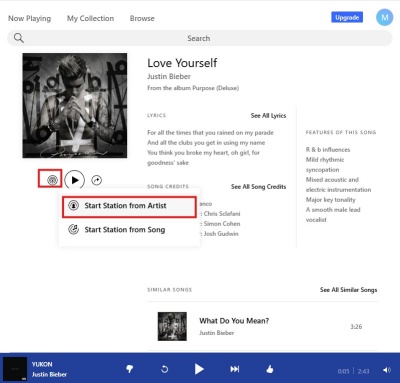
04Click Start Station (the icon with many circles in it) under the picture.
05Choose Start Station from Artist or from Song as you please.
06If prompted, you have created a station and added it to your collection.
Part 4. How to Customize Your Stations on Pandora
You can easily customize your stations on Pandora. To shape your unique stations, you can use Thumbs Up or Thumbs Down. If you want to mix artists and tracks, you can add Variety. To shift the station's style, you can pick specific Pandora Modes like Crowd Fave or Discovery.
Use Thumb Ratings to Bring or Block Music
To like or dislike a song while you are on the station, you just hit the Thumb Up or Thumb Down at the bottom of the Now Playing page. Pretty easy! Here we show you how to edit or delete your Thumbs.
On Pandora App (Android & iOS)
01Open your Pandora app and navigate to My Collection.
02Choose the station that you want to customize.
03Tap Station Details or My Station.
04Scroll to find the Thumbed Tracks section to see your liked and disliked tracks.
05To remove a song from that station, select the three dots near it and choose Remove Thumb.
On Desktop Web Browser
01Go to the Pandora website and click My Collection.
02Choose the Station filter under Collected.
03Click the station you want to edit, and you enter the backstage.
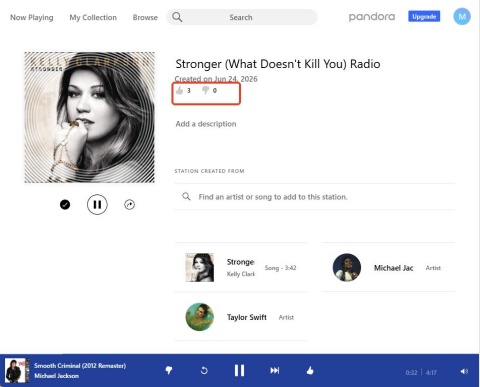
04Click the Thumb Up or Thumbs Down at the top to jump to the relevant content.
05To delete a song from the station, hover your cursor over the track and click the three dots next to it.
06Click Delete from the drop-down menu.
Change Your Pandora Modes
If you want to change the mode of your current Pandora station, you can turn to another mode on the Now Playing page. There are some modes under your fingertips.
Key Features of Developer Mode:
- My Station: The balanced and regular default station.
- Crowd Faves: This mode will bring you the most popular and famous tracks by the artists on your station.
- Discovery: To help you find new songs, this mode plays music that is not so typical on your station.
- Deep Cuts: This mode brings tracks that are not well-known and, of course, from station artists.
- New Releases: In this mode, you will enjoy the latest tracks from the artists that are on your station.
On Mobile (iOS & Android)
01Go to the Pandora app on your phone and play a station.
02Select the song name at the bottom of the screen to enter the Now Playing page.
03Locate My Station at the top of the screen.
04Select the My Station button to see more modes.
05Tap your preferred mode, e.g., Deep Cuts.
On Desktop Web Browser
01Go to the Pandora website on a web browser.
02Sign in and click My Collection.
03Select a station to play under the Collected section.
04Go to the Now Playing page, and you can see many modes in the center.
05Click a mode you prefer, and Pandora shifts the mode for you.
Add Variety to Your Station
Adding Variety brings you an expanded music pool. This way, you will have a fresher mix of tracks based on your selected artists or tracks.
On Mobile (iOS & Android)
01Open Pandora and go to My Collection.
02Tap the station you want to add.
03iOS users tap the three dots; Android or Premium users select the pencil icon to open edit mode.
04Scroll all the way to Station Created From and choose Add Variety.
05Enter the artist or song and tap the + icon.
On Desktop Web Browser
01Navigate to the Pandora website.
02Click My Collection > Stations.
03Locate the station you want to edit and click it.
04Locate the search bar under the section named STATION CREATED FROM.
05Enter the artist or song name.
06Hover your cursor over the target and click Add Variety near it. You can see it added under the search bar.
Part 5. How to Erase a Station on Pandora
Removing a station on Pandora can be quick and will be synced across all your devices. The steps vary depending on your subscription tier and your devices. The main difference lies in the navigation and button used to delete it from your Pandora. Here are the details.
On Pandora App (iOS & Android)
Here we divide into two sections: one for Pandora Free and Pandora Plus users, and another for Pandora Premium users.
For Free and Plus:
01Open Pandora on your phone and tap My Collection.
02Swipe left on the station you hope to remove.
03Select Delete and confirm if prompted.
For Pandora Premium:
01Sign in to Pandora and choose My Collection.
02Tap and hold the station you desire to remove.
03Select the highlighted Collected checkmark, then tap Delete.
On Desktop Web Browser
01Go to the Pandora website and log in.
02Click My Collection.
03Locate the station you want to delete.
04Hover your cursor over it to see three horizontal dots under the album art.
05Click the three dots and select Remove from your collection.
06Click OK to confirm.
Part 6. How to Fix Pandora Stations Not Working
Your Pandora stations may stop working due to an unstable network, corrupted cache, battery savers, and ad-blockers. Don't worry! Here are some troubleshooting tips:
Restart the App: Shut down your Pandora app completely and reopen it.
Log Out and In: Go to Pandora Settings > Sign Out. Then, sign in with your account.
Check Your Connection: Check your Wi-Fi or mobile data to see if a weak network causes the issues.
Reinstall Pandora: Remove the app from your device and reinstall it from your app store.
Check for Updates: Open your app store to see whether Pandora has an update.
Clear Cache: Mobile users go to Settings > Apps > Pandora > Storage > Clear Cache; desktop users clear the browser's cache and cookies in the settings menu.
Bonus: How to Download Pandora Music to MP3 for Offline Listening
Pandora stations make music discovery effortless. Whether you're finding old favorites, creating a new station from an artist you love, fine-tuning recommendations with Thumb ratings, or removing stations you no longer listen to, Pandora gives you plenty of control over your listening experience. With features like Add Variety, you can keep your stations fresh and personalized every day.
However, all Pandora stations rely on an internet connection, and offline listening is limited by your subscription plan. If you'd like to keep your favorite Pandora tracks forever and enjoy them without ads, buffering, or subscription restrictions,ViWizard Pandora Music Converter can help. With ViWizard, you can download Pandora songs, playlists, and album content to your computer and save them as MP3, FLAC, WAV, AIFF, and other popular formats while preserving the original audio quality and ID3 tags. Once downloaded, you can play your Pandora music offline on any device, anytime and anywhere, without depending on the Pandora app or an active subscription.

Download songs, playlists, albums, and your whole music library from 10 major streaming platforms, including Pandora Music, to MP3, FLAC, WAV, AIFF, M4A, or M4B with original quality and ID3 tags for permanent offline listening.
How to Use ViWizard Pandora Music Converter
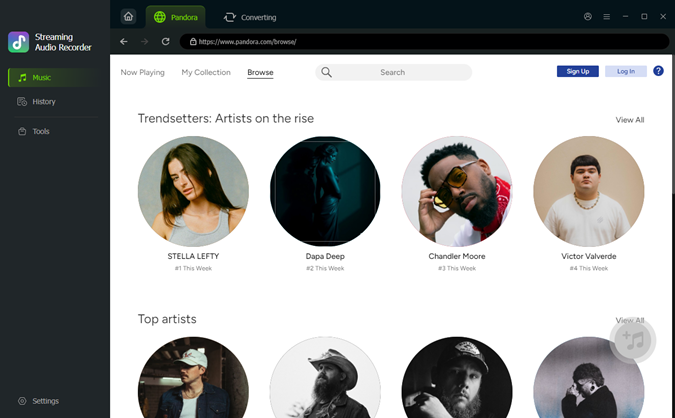
 Step 1: Customize the Output Settings
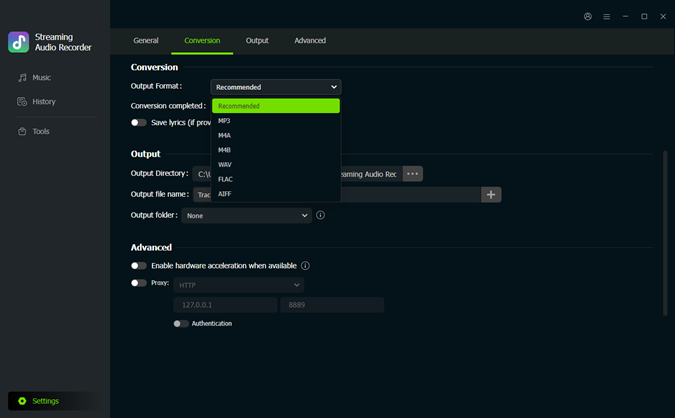
Open ViWizard Pandora Music Converter on your Windows or Mac computer. Click the menu icon in the upper-right corner and select Preferences > Conversion. Choose your preferred output format, such as MP3, FLAC, WAV, AIFF, M4A, or M4B. You can also adjust the bitrate, sample rate, and other audio settings to achieve the sound quality you want.
 Step 2: Sign In to Your Pandora Account
After configuring the settings, return to the main interface and access the built-in Pandora web player. Log in with your Pandora account so you can browse your music library, playlists, albums, and favorite tracks directly within ViWizard.
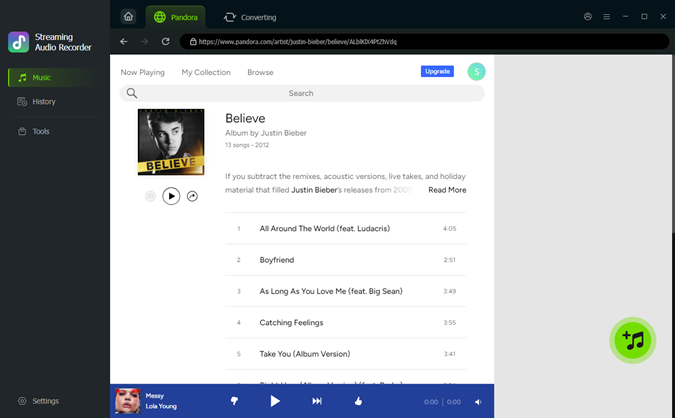 Step 3: Add Pandora Songs or Playlists to ViWizard
Find the playlist or songs you'd like to keep offline. Open the playlist or music page, then click the Add Music button (+). ViWizard will automatically detect and load the available tracks. Review the list and select the songs you want to convert.
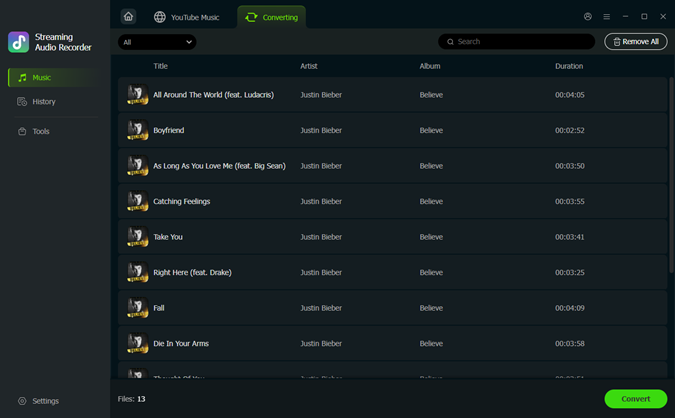 Step 4: Convert and Save Pandora Music Locally
Click Convert to begin downloading and converting the selected Pandora songs. Once the process is complete, the tracks will be saved to your computer in the format you chose. You can then play them offline on your computer, transfer them to mobile devices, or use them with any compatible music player without relying on an internet connection.
Conclusion
Pandora stations are a simple way to discover new music and keep your listening experience fresh. Whether you create a station from a favorite artist, fine-tune recommendations with Thumb ratings, or add variety to explore more music, Pandora gives you plenty of ways to shape what you hear.
If you'd like to keep the songs you discover on Pandora, ViWizard Pandora Music Converter is worth trying. With it, you can download Pandora songs, playlists, and albums to your computer and save them as MP3 and other popular formats. You can then transfer the downloaded music to your phone, tablet, MP3 player, or any other device and enjoy your favorite tracks offline whenever you like. Just try it!
You May Be Interested




From new releases to old favorites, Matt Smith is always on the lookout for good music. He follows the latest in digital entertainment and shares songs and media he thinks are worth checking out.

Leave a Comment (0)