


YouTube Music is more than just a music streaming service—it's also a great place to discover new songs through personalized radio stations. Whether you want an endless mix based on your favorite artist, a station tailored to your mood, or a stream of similar tracks inspired by a song you love, YouTube Music makes it easy to keep the music playing.
In this guide, you'll learn what YouTube Music radio stations are, how to find existing stations, how to create your own custom stations, and how to download your favorite radio tracks for offline listening. Let's dive in.
Part 1. Are There Radio Stations on YouTube Music?
Yes, YouTube Music has radio station features. YouTube Music's Radio feature includes several capabilities designed to keep music playing without requiring you to build playlists manually:
Personalized Stations: You can create a station from any track, artist, album, or playlist. And its recommendations are based on your listening history and preferences.
Create a Radio (Radio Tuner): You can choose multiple artists from the start and adjust settings like Artist variety, Discovery, and Filters.
Continuous Playback: The radio stations generate tracks automatically and endlessly.
Recommendations and Learning: Your Likes and Dislikes affect future selections. Over time, your station is tailored to you.
Genre, Mood, and Activity Stations: You can browse stations based on your favorite genres, current moods, and even activities.
Cross-Device Support: If you listen on phones, it will sync on your tablets, computers, smart speakers, TVs, and compatible car systems.
Here is a comparison table of the differences between YouTube Music Radio, Spotify Radio, and Pandora-style radio stations.
| Feature | YouTube Music Radio | Spotify Radio | Pandora Radio |
|---|---|---|---|
| Start From | songs, artists, albums, playlists, or custom Radio Tuner | songs, artists, albums, and playlists | songs, artists, genres, or curated stations |
| Personalization | Strong | Strong | Extremely strong (core focus) |
| Based on | YouTube and YouTube Music activity | Spotify listening history | Music Genome Project |
| Music discovery | Good balance of familiar and new music | Good at discovering similar artists and tracks | Excel in introducing lesser-known but related tracks |
| Customization | Radio Tuner enables control over variety and discovery | Limited direct control over station parameters | Full controls through thumbs up or down |
| Catalog | Official tracks, remixes, live recordings, and some YouTube content | Mainly official music releases | Mainly official music releases |
| Free Tier | Available with ads in many regions | Available with ads in many regions | Available with ads in the U.S |
| Premium Tier | Background play, downloads, ad-free listening | Downloads, ad-free listening, more playback control | Downloads, ad-free listening, enhanced features |
Part 2. How to Find Radio Stations on YouTube Music
If you want to find a ready-made station on YouTube Music, you can turn to the genre and mood hubs. Already know the station? You can search it directly or go to the livestreams.
Option 1: Use Genre and Mood Hubs
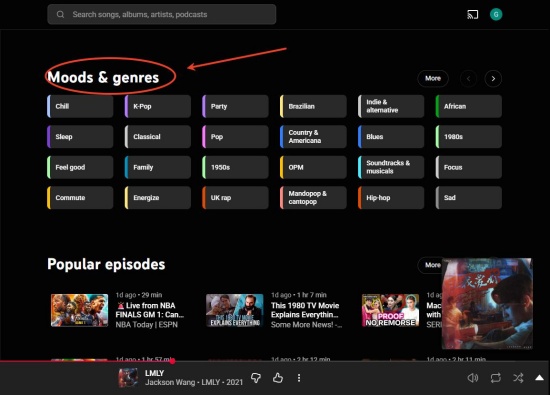
When you navigate to the Explore tab in YouTube Music, you can find a section named Moods & genres, which displays different themes like Commute, J-Pop, and so on. Choose a theme you like, and YouTube Music will automatically generate an endless, ad-adapted or premium-curated radio experience based on your choice.
01Launch YouTube Music on your phone or desktop.
02Select Explore at the bottom of the screen on your phone or in the left sidebar on desktop.
03Scroll down to find Moods & genres.
04Browse the various collections, including moods like Commute, Relax, and genres like Hip-Hop.
05Choose a mood or genre that matches your vibe.
06YouTube Music offers you curated, endless playlists that function as radio stations.
Option 2: Use Filtered Search Results
To find curated radio stations easily, you need to filter your search results using tags like "Playlist" or "Video".
01Open YouTube Music on mobile or the YouTube Music website on desktop.
02Select the Search icon.
03Enter a keyword, artist, mood, or genre with "radio" at the end. (e.g., "K-Pop radio" or "90s pop radio")
04The category chips will appear below the search bar, including Songs, Albums, Artists, etc.
05View the filtered results to find official YouTube playlists or communities. They usually function as endless radio stations.
06Choose the playlist that suits you and play or shuffle it.
Option 3: Use Livestreams
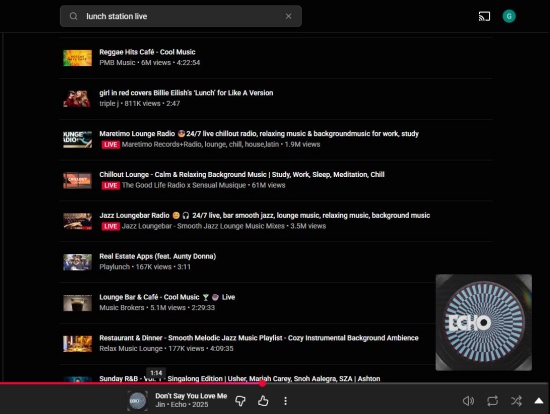
There is no direct "livestream" URL-input feature. Instead, you can search for existing radio station livestreams directly within the app or website.
01Open YouTube Music and select the Search icon (magnifying glass).
02Enter the name of the radio station or genre with "live" or "radio" at the end.
03Tap or click Videos at the top of your search results to find the livestream.
04Select the stream to play it through the YouTube Music interface.
Part 3. How to Create Radio Stations on YouTube Music
You can create custom radio stations in three main ways: using the Music Tuner, using Ask Music, or using instant radio stations from a song or artist. Now pick your preferred method.
Option 1: Use the Music Tuner (Mobile Only)
When you take this method, make sure you check the device. Only mobile users can start the YouTube Music station via Music Tuner.
01Open YouTube Music on your mobile and scroll down the Home page to find Your Music Tuner.
02Select the + or Create Radio button.
03Choose up to 30 of your favorite artists from the grid and select Next.
04Adjust your Artist Variety (Low, Medium, High) and Song Selection (Familiar, Blend, Discover).
05Select from Popular, Deep cuts, Chill, Focus, etc.
06Tap Done to create your endless custom mix.
Option 2: Use Instant Radio from an Artist or Song (Mobile & Desktop)
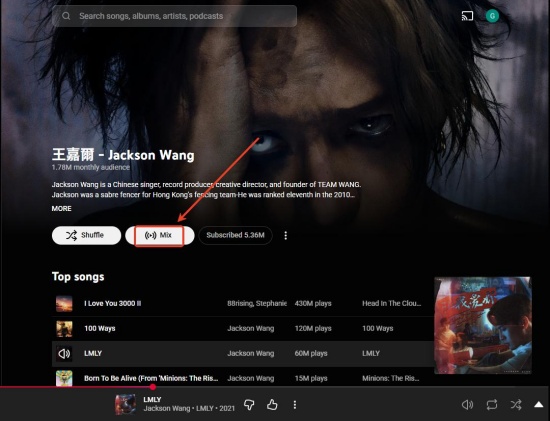
To start radio stations, you can search for the artist or track. Upon selecting Start Mix under the artist's art or from a track's three vertical dots, YouTube Music starts playing a continuous, algorithmic radio station.
01Open the YouTube Music app on your phone or the website on your computer.
02Click the search bar to find your desired artist or track.
03Choose your way to start the station.
- For tracks, click the three dots near the song and choose Start Mix.
- For artists, directly click Start Mix under the artist's name.
04Enjoy the radio of related music now!
Option 3: Use Ask Music (Premium Feature)
One thing to note is that Ask Music is an AI-powered feature only for YouTube Premium.
01Open YouTube Music and sign in.
02Navigate to Home and tap Ask Music.
03Type a prompt describing a mood, activity, or specific listening experience (e.g., "Songs to make me relax").
04Select Play to create the custom radio.
Bonus: How to Download YouTube Music Stations as MP3s
Overall, YouTube Music offers plenty of ways to find and create radio stations. If you want to better customize your radio station, choose the Music Tuner; if you really adore a track or artist, try Start Mix to enjoy the stream of related music. And with membership, you can even ask the AI to pick tracks for you. Anyway, just choose your favorite way to start a station.
If you want to keep your favorite radio station tracks and listen offline, ViWizard YouTube Music Converter can help. Available for Windows and Mac, it lets you download music from YouTube Music and save it as MP3, FLAC, WAV, AIFF, M4A, M4B, and more. You can download not only playlists, but also Liked Music, albums, songs, artists' tracks, and music from YouTube Music radio stations. It also keeps the original ID3 tags and enables you to adjust the audio quality to your needs. With ViWizard, you can enjoy your favorite YouTube Music stations anytime, anywhere, even without an internet connection.

Need YouTube Music for offline listening? ViWizard YouTube Music Converter helps YouTube Music users save songs, playlists, albums, and artists with convenient music conversion. Start converting and enjoy your music beyond the app.
How to Download YouTube Music Radio Station Tracks with ViWizard
 Step 1: Set Up Your Output Preferences
Open ViWizard YouTube Music Converter and click the Menu icon in the upper-right corner. Select Preferences > Conversion. Choose an output format such as MP3, FLAC, WAV, AIFF, M4A, or M4B. You can also adjust the bitrate, sample rate, and bit depth to match your preferred audio quality. Click Save when you're done.
 Step 2: Sign In and Find a Radio Station
On the main screen, select YouTube Music to open the built-in YouTube Music web player. Sign in to your YouTube Music account, then search for or open a radio station based on your favorite artist, song, playlist, genre, or mood.
 Step 3: Add Radio Station Tracks to ViWizard
Once you've opened the radio station, browse its track list and click Add to List. ViWizard will automatically scan the station and load the available songs into the conversion window. Review the tracks and remove any songs you don't want to download.
 Step 4: Download and Enjoy Offline
Click Convert to start downloading the selected radio station tracks. ViWizard will save them to your computer in the format you selected while preserving the original audio quality and ID3 tags. After the conversion is complete, go to the Converted section to access your downloaded songs and enjoy them offline on any device or media player.
Conclusion
YouTube Music radio stations are a simple and enjoyable way to discover new music while listening to the songs and artists you already love. You can easily access the YouTube Music radio stations, from genre-based stations to custom mixes created with Music Tuner. More surprisingly, you can start mixing from your favorite tracks or singer, and even ask AI to generate one for you.
And if you'd like to take your favorite radio station tracks offline, ViWizard YouTube Music Converter is a handy tool. It downloads and saves YouTube Music songs in popular formats like MP3. This way, you can enjoy your favorite radio discoveries anytime, anywhere, even in places with poor internet. Come and try it now!
You May Be Interested

How to Download Stations on Pandora in 2 Ways

How to Fix Apple Music Stations Not Working/Playing/Showing

How to Create and Find Radio Stations on Apple Music

Solved: How to Create a Mix with Perfect Transitions on Spotify

[Fixed] YouTube Music Shuffle Not Working Issue
Find, Create, and Erase Pandora Stations


Matt Smith, a digital entertainment industry enthusiast at ViWizard, is dedicated to providing insightful commentary and solutions for music and media-related topics, including industry trends, analysis, and recommendations.

Leave a Comment (0)