


YouTube Music is a popular music streaming platform with millions of tracks, offering users the ability to create playlists and enjoy seamless music playback. Among its features, the shuffle option is a favorite, providing a way to enjoy playlists in a randomized order. However, some users report issues where the shuffle feature doesn't work as expected, leaving tracks playing in the same sequence repeatedly. In this article, we'd like to offer you practical solutions to fix the YouTube Music shuffle not working issue.
Part 1. How to Shuffle a YouTube Playlist Correctly
Can you shuffle a YouTube playlist? Yes! We’ve confirmed that the shuffle icon works on both the YouTube Music app and the web player. To make sure that you aren’t missing it or using it incorrectly, it’s important to first show how to shuffle a playlist on YouTube Music correctly before diving into the fixes.
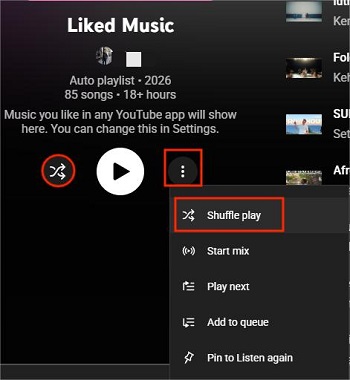
On Computer (YouTube Music Web Player)
Step 1 Open the YouTube Music web player in your browser.
Step 2 Click the playlist you want from the left sidebar or your Library.
Step 3Enable shuffle in one of these two ways:
- Click the Shuffle button (🔀) under the playlist title.
- Or click the three dots (⋮) on the playlist card and select Shuffle play to start immediately.
On Mobile (YouTube Music App)
Step 1 Open the YouTube Music app.
Step 2 Go to Library and select the playlist you want to play.
Step 3Start shuffle in one of these two ways:
- Tap the three vertical dots (⋮) near the top of the playlist page, then select Shuffle play.
- Or tap the Shuffle icon (🔀) directly below the playlist title.
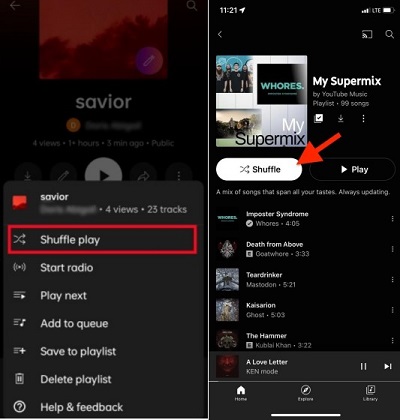
Avoid using the shuffle icon in the Now Playing bar after a playlist has already started. That shuffle option often only randomizes the songs currently loaded in the Up Next queue, not the entire playlist.
Using the steps above will reshuffle the whole playlist. However, some YouTube Music users may still run into issues, such as:
- Shuffle not being truly random: Songs seem to repeat in a fixed pattern.
- One-song shuffle: The app picks one random song to start, then plays the rest in the original order.
- Repeated patterns or the same songs over and over: Only part of the playlist is shuffled, while the rest plays normally.
If you’re experiencing any of these YouTube Music shuffle problems, let’s move on to the troubleshooting guide below.
Part 2. How to Fix YouTube Music Shuffle Not Working
Although the YouTube Music official has provided some common fixes, such as reinstalling the app, updating the app, and signing out and back in. Here we have some more effective ways to address the shuffle issue and enjoy your music the way you want:
Fix 1. Turn On the Dynamic Queue
Dynamic Queue is a feature that enables more diverse playback options. It adjusts the queue dynamically when shuffle is on. Whenever you hit the next button before a song ends, the current queue of songs will be changed. Here's how to enable it:
Step 1 Open YouTube Music on your mobile phone. Or navigate to the YouTube Music web player on your computer.
Step 2 Go to your profile picture > Settings > Playback.
Step 3 Look for the Dynamic Queue option and turn it on.
Step 4 Restart your playlist with shuffle enabled.

Fix 2. Play the Last Song of the Shuffled Playlist
If your playlist is large, YouTube Music may only shuffle the songs that are already loaded, usually the first 20–50 tracks. That’s why the rest of the playlist never seems to appear in shuffle mode.
What to do:
- Scroll to the bottom of the queue so all songs can load.
- Tap the last song in the playlist and start playing it.
- Then turn on Shuffle again.
This forces YouTube Music to load the entire playlist before shuffling. We tested it, and it works on both the YouTube Music app and the YouTube Music web player.
Fix 3. Adjust the Shuffled Playlist
Sometimes shuffle is turned on, but you can tell that the YouTube Music shuffle is not truly random. This usually happens when your playlist is too long or the song order hasn't been refreshed for a long time.
A simple but effective fix is to manually adjust the playlist by reordering songs or removing a few tracks to reset how shuffle works.
On Mobile (YouTube Music App)
To Rearrange Tracks:
Step 1 Open the YouTube Music app and go to your chosen playlist.
Step 2 Start playing a song in the playlist.
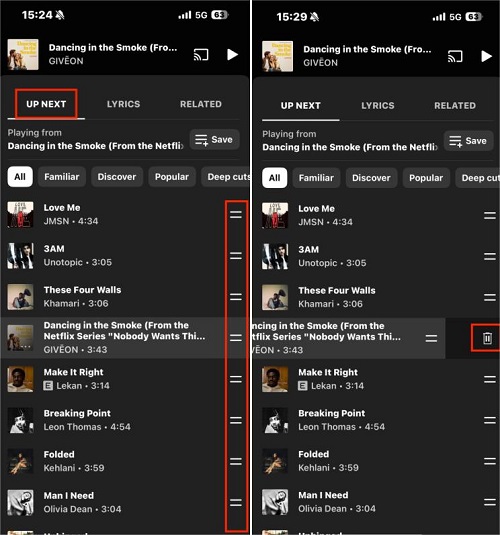
Step 3 Open the player interface and tap on Up Next.
Step 4 Locate the two-line handle (=) on the right side of any song. Long-press and drag the track to a new position.
To Remove Tracks:
Step 1 While in the Edit screen, swipe left on a track.
Step 2 Tap the trash can icon to remove the track from playlist.
On PC (YouTube Music Web Player)
To Rearrange Tracks:
Step 1 Open the YouTube Music Web Player and navigate to your playlist
Step 2 Hover your mouse over the song you wish to move
Step 3 Use the left mouse button to drag and drop certain tracks to change the order.
To Remove Tracks:
Step 1 Hover over the song and click the three dots (⋮) on the right side.
Step 2 Click Remove from playlist.

Fix 4. Clear the Cache of YTM
Clearing the cache is a standard and safe maintenance procedure to resolve common YouTube Music problems. This action can lead to smoother navigation, quicker loading times, and less lag or stuttering while using Shuffle play.
- For Android users: Go to Settings > Apps > App Management > YouTube Music > Storage usage > Clear cache.
- For iOS users, go to General > iPhone Storage > YouTube Music > Offload App.


Fix 5. Shuffle via Voice Commands
If you're using Google Assistant of your Google Nest or another smart speaker, try shuffling your playlist through voice commands. Say something like: "Hey Google, shuffle my [playlist name] on YouTube Music." This method can override most of the glitches in the app's shuffle functionality.

Fix 6. Use a Playlist Randomizer
If you don't have a smart speaker, consider using an online tool--YouTube playlist randomizer on your computer for a guaranteed random shuffle.
Step 1 Copy the URL of your YouTube Music playlist you want to shuffle.
Step 2 Go to YouTube Playlist Randomizer and enter the copied playlist URL to the box and click the magnifying glass icon.
Step 3 Once all the tracks within this playlist are loaded, they are arranged in different order with that in YTM web player.
Step 4 You can continue to shuffle them again by clicking the Reshuffle button over the song list.
Step 5 Find the Autoplay similar content setting.
Step 6 Toggle the switch off.
Step 7 Play a playlist or album to confirm Spotify no longer automatically adds recommended songs.

It's worth mentioning that there are several drawbacks for this convenient online tool.
- Only available on computer.
- Require a stable and strong internet connection.
- Sound quality of songs may be degraded through the transcoding.
- Cost a relatively long time to load all the tracks if there are many within the input playlist.
Fix 7. Download and Shuffle Offline
Downloading a playlist is one of the most effective ways to fix shuffle issues. This method forces YouTube Music to recognize every song in the playlist at once, instead of loading them in small “chunks” over the internet.
On Mobile (YouTube Music App)
Step 1 Go to the playlist you want to fix and tap the Download icon (the downward arrow) below the playlist title.
Step 2 Make sure all songs are 100% downloaded.
Step 3 Don’t play the playlist from your Home screen. Instead, go to Library > Downloads.
Step 4 STap the three dots (⋮) next to the downloaded playlist and select Shuffle play.

On PC (YouTube Music Web Player)
Note: Although the YouTube Music web player is gradually rolling out download features, it currently supports downloads only for individual songs or podcast episodes. It does not yet support true offline downloads for entire playlists.
That said, since downloading remains a 100% effective solution for shuffle problems, we also share a method in Part 3 that shows how to download YouTube Music playlists to your computer and play them in random order.
Read More : How to Download a YouTube Music Playlist to PC and Phone
Fix 8. Make a Smaller Playlist (Best for Prevention)
When a playlist has fewer than 50 songs, YouTube Music can usually load every track into the Up Next queue at once. This creates a more accurate shuffle, where each song has an equal chance to play.
With large playlists, shuffle can be affected by:
- Partial loading
- System preferences for popular or “safe” tracks
- Less fair rotation across the full list
If your playlist already has hundreds of songs, it’s better to reorganize or refresh the playlist order, like we mentioned in Fix 3, instead of cutting it down to under 100 tracks.
Part 3. The Ultimate Fix for YouTube Music Not Shuffling [100% Workable]
We'll be delighted if you find any the above solution works. But if you still cannot address the shuffling issue, we have an absolutely effective workaround which allows you to enjoy YouTube music in a randomized order. All you need is a reliable tool: ViWizard YouTube Music Converter. With it, you need to firstly save your YouTube music or playlists to your computer and use the shuffle feature of the media player to play them randomly without the YouTube Music app or web player. Of course, ViWizard is designed for every user, which means that you don't need to make a subscription to the YouTube Music Premium.

Download songs, playlists, albums, and your whole music library from 10 major streaming platforms, including YouTube Music, to MP3, FLAC, WAV, AIFF, M4A, or M4B with original sound quality and full song info and keep your music forever.
Step 1 Download and install ViWizard YouTube Music Converter. Launch the program and go to Menu > Preferences > Conversion. Choose your preferred audio format. Select an output folder to save your downloads and click OK.

Step 2 On the main interface, click the YouTube Music logo to open the built-in web player. Log in with your YouTube Music account.

Step 3 Open the playlist you want to download. Click the + button to fetch all tracks in the playlist. In the pop-up window, click Select All to choose every song. Click Add to List to queue them for conversion.

Step 4 Click Convert. ViWizard will download all tracks in high quality to your chosen folder. After conversion, each song will include full ID3 tags: artwork, title, track number, artist, and lyrics (if enabled).

Step 5 Now you can import the downloaded playlists into any media player you like and play them on shuffle.
-
For Windows
- Launch the Windows Media Player on your computer.
- Navigate to the Organize button and select the Manage Libraries > Music option.
- Click the 'Add' button to browse and input the previously downloaded YouTube playlists using the File Explorer.
- Once complete, you can click the shuffle icon at the bottom playback controls and start playing your favorite YouTube playlists at a random order.


-
For Mac
- Within iTunes, head to the "File" menu.
- Select "Add File to Library" or "Add Folder to Library," based on your organizational preference.
- Navigate to the location where you stored your ViWizard-converted YouTube playlists and select either the individual audio files or the entire folder.
- Confirm your selection by clicking "Open" to initiate the import process.
- Once you import all the YouTube contents, you can click the shuffle icon at the top playback controls and start playing your tracks randomly.


Part 4. YouTube Music Shuffle FAQs
How does YouTube Music shuffle work?
On mobile and desktop, shuffle uses the songs currently loaded in the Up Next queue. Shuffle can also be influenced by popular tracks or recently played songs, which sometimes makes it feel less random.
Can I shuffle multiple playlists at once?
No, YouTube Music doesn’t support shuffling multiple playlists simultaneously. Shuffle works playlist by playlist, so you can only randomize one playlist at a time. A workaround is to combine your favorite songs into a single playlist and then shuffle that list.
Does shuffling a downloaded playlist save data?
Yes! Shuffling from your Downloads folder ensures that YouTube Music uses the files stored on your device rather than streaming them. This not only saves mobile data but also provides a more reliable shuffle because the app doesn't have to wait for the server to suggest the next random track.
Is there a limit to how many songs YouTube Music can shuffle at once?
While YouTube Music doesn’t publicly state a strict number, in practice:
- Small playlists (less than 50 songs) usually shuffle all tracks correctly.
- Large playlists (more than100 songs) may only shuffle the first part until the rest of the queue loads.
- For very large playlists, downloading or splitting the list into smaller ones ensures true shuffle across all tracks.
Conclusion
The YouTube Music shuffle not working issue can be frustrating, but it's often resolved through simple fixes like enabling Dynamic Queue, refreshing playlists, or using voice commands. For offline playback with reliable shuffle, tools like ViWizard YouTube Music Converter provide an excellent solution. By following the steps in this guide, you can enjoy your YouTube Music playlists the way they're meant to be—random and engaging!
You May Be Interested

>Why Does YouTube Music Keep Pausing? 15 Easy Fixes

5 Ways to Crossfade YouTube Music in 2026

How to Download Music from YouTube to iPhone [All-users]

YouTube Music Is Not Available in Your Area: Why It Happens and How to Fix It

Where Does YouTube Music Download to? Find Here!
Add, Clear and Fix YouTube Music Queue
How to Find and Create YouTube Music Radio Stations

From new releases to old favorites, Matt Smith is always on the lookout for good music. He follows the latest in digital entertainment and shares songs and media he thinks are worth checking out.

Leave a Comment (0)