


Downloading YouTube Music playlists is important because the songs you save in the app can disappear if you switch devices, lose access, or cancel your subscription. That's why it's useful to know how to save playlists from YouTube to your computer or phone as a backup.
In this guide, we'll show you how to download YouTube Music playlists safely. Some methods are free, some let you download in batches, and some deliver the best audio quality. We've tested all of them on Windows, Mac, Android, and iPhone, so you can be confident they work. Read on to find the method that works best for you.
Note: This guide shows safe, practical ways to download YouTube Music playlists for personal use. We also explain any limits or risks, so you know exactly what to expect.
Part 1. Can You Download YouTube Music Playlists?
Yes, you can download a music playlist from YouTube Music, but the approach depends on whether you want to save it within the app or get permanent files on your device. Before we explore other download methods, let's first look at how to use the official YouTube Music app.
On Mobile (Android & iPhone)
If you have a YouTube Music Premium subscription, you can download playlists directly in the app. Open any playlist, tap the three-dot menu below the playlist title, and select Download. You can also enable Smart Downloads in the app settings. This feature automatically saves your favorite playlists when connected to Wi-Fi.

On Computer (Web Player/PWA)
YouTube Music now supports offline playback on the desktop web player. However, it only applies to song tracks and podcast episodes within the browser or app.
The official method works well for casual listening, but it has limitations. These downloads are only accessible inside the YouTube Music app or browser. You cannot access the files directly in your device's "Downloads" folder, transfer them to other apps, or use them for creations like background music as they are encrypted.
Read More : Where Does YouTube Music Download to? Find Here!
Don't worry. In the following sections, we'll show methods that let you actually download YouTube Music playlists to your computer or phone, giving you more flexibility and control over your music.
Part 2. How to Download a YouTube Music Playlist to Computer
To find the most reliable methods, we conducted hands-on testing with 17 different YouTube Music downloaders. After evaluating them for speed, audio quality, and batch-processing stability, we narrowed the list down to the two best options.
The first is a command-line audio and video downloader that works on thousands of websites, including YouTube. The second is a high-efficiency desktop all-in-one music converter. Both tools allow you to save an entire YouTube Music playlist to your computer in minutes.
2.1 Download a YouTube Music Playlist for Free
If you're comfortable with a little technical setup, yt-dlp is for you. It is a free, open-source command-line tool that can download playlists from YouTube Music. It's lightweight, regularly updated, and ad-free.

Recently, yt-dlp added support for YouTube Music search, but it primarily extracts audio from standard YouTube videos. To use it with a YouTube Music playlist, you need to replace music.youtube.com with youtube.com in the playlist URL. Note that yt-dlp does not support downloading user-uploaded songs, according to the official GitHub discussion.
If you prefer a more user-friendly or flexible method, check section 2.2 below.
Supported Devices:
- Windows
- macOS
- Linux
What You Need:
- yt-dlp executable file
- FFmpeg (essential for audio extraction and format conversion)
How to Use yt-dlp to Download a YouTube Music Playlist:
Step 1 Install yt-dlp.
- Windows: Download yt-dlp.exe from the official GitHub releases page and save it in a folder.
- macOS/Linux: Install via Homebrew or Python package manager:
brew install yt-dlporpip install yt-dlp.
Step 2 Install FFmpeg on your system.
Step 3 Open your desired YouTube Music playlist and copy the URL.
Step 4 Replace music.youtube.com with youtube.com.
Step 5 Open Command Prompt (Windows) or Terminal (macOS/Linux) and navigate to the folder where yt-dlp is saved.
Step 6 Paste the following command to download the entire playlist as high-quality MP3 files with metadata and thumbnails:

Step 7 yt-dlp will process each song sequentially and save the audio files in your current folder.
- Tip 1. For very large playlists (100+ songs), add
--concurrent-fragments 5to speed up downloads. Our testing shows it can reduce total download time by up to 40% by fetching multiple data fragments simultaneously. - Tip 2. You don't need YouTube Premium to use yt‑dlp. However, if you do have a subscription, you can add:
--cookies-from-browser chrome. This allows access to Premium-only 256kbps AAC streams, offering slightly better audio transparency than standard free streams.
- Pros
- 100% free and open-source
- Works on Windows, macOS, and Linux
- Downloads entire playlists with a single command
- Supports MP3, M4A, and other formats via FFmpeg
- No ads or tracking
- Cons
- Requires basic command-line knowledge
- Does not automatically embed high-resolution album art
- Does not support your own uploaded songs
- Requires you to change the URL to youtube.com before pasting
2.2 Download an Entire YouTube Music Playlist in Lossless Quality
For users who want high-quality audio and an easy interface, ViWizard YouTube Music Converter is an excellent choice. It lets you download your entire YouTube Music library, including the playlists you liked and created. And, it downloads them in various formats like MP3, FLAC, WAV, M4A, M4B, and AIFF.

A versatile all-in-one streaming music converter that downloads music from YouTube Music, Spotify, Apple Music, Amazon Music, Tidal, Deezer, Pandora, SoundCloud, Qobuz and LINE MUSIC into MP3, FLAC, WAV, AIFF, M4A, and M4B formats in high quality.
Compared with yt-dlp, it is more user-friendly and does not require command-line knowledge. Besides YouTube Music, it also supports music from nine other services, including Spotify, Apple Music, and more.
Supported Devices:
- Windows
- macOS
What You Need:
- ViWizard YouTube Music Converter installed on your computer
- A YouTube Music account (free or Premium)
How to Get Audio from YouTube Music Using ViWizard Software
Step 1 Download and install ViWizard YouTube Music Converter. Launch the program. Go to Menu > Preferences > Conversion. Choose your preferred audio format. If you want the highest quality, select Lossless instead of MP3. Choose an output folder and click OK to save your settings.

Step 2 On the main interface, click the YouTube Music logo to open the built-in web player. Log in with your YouTube Music account.

Step 3 Open the playlist you want to download. Click the + button to fetch the entire playlist. In the pop-up window, click Select All to choose all tracks. Click Add to List to queue them for conversion.

Step 4 Click Convert. The software will download the tracks in high quality and save them to your chosen folder. After conversion, all songs will have full ID3 tags, including artwork, title, track number, artist, and lyrics if enabled in settings.

- Pros
- Simple, graphical interface
- Downloads entire playlists at once
- Keeps full metadata: title, artist, album, cover art
- Supports lossless formats (FLAC, WAV)
- Works on free and Premium YouTube Music accounts
- Batch download and high-speed conversion
- Cons
- Paid software (trial available)
- Only available on Windows and macOS
- Requires installation
Part 3. How to Download a YouTube Music Playlist to Phone
We tested two tools on Android and iPhone and both worked. Unlike the downloads in the YouTube Music app, these playlists are stored directly on your device and can be played in any media player.
3.1 Download a YouTube Music Playlist on Android
Seal is an open-source video and audio downloader based on the yt-dlp engine. It is cleaner and safer than many other APKs online. The app can download entire playlists from YouTube Music to MP3 with full metadata. If the desktop version of yt-dlp feels too difficult, Seal is a simpler option on Android.
What You Need:
- Android phone with version 7.0 or higher
- Seal APK from a trusted source such as GitHub or F-Droid
- YouTube Music playlist URL
How to Use Seal to Download YouTube Music Playlist:
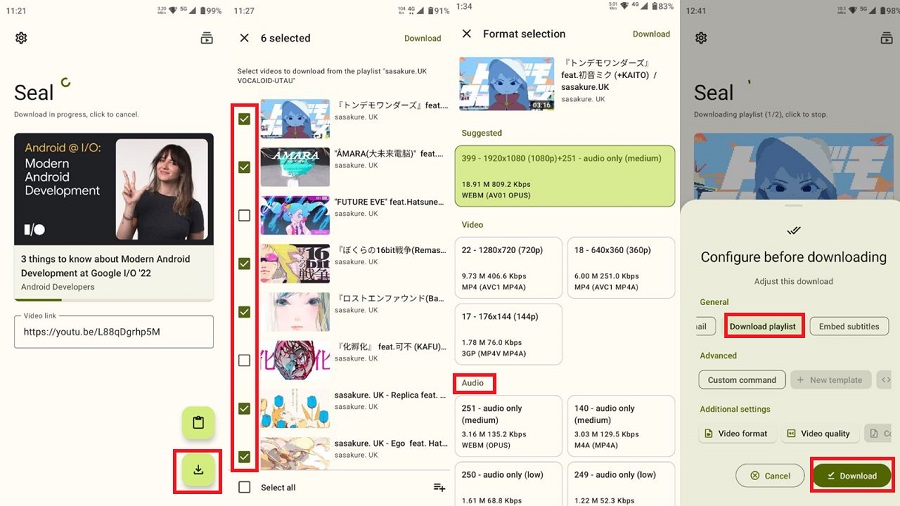
Step 1 Download the Seal APK from the official GitHub page and install it. The developer recommends the arm64-v8a version.
Step 2 Open the YouTube Music app, find your playlist, tap Share, then tap Copy Link.
Step 3 Open Seal, paste the link into the box, and tap the download arrow. If the app cannot recognize the URL, replace music.youtube.com with youtube.com.
Step 4 Select the tracks you want or tap Select all.
Step 5 Set the audio format and quality.
Step 6 Choose Download playlist.
Step 7 Tap Download. The songs will save to your phone's storage.
- Pros
- Downloads entire playlists at once
- Supports multiple audio formats and bitrates
- Keeps metadata like title, artist, and album
- Saves files locally for flexible playback
- Cons
- Requires third-party app installation
- You need to update the APK manually to stay compatible with YouTube
- May require manual permission adjustments
Read More : 4 Ways to Download YouTube Music to Android [2026]
3.2 Download a YouTube Music Playlist on iPhone
iPhones have stricter security rules than Android devices. You cannot install APK apps or use system-level download tools like on Android. Because of this, most iPhone users rely on web tools or Telegram bots instead of standalone downloader apps.
For this guide, we tested a Telegram bot called ytmp3sk8_bot. It works on iPhone and does not require any installation outside Telegram. However, this bot only downloads audio from YouTube videos that are under 30 minutes long.
What You Need:
- The Telegram app
- A Telegram account
- Access to ytmp3sk8_bot in Telegram
- YouTube video links for the YouTube Music playlist
How to Use ytmp3sk8_bot to Download a YouTube Music Playlist
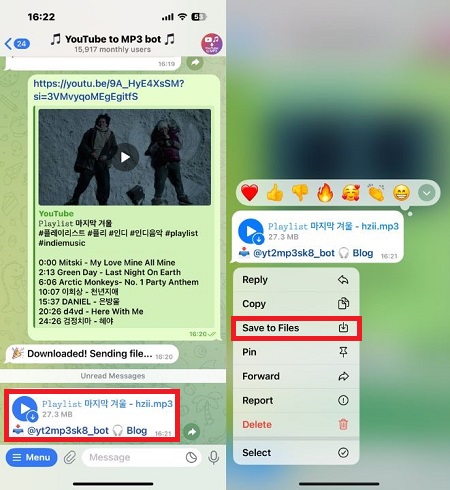
Step 1 Open Telegram and search for ytmp3sk8_bot.
Step 2 Start the bot. Copy a YouTube video link and paste it into the chat.
Step 3 If your playlist is on YouTube Music, open it in a browser. Find the same tracks as regular YouTube videos. Copy the video links one by one.
Step 4 Send the link to the bot.
Step 5 Wait for the bot to process the file. It will return an MP3 download link.
Step 6 Long-press the audio file and tap Save to Files.
Step 7 Choose a folder in the Files app to store your playlist tracks.
- Pros
- Works on iPhone without jailbreaking
- No app installation outside Telegram
- Simple and fast for short playlists under 30 minutes
- Easy copy and paste workflow
- Cons
- Does not support YouTube Music links
- Limited to videos under 30 minutes
- No true playlist download support
- Manual work needed for multiple songs
- No option to customize audio quality
Read More : How to Download Music from YouTube to iPhone [All-users]
Part 4. FAQs About YouTube Music Playlist Download
Can I download YouTube Music playlists without Premium?
With the official YouTube Music app, you need a Premium subscription to download playlists for offline listening. Without Premium, you cannot use the in-app download feature.
Some third-party tools can save playlists without Premium, but these downloads are local files and not official offline copies inside the app.
Can I transfer downloaded YouTube Music playlists to another device?
If you download playlists using the official YouTube Music app, you cannot transfer them. These files are encrypted and only work inside the app on the same account.
If you download playlists as local audio files using third-party tools, you can move them to other devices just like normal music files.
Is it legal to download music from YouTube Music?
Downloading music for personal offline listening may be allowed in some regions, but saving copyrighted music as local files usually violates YouTube's terms of service.
Can I download my own uploaded songs from YouTube Music?
With the official YouTube Music app, you can download your uploaded songs for offline listening inside the app. However, most third-party download tools cannot detect or download your personal uploads. They usually only work with public YouTube videos and tracks available on the platform.
Why do some tools not support YouTube Music links?
YouTube Music uses a different system from regular YouTube. Its audio streams are protected with stronger encryption and often require account login. Many download tools are built only for standard youtube.com videos and cannot access these protected streams. But you can download YouTube Music playlist using ViWizard YouTube Music Converter.
Conclusion
You can download YouTube Music playlists in different ways depending on your needs. The official app works for offline listening, while third-party tools let you save playlists as local files with full control.
On desktop, yt-dlp is free and powerful, and the ViWizard YouTube Music Converter offers high-quality downloads with metadata. On mobile, Android users can use Seal, and iPhone users can use Telegram bots or web tools.
Always use these tools responsibly for personal use and respect copyright rules. With the right method, your favorite playlists can stay with you anytime, on any device.
You May Be Interested
How to Download YouTube Music to MP3

How to Add Music to Google Drive from YouTube [4 Ways]
How to Get the YouTube Music Desktop App on Your Computer
Loader.to Tested: Review and Safer YouTube MP3 Downloaders

How to Download Music from YouTube to Computer (MP3 & Free Methods)
How to Create & Manage a YouTube Music Playlist

From new releases to old favorites, Matt Smith is always on the lookout for good music. He follows the latest in digital entertainment and shares songs and media he thinks are worth checking out.

Leave a Comment (0)