


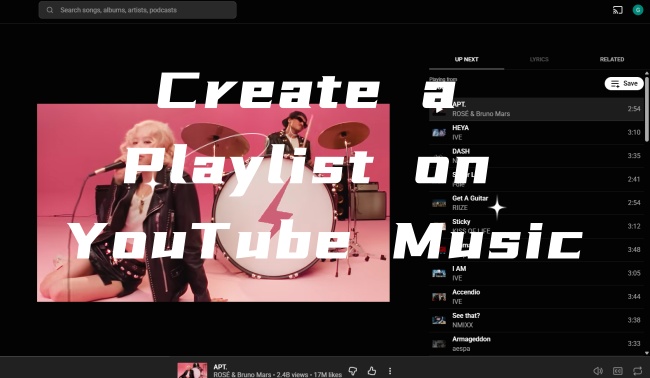
Have you ever experienced this? On a Monday night, there is still some work to do. You have K-pop on YouTube Music as your accompaniment, and then you search for songs to play. When it plays the last song, you add more tracks to the queue in case unwanted songs may cut in. Though it is easy to add songs to the queue, this does affect our listening experience. Is there a way to save us from constantly searching for individual songs or artists? Yes, creating a YouTube Music playlist does help you.
In this article, we show you how to create a playlist on YouTube Music on mobile and desktop. You can also learn how to add high-energy tracks to your workout playlist or classical music for sleeping time. What about YouTube Music collaborative playlists and AI playlists? Don’t worry, we will guide you to create them step by step. Come and learn more details with us!
Part 1. How to Create a Playlist on YouTube Music
You can create a playlist on YouTube Music on both mobile devices (iOS & Android) and a web browser. But no matter what device you use to make a YouTube Music playlist, there are usually two methods: make a playlist through Library or the three-dot button next to a song. On the web player, you can also add a playlist from the left sidebar. You can choose your favorite way.
On Mobile (iOS/Android)
The YouTube Music app supports creating playlists from the Library and beside the song title. You can choose the most convenient way for you.
Add a Playlist from Library
01Activate the app and sign in to your account.
02Tap Library at the bottom within the app.
03Tap Playlists and choose + New playlist.
04Name your playlist. (Sleeping, Work, Study, etc.)
05You can even add a description to the playlist if you like, and select the privacy setting (Public, Unlisted, or Private).
06Tap Create to keep the playlist.
Add a Playlist beside the Song Title
01Make sure you’ve signed in to the app.
02Find a song, and tap the three-dot icon next to the song.
03 Choose Add to playlist/Save to Playlist.
04Tap + New playlist, and then name and describe the playlist.
05Select the privacy setting and tap Create.
On Desktop (Web)
On the YouTube Music website, you can create a playlist from Library, beside the song name, or directly from the left sidebar of the main page.
Add a Playlist from Library
01Open a modern browser (Chrome, Firefox, Bing, etc.), and visit the YouTube Music website.
02Log in to the website with your account.
03Click Library in the left side bar.
04Choose Playlists and then click the New Playlist icon.
05Name the playlist and describe if you want.
06Click Create to save your own playlist. Enjoy it!
Add a Playlist beside the Song Title
01Sign in to YouTube Music and find Library.
02Click the vertical ellipsis beside a track.
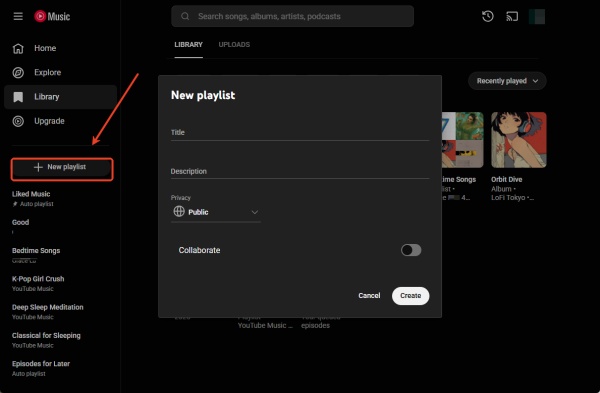
03Click Save to playlist > + New playlist.
04Fill in the Title and Description (optional). Click Create.
Add a Playlist from the Left Sidebar
01Sign in to YouTube Music
02Locate the + New playlist in the left sidebar, and click it.
03Name the playlist and add an optional description. Click Create.
Part 2. How to Add Music to Your YouTube Music Playlist
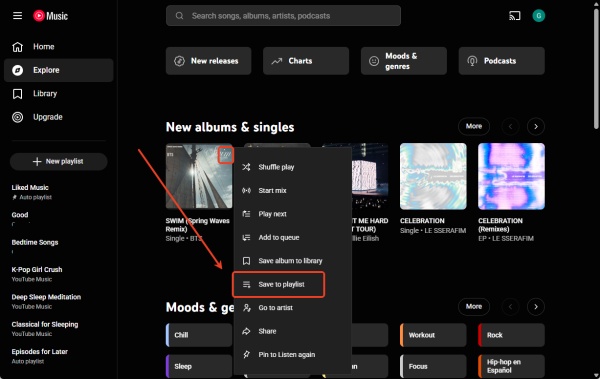
To add music to a playlist in YouTube Music, search for a song you want to add. And you can click or tap the three dots next to the track, and add the song to your YouTube Music playlist. Keep in mind that the playlists you create in YouTube Music will appear in the main YouTube app, and vice versa. But those non-music videos will not show up in the YouTube app. Let’s add music to YouTube Music playlists.
On Mobile (iOS/Android)
You can add music to your YouTube Music playlist while listening or simply from search/lists.
Add Music While listening
01Sign in to the app and play any track.
02Tap the bottom bar to enter the "Now Playing" screen.
03Tap the three dots on the "Now Playing" screen.
04Select Save to Playlist, and choose a playlist to save the track.
Add Music from Search/Lists
01Log in to the app.
02In your feed or research results, select the three-dot icon next to any song, music video, or album.
03Tap Save to playlist, and choose one playlist to add.
On Desktop (Web)
01Make sure you sign in to the YouTube Music Website.
02Hover the cursor over the track or album you desire to add, and you can see the three dots.
03Click the three dots icon and choose Save to playlist.
04Select the playlist you like.
Part 3. How to Create a Collaborative Playlist on YouTube Music
If you want to make a collaborative playlist, you can create or open a playlist, set its privacy to Public or Unlisted, and turn on the collaboration feature. Then it will generate a shareable link or QR, and you can invite your friends via the link. They can add or remove songs in the playlist. Follow the steps to create a collaborative playlist on your mobile or desktop.
On Mobile (iOS/Android)
01 Open the YouTube Music app and tap Library at the bottom of the main screen.
02Tap Playlists at the top and select an existing playlist, or tap New playlist to create a new one.
03Tap the three dots to edit the Playlist. Under privacy, set to Public or Unlisted, because collaboration is not available for Private playlists.
04Tap the Share icon at the top of the playlist.
05Choose Invite collaborators.
06Turn on the switch "Collaborators can add songs and videos".
07Copy the invitation link or share it directly via a messaging app.
On Desktop (Web)
01Visit music.youtube.com and click Library in the left sidebar.
02Click Playlists at the top of the library section.
03Hover your cursor over the playlist and click the vertical ellipsis in the top right corner.
04 Select Edit Playlist and choose Public or Unlisted under Privacy.
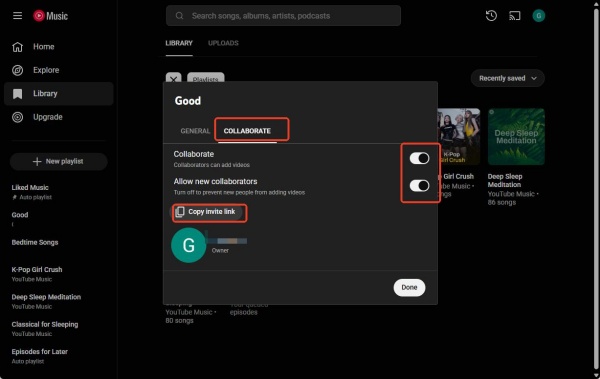
05Then click COLLABORATE to enable Collaborate and Allow new collaborators.
06Click Copy invite link, and you can share the URL with your friends.
Part 4. How to Create an AI Playlist on YouTube Music
If you want to create an AI Playlist on YouTube Music, you can describe your favorite music type or genre using text or voice, and the AI will soon generate a custom playlist for you.
But keep in mind that YouTube Music’s conversational AI playlist feature is primarily designed for the mobile app . However, YouTube Music can sync your web player library. So, you can easily access an AI-generated playlist on your desktop by using the YouTube Music mobile or tablet app. Now, let’s follow the steps to make an AI playlist on your device.
On Mobile (iOS/Android)
01Make sure your YouTube Music app is updated to the latest version, and you have a Premium Subscription.
02Sign in to the YouTube Music app with your account.
03Tap Library at the bottom of the screen.
04Tap the New button (+) and choose AI Playlist from the menu.
05Describe what you want to hear via voice or text. For example, "Classical for dining and working", "High-energy 90s hits".
06Within seconds, YouTube Music will generate a customized playlist at your request, typically a playlist including 25 songs or so.
On Desktop (Web)
01Make sure you have created the playlist on your mobile device.
02Go to music.youtube.com on your PC.
03Click Library in the left side menu.
04Choose the Playlists section, and you can see the newly made AI mix.
05Open the playlist to manage the tracks, or click the Edit icon (like a pen) at the top of the page to rename the playlist.
Part 5. How to Manage and Edit Your YouTube Music Playlist
As more music is added to your playlist, your library may become cluttered, so you need to reduce some music. Or you may want to adjust the position of a song in the playlist, because you adore it more. Here we offer ways to reorder and remove tracks in the playlist and show you how to customize your YouTube Music playlist.
5.1 How to Reorder Songs in YouTube Music Playlist
On Mobile (iOS & Android)
01In the playlist, long-press the three horizontal lines or a pencil icon next to the song.
02Drag and drop the track to your preferred place.
On Desktop (Web)
01Open the Playlist in Library.
02Locate the song in the Playlist.
03Click and drag the song into your desired position.
5.2 How to Remove Songs from YouTube Music Playlist
01Locate the song in the playlist.
02Select the three dots beside the track.
03Choose Remove from playlist.
5.3 How to Customize YouTube Music Playlist
01Tap or click the three dots near the top of your YouTube Music playlist.
02Select Edit playlist.
03Change the playlist title, update the description, and even adjust privacy (Public, Private, or Unlisted).
04If you want to upload or take a new picture for your playlist thumbnail, tap the pencil icon at the top of the playlist page.
Bonus: How to Convert Your YouTube Music Playlists to MP3
Simply speaking, it is easy to create a YouTube Music playlist. With the playlist, we can gather specific songs, full albums, live performances, and even music videos for workouts, relaxing, sleeping, or commutes. However, videos and songs on YouTube can be deleted or made private, which requires us to download YouTube Music playlists. And there are platform restrictions, so we can only play downloaded music files on YouTube Music. Is there any way to convert YouTube Music playlists to MP3? Yes, ViWizard YouTube Music Converter is one of the best alternatives.
ViWizard YouTube Music Converter is a Windows and Mac software. With this handy tool, you can download music from YouTube Music and save it as MP3 or other formats like AIFF, FLAC, M4A, WAV, M4B, MP3, etc. If you like, you can also customize the bit rate, sample rate, and bit depth, up to 24-bit, 320 kbps, 192 kHz. And then choose YouTube Music as the platform to convert. Besides playlists, you can also download Liked music, albums, tracks, and artists’ songs on YouTube Music to MP3. It keeps the metadata, so you easily manage your library with the original ID3 tags. Whenever and wherever you can enjoy boundless tracks from YouTube Music without interruption.

Need YouTube Music for offline listening? ViWizard YouTube Music Converter helps YouTube Music users save songs, playlists, albums, and artists with convenient music conversion. Start converting and enjoy your music beyond the app.
Steps to Use ViWizard YouTube Music Converter
 Step 1: Personalize Output Format and Audio Quality
After installing ViWizard YouTube Music Converter, log in and select the menu icon in the top right corner. Click Preference to customize output format. Choose Conversion, and choose your favorite format, such as MP3, WAV, AIFF, or FLAC. Set audio quality details, such as bitrate and sample rate (up to 24-bit, 320 kbps, 192kHz). Select Save to keep the settings.
 Step 2: Log in to YouTube Music within ViWizard
Exit the Settings screen. Back to the main screen, click YouTube Music. The built-in YouTube Music web player appears. Sign in to the YouTube Music website with your account.
 Step 3: Choose Songs, Playlists, and Albums on YouTube Music
View your library, albums, playlists, and your liked music on the built-in website. Click the playlist or the track, and select Add to List. ViWizard then scans and loads all the songs to the conversion page.
 Step 4: Convert and Save YouTube Music Downloads on PC
Ensure all your desired songs are in the conversion page, and then select Convert. ViWizard starts downloading YouTube Music at a fast speed, and keeps the original quality. After converting, open the converted page to find the downloads. Locate the files in the folder, and play them on any media player.
Conclusion:
These are the ways to create and manage your YouTube Music playlists. You can select your preferred method to generate a playlist for exercise, relaxation, commutes, and so on. As YouTube can sync your library, you can create a playlist on mobile or web to enhance your listening experience. If you want to have a permanent playlist on any device, click Download to try ViWizard YouTube Music Converter for free!
You May Be Interested






Matt Smith, a digital entertainment industry enthusiast at ViWizard, is dedicated to providing insightful commentary and solutions for music and media-related topics, including industry trends, analysis, and recommendations.

Leave a Comment (0)