


Listening to YouTube Music together is really a great feature. It can easily sync the playback with your friends or family, and you can listen together. Besides, you can manage the same queue together, like a collaborative DJ experience. This means the distance restriction doesn't really matter to you and your friend. And there is a question we care about: can you listen together on YouTube Music?
As of May 2026. YouTube Music hasn't rolled out a native, built-in "Listen Together" or "Jam" feature for real-time synchronized listening similar to its competitor, Spotify. Then what if you want to listen with your friends on YouTube Music?
You can make it through browser extensions, third-party sync web apps, Google Meet Live Sharing, and collaborative playlists. These are the 4 ways to access YouTube Music listening together, and what about the last one? It is to listen together via local files. Let's read for more details.
Way 1: Use Browser Extensions to Listen to YouTube Music Together
If you want to listen to YouTube Music together using browser extensions, you can use specialized tools like ListenTogether for YouTube Music or YTM Jam. These tools help synchronize playback controls across different devices in real time.
Option 1: ListenTogether for YouTube Music
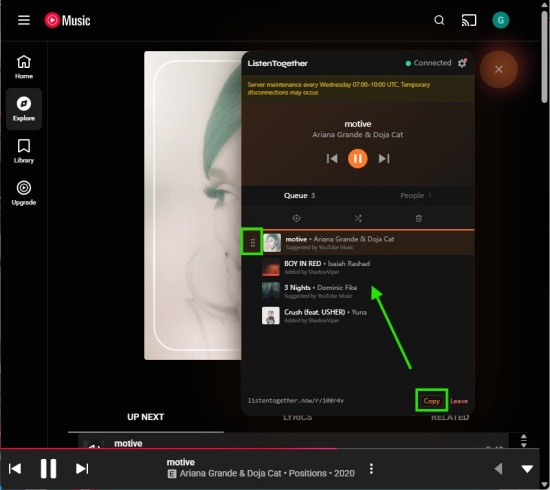
ListenTogether for YouTube Music is available on Chrome and Edge. It achieves synchronized listening by creating a shared virtual room. You can invite your friends via link, share a synced playback queue, and see active listeners in a floating bubble interface.
01Open Chrome or Edge on the desktop, and navigate to Chrome Web Store or Edge Add-ons.
02Search for ListenTogether for YouTube Music, and click Add to Chrome.
03Visit music.youtube.com in Chrome or Edge.
04Click the ListenTogether extension icon (the floating orange music picture) to open the panel.
05Click Create room on the panel.
06Click Copy at the bottom of the panel to share it with your friends.
07Once your friends enter the room, you can play, pause, and skip the track together in real time.
08Reorder the track by hovering your cursor, clicking, and dragging the six dots next to the song name in the panel.
09Add songs directly from YouTube Music to the ListenTogether queue.
Option 2: YTM Jam
YTM Jam is available on Google Chrome. Like ListenTogether, it can synchronize YouTube Music playback and let you listen together in real time. You can manage the queue and play or pause the tracks. One thing to note is that it works directly on the YouTube Music website. It is also simple to operate.
01Navigate to the Chrome Web Store to install the YTM Jam.
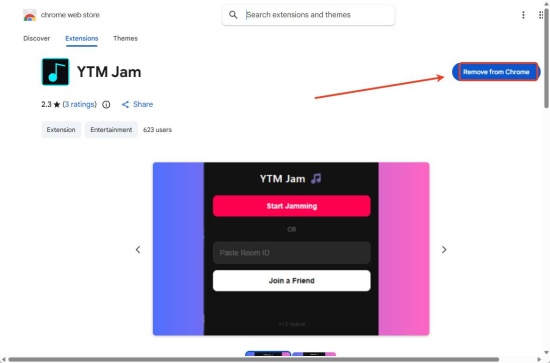
02Visit the YouTube Music website and sign in.
03Click the extension in the top right toolbar to generate a new session.
04Share the generated link or session code with your friends. (ensure they've installed the same extension)
05Once connected, YTM Jam supports controlling playback in sync. You can play, pause, and seek tracks across all participants in real-time.
Way 2. Use Third-Party Sync Web Apps to Listen to YouTube Music Together
You also use third-party sync apps to listen to YouTube Music in real-time with friends. Among the apps, GroupTube and Groic are top options. Both of them support shared queues, song search, and playback controls regardless of location. You can listen to YouTube Music with your family or friends in a virtual room created by the app, with integrated real-time chat.
GroupTube works across desktops and mobile phones. It requires no account. Groic is an Android app. It supports user-uploaded content. It allows for shared, ad-free listening without needing premium subscriptions in the virtual listening rooms.
Option 1: GroupTube
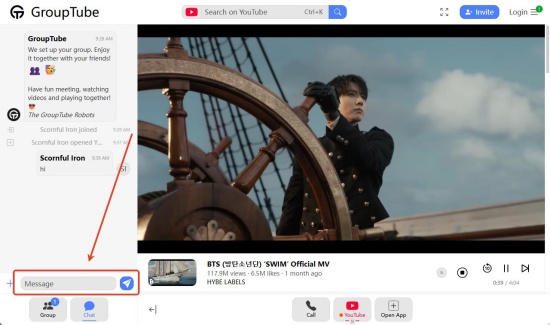
01Navigate to the GroupTube homepage and click Create Group Now.
02In the pop-up window, click Group or Invite.
03Click Copy Link or Share within the group to copy the URL. Share the URL with your friends.
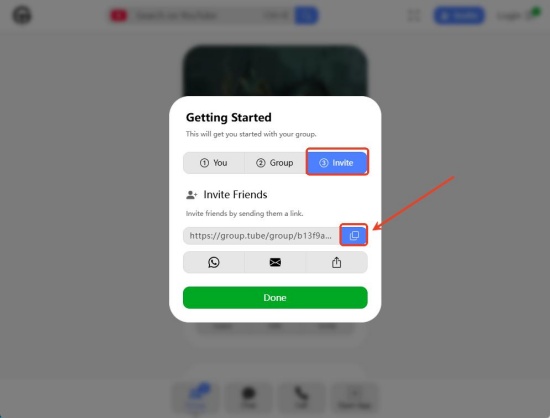
04Friends click the link to open the group. Click Join Group.
05Inside GroupTube, search for YouTube music videos or tracks.
05You can add tracks to the queue, and it will display in real-time for everyone.
07You can message your friends while listening to YouTube Music.
Option 2: Groic (Android App)
01Download Groic from the Google Play Store.
02Sign in to the app and create a profile to identify yourself in rooms.
03Create a listening room. Get the unique room code and share it with your friends.
04Search for songs in Groic, and it will sort through online sources, including YouTube Music. Add them to the queue.
05Start listening together and chat with friends within the app in real-time.
06Upload your own songs to the library to play within the group sessions.
Way 3. Use Google Meet Live Sharing to Listen to YouTube Music Together
Google Meet Live Sharing lets you listen to YouTube Music together in real-time. All you need to do is start a call, open the Activities menu (three dots), select YouTube Music, and play a song in sync. Any participant can pause, rewind, or skip tracks.
One thing to note is that this way primarily requires an Android device and is often optimized for YouTube Premium subscriptions. The music streams directly from YouTube to participants, ensuring high-quality audio streaming.
Google Meet Live Sharing (Android App)
01Download and open the Google Meet app.
02Start a meeting with participants.
03Select the screen to show all controls, and tap the three dots (or Activities icon)
04Choose YouTube.
05Search for the song or playlist that you like.
06Select Start to initiate a synchronized listening.
07Every participant can control the music and listen together.
Way 4: Use Collaborative Playlists to Listen to YouTube Music Together
Though YouTube Music hasn't launched a native "real-time listening" button like Spotify's Jam session, you can use collaborative playlists to build a shared queue and listen to the same curated music together, regardless of remote location. In a shared playlist, you and your friends can add, remove, and reorder songs, curating music together. And there can be thousands of playlist contributors.
Collaborative Playlists on YouTube Music
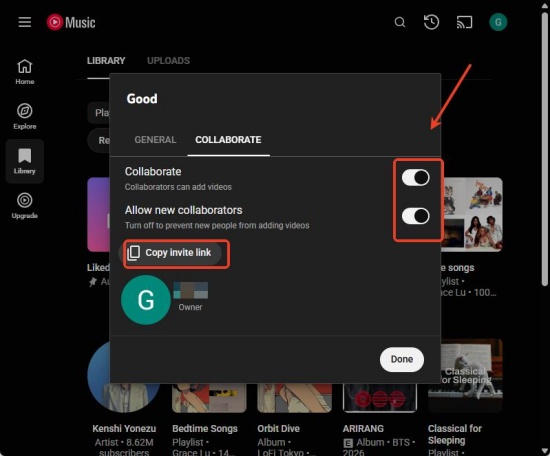
01After signing in to YouTube Music on mobile or desktop.
02Go to your Library and select a playlist or create a new one.
03Select Edit playlist(pencil) on the playlist page.
04Make sure you set Privacy to Public.
05Click the COLLABORATE section, and toggle on Collaborators can add songs and videos.
06Copy the link generated upon collaboration, and share it with your friends.
07Your friends can click the link to join, and then add songs to the shared playlist.
Way 5: Use Local Files to Listen to YouTube Music Together
In fact, the 4 methods above are good enough for us. Browser extensions like Listen Together allow us to stream YouTube Music with our friends via a small, orange panel. GroupTube and Groic feature shared queues and real-time chat, and the former even supports cross-device service. However, if you want a more stable, higher-quality, and uninterrupted experience, you can listen to YouTube Music with your friends via YouTube Music MP3 files. But is there any way to download YouTube Music files without using the "Upgrades" feature? Yes, it is ViWizard YouTube Music Converter.
ViWizard YouTube Music Converter is a powerful tool for Windows and Mac that lets you download music from YouTube Music in multiple formats, including MP3, FLAC, WAV, AIFF, M4A, and M4B. You can customize audio settings like bit rate, sample rate, and bit depth—up to 24-bit, 320 kbps, and 192 kHz—ensuring a high-quality listening experience.
ViWizard YouTube Music Converter allows you to download playlists, albums, individual tracks, liked songs, and complete artists' catalogs. It preserves all metadata, including ID3 tags, so your music library stays organized and ready to enjoy offline.

Need YouTube Music for offline listening? ViWizard YouTube Music Converter helps YouTube Music users save songs, playlists, albums, and artists with convenient music conversion. Start converting and enjoy your music beyond the app.
How to Use ViWizard YouTube Music Converter
 Step 1: Customize Output Format and Audio Quality
After installing, open ViWizard, click the top-right menu icon, and go to Preferences. Select your desired format and adjust audio settings such as bit rate and sample rate. Click Save to confirm the settings.
 Step 2: Log in to YouTube Music
From the main screen, select YouTube Music. The built-in web player will appear—sign in with your account to access your library.
 Step 3: Select Tracks, Playlists, or Albums
Browse your library, playlists, albums, and liked songs. Click Add to List to load your chosen tracks onto the conversion page.
 Step 4: Convert, Save, and Listen Together
Click Convert to start downloading. ViWizard keeps the original quality and metadata. Once converted, locate your files in the selected folder. Play them on any media player and listen to them with your friends offline. If you want to listen to them online, upload to YouTube Music and use ListenTogether to listen in sync.
Conclusion
Have you listened to YouTube Music with your friends successfully? If you prefer to listen to YouTube Music on the web, browser extensions are the top option for you; for real-time shared queues and chats, GroupTube and Groic support you. Moreover, Google Meet can offer you high-quality audio streaming. But when it comes to the most reliable options, they are collaborative playlists and local files converted by ViWizard YouTube Music Converter. One can let you share your playlist with your friends and manage it together, while the other can help you download YouTube Music and own a moving library. Let's listen together!
You May Be Interested



From new releases to old favorites, Matt Smith is always on the lookout for good music. He follows the latest in digital entertainment and shares songs and media he thinks are worth checking out.

Leave a Comment (0)