


Music is an essential part of our lives. We wear headphones, open YouTube Music, play music, and put our phones in our pockets while commuting, exercising, or working. In doing so, we save significant power for email replies and phone calls, and reduce the risk of accidental input. And we all know that background play is a priority of YouTube Music Premium, so how can free users play YouTube Music with the screen off? Don't worry.
Here we show you 4 reliable ways to listen to YouTube Music with the screen off, ranging from paid YouTube Music Premium to free web browsers. Also, there is a workaround for playing your favorite tracks from YouTube Music whenever and wherever possible.
Part 1. Play YouTube Music with the Screen Off via YouTube/YouTube Music Premium
Using YouTube Music Premium or YouTube Premium is an official way to play YouTube Music with your screen off. YouTube Premium includes YouTube Music Premium. Once you subscribe to one of them, you can own a native background player. The background play feature is turned on by default in the YouTube/YouTube Music app, allowing music to continue when locked.
Using Premium to Play YouTube Music with the Screen Off
01Open the YouTube Music app or visit the YouTube Music website.
02Log in with the Google Account you want to use for the membership.
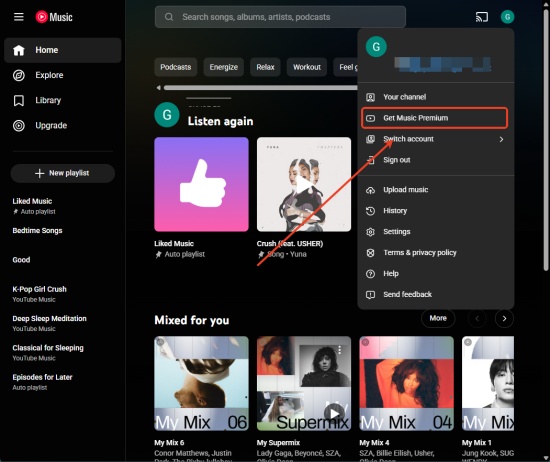
03Select your profile picture in the top right corner.
04Choose Get YouTube Music Premium, and select your desired plan (Individual, Family, or Student).
05Scroll down to select YouTube Music from available music apps.
06Activate the YouTube Music app or YouTube app.
07Play a song, album, or playlist as you like.
08Lock your screen, and the music continues to play.
- You need to ensure Background play is enabled in your settings. Open the YouTube Music app, and tap your Profile Picture. Select Settings > Background & downloads > Playback. Then, select Always on.
Part 2. Play YouTube Music with the Screen Off via Browsers
If you don't want to have a Premium Subscription, you can listen to YouTube Music with the screen off via browsers. However, as of early 2026, YouTube has largely blocked free background playback on third-party browsers (Chrome, Firefox, Brave, Samsung Internet) for non-Premium users, making screen-off audio difficult.
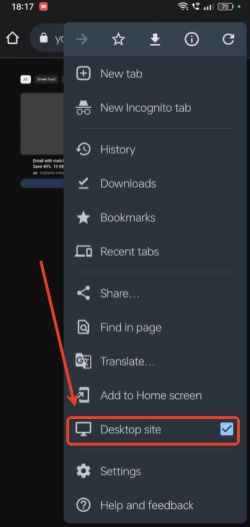
So, can we still play YouTube Music with the screen off via browsers? Yes, but with limitations. For all browsers, switching to "Desktop Site" in the browser menu, starting the video, and then turning off the screen can sometimes bypass the restriction, though it may require repeating this for every video. And Brave Browser releases updates to restore the screen-off feature. Keep reading for details.
Option 1: Using Brave Browser to Play YouTube Music
You can use Brave Browser to play YouTube Music with the screen off, as it blocks ads and doesn't require separate extensions.
01Open the Brave Browser on your phone and visit music.youtube.com.
02Tap the three-dot menu button in the bottom right corner.
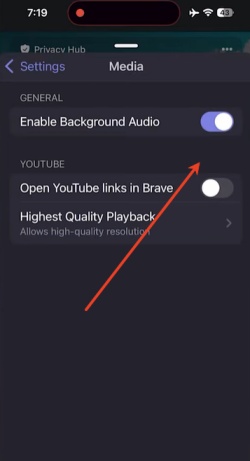
03Select Settings, and scroll down to tap Media.
04Switch Enable Background Audio on.
05Restart the browser if prompted.
06Play a song, and lock your screen or go back to the main screen.
Option 2: Using Samsung Internet to Play YouTube Music
Using Samsung Internet to play YouTube Music with the screen off was once a popular workaround. But it frequently stops when the screen turns off.
01Open the Samsung Internet and tap the bottom-right menu (three horizontal lines).
02Choose Settings, and then Useful features.
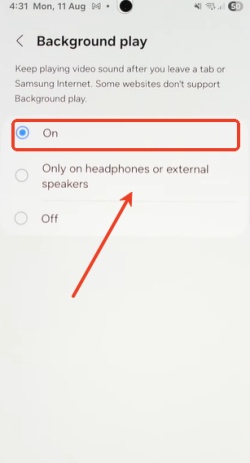
03Select Background play, and tap On or Only on headphones or external speakers.
04Launch the YouTube Music website and play a song or music video.
05Go back to the main screen, open other apps, or lock your screen. The music is still on.
Option 3: Using Chrome to Play YouTube Music
01Open Google Chrome and navigate to the YouTube Music website.
02Tap the vertical three dots in the top right corner, and choose "Desktop site".
03Play the track or playlist you prefer.
04Lock your screen or switch to other apps. The music will possibly stop.
05Android users can resume playback by pulling down the notification shade and hitting Play on the widget.
06 iOS users access the control center to continue the playback.
Part 3. Play YouTube Music with the Screen Off via Picture-in-Picture Mode
If you want to multitask on other apps while using YouTube Music, you can enable Picture-in-Picture mode (PiP). But before using PiP, you need a YouTube Premium subscription, which enables background play. Though it is not exactly "screen-off", you can enjoy wonderful live performances while chatting with your friends on social media.
Using Picture-in-Picture Mode to Play YouTube Music:
There are some differences in mobile settings between Android and iOS. Follow the steps to operate between mobile settings and in-app settings.
On Android
01Open your phone, and tap Settings > Apps > YouTube Music > Picture-in-picture.
02Switch Allow picture-in-picture to on.
03Make sure you have a Premium subscription, and play a song within YouTube Music.
04Lock your screen, or go back to the home screen to trigger PiP.
On iOS
01Open iOS Settings > General > Picture in Picture. Switch on Start PiP Automatically.
02Open the YouTube Music app, and tap Settings > General. Switch on Picture-in-picture.
03Play music or live performances, and go to the home screen.
04Open the Control Center and press Play if the audio stops in the screen-off mode.
Part 4. Play YouTube Music with the Screen Off via MP3
Now we have learned three methods. They are Premium subscriptions, browsers, and PiP mode. Having a Premium subscription can be the easiest way to access YouTube Music with the screen off, but Brave Browser is also highly competitive, as it is totally free and blocks ads. Both can be good alternatives, but there is also a way to bypass premium cost, save battery and data, and allow for uninterrupted playback. That is ViWizard YouTube Music Converter! You can use it to download YouTube Music as MP3 on your desktop, copy them to your phone, and use the VLC app for screen-off play.
ViWizard YouTube Music Converter is a reliable music converter that supports Mac and Windows. It keeps the original ID3 tags of the downloads. Moreover, you can choose multiple output formats, like AIFF, FLAC, M4A, WAV, M4B, MP3, and so on. And you can convert tracks, albums, and playlists on more than 10 music streaming services, including YouTube Music. You can even customize the bit rate, sample rate, and bit depth (up to 24-bit, 320 kbps, 192 kHz). Within a few clicks, it processes batch downloads in lossless audio quality. Want to try it?

Need YouTube Music for offline listening? ViWizard YouTube Music Converter helps YouTube Music users save songs, playlists, albums, and artists with convenient music conversion. Start converting and enjoy your music beyond the app.
Steps to Use ViWizard YouTube Music Converter
 Step 1: Personalize Output Format and Audio Quality
After installing the application, log in and click the top-right menu icon. Select Preference, and then Conversion. Select the output format, including MP3, WAV, AIFF, or FLAC. Set audio quality parameters, up to 24-bit, 320 kbps, 192kHz. Choose Save to keep the settings.
 Step 2: Launch YouTube Music within ViWizard
Leave the setting page. Go back to the main screen. Click YouTube Music to convert, and you can see the built-in YouTube Music web player. Log in to it with your YouTube Music account.
 Step 3: Check Songs, Playlists, and Albums on YouTube Music
Browse your favorite tracks, albums, and playlists in the built-in YouTube Music website. Click the playlist or the song, and select the + (plus icon). ViWizard scans and loads all the tracks to the conversion page.
 Step 4: Convert YouTube Music to MP3
Make sure all the songs you desire are in the conversion page. Select Convert. ViWizard starts converting YouTube Music at 30x speed while keeping the original audio quality. After conversion, click the converted page to find the downloads. You can also locate the file by clicking the file icon next to the song title. Move the MP3 files to your Phone for screen-off play.
Steps to Play YouTube Music with the Screen Off via MP3
01Copy the MP3 files from your desktop to your Android/iOS device.
02Launch the VLC app.
03Play the MP3 file you have downloaded.
04You can lock the screen or switch apps while the music continues.
Conclusion
These are 4 ways to listen to YouTube Music with the screen off. Many users want to listen to YouTube Music with the screen off to save battery and multitask. Clearly, using YouTube Music Premium is simple to operate. For free users, browsers like Brave, Samsung Internet, and Chrome also work, though restrictions may apply, and workarounds like "Desktop Site" or notification controls are needed. PiP is another option for Premium users, letting users use other apps, though the screen isn't fully off.
When it comes to one of the best alternatives, it must be ViWizard YouTube Music Converter. It allows offline playback in MP3 format, enabling true screen-off listening. Really convenient, isn't it? Let's try it.
You May Be Interested

How to Play YouTube Music in the Background without Premium

YouTube Music vs. YouTube Premium: What's the Difference?

How to Listen to YouTube Music Offline: Premium Not Required

How to Get YouTube Music Premium Student Discount 2026
How to Add YouTube Music Widget on Android/iOS/Desktop [Full Guide]
5 Ways to Listen to YouTube Music Together

From new releases to old favorites, Matt Smith is always on the lookout for good music. He follows the latest in digital entertainment and shares songs and media he thinks are worth checking out.

Leave a Comment (0)