


It is a truth that even if we can relish music in multiple ways, one can never say no to immediate, on-screen access to music control and information without requiring you to open any of your apps. By now, many music platforms have launched their widgets, and YouTube Music is no exception.
In this post, we are happy to share everything we know about YouTube Music widgets, including Android, iOS, and PC. Let's dive in.
Part 1. What Is YouTube Music Widget?
Some YouTube Music users may have no idea of its widget. Simply speaking, it is a shortcut tool set in your devices, allowing you to control playback, navigate your app, and display features of the music apps from your home screen. It also offers different sizes – small, medium, and large, which may affect its feature display.
To be specific, upon setting up the YouTube Music widget, you can see it on your home screen. With it, you can pause, play, skip, or like songs. By tapping the widget, you can enter the song or playlist playing page of YouTube Music. What is the difference between your chosen size? The widget can show more information if you select a larger size, including the song, album, artist, and album artwork.
What platform does the YouTube Music widget support? As you can see in the title, they are Android, iOS and PC. And what are the platform differences? Let's see the table.
| Platform | Android | iOS | PC |
|---|---|---|---|
| Size & Type | Yes | Yes | No |
| Interactive Control (skip, stop, like a song) | Yes | No | No |
| Customization ("Material You" dynamic coloring) | Yes | No | Yes |
| Display | Song, buttons to play/pause, like, and dislike | Recently played songs, album, or playlists | Songs, artists, length, art (VLC Media Player can pause and skip) |
| Lock Screen Access | YouTube Music Premium only | YouTube Music Premium only | No |
Part 2. How to Enable YouTube Music Widget on Android
Now that we know the YouTube Music Widget on Android can be functional and customizable. You can adjust the size on your home page and even skip or like a song on a hunch. Then let's unlock this convenient tool on Android.
Step 1 Open your phone and get back to the home screen.
Step 2 On the home screen, touch and hold.
Step 3 Go down and touch your Widgets.
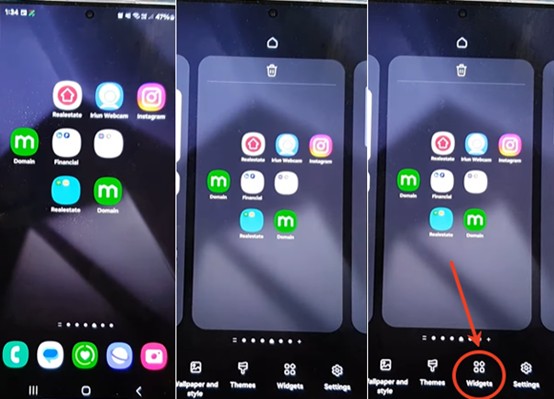
Step 4 Scroll down to tap on YouTube Music.
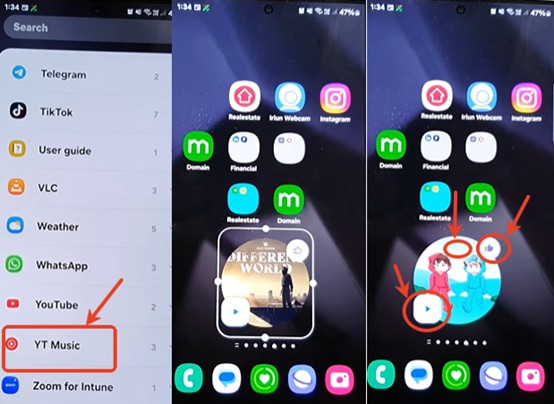
Step 5 Drag your YouTube Music widget to your home screen.
Step 6 On the home screen, you can like or play the song. Tap the widget, and you'll jump to the player screen.
Pro Tip: Optimize YouTube Music Widget for Android 14 and Later
As an Android 14 user, you may fail to add or run your YouTube Music widget successfully. Don't worry, we are here to help you. You can try to optimize your YouTube Music widget by checking updates, configuring Background & Battery Settings, or adding and resizing the widget. Come and try to optimize your widget step by step:
Method 1: Check Your Update
Open the Google Play Store.
Search for YouTube Music.
Tap Update if available (latest version: 9.14.53).
Method 2: Configure Background & Battery Settings
Navigate to your phone's Settings.
Tap App > See all apps > YouTube Music.
Tap App battery usage.
Select Unrestricted to allow the widget to run without interruption.
Method 3: Add and Resize the Widget
Touch and hold a space on your home screen.
Select Widgets.
Find YouTube Music, then drag the widget to your home screen.
Long-press the widget on the home screen and drag the borders to resize it.
Part 3. How to Add YouTube Music Widget on iOS
Frankly, adding YouTube Music Widget on iOS can be as simple as that on Android. The difference lies in its function. The YouTube Music widget on iPhone is a shortcut by which you start the YouTube Music app or check your recently played tracks. Here are the steps to get and use the YouTube Music Widget on iPhone.
Step 1 Open the App Store to make sure your YouTube Music is updated to the latest version.
Step 2 Once updated, go back to the home screen.
Step 3 Touch and hold anywhere empty on your home screen.
Step 4 Tap the "+" icon at the top left of the screen.
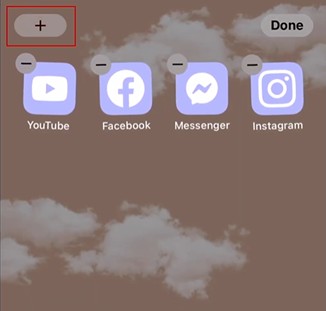
Step 5 Scroll down to find YouTube Music and tap it. (Or tap Search and type "YouTube Music".)
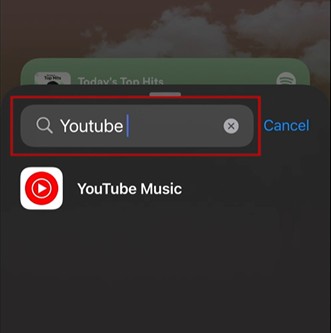
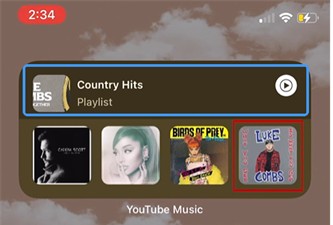
Step 6 Once done, you can see some YouTube Music widgets. Select the one you like and tap "Add Widget". (The larger the size is, the more options you will have.)
Step 7 You can see your widget on the home screen. At the top of the widget is the music you are listening to, and by tapping, you automatically open the app and begin playing that music. The following are the playlists or radio stations, which change with your streaming service.
Now tap an album or playlist in the widget, and enjoy your audio journey!
Pro Tip: Utilize the YouTube Music Shortcut on the Lock Screen and Standby Mode
YouTube Music always stops playing by default when you get back to the home screen. Want YouTube Music to be playing on the lock screen and in standby mode? You are in the right place. But you need to subscribe to YouTube Music Premium first. Here are the steps to utilize the YouTube Music shortcut with your iPhone off:
Requirement: Have YouTube Music Premium.
On Lock Screen
Start playing music in the YouTube Music app and lock your screen. Media controls will automatically appear on the lock screen.
Tap the small album art on the lock screen widget to fill the screen with it.
In Standby Mode
When you charge or horizontally position your iPhone, a small icon with moving bars appears at the top of the screen while music is playing.
Tap this icon to expand the view. You can have full-screen playback controls to pause, skip tracks, or go back to previous songs.
Part 4. How to Add YouTube Music Widget on Desktop
Now I believe you can use the YouTube Music widget on mobile. If you want to display your favorite tracks on your desktop, here are two methods you can try.
Method 1: Get YouTube Music Widget via OBS
Choose method 1: Get the YouTube Music widget via OBS, if you enjoy seamlessly displaying the currently playing song title, artists, and album art directly on your stream. Most importantly, this YouTube Music widget can be customized with CSS (Cascading Style Sheets) or reactive audio files to enhance visual engagement.
Step 1 Download the YouTube Music Desktop App and sign in to the app with your account.
Step 2 Click Settings on the top right of the app screen.
Step 3 Click Integration and enable the Companion server, Allow browser communication, Enable Companion authorization, and Authorized companions.
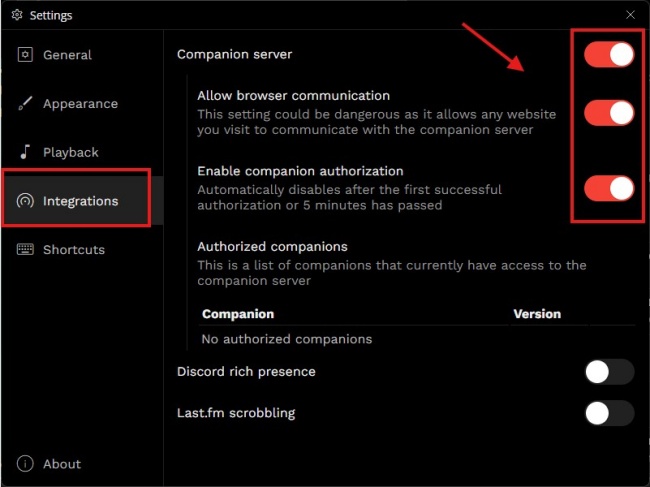
Step 4 Sign in to https://6klabs.com/ and click Get started.
Step 5 Click Music under Connection section, and click Authorize of the YouTube Music part.
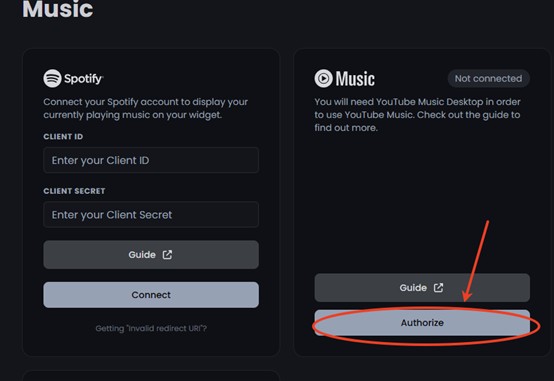
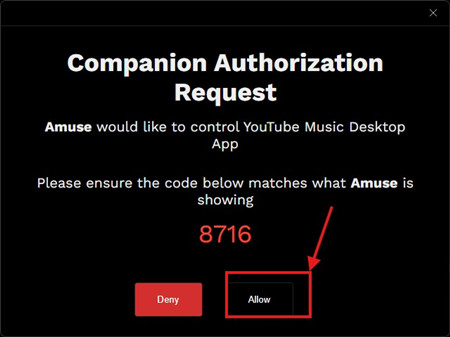
Step 6 You receive the Verify Code and go to the YouTube Music App to click Allow Companion Authorization Request. After allowing, you can see YouTube Music Connected on the website. (If that doesn't work, try the previous steps to receive the code again.)
Step 7 On the website, click Amuse in the Dashboard. Choose YouTube Music as your Music Service. And you can see there is Browser Source URL, click Copy to Clipboard. (Of course, you customize your YouTube Music widget by scrolling down this web.)
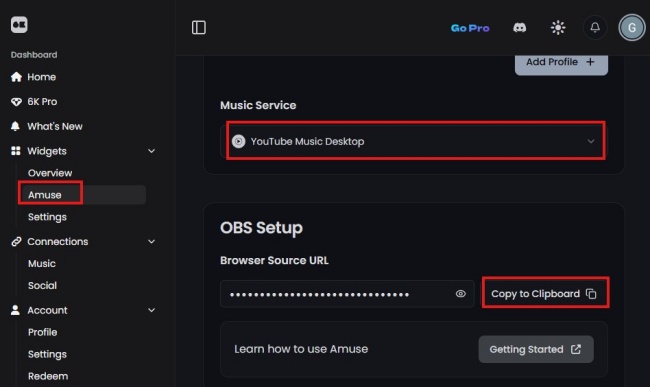
Step 8 On the website, click Amuse in the Dashboard. Choose YouTube Music as your Music Service. And you can see there is Browser Source URL, click Copy to Clipboard. (Of course, you customize your YouTube Music widget by scrolling down this web)
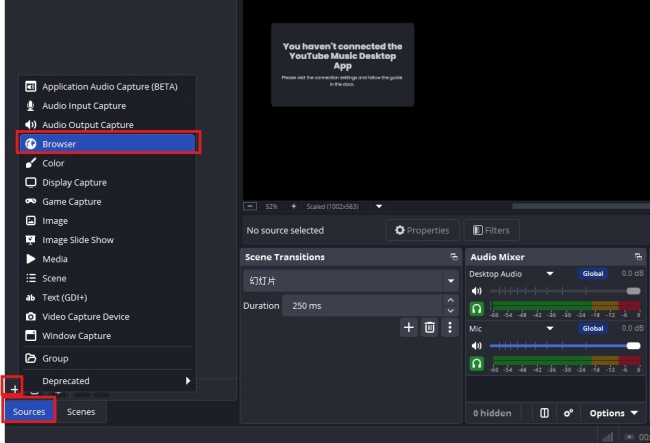
Step 9 Click "+" in the left corner of Source. Choose "Browser".
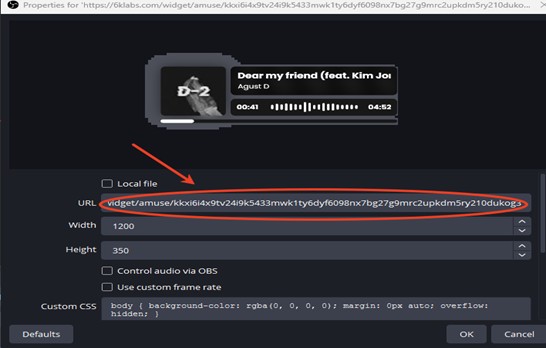
Step 10 Paste the URL you copied from the website before, and click OK. And you can enjoy your YouTube Music widget on the desktop.
Method 2: Use ViWizard for Local YouTube Music Desktop Control
Method 2 cannot be less surprising! That is ViWizard YouTube Music Downloader. You can download YouTube Music tracks on ViWizard YouTube Music Downloader, and then use VLC Media Player to play the downloaded tracks. With this downloader, you can download your liked music to your PC. Whenever and wherever you are in the mood to have music, you can play these songs with lossless audio quality.
What about the output format? You get many output formats to choose from: FLAC, MP3, WAV, AIFF, M4A, and M4B. And you can even personalize the bit rate, sample rate, and bit depth (up to 24-bit, 320 kbps, 192kHz). Best of all, once the setting is completed, you can download songs along with the original ID3 tags at a faster speed (30x).

Download songs, playlists, albums, and your whole music library from 10 major streaming platforms, including YouTube Music, to MP3, FLAC, WAV, AIFF, M4A, or M4B with original quality and ID3 tags for permanent offline listening.
Steps to Use ViWizard YouTube Music Download:
Step 1 Personalize Output Format and Audio Quality
Install ViWizard YouTube Music Downloader on your PC. Sign in to the app and click the menu icon on the top right. Click Preference, and select Conversion. Choose the output format you prefer, such as MP3, WAV, AIFF, or FLAC. Set audio quality parameters to your taste, including bitrate and sample rate. Click Save to keep the setting.

Step 2 Start YouTube Music in ViWizard
Go back to the main screen and click YouTube Music. The built-in YouTube Music web player appears. Log in to the web with your own account, and you will see your library, albums, playlist, and your liked music, and so on.

Step 3 Select Songs, Playlists, and Albums on YouTube Music
Within the built-in web player, view the page and find the songs or playlists you want to download. Click the playlist or the song, and click the "Add to List" button. ViWizard will scan and load all tracks into the conversion list automatically.

Step 4 Convert and Keep YouTube Music Downloads on Desktop
Make sure all the songs you want to download are in the conversion page, and then click the Convert button. ViWizard starts downloading YouTube Music at high speed while preserving the original quality. After conversion, go to the converted page to locate the downloaded music files. And you can listen to the songs with VLC Media Player.

Step 5 Enjoy Your Downloads
View the songs you've downloaded on the third page (at the top). Find the files in your output folder, and listen to them on any device, and best of all, free of an internet connection.
Steps to Play Downloaded Files from ViWizard on VLC Media Player
Step 1Open VLC Media Player on your PC. (any media player you like)
Step 2Click Media > Open File.
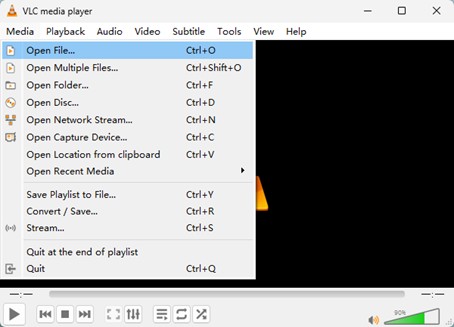
Step 3Locate the music file you downloaded, and open it. Just enjoy your music!
Part 5. Troubleshooting: YouTube Music Widget Not Working
For Android: If the YouTube Music widget shows "Can't load widget" or buttons only open the app instead of controlling playback. All you need to do is as follows:
- Reactivate your Android to clear temporary glitches.
- Remove and add the widget again to the home screen.
- Clear Cache for the app: Go to Settings > Apps > YouTube Music > Storage & cache > Clear cache.
For iOS: If your YouTube Music widget doesn't function, come and try these ways:
Remove and Re-add the Widget:
- Long-press the widget.
- Tap Remove Widget and confirm removal.
- Re-add from the widget menu.
Update the App:
- Go to the home screen and tap App Store.
- Tap the profile icon.
- Scroll down to check your YouTube Music App update.
Restart Your App:
- Long-press the side button (or top button), and drag the slider.
- After 30 seconds, press and hold the side button again. (or you can directly choose restart when the slider appears.)
- Open your iPhone and see your widget on the home screen.
Verify Subscription Status:
- Open your YouTube Music app.
- Tap your profile picture.
- Select Purchases and membership to check if yours expires.
Conclusion:
All in all, YouTube Music widget can be small, but its interactive elements let us control music playback, pause, and skip a song with ease. Different users can unlock different experiences on their devices. Besides, you can also customize your YouTube Music widget.
If you want to download YouTube Music files for offline listening, or if you desire to play music on other platforms, ViWizard YouTube Music Downloader can bring you a great surprise.
You May Be Interested

How to Add Amazon Music Widget on Android & iPhone [Full Guide]
How to Download YouTube Music to MP3 [Full-Guide]
Find/Add/Remove Liked Songs on YouTube Music
YouTube Music Subscription Cost 2026: Is Premium Still Worth It?

How to Record Audio from YouTube on Desktop and Mobile
How to Get YouTube Music Mini Player
4 Ways to Listen to YouTube Music with the Screen Off


From new releases to old favorites, Matt Smith is always on the lookout for good music. He follows the latest in digital entertainment and shares songs and media he thinks are worth checking out.

Leave a Comment (0)