


Want to capture a catchy song or a specific sound bite from a YouTube video? You can either find the music in the YouTube video or use tools to record the audio directly if it's copyright-free. In this guide, I'll show you how to record audio from YouTube on Windows, Mac, iPhone, and Android. Whether it's from YouTube or YouTube Music, you'll discover how to record and save it as an MP3. Let's jump right in!
Part 1. How to Record Audio from YouTube on Windows/Mac
Want to record audio from YouTube on your desktop? There are plenty of ways to do it! In this post, I'll show you how to capture audio from YouTube videos and tunes from YouTube Music. Both methods will let you save those YouTube audio as MP3s or in high-quality formats if that's what you need.
1.1 Record Audio from YouTube Video via ViWizard Audio Capture
Once you've chosen a YouTube video from which you want to record audio, the best way is to use ViWizard Audio Capture which allows you to capture any sound played through the internet or other software on both Mac and Windows computers. It can extract music from any YouTube video while maintaining the original quality and preserving ID3 tags. Additionally, it supports various popular output formats, enabling you to save the recorded YouTube audio in common formats like MP3, WAV, FLAC, and more for offline playback on any device.

Key Features of ViWizard YouTube Music Converter
Free Trial Free Trial* Security verified. 5, 481,347 people have downloaded it.
- Convert YouTube Music to MP3, WAV, FLAC, AAC, and more
- Record songs, albums, playlists, podcasts from YouTube Music
- Support splitting, merging, cutting, and editing YouTube Music
- Detect ID3 tags automatically and allow manual editing of ID3 tags
Follow the step-by-step guidance below to figure out how to record YouTube audio.
Step 1Launch ViWizard Audio Capture and Choose the Target Browser
Install and launch ViWizard Audio Capture on your computer. Click the bar at the top-left corner to select the browser in which you are going to use this browser to go to youtube.com.

Step 2Configure Output Parameters
In ViWizard Audio Capture, click the "Format" button at the bottom-right corner to customize your audio settings. You can modify the format, channel, codec, sample rate, and bit rate based on your preferences. Once you've made your choices, click "OK" to save the settings.

Step 3Start Capturing Audio from YouTube Video
Go to the YouTube website, locate the YouTube video whose audio you want to record and play it. Click "Start" button to start recording. Once the video finishes, click the "Stop" button to end the recording. The captured audio will then be displayed in the Capture list.

Step 4Preview and Edit the Recorded YouTube Audio
In the Capture list, double-click the recorded audio to preview it. In the preview window, you can trim the track to your preferred length or edit the ID3 tags to add metadata. Once you're done editing, click "Apply."

Step 5Save the Downloaded YouTube Audio
Go back to the Capture list, where the edited audio is shown. Click the "Save" button to store them on your computer. The audio will be saved in both the History window and the designated folder you selected.

Once you have successfully downloaded the YouTube audio to your computer, you can enjoy the audio you like without playing the YouTube video. You are also free to set them as your alarm or make them your ringtone.
1.2 Record Audio from YouTube Music via ViWizard YTM Recorder
If you want to get high-quality tracks from YouTube Music, check out ViWizard YouTube Music Converter. This tool acts like a pro audio recorder, letting you download and save songs, playlists, and albums directly as MP3 or other formats.
Unlike basic screen or audio recorders, it doesn't just record; it directly downloads the audio from YouTube Music. No real-time recording here! You can batch download an entire playlist with just one click, and it's super fast, up to 30 times quicker. You can save your audio in MP3, FLAC, WAV, AIFF, M4A, or M4B formats, all while keeping the original quality. Plus, all tracks come with their ID3 tags.
Whether you're on YouTube Music Free or YouTube Music Premium, you can use this tool to download any track you want. Keep in mind that this only works for YouTube Music audio, not for regular YouTube videos, unless they're audio content.

Download songs, playlists, albums, and your whole music library from 10 major streaming platforms, including YouTube Music, to MP3, FLAC, WAV, AIFF, M4A, or M4B with original sound quality and full song info and keep your music forever.
After you download the ViWizard YouTube Music Converter on your Windows or Mac computer, follow these steps to download audio from YouTube Music.
Step 1 Configure Output Settings
Open ViWizard and click the Menu icon > Preferences > Conversion. Set the output format to MP3 or FLAC (for lossless quality). To ensure the best sound, set the bitrate to 320 kbps. Choose your preferred destination folder and click OK to save your settings.

Step 2 Access the YouTube Music Web Player
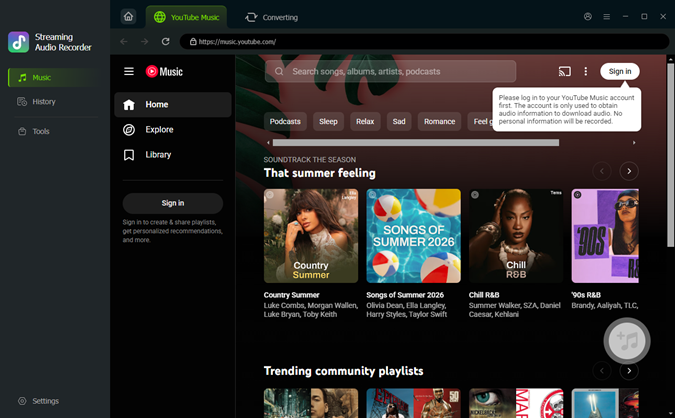
ViWizard features a built-in web player, so you don't need to open an external browser. Launch the YouTube Music interface within the software. You can sign in to your account to access your Liked Songs, Saved Playlists, or use the search bar to find specific albums or artists.
Step 3 Add YouTube Music Tracks
Navigate to the song, album, or playlist you wish to capture. When you open a playlist, a red Add (+) button will appear. Click it to load the tracks into the recording queue. You can select specific songs or use the "Select All" option to batch-capture an entire album at once.

Step 4 Convert and Save YouTube Music Audio
Click the Convert button. ViWizard will automatically record and save the audio to your computer in high quality. Once finished, go to the output folder to access your recorded YouTube Music files for offline playback.

Aside from ViWizard software, plenty of desktop recorders do the job too. For instance, you can use Audacity to rip audio from YouTube for free. Also, don't forget to check out the YouTube audio rippers mentioned in the review below!
Read More : 7 Best YouTube Audio Rippers to Rip Music from YouTube
1.3 Record Audio from YouTube via Online Tools
If you can not accept downloading a third-party tool, using an Online audio recorder is also a good choice. Here we recommend two free such tools and the instructions are as follows.
-
Apowersoft Free Online Audio Recorder
Apowersoft Free Online Audio Recorder is a web-based tool that enables you to record audio from YouTube and various other sources, such as a microphone, the entire screen, specific applications, and Chrome tabs. It saves the captured YouTube audio and downloads it as an MP3 file to your computer. However, it has a drawback in that it does not include an audio cutter or editor.
- Prepare the YouTube video you want to record, then go to Apowersoft Free Online Audio Recorder and click on "Start Recording."
- Select "System Audio" and then click "Start Recording." Next, choose the YouTube video tab and click on Share.
- The tool will switch to recording mode, so you need to play the YouTube video to begin recording. Once finished, click the "Stop" button. You can preview the recorded YouTube music before clicking "Save."

- Open the QuickTime Player app and select File > New Audio Recording.
- Choose a microphone, select a recording quality and adjust the volume control.
- Tap on the Record button to start recording and click the Stop button when you're done.
- Choose File > Save to save and name the recording.
-
Chrome Audio Capture
Chrome Audio Capture is a built-in Chrome extension that allows you to record audio from YouTube for free online. This tool captures audio solely from the current tab, unaffected by sounds from other programs or websites. However, recordings are limited to a maximum of 20 minutes. One downside is that you cannot preview the recording, and the recorded audio is only available in MP3 or WAV formats.
- Open a Chrome tab and navigate to the web store. Then, add the Chrome Audio Capture extension to your browser.
- Next, find the YouTube video you want to record, then open Chrome Audio Capture from the Extensions menu and click on "Start Capture." Play the YouTube video, and Chrome Audio Capture will begin recording the audio immediately.
- Once the recording is complete, click the tool icon in the Extensions menu and select "Save Capture." A new page will appear, where you should click "Save Capture" again.

If you own a Mac, you can also use QuickTime Player.

Part 2. Record Audio from YouTube on iPhone
If you're an iPhone user looking to record audio from a YouTube video, you'll need a third-party iOS audio recorder to accomplish this. Recording YouTube audio on an iPhone differs significantly from doing so on Android due to Apple's stringent regulations concerning the installation of third-party apps on iOS devices like the iPhone and iPad. Fortunately, the internet offers a variety of tools that enable users to capture audio from any YouTube video on an iPhone. Here we introduce VidPaw which is also available for iOS devices.
- Navigate to the YouTube video from which you wish to record audio from and copy its URL.
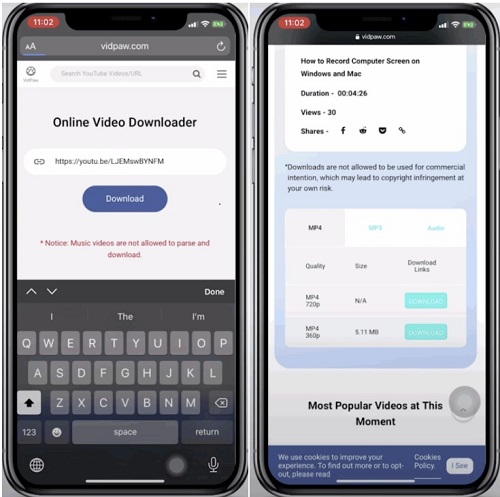
- Open the Safari browser on your iPhone and go to the VidPaw online video downloader. Here, paste the link and tap "Download."
- The program will take a few seconds to process the video, after which it will present a list of various output links available in both MP3 and MP4 formats for you to download.
- Go to the MP3 section and click on "Download" and choose the "Documents" as the download location. Finally, you can save all your desired audio from YouTube.
Part 3. How to Record Audio from YouTube on Android
If you want to record audio from YouTube on your android, you can use the built-in screen-recording feature and convert it to an audio format by just renaming it.
- Open your screen-recording app and start recording.
- Navigate to your desired video within YouTube app and play it.
- Once the video finished, stop recording by clicking the red button. Then the recorded video will be saved to your Flies/Document (the name varies by devices).
- Open your Files, find and long-press the YouTube video.
- Click the More with a three-dot icon at the bottom bar. Then tap on the Rename at the pop-up list.
- Rename the filename extension as MP3, and this video will be converted to an audio. You can find it in the Audio section within the Files app.

Of course, you can install a third-party software without using the screen recording app.
Part 4. FAQs about Recording YouTube Audio
Can I record audio from YouTube?
Sure. As is mentioned above, there are many tools for you to use, such as ViWizard Audio Capture, ViWizard YouTube Music Converter, and other online audio recorders. We are more willing to recommend the former since the most online YouTube converters are accompanied by limited format options, unpleasant ads, low audio quality, etc.
How to convert YouTube video to audio?
There are various YouTube audio converters online available on the internet, such as listentoYouTube and OFFMP3 which allows free converting.
Can I record audio from a YouTube video to MP3?
Yes, you can use ViWizard Audio Capture to record any audio playing from YouTube and save it as an MP3 file. If you're using YouTube Music, ViWizard YouTube Music Converter is another great option for downloading tracks directly as MP3.
There are also many free online YouTube-to-MP3 tools available. You can simply copy and paste the video link into these sites to get an MP3 file. Just keep in mind that the quality and reliability may vary.
Is it legal to record audio from YouTube for personal use?
In general, recording copyrighted content can violate YouTube's Terms of Service. However, it's usually considered acceptable under fair use if you're only capturing audio for personal, non-commercial use, like listening offline, and not sharing or distributing it.
Can I record YouTube audio on my phone without an app?
Yes!
- On iPhone: Use the built-in Screen Recording feature in the Control Center. Once recorded, you can use an online converter to extract the audio from the video.
- On Android: Most modern Android phones (Android 10+) have a built-in screen recorder that captures system sound directly.
Conclusion
In this guide, we've covered several ways to record audio from YouTube. The best approach really depends on your needs, so it's worth trying a few methods to see what works for you.
Tools like ViWizard Audio Capture and ViWizard YouTube Music Converter offer reliable performance and better audio quality, though they require a small fee. Free online recorders are easy to use, but they often come with limitations and lower sound quality.
Overall, if you're looking for a stable and high-quality solution, ViWizard is a solid choice. You can start with the free trial and see if it fits your workflow.
You May Be Interested

Latest Guidance to Get YouTube Premium for Free Forever

How to Convert YouTube Videos to MP3 Safely [PC & Mobile]

How to Download YouTube Music to USB without Premium

5 Ways to Download Music from YouTube to Mac [Without Premium]

How to Download Music from YouTube to Computer (MP3 & Free Methods)

How to Download YouTube Shorts in 4 Easy Ways

From new releases to old favorites, Matt Smith is always on the lookout for good music. He follows the latest in digital entertainment and shares songs and media he thinks are worth checking out.

Leave a Comment (0)