


Have you ever watched a YouTube Short that made you laugh, taught you something useful, or introduced you to a song you couldn't stop replaying — only to find that you couldn't save it for later? YouTube Shorts are designed for quick entertainment, but keeping your favorite clips offline is not always as simple as tapping a download button.
Whether you want to save a memorable video, collect ideas for your own content, or extract the audio from a Short, there are several ways to do it. In this guide, we'll explore how to download YouTube Shorts in 4 easy ways, including official options, online tools, browser extensions, and a simple solution for saving Shorts audio as MP3. Let's get started!
Part 1. Can You Download YouTube Shorts?
Yes, you can download YouTube Shorts, but there are specific rules. According to YouTube's Terms of Service, you cannot download videos unless there is a download button or link, just like the offline viewing option for Premium members. But don't worry. There are alternative ways to download your favorite YouTube shorts, such as online converters and web extensions.
Why Do People Want to Download YouTube Shorts?
Many reasons account for this. Some want to share their YouTube content on other social media platforms, such as TikTok and Instagram. And it is undeniable that offline viewing is smoother and more engaging. Also, many users create educational edits, reaction videos, or trend analyses under Fair Use.
Part 2. How to Download YouTube Shorts
If you want to download YouTube Shorts, you can make use of the YouTube app's built-in feature or rely on online video downloaders. For desktop users, another option is using the web extension. Now choose a method and start downloading with us!
Method 1: Use Online YouTube Shorts Converters
Using online YouTube Shorts converters is a reliable way. After getting the URL of the Short, paste it into a web-based downloader, set the output format, and download it.
01Open the YouTube app or website and find the Short you want to download.
02Tap Share and select Copy Link to copy the Shorts URL.
03Open your browser and visit a trusted YouTube Shorts downloader or converter website, such as SaveFrom or Y2Mate.
04Paste the copied Shorts link into the search box and hit Start.
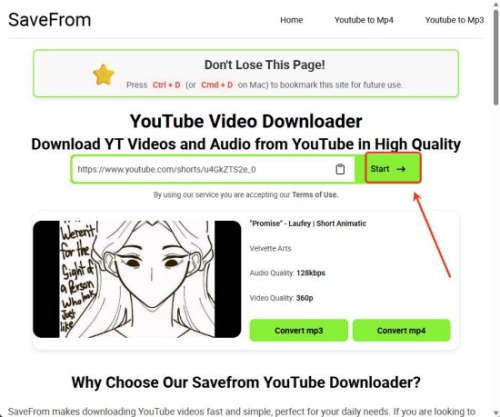
05Choose your preferred video format, MP3 or MP4, from the available options.
06Click the download button and save the Short to your device.
Method 2: Use a Browser Extension
This method is super easy, as well. Install the extension first, visit the Short, then click the newly added download button or the extension icon directly in your browser. Choose the resolution and save the video.
01Open your Firefox browser or other browsers.
02Go to the Add-ons store to search for the YouTube Shorts downloader extension.
03Install it in the browser.
04Pin the extension to your browser toolbar for easy access.
05Open the YouTube Short you want to download.
06Click the extension icon and manage it, making sure you enable it to run in the background.
07Select the extension again on the page, and click Download.
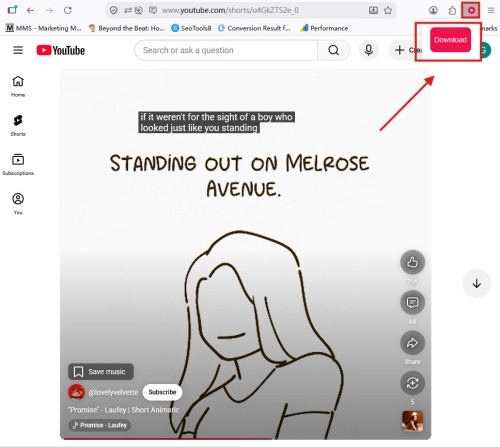
08Follow the extension's instructions to save the Short to your device.
Method 3: Use YouTube Premium
With YouTube Premium, you can easily download YouTube Shorts to your device for offline viewing. All you need to do is find the Short and the Download button in the menu. Follow the steps depending on your device.
Download on Mobile
01Open the YouTube app and sign in to your YouTube Premium account.
02Find the Short you want to download.
03Tap the Short to open it.
04Tap the More options (three dots) button or the Download icon below the video.
05Select Download Video from the menu.
06Choose your preferred download quality, such as High or Medium.
07Tap Download to start saving the Short.
08Open the You tab (or Library tab) and select Downloads to watch the saved Short offline.
Download on Desktop
01Open YouTube on your computer using a browser like Chrome, Edge, or Firefox.
02Sign in to the YouTube account with an active Premium subscription.
03Find the Short you want to download.
04Click the Short to open the video page.
05Click the three dots (More actions) button near the video player.
06Select Download from the menu.
07Open the left-side menu on YouTube and click Downloads to access your saved Shorts.
Part 3. Best Alternative to Convert YouTube Shorts to MP3
If you want to save the audio from YouTube Shorts for offline listening, a recording tool can be a simple workaround. Since YouTube Shorts does not offer a direct option to download audio as MP3, you can use ViWizard Audio Capture to record the sound you need.
ViWizard Audio Capture is a handy tool that lets you capture audio from YouTube Shorts and save it in popular formats like MP3, FLAC, WAV, and more. You can adjust the output settings based on your needs and keep the recorded files for playback on different devices. Besides YouTube Shorts, it can also help record audio from other online platforms, making it a convenient choice when you want to save audio content for personal use.

Key Features of ViWizard Audio Capture
Free Trial Free Trial* Security verified. 5, 481,347 people have downloaded it.
- Record streaming audio and system audio from different sources
- Capture music, podcasts, and online audio content
- Export recorded audio in 17 formats for different devices and platforms
- Record audio automatically without saving tracks individually
- Organize captured audio files with customizable output options
How to Convert YouTube Shorts to MP3 with ViWizard Audio Capture
 Step 1: Install ViWizard Audio Capture and Open YouTube Shorts
Download and install ViWizard Audio Capture on your computer. Launch the program, then click the "Select/Add an App" button. Choose your web browser (such as Chrome, Edge, or Firefox), open YouTube, and get ready to play the Shorts you want to capture.
 Step 2: Customize Output Audio Settings
Click the "Format" button at the bottom-left corner of the interface. Select MP3 as the output format, and adjust the sample rate and bitrate if needed to get better audio quality.
 Step 3: Capture Audio from YouTube Shorts
Click "Start" in ViWizard Audio Capture, then play the YouTube Short in your browser. The program will automatically detect and record the audio from the video. When the recording is complete, click "Stop" to finish, and the captured audio will appear in the "Capture List."
 Step 4: Edit and Save YouTube Shorts Audio
Select the captured track from the list and use the built-in editing tools to trim unwanted parts or make adjustments. Once finished, click "Save" to export the audio file to your computer. You can find all saved files in the "History" section for easy access.
Bonus: Convert YouTube Music to MP3 for Offline Listening
If you want to download not only YouTube Shorts audio but also full songs, playlists, albums, or YouTube Music tracks, ViWizard YouTube Music Converter is another great choice. You can use it to convert YouTube Music to common audio formats, like MP3, FLAC, WAV, and more. Most importantly, ViWizard keeps the original sound quality and ID3 tags.
With ViWizard YouTube Music Converter, you can save your favorite YouTube Music tracks, playlists, and albums for offline listening anytime, anywhere. It also supports batch downloading, so you can download multiple songs faster and organize your music collection easily.

Need YouTube Music for offline listening? ViWizard YouTube Music Converter helps YouTube Music users save songs, playlists, albums, and artists with convenient music conversion. Start converting and enjoy your music beyond the app.
Conclusion
Downloading YouTube Shorts can be easy when you choose the right method. If you only need to save a few videos, online downloaders, browser extensions, or YouTube Premium can help you watch Shorts offline. However, if your goal is to extract and save the audio from YouTube Shorts, ViWizard Audio Capture offers a flexible solution. It supports multiple audio formats and customizable settings.
For users who want to build a larger offline music collection, ViWizard YouTube Music Downloader is also worth trying. Now, choose your preferred way and enjoy your favorite YouTube content!
You May Be Interested



From new releases to old favorites, Matt Smith is always on the lookout for good music. He follows the latest in digital entertainment and shares songs and media he thinks are worth checking out.

Leave a Comment (0)