


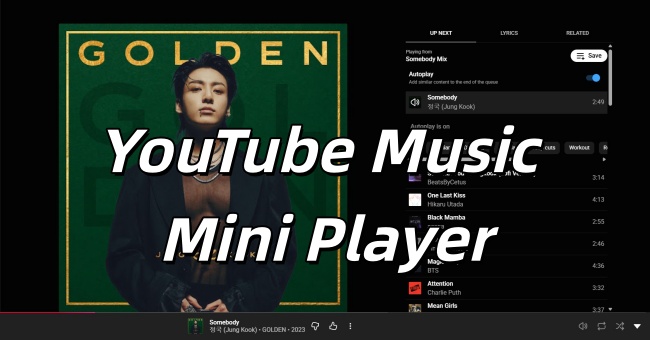
Why do we need a YouTube Music Mini Player? Three reasons behind it. First, it allows us to manage so many things accompanied by music, from dealing with emails to chit-chatting with friends. Also, we can control a song directly, such as pausing, playing, skipping, and navigating it. Most importantly, with its integration and flexibility, we can really enjoy our favorite tracks without interruption. In this post, we will show you how to use, disable, and fix your YouTube Music mini player on mobile and desktop.
Part 1. Is There a Mini Player for YouTube Music?
Yes, there is a mini player on both the mobile and website. On your mobile, like Android and iPhone, you can enable the YouTube Music mini player. It can be a sidebar at the bottom of the main screen in the app, or Picture-in-picture mode, which is a small floating window displaying music videos for you. Beyond that, you can use the mini player to pause, play, skip tracks, and search for a new song while keeping the current music playing.
On your Windows and macOS, the YouTube Music mini player displays as an in-site bottom side bar or a small window at the bottom right. With the first kind of mini player, you can search for a new song on the website while keeping the current song playing. The second one allows you to enjoy a live performance in a small window while replying to emails or browsing other apps. It is really a cool and cute player, isn't it? And in the following part, you will know how to get it.
Part 2. How to Get YouTube Music Mini Player
To be specific, the YouTube Music mini player supports mobile (Android & iOS) and desktop. For both users, there are two choices: the in-app (in-site) mini player and Picture-in-Picture mode.
If you simply want to control playback inside the YouTube Music app, you can choose the first way. One can easily pause, skip, or stop a song within YouTube Music. But if you enjoy background play and view music videos while browsing other apps, the second choice is suitable for you.
2.1 Enable YouTube Music Mini Player on Mobile (Android & iPhone)
In-App Mini Player
01 Open your YouTube Music app and sign in to it.
02 Play a song so that the "Now Playing" appears (the full-screen album art).
03 Leave the "Now Playing" screen by swiping down or tapping the top left button (the back arrow icon).
04 The full-screen player will minimize to a mini bar at the bottom of the screen, and this is your mini player.
05 You can skip by swiping right, play the previous song by swiping left, and pause the song by tapping the play icon. If you prefer a full-screen player, tap the icon next to the play button.
Picture-in-Picture Mode (Mobile)
This mode works on the YouTube Music mobile app. But it is only open for YouTube Music Premium subscribers. You can enjoy background play and view ad-free music videos.
01 Make sure you have YouTube Music Premium or YouTube Premium. (For iPhone users, you need iOS 15.0+)
02
Set your phone:
For Android: Settings > Apps > YouTube Music > Picture-in-picture > Allow.
For iOS: Settings > General > Picture in Picture > Start PIP Automatically.
For Android: Settings > Apps > YouTube Music > Picture-in-picture > Allow.
For iOS: Settings > General > Picture in Picture > Start PIP Automatically.
03 Open your YouTube Music app and log in.
04 Tap your profile picture and choose Settings.
05 Tap General and select Picture-in-picture.
2.2 Enable YouTube Music Mini Player on Desktop
In-Site Player (music.youtube.com)
01 Open YouTube Music in your browser, and sign in to it with your account.
02 Choose a song or playlist to play, and you will enter the "Now Playing" page.
03 Click the downward arrow icon (often white) located in the bottom-right corner of the player bar.
04 The player will minimize to a small bar at the bottom, allowing you to browse the rest of the library.
Picture-in-Picture Mode (Browser)
Mobile users must have a Premium Subscription to activate Picture-in-Picture mode, while desktop users don't have to.
01 Open YouTube Music on a browser you like (Firefox, Chrome, etc.).
02 Sign in to the YouTube Music website with your account.
03 Choose a song or playlist to play.
04 Click the music note icon in the top right corner of your window.
05 Choose Enter picture-in-picture in the top right corner of the small window.
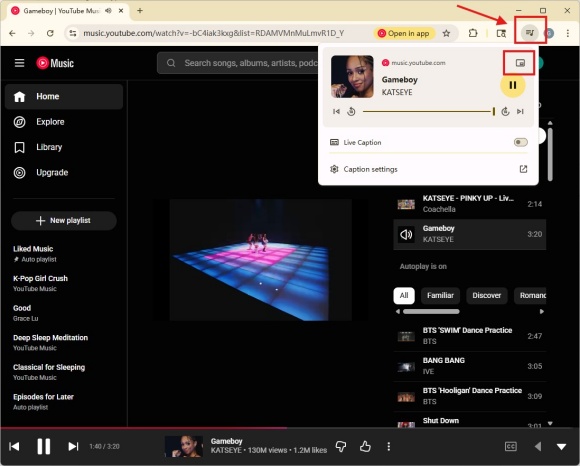
06 Browse other websites. You can also see the mini player of YouTube Music.
Part 3. How to Exit YouTube Music Mini Player
With the YouTube Music mini player, we can control the playback of each song as soon as possible. However, for mobile users, the screen is limited, so this mini player can obstruct your view and even influence your operation. In this part, we show you how to disable it.
3.1 Disable YouTube Music Mini Player on Mobile (Android & iPhone)
You can easily disable YouTube Music Picture-in-Picture mode on mobile, but the in-app mini player is not the same. The in-app mini player is always at the bottom of the app. You can see it while you view other songs, but you cannot disable it forever, as it is a fixed UI element in settings. However, you can remove it by clearing the playback queue or swiping the mini player.
Disable In-App Mini Player
01 Open the YouTube Music app and log in.
02 Play a song or a playlist as you like.
03 Tap the bottom bar to open the Now Playing screen.
04 Tap the vertical ellipses button in the top right corner.
05 Select Dismiss queue. This clears the playlist and removes the mini player. You can also swipe down on the mini player or tap the "X" if available. (It is useful for some versions)
Disable Picture-in-Picture Mode (Mobile)
01
Open your phone and set your settings.
For Android: Settings > Apps > YouTube Music > Picture-in-picture > Off.
For iOS: Settings > General > Picture in Picture, and disable Start PIP Automatically.
For Android: Settings > Apps > YouTube Music > Picture-in-picture > Off.
For iOS: Settings > General > Picture in Picture, and disable Start PIP Automatically.
02 Open your YouTube Music app and log in.
04 Choose your profile picture and select Settings.
05 Tap General and disable Picture-in-picture.
3.2 Disable YouTube Music Mini Player on Desktop
You cannot permanently turn off the mini player on the YouTube Music website, as it is designed to keep playing while you browse. However, you can dismiss your browser's Picture-in-Picture mode.
Disable Picture-in-Picture (Browser)
01 Sign in to the YouTube Music website.
02 Start to play a song.
03 Browse other websites, and you can see the mini player.
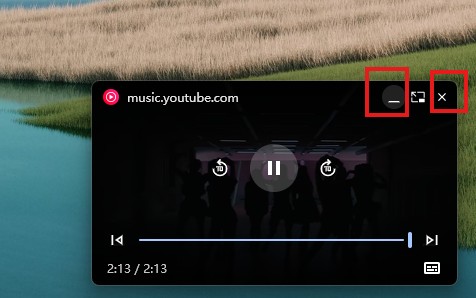
04 Hover your mouse over the mini player.
05 Click the "X" or the down arrow in the top-right corner of that small window.
Part 4. How to Fix YouTube Music Mini Player Not Working
Everything goes well with your YouTube Music mini player, but it stops now and then? Don't worry, here you can fix your mini player with these steps. Choose the solution according to your device.
Pro Tip: Fix the "Made for Kids" Restriction
Find an Audio Version or Fix Manually (for "Made for Kids" Restriction): The mini player is disabled for a specific song, probably because of its "made for kids" restriction. You can change the Audience setting to "no, it's not made for kids" in YouTube Studio. Or you can find an audio version of the track.
In-Site Player (music.youtube.com)
Desktop & Web Fixes
Use the Shortcut: Press the "I" key on your keyboard while the music is playing to immediately force the mini player to appear.
Clear Browser Cache: Stored data can interfere with UI elements. Go to your browser's Privacy and Security settings, find YouTube/YouTube Music, and clear the cache.
Mobile App Fixes
Audio Stops When Minimizing: It usually happens if you are not a subscriber to YouTube Music Premium. You can try to sign in to YouTube Music in a mobile browser, which allows background play.
Mini Player Not Showing Up: Make sure you have set Battery Optimization to "Unrestricted" for YouTube Music in your phone's app settings, for aggressive power saving can kill background processes.
VPN Interface: If you are using a VPN, Picture-in-Picture may not work if the connected country does not support the feature.
Clear "Appear on Top" (Android): Go to Phone Settings > Apps > YouTube Music > Appear on Top and ensure it is enabled.
Disable Accessibility Player: Sometimes, the accessibility controls lock the mini player. Open YouTube Music Settings > Accessibility and turn off the Accessibility player.
Offload & Reinstall (iPhone): Go to iPhone Settings > General > iPhone Storage > YouTube Music. Tap the Offload App, then reinstall it to clear glitches without deleting your music.
Verify Your Premium Subscription: You need YouTube Premium to use Picture-in-Picture for music videos on mobile.
Part 5. Best Alternative Way to Get YouTube Music Mini Player
Now you know how to get the YouTube Music mini player on your iPhone or desktop like Windows. It is really an enjoyment to read posts or study with music on. All the work can be done as time passes by. However, if you want a smoother experience on YouTube Music, there is an alternative way to get the YouTube Music mini player: ViWizard YouTube Music Downloader. You can download your favorite songs from YouTube Music to MP3s via ViWizard YouTube Music Downloader. Then find the downloaded file in your folder and open it with your Windows Media Player or QuickTime Player.
With ViWizard YouTube Music Downloader, you can enjoy lossless audio quality whenever and wherever you are in the mood to listen to music. How about the output format? There are many output formats in the app to choose from: FLAC, MP3, WAV, AIFF, M4A, and M4B. If you like, you can also personalize the bit rate, sample rate, and bit depth (up to 24-bit, 320 kbps, 192kHz). Everything set, you can start to convert songs on YouTube Music along with the original ID3 tags at a faster speed (30x). Many users prefer this function as it helps them to sort their tracks. Once you download ViWizard YouTube Music Downloader, you can play music without limitation anywhere and anytime.

Download songs, playlists, albums, and your whole music library from 10 major streaming platforms, including YouTube Music, to MP3, FLAC, WAV, AIFF, M4A, or M4B with original quality and ID3 tags for permanent offline listening.
Use ViWizard YouTube Music Downloader
 Step 1: Customize Output Format and Audio Quality
After installing ViWizard YouTube Music Downloader, log in to the app and click the menu icon on the top right corner. Choose Preference to set your favorite output format. Choose the Conversion section, and then click the output format, including MP3, WAV, AIFF, or FLAC. Set audio quality parameters you like, such as bitrate and sample rate (up to 24-bit, 320 kbps, 192kHz). Select Save at the bottom.
 Step 2: Start YouTube Music in ViWizard
Click X on the Settings screen to go back. Click YouTube Music. The built-in YouTube Music web player jumps out. Sign in to the web with your account.
 Step 3: Select Songs, Playlists, and Albums on YouTube Music
Browse your library, albums, playlists, and your liked music, and so on within the built-in web. Click the playlist or the song, and select the "Add to List ". ViWizard begins to scan and load all tracks into the conversion list automatically.
 Step 4: Convert and Keep YouTube Music Downloads on Desktop
Check all the songs in the conversion page, and then click Convert. ViWizard starts downloading YouTube Music at super-high speed while keeping the original quality. After conversion, go to the converted page to find the downloaded music files. And you can play the songs on Windows Media Player or QuickTime Player.
Use Media Player to Play Downloads
On Windows Media Player (Windows)
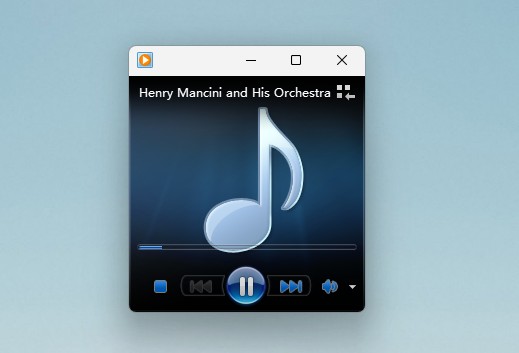
01 Make sure you have downloaded the music file, and open Windows Media Player.
02 Locate your downloaded MP3 in File Explorer.
03 Drag the files and drop them directly onto the WMP application window.
04 The files will start playing or be added to your playlist.
On QuickTime Player (mac OS)
01 After downloading, find the file in File Explorer.
02 Locate the file and right-click it.
03 Choose Open with, and you can see a lot of media players.
04 Click QuickTime Player. (You also choose other media players you like, such as VLC Media Player, IINA, etc.)
05 Control the music by pausing, skipping, turning up the volume, etc. Just enjoy music!
Conclusion:
All in all, it is interesting to have such a tiny and convenient YouTube Music player to accompany us on mobile or computer while working and studying. You can try these ways to own the mini player. If you want to download YouTube Music tracks to MP3, you can use ViWizard YouTube Music Downloader. Let's try it!
You May Be Interested
How to Add YouTube Music Widget on Android/iOS/Desktop [Full Guide]

Find/Add/Remove Liked Songs on YouTube Music

How to Download Music from YouTube to iPod

How to Download Music to MP3 Player from YouTube Music

How to Play YouTube Music in the Background without Premium
6 Ways to Block an Artist on YouTube Music

From new releases to old favorites, Matt Smith is always on the lookout for good music. He follows the latest in digital entertainment and shares songs and media he thinks are worth checking out.

Leave a Comment (0)