


YouTube Music is well known for its vast music library, enriched genres, and seamless cross-device experience. Most importantly, its user-friendly design must be the Liked Music feature, which is a key tool basic enough for YouTube Music users. But just like a personalized music hub, it provides you with a world full of wonders. With simple operations, you can let YouTube Music inform its algorithm whether you enjoy a song, tailoring your listening experience.
This post will focus on how to find your Liked Songs on YouTube Music, how to manage them, and how to transfer Spotify playlists to YouTube Music Liked Songs. Let's read.
Part 1. How to Find Your Liked Songs on YouTube Music
Bundled with YouTube, YouTube Music automatically syncs your Thumbs up. With several taps at your fingertips, you can form a centralized "Liked Music" playlist. It is like a net that catches all your personalized recommendations. But if you want to know where your liked songs on YouTube Music are, you can follow me. Here are the steps:
On Mobile
Step 1 Sign in to the app with your account and enter the app.
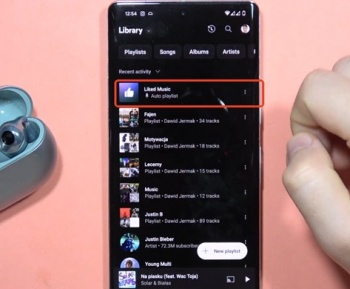
Step 2 Tap Library at the bottom menu.
Step 3 Tap the playlists on the left top.
Step 4 Select the Liked Music playlist (an auto playlist always pinned at the top).
On Web/Desktop
Step 1 Sign in to the desktop or visit the YouTube official website https://music.youtube.com/.
Step 2 Click the Library on the left bar. (or select Liked Music on the left bar)
Step 3 View your liked songs in the Liked Music playlist.
Now you can play or shuffle your liked songs on YouTube Music! Pretty easy, right? You may wonder how you can add songs to YouTube Music Liked Songs. Just follow me.
Part 2. How to Add Songs to YouTube Music Liked Songs
What YouTube Music impresses you most is not the bundle value but the huge catalog and rare tracks. Using YouTube Music means you have access to obscure or non-commercial uploads not available on other services. You can add songs, from audio to video, to YouTube Music Liked Songs. The details are as follows:
Option 1: Add a Single Song to Liked Music
On Mobile
Make sure that you sign in to the YouTube Music app with your account.
Search for the song you want to add.
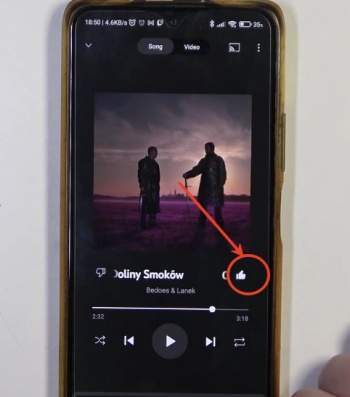
Tap the thumbs-up icon on the player screen while listening. (You can also tap the three-dot icon next to the song to choose Add to library or Like.)
Go to the Library and see the Liked Music to confirm your liked songs.
On Desktop/Web
Log in to the desktop/web with your account.
Search for the song that you are interested in.
Click the vertical ellipsis next to the song. (If you like the playing song, you can also click the thumbs up right at the bottom of the screen.)
Click Add to liked songs.
Go to your Liked Music playlist to make sure the song is in the list.
Option 2: Add Songs from a Playlist to Liked Music
On Mobile
Sign in to the YouTube Music app with your account.
Find the playlist you like to add.
Tap the thumbs-up icon on each song on the player screen while listening. (You can also tap the three-dot icon next to each song to choose Add to library or Like.)
Go and find Liked Music to confirm your liked playlist..
On Desktop/Web
Ensure that you log in to the desktop/web with your account.
Search for the playlist that you need to add.
Open the playlist.
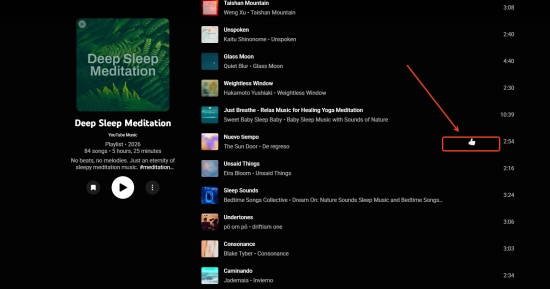
Click the thumbs up icon on each song, or click the vertical ellipsis next to each song and choose Add to liked songs. (You cannot add all the songs in one go, so you need to add them one by one.)
Go to your Liked Music playlist to make sure the song is in the list.
Option 3: Add a Playlist to Liked Music (Not Supported)
YouTube Music doesn't support adding a playlist to Liked Music in one go. That means you need to add songs of a playlist one by one.
On Mobile
Log in to the YouTube Music app with your account.
Locate the playlist you want to add.
Select the thumbs-up icon on each song on the player screen while listening. (You can also tap the three-dot icon next to each song to choose Add to library or Like.)
Go to Liked Music to confirm your playlist is added.
On Desktop/Web
Launch the desktop/web with your account.
Find the playlist through the search engine.
Enter the playlist page.
Click the thumbs up icon on each song, or click the vertical ellipsis next to each song and choose Add to liked songs.
View your Liked Music to make sure the playlist is here.
Part 3. How to Remove Songs from YouTube Music Liked Songs
While adding songs is easy, removing previously liked songs on YouTube Music is simple, too. But someone wonders: why do we delete songs from YouTube Music Liked Songs? Good question. By clearing the disliked songs, you can clean up the recommendations. And the service can offer the music that better meets your satisfaction. We divide this part into two options. Here are the details:
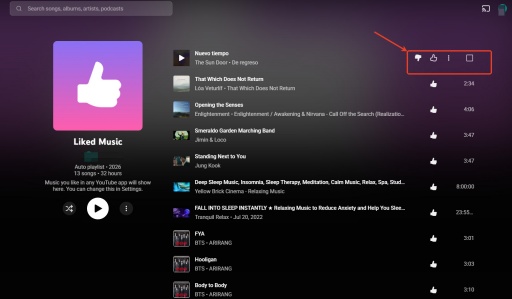
Option 1: Dislike a Song in Liked Music
On Mobile
Open your YouTube Music app.
Tap Library at the bottom right of the screen.
Select Playlists and tap on Liked Music
Locate the song that you dislike and play it.
Tap the thumbs down icon (dislike) on the player screen.
Check the song in your Liked Music. Ensure this move will delete it from Liked Music and refresh your recommendations.
On Desktop/Web
Log in to the desktop or web.
Click Library to find Liked Music.
Find the song in Liked Music.
Click the thumbs down icon next to the song.
Reload the Liked Music page, and you will never see the song again.
By doing so, the song will generally be removed from your "Liked Music". And the platform will inform its algorithm that you are not enjoying that song, artist, or genre.
Option 2: Remove a Song from the Liked Music Playlist
On Mobile
Sign in to your YouTube Music app.
Tap Library at the bottom right of the screen.
Choose Playlists and tap on Liked Music
Locate the song that you want to remove.
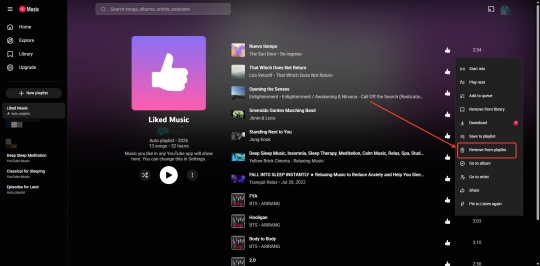
Tap the three-dot menu next to the song, and select Remove from playlist.
Check the song in your Liked Music.
On Desktop/Web
Sign in to the desktop or web with your account.
Select Library to find Liked Music.
Locate the song in Liked Music.
Click the three-dot icon next to the song and click Remove from playlist.
View Liked Music to confirm.
For multiple songs, you need to delete them manually as above.
Part 4: How to Transfer Spotify Playlists to YouTube Music Liked Songs
To better manage your music library, you may want to transfer your favorite playlists from Spotify to YouTube Music. Usually, you transfer your playlist manually or use third-party services like Tune My Music or Soundiiz.
For the first method, you need to switch between the two platforms, and that can be troublesome. Then what about the next one? Tools like the two connect both accounts, map the songs, and import them into YouTube Music. They can help you transfer "Liked Songs" or create a new playlist. That sounds great, but there is another choice for you, will you try?
ViWizard Free Music Transfer is a simple music playlist transfer tool. It enables you to transfer playlists (Liked Songs), songs, and albums between platforms like Deezer, Apple Music, Spotify, YouTube Music, and more. Beyond that, it offers batch processing and 100% matching in destination platforms like YouTube Music. You don't need to worry about data loss, as this tool retains details such as original song titles, artists, and album artwork. And it is available on Windows 7-11 and macOS 10.13-15. A free trial allows up to 100 tracks, while subscribers can transfer unlimited songs, saving you time and essentially your playlist.

Key Features of ViWizard Free Music Transfer
Free Trial Free Trial* Security verified. 5, 481,347 people have downloaded it.
- Transfer songs, playlists, albums, and collections across 7 platforms
- Move music libraries when switching between streaming services
- Transfer playlists without rebuilding collections manually
- Keep music organization during platform migration
- Manage playlist transfers across supported streaming services
Here are the steps to run it:
Install ViWizard Playlist Transfer and open it.

Select Spotify as the Source platform, and log in with your account.And choose YouTube Music as the destination platform.

Click Start to connect the two platforms. Select the playlist you want to transfer in Spotiify.

Click Next and configure your destination playlist in YouTube Music

Click Start Transfer at the bottom and wait.

Open YouTube Music, go to Library to check your playlists.

In this way, you can centralize your music library with ViWizard Playlist Transfer. Not only is it easy to operate, but you can also transfer playlists of other platforms whenever you want.
Bonus: How to Download All YouTube Music Liked Songs
With better recommendations and algorithms, YouTube Music can play the music you want to hear. And when you lack a stable internet connection, you can download them to enjoy. The drawback is that you cannot really "own" them and play them on other streaming services. There is a good method: ViWizard YouTube Music Downloader.
ViWizard YouTube Music Downloader is a favored solution if you want to download songs, playlists, and albums from YouTube Music to your computer in one go. And it won't take you very long to have the downloads, and each file keeps its original meta tags, from title to its cover art. Besides, you can set your favorite output formats, such as MP3, FLAC, WAV, AIFF, M4A, M4B and the like.

Download music from 10 streaming platforms to MP3, FLAC, WAV, AIFF, M4A, or M4B with original quality and ID3 tags for permanent offline listening.
FAQs: YouTube Music Liked Songs
Liked songs aren't showing up all?
Relax, all your liked songs are well kept. You need to refresh the app or the web. Reinstalling the app may also help (but remember to redownload the songs after reinstalling).
How do I add YouTube Music liked songs to a playlist?
Library > Liked Music > Three-dot menu on a song > Add to playlist. (You can create a new playlist or add all liked songs to an existing one,)
Is there any free way to transfer a Spotify playlist to YouTube Music?
ViWizard Free Music Transfer can transfer up to 100 tracks for free and is super simple.
Conclusion:
YouTube Music Liked Songs plays an important role in our daily lives. We use it to imprint those memorable moments and let the algorithm work to help us unlock new tracks. And it is also easy to manage the Liked Songs on YouTube Music.
If you want to transfer your Spotify playlists to YouTube Music, ViWizard can a good choice. It supports batch processing with high accuracy. Want to centralize your music library? Just try it.
You May Be Interested

How to Download YouTube Music Library Entirely on Mobile/Desktop

How to Find Your Tidal Liked Songs

Solved: How to Remove All Liked Songs on Spotify
How to Download YouTube Music to MP3 [Full-Guide]
How to Find YouTube Music History
How to Add YouTube Music Widget on Android/iOS/Desktop [Full Guide]


Matt Smith, a digital entertainment industry enthusiast at ViWizard, is dedicated to providing insightful commentary and solutions for music and media-related topics, including industry trends, analysis, and recommendations.

Leave a Comment (0)