


"Is there any way to see all the music I've listened to on YouTube Music?" I believe many of us have this question. That's rather normal, as we want to find a song, album, or playlist we have listened to recently. Or we try to discover our listening habits by checking the music history. After finding it, we can also influence our personalized mixes by managing them. But back to the theme, how can we find it? And how to manage it?
In this guide, you will learn the way to find your YouTube Music play history and manage it. And if you want to know about downloading songs on YouTube Music, you are in the right place.
Part 1. How to Find YouTube Music History
When we talk about YouTube Music, the first thing must be its wide selection, which includes regional/unofficial releases. Through it, you can listen to so many live shows and unofficial releases. Anytime, anywhere, you can pick up those wonderful moments from your play history. Then how do you find your YouTube Music history? After reading this part, you will learn. Let's see.
On Mobile
Step 1 Open the Spotify app on your phone or tablet.
Step 2 Log in to the app with your account.
Step 3 Tap your profile icon. and the Account menu appears.
Step 4 Tap "History", and you can see all the songs you've listened to.
Following these steps, you can find the songs you are searching for. What if you always listen to your liked songs on the website? No worry, we can give you a hand.
On the Web
Step 1 Log in to the web.
Step 2 Click your profile icon.
Step 3 Find "History" and click it.
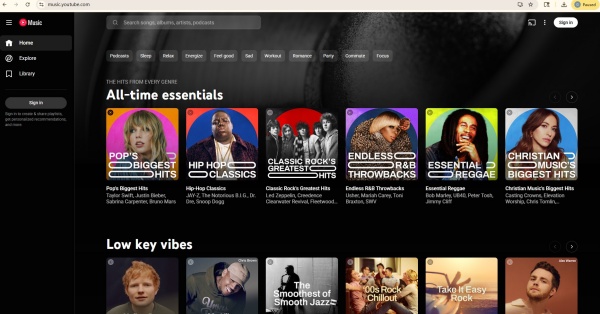
Now I bet you've found the song you want, and you may wonder how to delete the songs that you dislike. Follow me.
Part 2. How to Clear YouTube Music History
On a cozy afternoon, you may want to play your listening history on YouTube Music, but by accident, some repetitive and embarrassing songs may assault your ears. You think maybe it's time to delete your history on YouTube Music to reset the algorithm, as your current taste is rather different. Then what should you do now? The operations are simple. For you may delete specific songs on YouTube Music or clear all of them. Here are two options for you:
Option 1: Delete Single Songs
On the Web (and Mobile)
Sign in to the web/phone with your account.
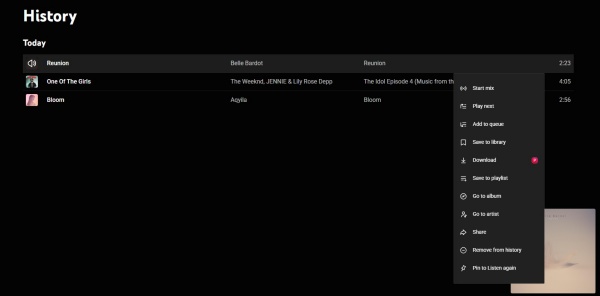
Click your profile icon and choose "History".
Locate the songs you want to delete and click the vertical ellipses near the song.
Click "Remove from History".
Option 2: Clear All the Play History
On Mobile
Open the YouTube Music app on your Android or iPhone.
Tap your profile picture in the top right corner.
Select Settings and tap Pravicy & data.
Tap Manage watch history..
Tap Delete, then select Delete all time.
Tap Delete again to confirm.
On the Web
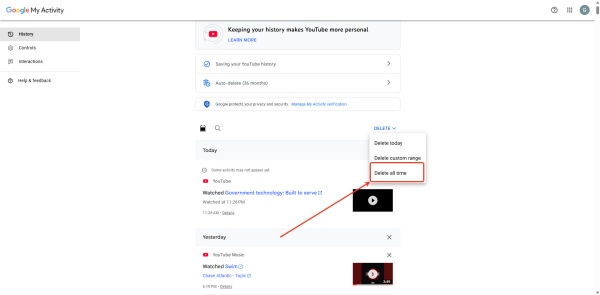
Log in to myactivity.google.com.
Click YouTube History, and scroll down to select "Manage history".
Tap "DELETE", and you can see "Delete all time".
Part 3. How to Keep All YouTube Music History
As a YouTube Music user, you always care about your music and memories throughout the years. What are your top songs? Which artist do you adore most? Year by year, how have your tastes changed? To answer these questions, you need to keep all your YouTube Music history – starting now. This part will show you exactly how to preserve that history, so you can gain deeper insight into your music and even your life.
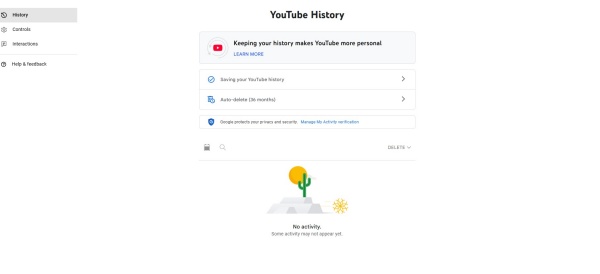
Click Manage your Google Account.
Select Data & Privacy.
Click YouTube History.
Choose Saving your YouTube history. (which keeps you from its Auto-delete after 36 months)
Requirement: Make sure Auto-delete is off in your Google Account settings.
Bonus: How to Download YouTube Music Without Subscriptions
Clearly, it is easy to retain or remove your YouTube Music history, but the app or website always has its limits. You need to own a Premium subscription to download your liked songs. For another, your downloads are hard to play on other apps. Once your subscription expires, you won't be able to listen to your favorite songs offline.
Now you have the best way to deal with that problem: ViWizard YouTube Music Downloader. With its powerful function, you can download any audio files, from songs to albums. Beyond that, there are other strengths to it:
- Multiple Output formats: You can get MP3, FLAC, WAV, AIFF, M4A, or M4B conversion.
- High Audio Quality: You can keep the original sound quality.
- Metadata Preservation: You can save or edit ID3 tags.
- Multiple Platforms: We support 10 music platforms like Spotify, Pandora, Deezer, etc.
- High Speed and Batch Downloads: You can get MP3, FLAC, WAV, AIFF, M4A, or M4B conversion.
- Multiple Output formats: You can download your entire playlist at once with high speed.

Download music from 10 streaming platforms to MP3, FLAC, WAV, AIFF, M4A, or M4B with original quality and ID3 tags for permanent offline listening.
How to Download YouTube Music
Step 1 Set Your Favorite Settings
Download ViWizard YouTube Music Downloader and select Preferences. From Conversion, you set your favorite format like MP3, FLAC, and the like. For the best listening experience, set the bitrate to 320kbps. Click OK to keep the settings.

Step 2 Sign in With Your Account
Click the YouTube Music icon, and the website will appear in the built-in player. Sign in to the website.

Step 3 Select Your Songs
Browse your library to choose the songs or the playlists to download. Click Add to List (green icon in the corner).

Step 4 Download Your Music
Tap the convert page (the second icon at the top), and click Convert to start.

Step 5 Enjoy Your Downloads
You can view the songs you've downloaded on the history page (the third icon at the top). And you can find the files in your output folder and listen to them on any device, and best of all, free of the internet.
Conclusion
In a nutshell, YouTube Music has great channels, enriched genres based on choices for old and new songs, and best of all, you can find almost every song in the service. Through the steps above, you can find or delete your YouTube Music history easily on the web or on your phone.
If you want to download songs on YouTube Music, just give it a shot at ViWizard YouTube Music Downloader. You will be surprised by its convenience.
You May Be Interested




Matt Smith, a digital entertainment industry enthusiast at ViWizard, is dedicated to providing insightful commentary and solutions for music and media-related topics, including industry trends, analysis, and recommendations.

Leave a Comment (0)