


Different moods determine the songs we play. When we listen to YouTube Music on mobile, a song name or rhythm always drives us to play it. In case you forget, you take seconds to search for the name and add it to the queue. It is also named "Up Next", a panel that allows you to view, manage, and reorder the current playlist, including upcoming tracks, album tracks, or autoplay suggestions. This is what we discuss today, using the YouTube Music queue.
Using the queue on YouTube Music means we can add songs, whole albums, or playlists to our active session whenever our inspiration strikes. Just like a temporary playlist, it never causes library clutter. And the queue will be synced across your other devices, meaning you can add SWIM by BTS to the queue on your computer while playing it on your phone. If you like, you can even open the "Up Next" panel and manually drag tracks up or down to your favorite position.
The queue feature works on iPhone, Android, Mac, and Windows. The layout may differ, but it doesn't affect us. Then, how can you access, add, reorder, sync, clear, and fix your queue on YouTube Music? Follow me.
Part 1. How to Access Your Queue on YouTube Music
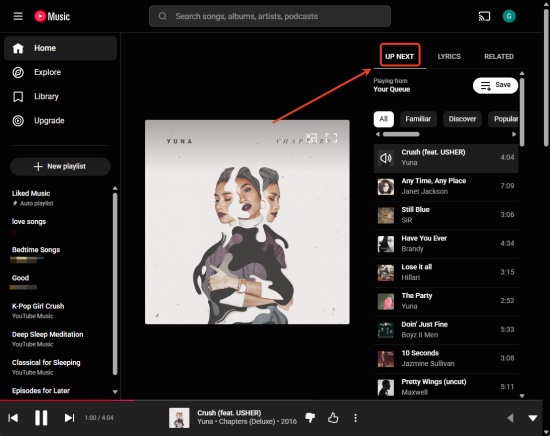
To see the queue, namely, "Up Next", on YouTube Music, you can play a song, then click or swipe up on the "Now playing" bar at the bottom to open the full player. Then, you can see the queue under the "Up Next' section on the phone. If you play songs on a desktop, you can see them on the top right of the "Now Playing" page.
Access the Queue on Mobile (Android/iOS)
01Open the YouTube Music app on your phone and log in to it.
02Play a song, album or a playlist.
03Swipe up on the small player bar at the bottom of the screen to open the "Now Playing" screen. (Tapping the bottom mini player also works)
04Swipe up from the bottom of the player screen to see the "Up Next" screen.
Access the Queue on Desktop (Desktop/Web App)
01Click a browser, and sign in to the YouTube Music website.
02Start playing a song and click the "Now Playing" bar at the bottom of the page.
03The queue ("Up Next") appears automatically on the right side.
Part 2. How to Add Songs to Your Queue on YouTube Music
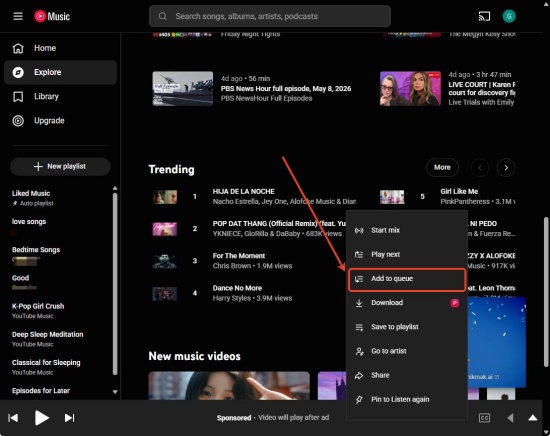
If you want to add songs to your queue on YouTube Music, you need to have an active song playing or a queue started. Then, you tap or click the three-dot icon next to a song and select Add to queue or Play Next. Adding to the queue means placing the track at the end of the current playlist, while Play Next adds the song immediately after the playing song.
Option 1: Add a Song to Your Queue (Mobile /Desktop)
01Make sure you have signed in to your YouTube Music account.
02Play any song, playlist, or album to generate the queue.
03Locate the song you desire to add.
04Tap or click the three-dot icon next to a song title.
05Select Add to queue to play it at the end of the current queue.
Add Songs from a Playlist to Your Queue (Mobile /Desktop)
01After logging in to your account on YouTube Music.
02Find the playlist you'd like to add.
03Select the three-dot menu near the top of the playlist or next to the play icon.
04Select Add to queue.
05Check your added queue in the "Up Next" section.
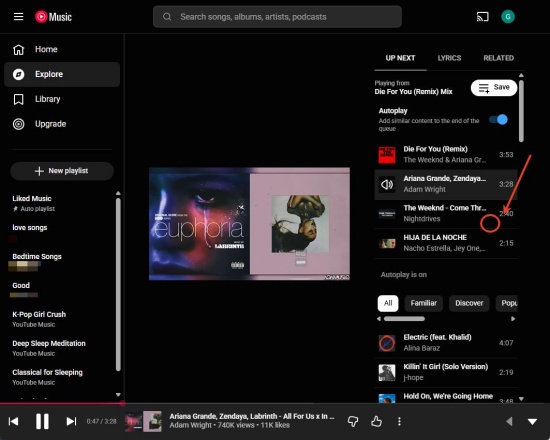
- Autoplay Toggle: If "Autoplay" is switched on at the bottom of the queue, YouTube will add a recommended song after your queued tracks. If you play downloaded music, autoplay may not function, and this leads to an empty "Up Next" list.
- Save Queue: If you find the current playing queue to your taste, you can save it as a new playlist. All you need to do is open the queue and click Save.
- Radio Station: If you are listening to an auto-generated radio, "Add to queue" will place the song at the end of that. It is often a long list.
- The Playlist Next Method: To build a custom list, you may use Play Next many times. And the last song you choose will play first.
Part 3. How to Reorder Songs in Your Queue on YouTube Music
If you want to reorder songs in your YouTube Music queue, you select and drag the song within the active "Up Next" panel. On mobile, you can open the player, tap the queue button, and then drag the two-line icon near a song. On desktop, you access the Up Next list and drag and drop the tracks directly to your preferred position.
Reorder Songs in Your Queue (Android/iOS)
01Sign in to your YouTube Music app and start playing a track.
02Tap the bottom bar of the screen to enter the "Now Playing" section.
03Tap the "Up Next" button (bottom right) to view your queue.
04Locate the song you want to reorder.
05Press and hold the two-line handle icon near the song.
06Drop the song to your preferred place, and then you can enjoy your queue.
Reorder Songs in Your Queue (Desktop/Web App)
01Visit the YouTube Music website.
02Play a song to initiate the "Now Playing" page.
03Click the "Up Next" section.
04Find the song you want to move.
05Click and drag this song to the place you like.
Part 4. How to Sync Your Queue on YouTube Music
One thing to note is that by the end of January 2026, YouTube Music has launched a feature that automatically syncs your "Now Playing" queue across Android, iOS, Windows, and Mac. With this feature, you can start a playlist on your phone during a workout, commute, or study, and seamlessly continue from the same track on your Windows or Mac. And the sync is automatic via a server-side update, so you don't need to manually trigger a sync feature.
- Active YouTube Music Premium subscription: The queue sync feature is primarily available to YouTube Music Premium members.
- Same Google Account: All devices (mobile, desktop) must be signed in with the same Google/YouTube account.
- Updated App or Browser: Make sure you are using the latest version of the YouTube Music app on iOS or Android, or the latest web browser version.
Sync Your Queue Across Devices
01Open the YouTube Music app on mobile or visit the website on desktop.
02Use YouTube Music on a different device.
03The last song you listened to will appear at the bottom, often labelled as "From your Android" or "From your browser". The queue has successfully synced. (Usually one-way sync, the web app updates frequently while the mobile does not)
04Your latest listening session overrides older, inactive queues on other devices.
Part 5.How to Remove Songs from Your Queue on YouTube Music
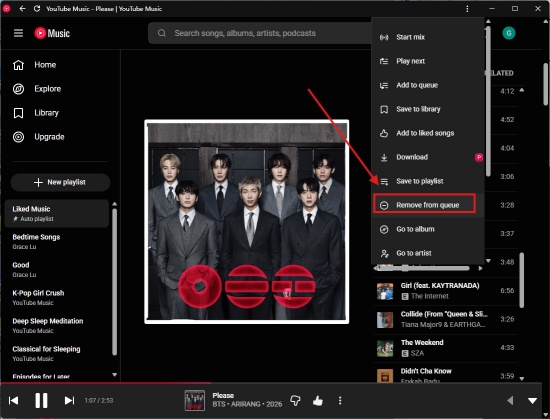
If you desire to remove a song from your YouTube Music queue, you can manage it on the "Up Next" section of the player screen. On mobile, you can access the "Up Next" panel, locate the song, and directly swipe it away. On desktop, you remove a song by clicking the three-dot menu next to the song name and choosing "Remove from queue". Follow the steps to remove a song from your YouTube Music queue.
Remove a Song from Your Queue (Android/iOS)
01Make sure you are playing a song within the YouTube Music app.
02Tap the bottom bar to expand the player.
03Tap the "Up Next" button.
Remove a Song from Your Queue (Desktop/Web App)
01Sign in to the YouTube Music website and play a song.
02The "Now Playing" screen appears, and click the "Up Next" button on the right side.
03Hover your cursor over the track you want to remove, and you see three dots next to it.
04Click the three dots and select Remove from queue.
Part 6. How to Clear Your Queue on YouTube Music
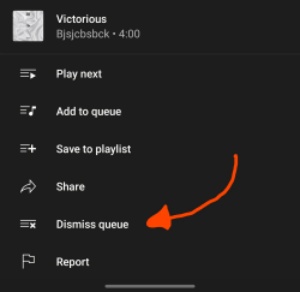
If you want to clear your queue on YouTube Music, you can operate on mobile or desktop. On mobile, you can clear your queue by swiping, pressing the dismiss button, or individual removal. On a desktop, you can reload the page with Ctrl+F5, play a new playlist or album, or remove individual songs manually. The details are as follows.
Clear Your Queue on YouTube Music (Android/iOS)
Swipe Method:
01Open the YouTube Music app and sign in.
02Swipe up to see the queue.
03Swipe down on the list so that you clear your queue.
Dismiss Button:
01Activate YouTube Music and log in.
02Play a song and tap the bottom mini player to expand it.
03Tap the three dots menu and select "Dismiss queue".
Individual Removal:
01After signing in to the app, play an album or playlist.
02Tap the bottom mini-player to enter the player screen.
03Tap Up Next and swipe left in specific songs in the queue to remove them.
Clear Your Queue on YouTube Music (Desktop/Web App)
Refresh with Ctrl+F5:
01Use your browser to visit the YouTube Music website.
02Play a song to enter the player page.
03Press Ctrl + F5 to reload the page.
04Check for the refreshed page.
New Play back:
01Make sure you've signed in and a song is playing.
02Click "Play" on a new track, album, or playlist.
03The old queue is automatically replaced by the new content.
03Tap Up Next and swipe left in specific songs in the queue to remove them.
Clear Your Queue on YouTube Music (Desktop/Web App)
Refresh with Ctrl+F5:
01Use your browser to visit the YouTube Music website.
02Play a song to enter the player page.
03Press Ctrl + F5 to reload the page.
04Check for the refreshed page.
New Play back:
01Make sure you've signed in and a song is playing.
02Click "Play" on a new track, album, or playlist.
03The old queue is automatically replaced by the new content.
Individual Removal:
01Sign in and access the player by playing a song.
02Click the Up Next icon on the right side.
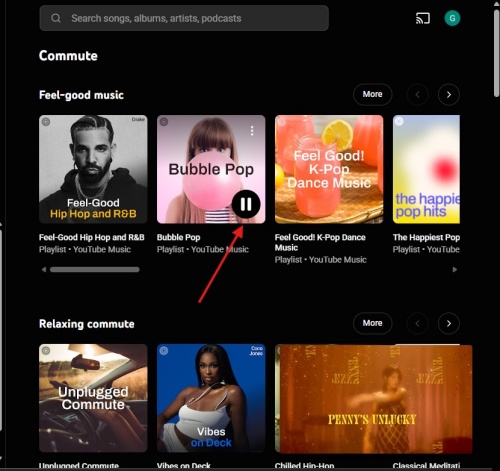
03Click the three-dot menu next to individual songs and select "Remove from queue".
Part 7. How to Fix YouTube Music Queue Not Working
We come across YouTube Music queue issues due to dynamic recommendations (Quick picks), cached data errors, or playlist glitches. To fix these issues, we can disable autoplay, clear the app cache, or use the "Play next" function rather than "Add to queue". If you are casting, you need to stop casting, build the queue locally, and recast.
Clear Cache & Data (Android): Tap Settings > Apps > YouTube Music > Storage > Clear Cache/Data.
Reinstall/Update the App: You need to check for the update in the Play Store or App Store, as bugs in older versions may break queue management.
Restart the App/Device: Exit the YouTube Music app and reopen it to refresh the session.
Toggle Autoplay OFF/On: You can turn off autoplay at the bottom of the "Up Next" panel. This prevents manual additions from taking over.
Use "Play next" Instead: Select "Play next" to let a song follow the playing track, and this often works better than "Add to queue".
Check for Grayed-out Songs: Make sure there are no "grayed-out" unavailable songs in your playlist, as these can break the queueing function.
Bonus: How to Convert Liked Music on YouTube Music to MP3s
I believe after reading the content above, you've learned how to access, add, reorder, sync, remove, and clear your queue on YouTube Music. This can be a powerful feature, with which we can control the playback of our favorite songs, full albums, live performances, or music videos casually. But if you want to keep your Liked Music on YouTube Music forever, you can consider downloading playlists to MP3. Is there a handy tool to do that? Yes—ViWizard YouTube Music Converter is a top choice.
What is ViWizard YouTube Music Converter?
ViWizard YouTube Music Converter is a versatile software available for both Windows and Mac. It allows you to download music from YouTube Music and save it in various formats, including MP3, AIFF, FLAC, M4A, WAV, and M4B. You can also customize settings like bitrate, sample rate, and bit depth——up to 24-bit, 320 kbps, and 192 kHz—for high-quality audio. Beyond playlists, this tool lets you download liked songs, albums, individual tracks, and artists' collections while preserving all metadata, making library management simple with intact ID3 tags. With ViWizard, you can enjoy your favorite YouTube Music tracks anytime, anywhere, without interruptions.

Need YouTube Music for offline listening? ViWizard YouTube Music Converter helps YouTube Music users save songs, playlists, albums, and artists with convenient music conversion. Start converting and enjoy your music beyond the app.
How to Use ViWizard YouTube Music Converter
 Step 1: Set Output Format and Audio Quality:
After installing ViWizard YouTube Music Converter, open the app and click the menu icon in the top-right corner. Go to Preferences > Conversion to select your preferred format (MP3, WAV, AIFF, FLAC, etc.) and adjust audio quality, including bitrate and sample rate. Click Save to confirm your settings.
 Step 2: Log in to YouTube Music
Return to the main screen, select YouTube Music, and the built-in web player will appear. Sign in with your YouTube Music account.
 Step 3: Select Songs, Playlists, or Albums
Browse your library, playlists, albums, or liked songs on the built-in player. Click the playlists or track you want and select Add to List. ViWizard will scan and load all chosen songs into the conversion page.
 Step 4: Convert and Save Downloads
Once all desired songs are added, click Convert. ViWizard will quickly download your YouTube Music tracks while preserving the original quality. After conversion, open the converted page to access your file, which can be played on any media player.
Conclusion
All in all, you can easily access your YouTube Music by playing a song and getting to Up Next. Besides, you can manage the queue as you please, adding songs, reordering them, or removing tracks. Best of all, YouTube Music has rolled out the queue sync feature, erasing your worry about using the app across devices. If you want to have a moving YouTube Music library, you can try ViWizard YouTube Music Converter. Enjoy your music!
You May Be Interested

How to See YouTube Music Recap 2025 [Multiple Devices]

4 Ways to Share YouTube Music Playlists (2026 Guide)

[Fixed] YouTube Music Shuffle Not Working Issue

How to Listen to YouTube Music Offline: Premium Not Required

How to Turn On/Off Autoplay on YouTube Music

How to Use Apple Music Queue (Up Next) Across All Devices

5 Ways to Listen to YouTube Music Together

From new releases to old favorites, Matt Smith is always on the lookout for good music. He follows the latest in digital entertainment and shares songs and media he thinks are worth checking out.

Leave a Comment (0)