


One can never deny that YouTube Music Autoplay is really convenient. Once we turn on YouTube Music Autoplay, it keeps playing music without manual input while we are doing chores, working out, or driving. Just like a traditional radio station, it provides us with an endless stream of music without having to pick the next song.
Besides, with Autoplay on YouTube Music, we can discover new artists and genres that we did not know before, which is no less surprising. However, we consider turning it off when we need to save mobile data, stop loud songs from interrupting us, and fully control listening queues.
You can follow the steps to turn on and off YouTube Music Autoplay across your devices, including iPhone, Android, desktop player, TVs, Cast devices, Smart Speakers, Android Auto, and Apple CarPlay. Let's read.
Part 1. How to Turn On or Off Autoplay on YouTube Music (Android & iOS)
Unlike YouTube, YouTube Music does not have an Autoplay toggle in its main settings menu. To turn YouTube Music Autoplay on or off on iOS and Android, you find the Up Next playlist while a song is playing, and locate the Autoplay switch. If you toggle the Autoplay off, the settings typically stay off across sessions on mobile.
How to Turn On Autoplay on YouTube Music (Android & iOS)
01 Open the YouTube Music on your Phone.
02 Make sure you have signed in to the app with your account.
03 Play any song you like.
04 Tap on the player bar at the bottom of the screen to enter the Now Playing screen.
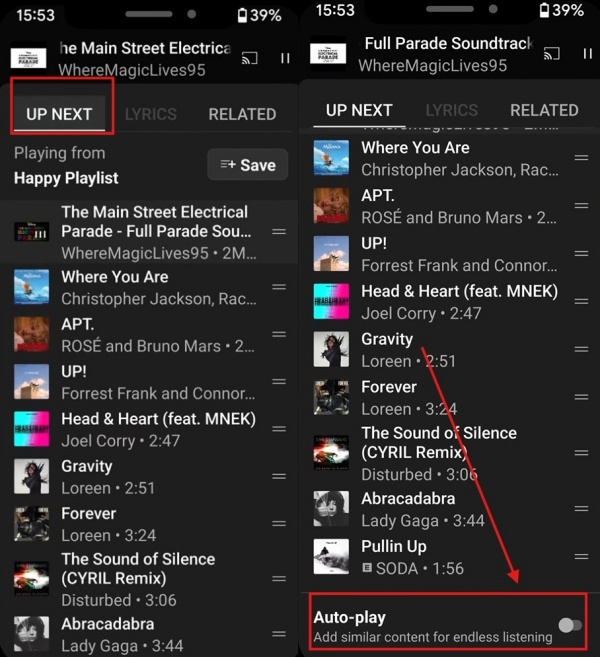
05 On the Now Playing screen, tap the Up Next tab in the bottom-left or bottom-middle corner to view your current queue or list.
06 Scroll to the very bottom of your current queue/playlist.
07 Find the Autoplay toggle and switch it on. (The toggle often appears as an infinity symbol or labeled Autoplay.)
How to Turn Off Autoplay on YouTube Music (Android & iOS)
01 Activate YouTube Music and sign in to the app with your account.
02 Find a song, album, or playlist to play.
03 Tap the player bar (at the bottom) and select Up Next (in the bottom-left corner).
04 Scroll to find the Autoplay toggle and switch it off.
Part 2. How to Turn On or Off Autoplay on YouTube Music (Desktop Web Player)
In fact, turning on or off Autoplay on YouTube Music on desktop is not so different from that on mobile. Sometimes YouTube Music defaults back to "On" after a new session or update, so you may need to check the setting again if music starts playing abruptly.
How to Turn On Autoplay on YouTube Music (Desktop Web Player)
01 Visit the YouTube Music website in a modern browser (Firefox, Bing, Chrome, and the like).
02 Log in to the website with your account.
03 Play any track, album, or playlist you like.
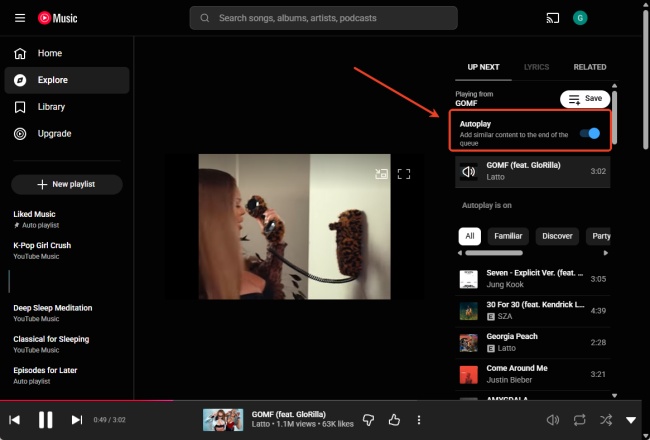
04 Once you play it, you enter the Now Playing screen. Click the Up Next button in the bottom right corner to expand your current queue.
05 Scroll down to the very bottom of your queue list.
06 Find the Autoplay toggle and click the switch to toggle on.
How to Turn Off Autoplay on YouTube Music (Desktop Web Player)
01 Open the YouTube Music website and log in with your account.
02 Play a song, and click Up Next (in the bottom right corner).
03 Scroll down to the very bottom to find the Autoplay toggle.
04 Switch the Autoplay toggle off.
- Toggle Missing Fix: If you don't see any Autoplay toggle, try playing the last song in the Up Next list. In this way, the Autoplay toggle is forced to appear.
- Playlists vs. Single Songs: If the toggle only appears when playing an album or playlist rather than a single song, you can try starting an album and then scrolling to the bottom of that Up Next queue to find it.
Part 3. How to Turn On or Off Autoplay on YouTube Music (TVs, Cast Devices & Speakers)
To control your YouTube Music account across TVs, Cast devices, and smart speakers, you will primarily use the mobile app or the TV interface to toggle the feature on or off.
How to Turn On/Off Autoplay on YouTube Music (TVs)
01 Open the YouTube or YouTube Music app on your TV.
02 Find the Settings menu within the app.
03 Locate the Autoplay menu under the Settings section.
04 Toggle Autoplay On or Off.
05 If you are casting from your phone to a TV, tap the control bar at the bottom of the screen to expand your queue. Find the Autoplay toggle switch and turn it off.
How to Turn On/Off Autoplay on YouTube Music (Cast Devices & Speakers)
If you cast from your phone to smart speakers, like Google Nest speaker, Chromecast, or other Cast-enabled device, you can control your queue and Autoplay settings via your mobile app.
01 Make sure you are casting from your phone to the cast devices.
02 Start playing a song, album, or playlist on the YouTube Music app.
03 Tap the Now Playing bar.
04 Swipe up or tap the Up Next tab in the bottom-left or bottom-middle corner to view the current queue/playlist.
05 Scroll down the list to find the Autoplay toggle.
06 To turn on Autoplay, switch the Autoplay toggle on.
07 To turn off Autoplay, switch the Autoplay toggle off.
Try the following steps if your phone constantly and automatically casts to your smart speakers or TV without your permission:
- In the YouTube Music App: Tap Profile picture > Settings > Playback and disable Allow external devices to start playback.
- For iOS: Tap the main Settings of iPhone, scroll down to find YouTube Music, and turn off Local Network access to prevent YouTube Music from connecting to nearby cast devices.
Part 4. How to Turn On or Off Autoplay on YouTube Music (Android Auto / Apple CarPlay)
If you find YouTube Music automatically playing in your car, this is because managing Autoplay for YouTube Music on Android Auto or Apple CarPlay involves two different types: Media Resumption and Continuous Playback.
Continuous Playback means similar songs are added after a playlist ends. If you want to stop YouTube Music from playing similar songs after your chosen playlist ends: Tap the YouTube Music App > Now Playing Bar (the mini player at the bottom) > Up Next, scroll down to find the Autoplay toggle. (The toggle only appears when you are playing a specific song or album.)
Media Resumption involves toggling a setting called "Start music automatically" for Android Auto or creating a shortcut for Apple CarPlay. Follow the steps here to start or stop the automatic playback.
Requirements:
- Your YouTube Music is updated to the latest version to access all connectivity settings.
- It is necessary to have your USB ready (if your car requires a wired connection) or ensure both Wi-Fi and Bluetooth are enabled for wireless Android Auto/CarPlay.
- A YouTube Music Premium subscription is generally required for full integration with Android Auto and Apple CarPlay in most regions.
How to Start/Stop YouTube Music Automatic Playback for Android Auto
01 Open your phone's settings.
02 Tap Connected devices, and tap Android Auto.
03 Toggle the Start music automatically switch On or Off.
How to Start/Stop YouTube Music Automatic Playback for Apple CarPlay
CarPlay does not support a direct "off" switch for this, but you can create a workaround using the Shortcuts app.
01 Go to the Automation tab and create a Personal Automation.
02 Choose CarPlay as the trigger and choose When CarPlay Connects.
03 Set it to Run Immediately.
04 Add the action Play/Pause and change it specifically to Pause.
Bonus: How to Convert YouTube Music to MP3 for Offline Listening
While Autoplay on YouTube Music can save us time and energy, most of us prefer to play specific tracks, albums, or playlists. Usually, we open the YouTube Music App, search for the song name, and can listen to it after a few seconds of ads. And while the ad is playing, we can add some songs to the queue. If we have a Premium Subscription, we can listen to music smoothly, but it seems we can't play downloaded live performances or releases on other platforms, which can be frustrating. Is there a way to improve our listening experience? Yes, one of the best alternatives is ViWizard YouTube Music Converter.
ViWizard YouTube Music Converter is a software that helps you download music from YouTube Music to MP3 or other formats. Before converting, you can set universal output formats, including FLAC, M4A, AIFF, M4B, MP3, WAV, and the like. Moreover, you can customize parameters, from bitrate to sample rate.
If everything is set, you can convert your favorite tracks, albums, and playlists from YouTube Music to MP3 or other formats. Then you can find the files on your Mac or Windows and play them on iPhone, Android, Smart Speaker, TV, you name it. Best of all, you can have ad-free listening, unlimited skips, offline playback, and background play. An immersive music journey, isn't it?

Need YouTube Music for offline listening? ViWizard YouTube Music Converter helps YouTube Music users save songs, playlists, albums, and artists with convenient music conversion. Start converting and enjoy your music beyond the app.
How to Use ViWizard YouTube Music Converter
 Step 1: Personalize Output Format and Audio Quality
AAfter installation, log in to the app and select the menu icon in the top right corner. Click Preference. Choose Conversion, and then choose the output format, including MP3, WAV, AIFF, or FLAC. Set audio quality parameters, such as bitrate and sample rate (up to 24-bit, 320 kbps, 192kHz). Choose Save to keep the settings.
 Step 2: Step 2: Start YouTube Music in ViWizard
Exit the Settings screen. Back to the main screen, click YouTube Music. The built-in YouTube Music web player appears. Sign in to the YouTube Music website with your account.
 Step 3: Choose Songs, Playlists, and Albums on YouTube Music
Browse your library, albums, playlists, and your liked music within the built-in website. Click the playlist or the song, and click Add to List. ViWizard begins to scan and load all the songs to the conversion section.
 Step 4: Convert and Save YouTube Music Downloads on Desktop
Check the songs in the conversion page, and then select Convert. ViWizard starts downloading YouTube Music at super-high speed while preserving the original audio quality. After conversion, click the converted section to find the downloads. Enjoy your music on any device you like!
Conclusion:
These are the ways to turn on or off the YouTube Music Autoplay. For mobile and desktop users, this can be easy to operate. The most difficult part can be finding the Autoplay toggle. But once you find it, you can control it casually. If you want to run YouTube Music Autoplay on Android Auto, please make sure all the requirements are met so you can fully control a specific playlist.
To enhance your listening experience, you can also use ViWizard YouTube Music Converter, which offers you a "permanent" library that does not rely on internet connectivity or a premium subscription.
You May Be Interested

YouTube Music on Android Auto: How to Set and Troubleshoot

Solved: How to Turn On/Off AutoPlay on Spotify

How to Turn Autoplay On and Off on Tidal Music

How to Turn on/off AutoPlay on Apple Music

How to Turn On & Off Amazon Music Auto Play Similar Songs [2026 Latest]
Add, Clear and Fix YouTube Music Queue
How to Stop SoundCloud Autoplay on Different Devices


Matt Smith, a digital entertainment industry enthusiast at ViWizard, is dedicated to providing insightful commentary and solutions for music and media-related topics, including industry trends, analysis, and recommendations.

Leave a Comment (0)