


-- From Reddit User, "no-car 1799"
The difference of Pandora lies in its personalized stations. Shuffling stations can let you mix different genres—like Reggae, Country, and Rock—all together at once. It never sticks to one genre. In addition, the app is flexible; you can have more stations or narrow it down for a more curated sound. You can pick an artist or two, create a custom station, and let the magic DJ in the cloud give you the best listening experience. Like other apps, you can also shuffle your curated playlists as you like. Looks cool, but how can we shuffle stations and playlists on Pandora? What are the differences between them?
In this post, we walk you through the way to shuffle Pandora stations and playlists. Let's dive in.
Part 1. Differences between Shuffling a Pandora Station and a Playlist
When we shuffle stations, they play music similar to your "seeds," namely, artists and songs, along with discoveries. If you shuffle playlists, you are playing the specific songs you have added to the lists. And free users can shuffle their stations but generally have limited radio-style playlist capabilities, while Premium Users can make custom playlists and shuffle them on demand.
For more details, look at the table below.
| Pandora Stations | Pandora Playlists (Premium) | |
|---|---|---|
| Source | Mix songs from your stations | Play the specific songs from your playlist |
| Variety | High | Low (limited to your list) |
| Control | Low (guided by thumbs) | High |
| Customization | Yes | Yes |
| Curated by | Music Genome Project | You |
| Repeat Risk | No | Yes |
| Play Genre-Based Playlist | High | Low |
| Licensing | Strict | Less strict |
Part 2. How to Shuffle Stations on Pandora
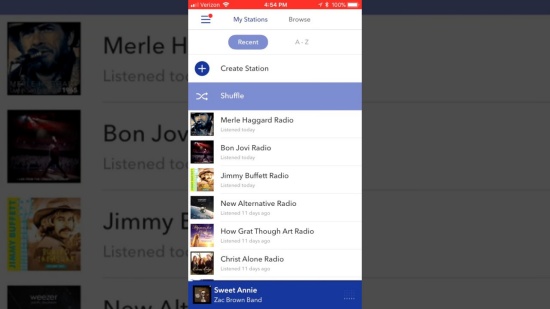
To turn on Shuffle Stations on Pandora, navigate to My Collection and select "Shuffle" at the top of your station list. If you operate on mobile, tap the intersecting arrows icon on the "Now Playing" screen. It is even easier to turn off shuffle: choose and play an individual station, or toggle the shuffle icon off. Follow the steps below to shuffle your Pandora!
Turn Stations Shuffle On/Off On Mobile
01Open Pandora on your phone.
02Select My Collection at the bottom.
03To turn on, tap Shuffle at the top of your station list.
04To turn off, choose the name of a specific station to stop shuffling and play on that station.
Turn Stations Shuffle On/Off On Desktop & Web
01Open a modern browser (Chrome, Firefox, Edge, etc.).
02Visit the Pandora website and sign in with your email and password.
03Click My Collection, and select "Stations" from the dropdown menu to see your station list.
04To turn on, choose Shuffle above your station list.
05To turn off, pick an individual station to play, or toggle Shuffle off on the "Now Playing" bar.
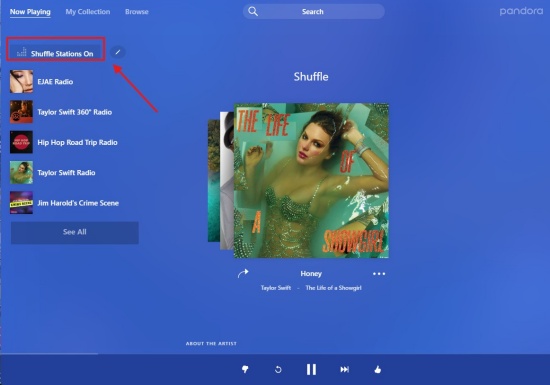
- On mobile: Select the pencil icon next to "Shuffle" to pick which stations to include.
- On desktop & web: Hover your cursor over the "Shuffle On" icon, and choose the Pencil icon to select or deselect specific stations.
Part 3. How to Shuffle Playlists or Albums on Pandora
Shuffling on Pandora works differently. Stations shuffle is available to Free, Plus, and Premium users. But if you want to shuffle individual playlists or albums, you need to have a Pandora Premium subscription.
Turn Playlists Shuffle On/Off On Mobile
01After signing in to Pandora on your mobile phone, tap My Collection at the bottom of the screen.
02Choose the playlist or album that you want to play.
03To start shuffle, tap Shuffle (the intersecting arrows) below the album art.
04To turn off the playlist shuffle, disable Shuffle, and the icon will be grayed out.
Turn Paylists Shuffle On/Off On Desktop & Web
01Open the web browser and navigate to Pandora.
02Sign in and go to the specific playlist or album.
03Click Shuffle (intersecting arrows) on the album art or next to the play button.
04Turn off the Shuffle icon to stop playlist shuffling.
Part 4. How to Fix Pandora Shuffle Playing the Same Songs
If you think the shuffle is repetitive, it is probably because Pandora's algorithm sometimes prioritizes popular tracks or heavily "thumbed" tracks. This results in a loop of familiar music rather than a true random shuffle. You can try the following tips:
Create a "Custom Shuffle" Mix: Navigate to your station list and select the shuffle icon. Select a specific mix of 3-5 diverse stations instead of all stations.
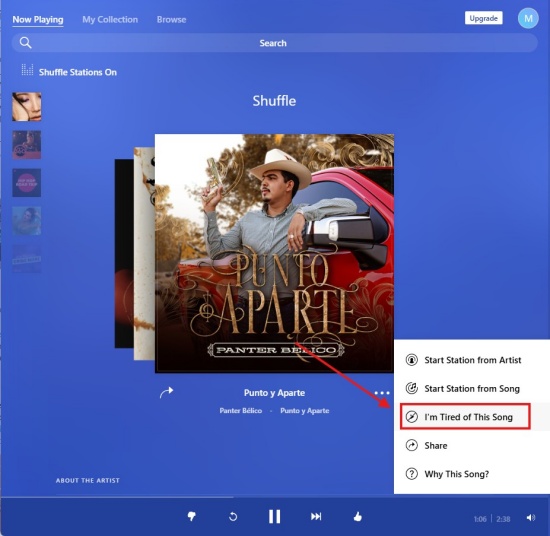
Select "I'm Tired of This Track": If you are on the Pandora website, click the ellipsis next to a song and select "I'm tired of this track" to remove it from all stations for a month.
Remove "Thumbs Up" on Unwanted Songs: If you are now sick of a song you liked before, remove the thumbs up to let it disappear for a while.
Limit Similar Stations: 10 different metal stations may play similar songs. You need to create a "custom shuffle" to include 3 to 4 distinct genres.
Refresh the App: You can log out and then log in. Clearing the app cache or reinstalling the app also works.
Part 5. Best Alternative Way to Shuffle Play Pandora
Shuffling stations on Pandora can be pretty easy. All-tier users can shuffle the stations, but a subscription is required to shuffle the playlist you've curated. Actually, there is a stable, less costly, and easy-to-operate way to shuffle Pandora: ViWizard Pandora Music Downloader. It's a software that supports Mac and Windows. You can use it to download your favorite Pandora albums, playlists, tracks, or stations for offline listening.
This powerful tool downloads Pandora music at 65x speed while keeping the original audio quality and metadata. More than that, there are multiple output formats to choose from: MP3, WAV, AIFF, FLAC, M4A, M4B, etc. Once downloaded, you can locate them in the folder on your computer and shuffle the music on any media player, such as VLC Media Player. Let ViWizard take you to shuffle your Pandora music as you please.

Download songs, playlists, albums, and your whole music library from 10 major streaming platforms, including Pandora Music, to MP3, FLAC, WAV, AIFF, M4A, or M4B with original quality and ID3 tags for permanent offline listening.
How to Use ViWizard Pandora Downloader
 Step 1: Customize Output Format and Audio Quality
After installing ViWizard Pandora Music Downloader, launch the app and select the menu icon in the top right corner. Click Preferences > Conversion, and select your favorite output format, such as MP3, WAV, AIFF, or FLAC. Set audio quality details (64-256 kbps). Click Save to keep the settings.
 Step 2: Sign in to Pandora in ViWizard
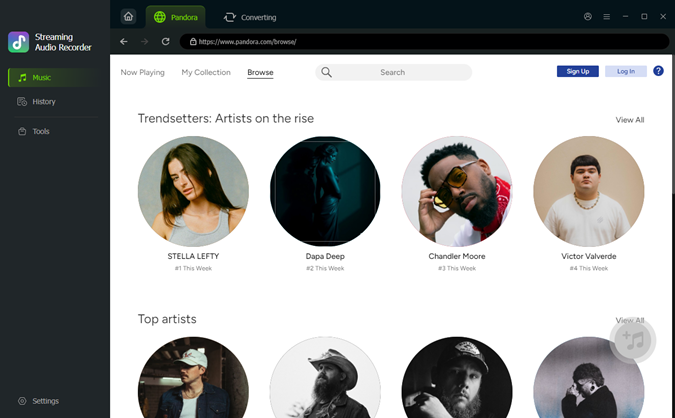
Go back to the main screen. Select Pandora from the given streaming platforms (there are 9 other streaming services, including YouTube Music, SoundCloud). Then, the built-in Pandora web player appears. You can sign in to it securely.
 Step 3: Choose the Tracks You Want on Pandora
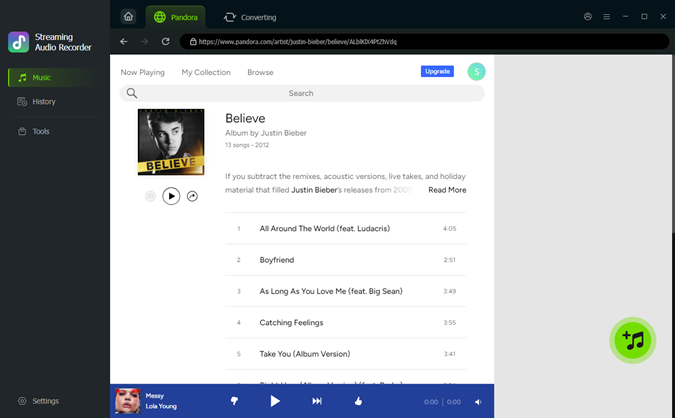
Browse your albums, playlists, and your liked music on the built-in website. The moment you find the tracks you like, open the music page and click the + icon (Add to list). ViWizard then scans and loads all available songs to the conversion queue.
 Step 4: Convert and Save Pandora Downloads on PC
Ensure all your desired songs are in the conversion page, and then click Convert. ViWizard starts downloading Pandora at high speed, and keeps the original quality. After converting, open the converted page. Click the folder icon to access the MP3s.
How to Shuffle Pandora Music Files on VLC Media Player
01Open your downloaded playlist, drag all desired files into the VLC playlist window.
02Click on the first track to begin.
03Click the Shuffle icon (intersecting arrows) at the bottom of the play bar.
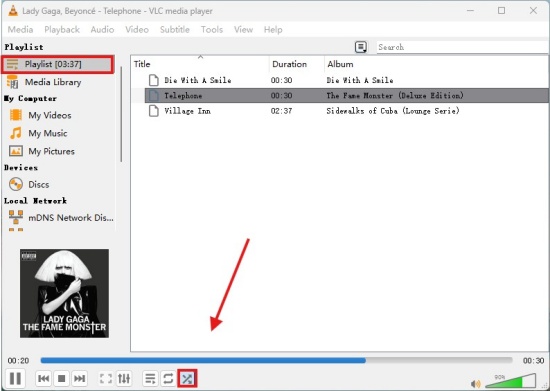
04You can simply press "R" on your keyboard to toggle on the Random icon.
05To disable the shuffle feature, click the Shuffle icon again or press "R".
Conclusion
To be brief, we can easily shuffle stations—navigate to My Collection and start shuffling your radios. It offers you a mix of different genres for the best listening experience. If you find the platform plays similar songs, remove some of them and add three or two distinct stations. Want to shuffle your favorite albums? You can consider a Pandora premium subscription, or use the best alternative: ViWizard Pandora Music Downloader. Hope this post can help you shuffle your Pandora, enjoy your music now!
You May Be Interested




Matt Smith, a digital entertainment industry enthusiast at ViWizard, is dedicated to providing insightful commentary and solutions for music and media-related topics, including industry trends, analysis, and recommendations.

Leave a Comment (0)