


Have you met this? A few seconds into Android Auto, even with other apps playing music, Pandora just runs in and takes over. You feel frustrated as "Start Music Automatically" in the car settings has never been on. In the Pandor app, it's the same deal; the "Launch from Car" feature is and always has been turned off. However, it can be troublesome to delete Pandora, so what can you do? Don't worry.
In this post, we show you 8 ways to stop Pandora from automatically playing. Check your device and follow us now!

Part 1. Why Is Pandora Always Playing Automatically?
Before stopping Pandora from automatically playing on our devices, we need to figure out what makes it. There are some reasons Pandora plays automatically:
Aggressive Audio Focus: Pandora often signals your Android to prioritize its music, which forces other apps to stop when Bluetooth pairs.
"Launch from Car" Feature: This is an in-app setting. It triggers playback upon detecting a car's Bluetooth pairs.
AutoPlay Feature: Pandora will play recommended music automatically after a playlist or album ends.
Active Background Process: Pandora runs in the background unless you close it completely. Otherwise, it plays automatically when a device connection appears.
Part 2. How to Stop Pandora from Automatically Playing
One thing to note is that Pandora plays music automatically because the app resumes its last listening session upon detecting a Bluetooth or Android Auto connection. Here are the solutions to stop it, ranging from simple settings changes to aggressive app restrictions.
Solution 1: Disable "Launch from Car" (Android & iOS)
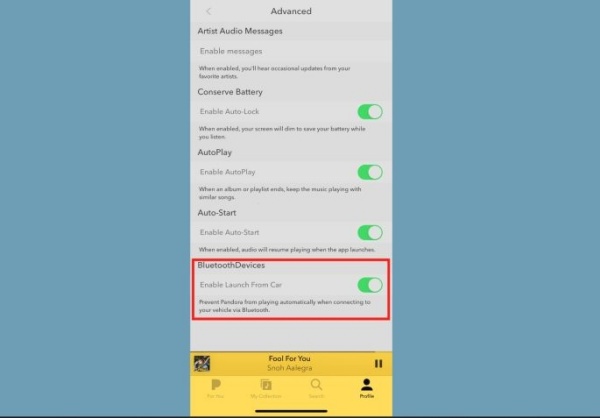
Disabling "Launch from Car" is the most effective way. We know that the internal Pandora setting can tell the app to start when it sees a car. This behavior disables this setting.
01Open the Pandora app on your Android or iOS.
02Tap Profile at the bottom right.
03Select the Settings gear at the top right.
04Tap Advanced and find the Bluetooth for devices section.
05Uncheck or toggle off the "Launch from Car" setting.
Solution 2: Force Close the App (Android & iOS)
You can force-stop the Pandora app on your phone. It completely shuts down the music-playing process, so it cannot resume in the background. This is a highly effective way, albeit temporary.
01Go to your phone's settings.
02Choose Apps or Applications (or "App Management")
03Scroll down to choose Pandora in the list.
04Select Force Stop.
05Ignore the warning that says "This may cause problems" and tap OK.
Solution 3: Disable Autoplay (Premium, Android, and Bluetooth)
You can stop Pandora from automatically playing by disabling internal app settings, specifically the "Auto-Launch" or "Bluetooth" features. The in-app playlist continuation feature is specifically geared toward Plus and Premium, but the "Launch from Car" setting applies to all.
Disable Premium / Plus Subscribers' In-App "Auto-Start"
01Open the Pandora app on your phone
02Select Profile > Settings.
03Choose Advanced and toggle "Enable Auto-Start" off.
Disable Android Auto / Bluetooth Auto-Play
01Navigate to your phone's Settings.
02Choose Connected Devices > Connection Preferences > Android Auto.
03Switch "Start music automatically" to OFF.
Solution 4: Restrict Background Usage (Android Only)
This method can stop Pandora from aggressively hijacking audio focus when connecting to your car Bluetooth or starting unexpectedly. Besides, it reduces battery drain from Pandora running "silent" sessions in the background. However, there is a drawback. If you restrict background usage, you may prevent the app from downloading content, updating notifications, or playing continuously with the screen off. But this is a highly effective way.
01Navigate to your phone's Settings.
02Scroll to find Apps or Apps & Notifications.
03Select Pandora.
04Choose Battery or App Battery Usage.
05Choose Restricted or turn off Allow background usage / Allow background activity.
Solution 5: Remove from Android Auto Launcher (Android & Android Auto)
This method works by preventing the app from showing up in the Android Auto interface. It is an effective and easy way to stop Pandora from hijacking your car's audio upon connecting.
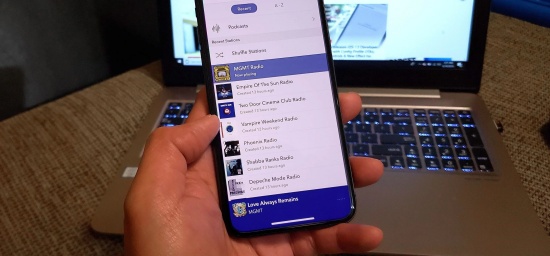
01Navigate to Settings on your Android phone.
02Find "Android Auto" and tap it.
03Scroll to find General.
04Select Customize launcher and locate Pandora in the list.
05Uncheck Pandora to delete it from the Android Auto app screen.
Solution 6: Reinstall Pandora (Android & iOS)
Reinstalling Pandora is a common troubleshooting step to fix auto-play issues. This can clear out potentially corrupted temporary data, reset app permissions, and take the app to its latest, less buggy versions. However, it might only solve the issue temporarily if the root cause is Pandora's aggressive "audio focus" request or the car's Bluetooth settings. That means you can take this solution after trying Solutions 1 & 3. Are you ready? Let's get started.
On Android
01Go to Settings > Apps > Pandora and select Uninstall.
02In Settings, choose Storage and tap Clear Cache and Clear Data before uninstalling. (This is an optional but recommended step.)
03Restart the phone to clear the phone's temporary memory.
04Open the Google Play Store on your phone. Search for and download Pandora.
On iOS
01Locate Pandora on your home screen.
02Long-press the app and tap Remove App, and then choose Delete App to confirm.
03Restart your iPhone to clear cached data.
04Open your App Store, find Pandora, and reinstall it.
Solution 7: Disable Background Refresh (iOS Only)
Disabling background refresh on iOS is highly useful. This can prevent Pandora from updating content and starting itself when you are not actively using it. It effectively stops Pandora from "stealing" audio focus when you connect to your car's Bluetooth or Bluetooth headphones. It also saves battery and cellular data.
01Open Settings on your iPhone.
02Tap General and select Background App Refresh.
03Scroll down to locate Pandora in the list of apps.
04Toggle Pandora to OFF.
Solution 8: Use Deep Sleeping Apps (Samsung/Other Android)
Are your Samsung devices running One UI? Or do your Androids have "Restricted" battery settings (Android 12+) or App Info battery management? If the answer is "YES", then you can use Deep sleeping apps to stop Pandora from automatically playing. It works well, especially after connecting Bluetooth, restarting your phone, or waking it up. Pandora feels like "dead" in the background, which saves battery, data, and system resources.
However, if you use the solution, you cannot receive Pandora notifications or play Pandora in the background, as the music stops when you close the app.
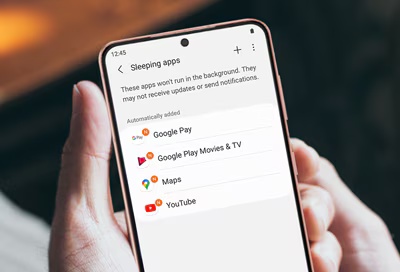
01Open Settings on your Samsung or Android phone.
02Tap Battery and device care.
03Select battery > Background and usage limits.
04Select Deep sleeping apps.
05Go to the + (plus) sign in the top-right corner.
06Scroll down to find Pandora. Tap Add.
Part 3. How to Play Pandora Music in Your Car Without Subscriptions
Simply put, you can easily stop Pandora from automatically playing. But if you are seeking a stable, less costly, and easy-to-operate way to play Pandora in your car, you can export your Pandora library to your car. How so? There is DRM protection, so you cannot play Pandora music even if you can download it from the app. Don't worry, a professional Pandora Music Downloader can wipe out your confusion.
ViWizard Pandora Music Downloader is a software that supports Mac and Windows. You can use it to download your favorite Pandora albums, playlists, tracks, or stations for personal use. Each of your favorite tracks will be downloaded at 65x speed while keeping the original audio quality and metadata. Not only can you get MP3s from ViWizard for playing in the car, but you can also choose formats like WAV, AIFF, FLAC, M4A, M4B, and more. Upon downloading, you can copy the files to your car's USB drive folder. Then, you can drive from place to place, with Pandora Music as your company.

Download songs, playlists, albums, and your whole music library from 10 major streaming platforms, including Pandora Music, to MP3, FLAC, WAV, AIFF, M4A, or M4B with original quality and ID3 tags for permanent offline listening.
How to Use ViWizard Pandora Downloader and Play Pandora in the Car
 Step 1: Configure Output Format and Audio Quality
After installing ViWizard Pandora Music Downloader, log in and select the menu icon in the top right corner. Go to Preferences > Conversion, and choose your favorite format, such as MP3, WAV, AIFF, or FLAC. Set audio quality details (64-256 kbps). Select Save to confirm the settings.
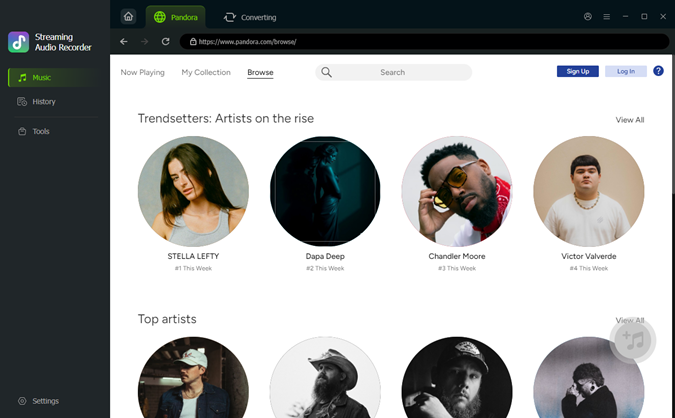 Step 2: Log in to Pandora in ViWizard
Go back to the main screen. Choose Pandora from the given streaming platforms. Then, the built-in Pandora web player appears. You can sign in to it securely.
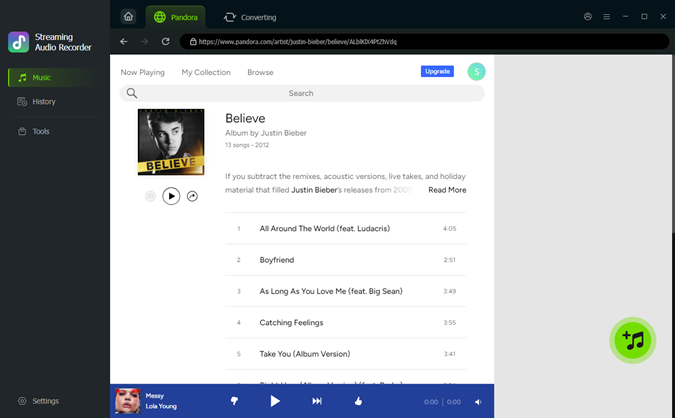 Step 3: Select Tracks You Want on Pandora
Browse your albums, playlists, and your liked music on the built-in website. When you find the tracks you want, open the music page and click the + icon (Add to list). ViWizard then scans and loads all available songs to the download queue.
 Step 4: Convert and Save Pandora Downloads on PC
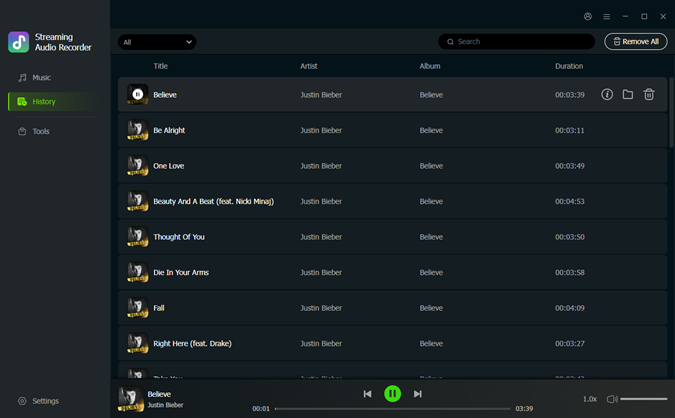
Ensure all your desired songs are in the conversion page, and then click Convert. ViWizard starts downloading Pandora at a fast speed, and keeps the original quality. After converting, open the history page. Click the folder icon to access the MP3s.
 Step 5: Play Pandora Music Files in Your Car
Connect a USB thumb drive to your computer and format it to FAT32. Copy your Downloaded MP3 files and paste them into the USB drive folder. Plug the drive into the car's USB data port. Choose "USB" as the source on the car stereo, and play the music you prefer.
Conclusion
If your Pandora is playing automatically, don't worry—you can regain control. Whether you are seeking how to stop Pandora from automatically playing on Android Auto, on Android, or on iPhone, there's always a solution for you.
You can first disable Launch from car, turn off autoplay, restrict background usage, or use Deep sleeping apps. For iOS users, you may turn off background refresh. Android users can easily adjust Android Auto settings or app permissions.
If you want to enjoy Pandora Music in your car without subscriptions, tools like ViWIzrd Pandora Music Downloader let you download tracks and play them anytime. Take the steps above to take over your Pandora!
You May Be Interested

8 Ways to Get Pandora Plus/Premium Free Trial (2026 Guide)

How to Listen to Pandora Music in Your Tesla Car

3 Ways to Download Music from Pandora to iPhone (Step-by-Step)

How to Connect Pandora to Car in 4 Ways [Step-by-Step]

How to Allow Pandora to Play in Background on Android, iPhone & Web
How to Shuffle Stations and Playlists on Pandora


Matt Smith, a digital entertainment industry enthusiast at ViWizard, is dedicated to providing insightful commentary and solutions for music and media-related topics, including industry trends, analysis, and recommendations.

Leave a Comment (0)