


Tesla now supports the Spotify free version. ... What I do like about Pandora is the ability to have multiple stations for different music genres. When is Tesla going to have Pandora as an app?
–Tesla Motors Club
When you have a long driving time, Pandora must be a go-to choice as it provides millions of songs and podcasts for users to stream. However, it's not easy for Tesla drivers to play Pandora on Tesla's display, as it lacks the native support for Pandora. Don't worry, we provide 4 workaround ways to enable you to play Pandora on your Tesla successfully. With the step-by-step guidance, you can learn how to employ Bluetooth, the built-in Tesla browser, third-party adapters, or other compatible music streaming services to obtain Pandora playback on Tesla.
Part 1. Does Tesla Support Pandora Natively?
Unfortunately, Tesla does not provide native support for Pandora in any of its vehicles. Unlike Spotify, Tidal, or Apple Music, Pandora does not appear in Tesla's built-in infotainment apps.
Why Pandora Is Not Available on Tesla?
- Platform Differences: Tesla's system runs on its own Linux-based software, not Android Automotive OS (AAOS), which is common in other cars and supports Pandora.
- No Dedicated App: Pandora hasn't developed a native app specifically for Tesla's in-car interface, unlike services such as Spotify, Apple Music, Tidal, and YouTube Music.
The limitations of Pandora on Tesla raise users' complaints, as many users also provide feedback to both the Pandora and Tesla communities, wishing they could be partners in the near future. To make you quickly get the ways to play Pandora on Tesla, you can move on to the following.
Part 2. Play Pandora Music on Tesla via Bluetooth
This is the most reliable and widely used method to listen to Pandora in a Tesla. You need to ensure the Pandora app is installed on your smartphone and your Tesla vehicle has Bluetooth enabled. Tesla models (S. 3, X, Y, Cybertruck) all support Bluetooth connection for hands-free listening and this method works with both free and paid Pandora accounts.
How to Pair Your Phone with Tesla
Step 1 Ensure your Tesla touchscreen is on and tap Controls > Bluetooth, and then the Bluetooth on Tesla is automatically activated.
Step 2 And then, open your phone and turn on Bluetooth.
Step 3 Wait for your phone to be listed of Tesla display and touch Connect.
Step 4 Your phone will appear number that is same to Tesla touchscreen. Confirm the Bluetooth connection on your phone.
Step 5 Once paired, you can open Pandora app on your phone and select the station or playlist you want to play.
Step 6 Pandora will stream through your Tesla's audio output, and you can enjoy uninterrupted music playback while driving.

Part 3. Play Pandora Music on Tesla via Browser
Tesla has a built-in web browser that you can access Pandora's website without Bluetooth connection. However, the playback will pause when the car is in motion for the security concern. Moreover, Pandora website's playback interface is not optimized for Tesla screen controls. This method is less convenient but suitable for short stops or parked listening.
How to Stream Pandora Website on Tesla Browser
Step 1 Ensure your Tesla is in Park and your Pandora Premium isn't expired.
Step 2 Tap the Tesla web browser icon on your touchscreen to open Tesla browser.
Step 3 Type pandora.com and press Enter to navigate to Pandora official web player.
Step 4 Sign in with your Pandora Premium account and then you can select your preferred stations or music to play.

Part 4. Screen Mirroring Pandora Music on Tesla via CarPlay/Android Auto Adapters
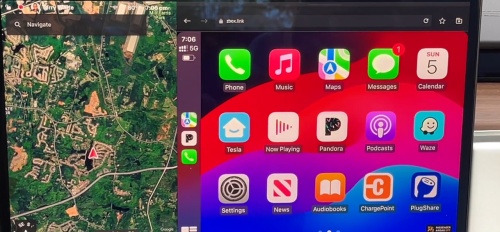
Differing to other car system, Tesla is not officially support to Apple CarPlay or Android Auto. But there are many companies launches third-party adapters that allow you to screen mirroring your phone to Tesla touchscreen with the feature of CarPlay or Android Auto. It's notable that the screen mirroring Pandora playing may not stable and will freeze or lay when you driving.
How to Screen Mirroring Pandora Music on Tesla
Step 1 Purchase a Tesla-compatible CarPlay/Android Auto adapter, like Carlinkit T2C or similar.
Step 2 Plug the adapter into your Tesla's USB port to finish the connect.
Step 3 Open your phone's Bluetooth or USB cable to connect phone to the adapter.
Step 4 And then navigate to Tesla's web browser and navigate to the adapter's interface to access CarPlay or Android Auto.
Step 5 You will see Pandora icon on your phone appears on Tesla screen, and you can fully control the Pandora playback on Tesla with voice commands with Android Auto or CarPlay.
Part 5. Play Pandora Music on Tesla via Other Music Streaming Services
If you seek more stable and less-cost way to play Pandora on Tesla, you can consider to export your Pandora library to other music streaming services which has native application on Tesla system. For example, Spotify, Apple Music, Amazon Music, YouTube Music, Tidal, and TuneIn. However, you can't transfer the Pandora downloads to other apps or device for the DRM-protection. Don't worry, a professional Pandora Music Downloader can solve it easily.
ViWizard Pandora Music Downloader is designed to help Pandora users download their favorite Pandora songs, playlist, albums, or stations for personal offline listening. Each song will keep the original audio quality (up to Pandora Premium 192kbps) and ID3 tags. Despite the MP3 format, ViWizard provides more downloading formats for you to choose form AIFF, FLAC, WAV, M4A, and M4B, allowing you to convert the Pandora downloads into any other devices.

Download songs, playlists, albums, and your whole music library from 10 major streaming platforms, including Pandora, to MP3, FLAC, WAV, AIFF, M4A, or M4B with original quality and ID3 tags for permanent offline listening.
Step 1 Launch ViWizard and Configure MP3 Output
Open ViWizard Pandora Music Downloader on your computer. Click the Menu > Conversion > Output Format option, select MP3, and choose the desired audio quality (64–256 kbps). Click OK to confirm your settings.

Step 2 Log in to Pandora
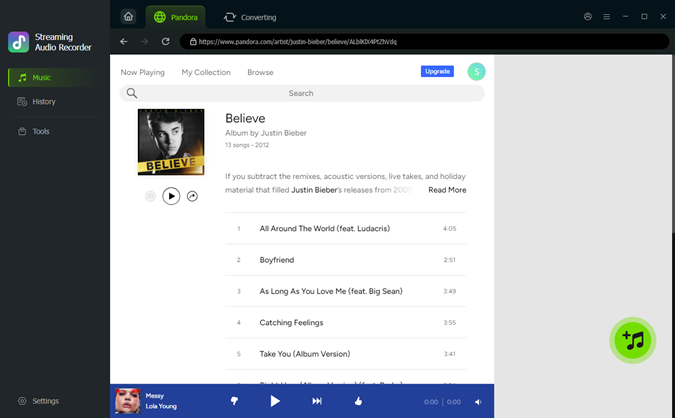
Click the Pandora icon in the main interface and sign in with your account. The built-in web player will load your stations, playlists, and albums securely inside ViWizard.

Step 3 Add Tracks and Convert
Browse Pandora for the songs, playlists, or stations you want to download. Click Add to List to queue them, then click Convert to start recording and converting the music to MP3 automatically.
Step 4 Find and Enjoy Your Downloads
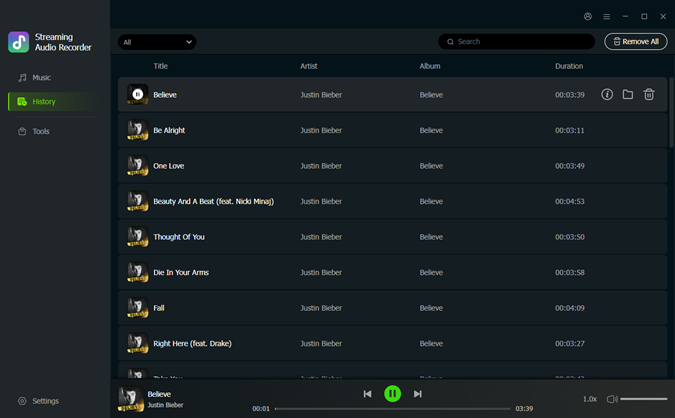
Once the conversion is complete, open the History section. Click the folder icon to access your downloaded MP3 files. You can now listen offline, transfer the files to other devices, or organize them in your personal music library.
Step 5 Transfer Pandora Downloads to Spotify
Launch the Spotify desktop app on your Windows PC or Mac.
Click your profile icon in the top-right corner and select Settings from the dropdown. Alternatively, on Windows, you can go to the app menu, click Edit, then choose Preferences.
Scroll down to the Library section and toggle on Show Local Files. This will reveal extra options under Show songs from.
Click Add a Source. A file browser will open. Navigate to the folder where your music is stored—such as Downloads, Music, or iTunes—then click OK (Windows) or Open (Mac).

After selecting a folder, it will appear in the list under Show songs from. Make sure each folder you want to include is toggled on so Spotify can access all your local tracks.
Spotify will synchronize the local files in multi platforms, so that you can play Pandora downloads on Tesla with Spotify.
Part 6. Common Fixes to Pandora Music Not Playing on Tesla
Playing Pandora on Tesla with Bluetooth or browser playback, you may encounter some issues that disturb you to enjoy the smoothly playback. Here are the most common problems and solutions:
-

Bluetooth Playback Not Working
Ensure Tesla audio source is set to Bluetooth. Restart Pandora on your phone and then restart your phone. If it still not works, turn off Bluetooth for 30 seconds and turn on again. Try to reconnect the Bluetooth device in Tesla settings.
-
No Sound
Check Tesla volume settings. Confirm phone is connected to the right Tesla device. Restart the Tesla touchscreen if necessary.
-
Browser Playback Stops
Ensure your Tesla is in Park. Refresh your Tesla touchscreen and close other browser tab to improve the performance, if necessary, you can log out and log back in with your Pandora Premium account.
-
Lag or Freezing in Screen Mirroring
Disconnect and reconnect the adapter to your Tesla and phone. Ensure both Tesla software and adapter firmware are updated. Consider reducing phone background apps to free up system resources.
Conclusion
While Pandora on Tesla is not available as a native app, you can still enjoy your favorite stations using these methods: Bluetooth, Tesla Browser, Screen mirroring via adapters, and stream Pandora downloads via other streaming services. By following these step-by-step solutions, you can enjoy Pandora music in your Tesla without frustration, even if native support isn't yet available.
You May Be Interested


Matt Smith, a digital entertainment industry enthusiast at ViWizard, is dedicated to providing insightful commentary and solutions for music and media-related topics, including industry trends, analysis, and recommendations.

Leave a Comment (0)