


Discord has become more than just a gaming chat platform. Today, people use it for online meetings, podcasts, study groups, gaming sessions, and community discussions through text, voice, and video channels. While Discord makes it easy to communicate with others, it does not provide a built-in feature to record voice calls or save audio from voice channels.
So, how can you record Discord audio? You can use different tools depending on your device and recording needs. Discord recording bots, screen recorders, and desktop audio capture software can help you save voice chats for personal backups, editing, or content creation.
In this guide, we will introduce 6 easy methods to record Discord audio on Windows, Mac, Android, and iPhone, including Craig Bot, screen recording, ViWizard Audio Capture, Audacity, OBS, and Xbox Game Bar. Let's dive in.

Part 1. Can You Record Audio on Discord?
Yes, you can record audio on Discord, but Discord itself does not offer a built-in tool for recording voice calls or voice channels. To capture Discord audio, you need to use a third-party solution; the right method depends on your needs:
For quick recordings on mobile: You can use a Discord bot like Craig Bot or your phone's built-in screen recording feature.
For higher-quality recordings on Windows or Mac: You can use dedicated audio recorders like ViWizard Audio Capture, Audacity, or OBS Studio.
For gaming and streaming content: Tools like OBS Studio and Xbox Game Bar can record Discord audio together with gameplay and microphone input.
Before recording any Discord conversation, make sure you have permission from other participants. This is especially important for private calls, interviews, or community discussions.
Part 2. How to Record Discord Audio on Android and iPhone
Recording Discord audio on a mobile device can be challenging because Discord does not provide a built-in audio recording option. However, you can still capture Discord voice chats on Android and iPhone using a Discord recording bot or your phone's screen recording feature.
A Discord bot like Craig is useful for recording voice channels with multiple participants, while screen recording is a quick option for saving conversations directly from your phone. Here we show you what they are and how to use them.
2.1 Record Discord Audio with Craig Bot
When it comes to recording Discord calls on mobile, we need to use a professional tool called Craig Bot. This multi-track voice channel recording bot captures Discord audio, providing you with separate audio files for each speaker. This allows you to edit these files independently. Additionally, it offers valuable features for podcasting.
Before we dive into the simple operation, one thing should be mentioned—you need to invite your mobile phone from the Craig website on your computer.
01Log in to your Discord account and create a server. Next, go to Craig's official website.
02Click on "Invite Craig to your Discord server" and select the server where you want to record. Then, click "Authorize" to proceed.

03Type "/join" in the chat box and press "Send." Then, select the channel you wish to record.
04To pause or stop your recording, enter "/stop" in the chat box or click "Stop recording." After that, you can choose "Download recordings" to save them.
2.2 Record Discord Audio using Screen Recording
Another simple way to record Discord audio on Android and iPhone is to use the built-in screen recording feature. This method is convenient because it does not require installing additional apps.
On Android
01Open the Discord app and join a voice channel or call.
02Swipe down to open the Quick Settings panel.
03Tap Screen Recorder.
04Select the audio source, such as device audio or microphone audio.
05Start recording and return to Discord.
06Stop the recording when finished and save the video file.
On iPhone
01Open Settings > Control Center and add Screen Recording if needed.
02Open Discord and join a voice call or voice channel.
03Swipe down from the top-right corner to open Control Center.
04Press and hold the Screen Recording button.
05Turn on the microphone option if you want to capture your voice.
06Tap Start Recording and stop it when finished.

Check this post to effortlessly record audio from any website to capture streaming content, lectures, podcasts, and more with unparalleled sound quality.
Part 3. How to Record Discord Audio on Windows and Mac
Recording Discord audio on a computer is usually easier than on mobile because desktop tools provide more control over audio sources, recording quality, and output formats. Whether you want to save a Discord call, record a gaming session, or capture audio for a podcast, you can choose different recording programs to suit your demand. Below are some popular ways to record Discord audio on Windows and Mac.
3.1 Record Discord Audio with ViWizard Audio Capture
ViWizard Audio Capture is available on Windows and Mac. It helps you record audio from various sources like YouTube or Instagram and the system sound on any website. With ViWizard, you can personalize the output formats; there are many to choose from: WAV, MP3, M4A, and more.
After recording, you can even edit the captured audio while preserving the original audio quality. Just use it to record Discord voice chats, interviews, meetings, or gaming conversations and play them as you please now.

Key Features of ViWizard Audio Capture
Free Trial Free Trial* Security verified. 5, 481,347 people have downloaded it.
- Record streaming audio and system audio from different sources
- Capture music, podcasts, and online audio content
- Export recorded audio in 17 formats for different devices and platforms
- Record audio automatically without saving tracks individually
- Organize captured audio files with customizable output options
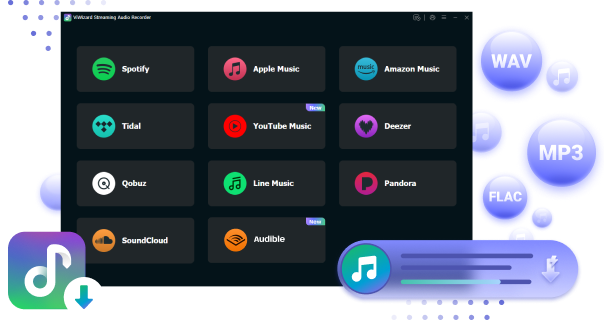
 Step 1: Install ViWizard Audio Capture and Discord
Install and launch ViWizard Audio Capture on your computer. Click the bar at the top-left corner to select Discord. If you can't find it from the list, click on the plus icon and select it from the File Explorer.
 Step 2: Configure Output Parameters
In ViWizard Audio Capture, click the "Format" button at the bottom-right corner to customize your Discord audio settings. You can modify the format, channel, codec, sample rate, and bit rate based on your preferences. Once you've made your choices, click "OK" to save the settings.
 Step 3: Start Capturing Audio from Discord
Go to Discord, locate the video or the calls you want to record, and play it. As it plays, ViWizard Audio Capture will automatically start recording the audio. Once it finishes, click the "Stop" button to end the recording. The captured audio will then be displayed in the Capture list.
 Step 4: Preview and Edit the Recorded Discord Audio
In the Capture list, double-click the recorded audio to preview it. Trim the track to your preferred length or edit the ID3 tags to add metadata. Once you're done editing, click "Apply." Go back to the Capture list to check the edited audio. Click the "Save" button to store it on your computer. The audio will be saved in both the History window and the selected folder.
3.2 Record Discord Audio with Audacity
Audacity is a free, open-source audio editing and recording software. It is available on multiple platforms, including Windows, macOS, and Linux. To record Discord audio with Audacity, set the audio host to Windows WASAPI, select your active speakers or headphones with the loopback option as the recording device, open your Discord call, and click Record to start capturing the audio.
01Launch Audacity and navigate to the toolbar, where you should click on "Edit."
02In the drop-down list, select "Preferences." Then locate and click on "Audio Settings" in the left-hand navigation pane.

03Select an option from the "Host" dropdown menu, such as "Windows WASAPI."

04Under the "Playback" section, choose the device used to listen to the audio, such as Speaker and Headphone.
05Under the "Recording" section, select the loopback input option to capture the audio output from the playback device.
06Tap on OK to save the settings.

07Press the red "Record" button in the toolbar to begin recording. Make sure the application from which you want to capture audio is open.
08When you're finished recording, stop the audio playback in that application, and remember to click the "Stop" button in Audacity as well.

09After finishing the recording, you are free to make edits to it, such as trimming. Click on "File" in the top toolbar and then "Export" > "Export Audio…" to open the Export Audio window.

10Select the audio format as you like and choose the location you are going to save the audio file. Click "Save" to export the recording.

3.3 Record Discord Audio with OBS
OBS Studio (Open Broadcaster Software Studio) is a free, open-source software for video recording and live streaming. It is available on Windows, macOS, and Linux. To record Discord audio without capturing other computer sounds, use OBS Studio's application audio capture feature. Before starting, make sure both Discord and OBS Studio are open on your computer. This allows OBS to capture Discord audio separately instead of recording all system sounds.
01Download and launch the OBS software on your computer. If you're using a Mac, you'll need to download additional components.
02Click the + icon in the Sources panel to open a dropdown menu.
03Select "Audio Output Capture" and choose to create it.

04Access the properties menu, select your output device, and then click OK.

05In the controls section, click to Start Recording. This will enable you to capture audio from Discord.

06You can go to File > Show Recordings to locate all the recordings you have saved.

3.4 Record Discord Audio with Xbox Game Bar
If you are unwilling to download any software, a built-in recording tool called Xbox Game Bar for Windows 10 and later is a good choice. To record Discord audio with Xbox Game Bar, press Win + G to open the overlay, go to Settings > Capturing, and choose All or Game + mic + apps under the audio recording options. Then press Win + Alt + R to start recording and press it again to stop when you finish.
01Launch your Xbox Game Bar and press the Win + G on your keyboard.
02Once the widget menu pops up on your computer screen, select the capture.

03If you don't want your voices is recorded by computer, make sure that the microphone icon is crossed though by a line, which means your mic is off.

04Click the circle icon to start capturing and click the square icon to end the capturing. You can also control your recording by pressing Win + Alt + R on your keyboard.

05You should receive a notification on your screen indicating that the recording has been saved. Click on it to watch the video file again. Alternatively, you can select "See my captures" from the "Capture" window to view and share your files. These recordings are saved in MP4 format.
Part 4. What Is the Best Way to Record Discord Audio?
The best way to record Discord audio depends on your device, recording purpose, and the level of control you need. Each method has its own advantages, from simple mobile recording to professional desktop audio capture. Here is a quick comparison of the most common Discord audio recording methods:
| Tool / Method | Best For | Platform | Key Features | Cons | Ease of Use |
|---|---|---|---|---|---|
| ViWizard Audio Capture | High-quality Discord audio recording | Windows/Mac | Recording, editing, formats (MP3, WAV, FLAC, AIFF, M4A, M4B) | Requires installation | ⭐⭐⭐⭐⭐ |
| Craig Bot | Discord voice channel recording | Discord | Records multiple users, supports voice channel recording | Requires server permissions and bot setup | ⭐⭐⭐⭐ |
| Screen Recording | Quick mobile recording | Android/iPhone | Built-in screen and audio capture | Limited audio control, may save as video | ⭐⭐⭐⭐⭐ |
| Audacity | Free audio recording and editing | Windows/Mac/Linux | Records system audio and microphone, includes editing tools | Manual setup required | ⭐⭐⭐ |
| OBS Studio | Gaming and streaming | Windows/Mac | Captures Discord audio, gameplay, webcam, and mic | More complex settings | ⭐⭐⭐ |
| Xbox Game Bar | Quick Windows recording | Windows | Captures app audio and microphone | Limited recording and editing options | ⭐⭐⭐⭐⭐ |
Part 5. FAQs about Recording Discord Audio
Is it legal to record Discord audio?
Yes, you can record Discord audio, but you should inform all participants before recording. Recording laws vary by location, and some areas require consent from everyone involved in the conversation. Always check the applicable rules and get permission when necessary.
How to record Discord audio on computer?
As Discord does not have any built-in recording feature, there are various tools for you to choose, such as OBS, Audacity and Xbox Game Bar. However, if you want to save the audio in high sound quality, you'd better use ViWizard Audio Capture.
Can I edit my Discord recordings?
Sure. You can use Audacity to make edition to your recordings. But for the newbies, its professional editing feature may be a little bit hard to get started with. As for a user-friendly built-in editing function, ViWizard is better.
Conclusion
Recording Discord audio is easier than you imagine. Whether you want to save a memorable chat, capture a gaming session, or record a podcast, you can choose a method that fits your needs.
Use Craig Bot or screen recording for quick captures, or choose ViWizard Audio Capture for easier recording, editing, and file management. We hope this guide helps you record your Discord audio successfully and enjoy your saved conversations whenever you like.
You May Be Interested


From new releases to old favorites, Matt Smith is always on the lookout for good music. He follows the latest in digital entertainment and shares songs and media he thinks are worth checking out.

Leave a Comment (0)