


Your Spotify library includes your favorite playlists, saved albums, followed artists, and more. Whether you want to protect your collection, switch to another music service, or keep copies of your favorite tracks, backing it up helps preserve your music and library information.
However, Spotify doesn't offer a single way to back up your entire library, including both account data and actual music files. You can export your Spotify account data to preserve playlist and library information, use ViWizard Spotify Music Converter to save supported songs and playlists as local audio files, or use Spotify's Offline Backup feature to keep recently played music available offline.
In this guide, we'll cover these backup methods and show you how to restore or rebuild your Spotify music library when needed.
Part 1. Can You Back Up Your Spotify Library?
The short answer is not officially, at least not as a complete collection of independent music files. Spotify offers offline downloads and Offline Backup, but neither creates a permanent copy of your entire music library. Premium subscribers can download albums and playlists for offline listening, with a limit of 10,000 tracks per device across up to five devices. You must also connect to the internet at least once every 30 days to keep those downloads. Note that Spotify downloads remain tied to its app and subscription requirements; they aren't ordinary audio files you can freely move or restore elsewhere.
If you want to keep Spotify music as local audio files rather than rely on the Spotify app, ViWizard Spotify Music Converter offers another option. It converts selected Spotify songs, albums, artists, playlists, and podcasts into formats such as MP3, FLAC, WAV, AIFF, M4A, and M4B. You can then store the converted files in a local folder, organize your collection, and play them offline with compatible music players.
Part 2. How to Back Up Your Spotify Library and Playlists
For a local copy of your Spotify collection, ViWizard Spotify Music Converter converts songs, playlists, podcasts, and supported audiobooks into MP3, FLAC, WAV, AIFF, M4A, and M4B files. Select songs, albums, artists, or playlists for batch conversion, choose an output format and folder, and set file-naming rules by artist, album, or title. ViWizard also preserves metadata, including track names, artist details, album information, and artwork, keeping files organized for offline playback.
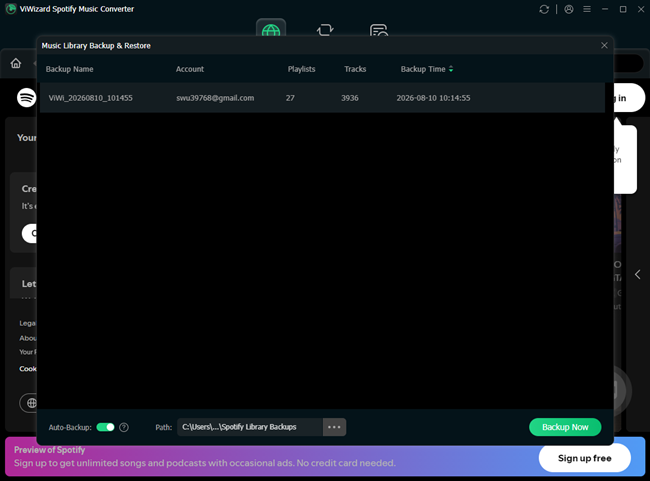
To back up playlist information separately, use ViWizard's Music Library Backup & Restore setting. It saves Spotify playlist data that you can use to recreate playlists under another account without adding each song manually. This is useful when switching accounts or preparing for possible loss of access. However, playlist backups do not include audio files, and neither feature can prevent account suspension or guarantee track recovery.
Before using ViWizard, it's worth checking Spotify's terms and copyright rules. Since it's a third-party tool, unusual usage may also prompt Spotify to check your account, so it's best to use it with care.

Key Features of ViWizard Spotify Music Converter
Free Trial Free Trial* Security verified. 5, 481,347 people have downloaded it.
- Convert Spotify songs, playlists, albums, podcasts, and audiobooks
- Export Spotify music in 6 formats for different devices and players
- Support Spotify Premium and free accounts for music conversion
- Preserve music metadata when organizing converted collections
- Batch download Spotify playlists and large music libraries
 Step 1: Install ViWizard Spotify Music Converter
Start by downloading and installing ViWizard Spotify Music Converter on your Windows or Mac computer. Open the program and log in with your Spotify account. Both Free and Premium Spotify accounts are supported, so you don't need to change your subscription plan. With built-in Spotify integration, you can search for songs, playlists, and albums directly inside the converter.
 Step 2: Add Spotify Songs or Playlists
Find the Spotify songs, playlists, or albums you want to back up, or copy and paste a Spotify link into ViWizard. The program will load the selected tracks automatically. You can choose individual songs, entire playlists, or full albums to prepare for local backup.
 Step 3: Select MP3 as the Output Format
Open the settings and select MP3 as the output format. MP3 is a widely supported audio format that makes it easy to store, transfer, and play your music on different devices. You can also adjust the audio quality, choose an output folder, and customize file-naming and organization settings before conversion.
 Step 4: Convert Spotify Music into Local MP3 Files
Click the Convert button to start converting your selected Spotify songs into local MP3 files. Once the conversion is complete, open the output folder to check your music files. You can then copy them to a USB drive, external hard drive, or cloud storage for safekeeping, giving you a local backup of your favorite Spotify music that you can access independently of the Spotify app.
Part 3. How to Export Your Spotify Account Data
Before closing your Spotify account or switching services, you may want to save your playlists, library details, profile information, and listening history. Spotify's Download your data feature provides an official account export, but it does not include playable audio or restore your music library.
To request and download your data:
01Open a browser, visit the Spotify Account page, and sign in.
02Select Privacy settings.

03Find Download your data and choose a package:

- Account data: Playlist names and track details, saved library items, profile information, and streaming history from the past year.
- Extended streaming history: A longer record of your listening activity.
- Technical log information: Technical details about your account activity.
04Review your selection and submit the request.
05Wait for Spotify's download link, then save the ZIP archive to your computer.
06Extract the ZIP file to access the JSON files. Store the archive securely for future reference.
The export preserves account information, not music files, and cannot recreate playlists. JSON files may also be less convenient to browse than spreadsheets.
Part 4. How to Keep Your Spotify Music Available Offline with Offline Backup
Forgot to download music before a trip? Spotify's Offline Backup can provide offline playback when you lose internet access. This Premium feature automatically creates a playlist from recently streamed and queued tracks stored in your device's cache. It updates as you listen online, but does not back up your entire library.
To enable and use Offline Backup:
01Open Spotify on your iPhone or Android device.
02Tap your profile picture in the top-left corner, then select Settings and privacy.
03Under Data-saving and offline, turn on Offline listening.
04Continue streaming online. Spotify uses cached, recently streamed and queued tracks to build the Offline Backup playlist.
05When offline, find Offline Backup on the Home screen or through Search.
06Tap the playlist to play it. Add it to Your Library for easier access.
Offline Backup may not appear if you have not streamed enough music, cleared the app cache, reinstalled Spotify, or run out of storage. Its contents can also vary between devices. For reliable access, download specific albums and playlists in advance.
Unlike ViWizard, Offline Backup keeps music within Spotify and creates no transferable audio files. It also works with Android Auto and Apple CarPlay and supports filtering by mood or genre and sorting by title, artist, album, or listening frequency.
Part 5. How to Restore or Rebuild Your Spotify Music Library
The best way to rebuild your Spotify library depends on what you saved before losing access to your account. ViWizard can restore saved playlist information, while Spotify's account export provides track details for rebuilding playlists manually. If you have converted audio files, you can add them to Spotify as local files or keep copies on external storage. Each option helps recover a different part of your collection.
5.1 Restore Playlists with ViWizard
If you previously used ViWizard's Music Library Backup & Restore setting, you can use the saved data to recreate your playlists under another Spotify account. Open ViWizard Spotify Music Converter, find Music Library Backup & Restore in its settings, and select the restore option. Follow the prompts to load your backup, then check the recreated playlists in Spotify. You won't have to search for every track again, although unavailable tracks may still need to be added manually. The backup contains playlist information, not audio files.
5.2 Rebuild Playlists from Spotify Account Data
If you downloaded your Spotify account data before losing access, use the playlist-related JSON files as a reference. Extract the ZIP archive and open the relevant files to view playlist names and track details. Sign in to your new Spotify account, create the playlists you want to recover, and add available tracks through Search. Spotify cannot import the JSON files directly or automatically recreate your playlists, so you will need to add the tracks manually.
5.3 Upload Local Files to Spotify
If you converted Spotify tracks into MP3, FLAC, or other supported formats with ViWizard, you can add them to Spotify through Local Files. On your computer, open Spotify, go to Settings, find Your Library, and enable Show Local Files. If needed, add the folder containing your music as a source. Your tracks should then appear under Local Files in Your Library.
Local files are not uploaded to your Spotify account or automatically synced across devices. To play them on your phone, connect your computer and mobile device to the same Wi-Fi network. Enable local file access on both devices, then download the relevant playlist to your phone.
5.4 Keep Audio Backups on External Storage
You can keep a separate copy of your converted music files on a USB drive, external hard drive, or SD card. Connect the storage device to your computer, open File Explorer on Windows or Finder on Mac, and locate your music folder. Copy the files to the connected drive, wait for the transfer to finish, then safely eject it. When needed, connect the drive to another computer and copy the files back.
You can also upload the same folder to a cloud storage service to access your music across devices without carrying a physical drive. Keeping an external copy also gives you access to the audio files independently of Spotify.
Part 6. Final Thoughts
Backing up your Spotify library helps protect your favorite songs, albums, and playlists. While Spotify offers data exports and offline listening, these features don't provide a complete backup of your music as local audio files.
If you want to keep a local copy of your favorite Spotify music, ViWizard Spotify Music Converter makes it easy to convert supported songs and playlists into MP3, FLAC, and other formats. Download ViWizard Spotify Music Converter today and start backing up your Spotify music!
You May Be Interested


Adam Gorden is always looking for new ways to explore music and videos. He likes trying different media tools and learning how to manage audio and video files with ease.

Leave a Comment (0)