



Open-source tools have made it easier to manage and access digital music outside standard streaming apps. In this space, freyr-js is one example mainly used by developers and advanced users who want more control over how music is handled.
freyr-js is a Node.js command-line tool that runs on Windows, macOS, and Linux. It works through terminal commands instead of a graphical interface. Its main purpose is to process links from supported streaming platforms and organize audio files with basic metadata for local storage.
There are also simpler alternatives for users who prefer a visual interface. One example is ViWizard Streaming Audio Recorder, which supports audio capture from more than ten streaming services and offers a more straightforward, app-based experience.
This guide will explain what freyr-js is, how it works, how to set it up, and how it compares with ViWizard Streaming Audio Recorder to help explore similar options.

Get access to unlimited music downloads from Spotify, Apple Music, Amazon Music, Tidal, Qobuz, Deezer, Pandora, SoundCloud, YouTube Music, and many more with this all-in-one tool.
Part 1. What Is freyr-js? (GitHub Node.js CLI Music Downloader Overview)

- Platforms:
- Windows, macOS, Linux (Node.js required)
- Pricing:
- Free (open source on GitHub)
- Core Functions:
- Convert Spotify, Apple Music, and Deezer links into local audio files
- Audio Output:
- AAC (.m4a)
- Features:
- Metadata tagging, batch downloads, organized folder structure
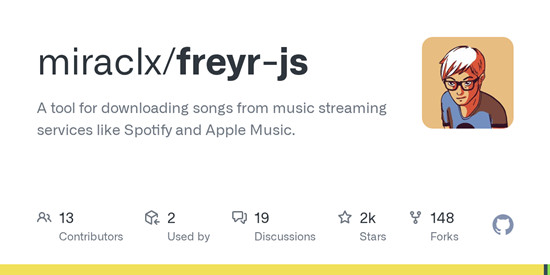
Hosted on GitHub, freyr-js is an open source Node.js CLI tool developed by miraclx for working with music links from Spotify, Apple Music, and Deezer. It is not an official downloader. Instead, it processes streaming URLs, extracts metadata, and builds local audio files using external sources such as YouTube.
Overall, freyr-js acts as a CLI pipeline that combines link parsing, metadata extraction, audio matching, encoding, and file organization in one workflow.
Part 2. What Does freyr-js Do? (Core Features and Functions)
freyr-js offers several features that make it a multi-platform music downloader, including:
-

Download Music from Streaming Links
freyr-js is a Node.js CLI tool that works with music links from Spotify, Apple Music, and Deezer. It takes streaming URLs and turns them into local audio files using metadata matching and external audio sources. Instead of downloading directly from a platform, it rebuilds tracks based on available sources and metadata.
-
Extract Detailed Metadata Automatically
When you provide a track, album, or playlist link, freyr-js extracts metadata like title, artist, album, track number, release date, and cover art. This metadata is used to create clean file names and a structured folder layout, so the music library stays organized after download.
-
Match and Fetch Audio from External Sources
After reading metadata, freyr-js searches external sources, often YouTube or YouTube Music depending on setup, to find matching audio. It compares results and selects the closest match for each track before moving to download and processing.
-
Encode and Organize Music Files
Once audio is found, freyr-js encodes it into formats like AAC, usually .m4a up to 320 kbps. It embeds metadata and cover art into each file, then sorts everything into folders based on artist, album, and track order, so the final library stays structured.
-
Handle Batch Downloads
freyr-js supports full playlists and multiple links in batch mode. It processes them with concurrency control, retry handling, and progress tracking, which helps keep larger downloads stable and easier to manage.
-
Create a Complete Music Workflow
freyr-js works as a full pipeline rather than a simple downloader. It combines link parsing, metadata extraction, audio matching, encoding, tagging, and file organization into one CLI workflow, allowing users to build structured local music libraries from streaming links in one process.
- Free and open source
- Works on Windows, Mac, and Linux
- Supports playlists and batch downloads
- Adds song info and album art automatically
- Organizes files into folders
- Needs Node.js and terminal use
- No simple app or interface
- Uses external sources for audio
- Sometimes matches are not accurate
- Not an official streaming tool
Part 3. How to Install freyr-js on Windows, macOS, and Linux
freyr-js is installed through Node.js and works on Windows, macOS, and Linux with the same general setup. Users usually install it via npm or Docker after installing Node.js, then confirm it runs in the terminal. Once installed, it is used directly from the command line.
Windows
01Open PowerShell as Administrator, then install Node.js (LTS version) from the official website. During installation, make sure Add to PATH is enabled, then restart your computer if required.
02Install required dependencies for freyr-js, including AtomicParsley for metadata tagging and FFmpeg for audio processing and conversion, to ensure proper music handling.
03Open Command Prompt, then install freyr-js globally using the command below.

04Confirm the installation by running the command below.
05If the help menu appears, freyr-js is installed correctly and ready to use.
macOS
01Open Terminal, then install Homebrew if it is not already installed, and restart Terminal after installation if needed.
02Install required tools using Homebrew, including Node.js, AtomicParsley, and FFmpeg, to support audio processing and metadata tagging.
03Install freyr-js globally using the command below.
04Verify the installation by running the command below.
05If the CLI help menu appears, installation is complete and freyr-js is ready to use.
Linux
01Open Terminal, then install required dependencies based on your system distribution, including Node.js, npm, AtomicParsley, and FFmpeg, to ensure full functionality.
Debian / Ubuntu:
sudo apt install nodejs npm atomicparsley ffmpeg
Arch Linux:
02Install freyr-js globally using the command below.
03Confirm installation by running the command below.
04If the help output appears, freyr-js is installed successfully and ready to use.
Part 4. How to Use freyr-js to Download Music from Supported Platforms
Start by running freyr with a supported music link or URI. For a single track, use freyr [link], and it will detect and process the source automatically. For albums or artists, just paste the full URL. freyr will scan it, match available audio sources, and prepare the downloads.
For multiple items, you can enter several links in one command or load them from a text file using the input flag. The file can also include comments to help organize the queue.
In practice, it works best when links are grouped by album or artist, which keeps the process cleaner and reduces repeated runs.
Single-Track Conversion
01Open Terminal (macOS/Linux) or Command Prompt (Windows). You can optionally move into a folder first.
02Run freyr-js with a single track URL.
03freyr-js will automatically read metadata such as artist, album, and track name, match a suitable audio source, download and encode the track, add album art and tags, and save it in a structured folder layout organized by artist and album.
04Keep your internet connection stable during processing since freyr-js relies on external sources for audio matching.
05After completion, files are automatically organized by artist and album.
Batch Downloading
Method 1: Multiple URLs in one command
01Open Terminal or Command Prompt.
02Run freyr-js with multiple links.
03freyr-js will process each link sequentially and organize the output automatically.
04Ensure all links are valid and supported platform URLs.
Method 2: Batch file input (recommended for large lists)
01Create a file named queue.txt and add one URL per line.
https://open.spotify.com/track/yyyy
https://open.spotify.com/album/zzzz
02Open Terminal or Command Prompt and navigate to the file location.
03Run freyr-js using batch mode.
04freyr-js will read each line in order, process tracks or albums automatically, extract and match metadata, download and encode audio, embed tags and album art, and organize everything into a structured music library.
05Do not stop the process while it is running to avoid incomplete results.
Part 5. Best freyr-js Alternatives for Multi-Platform Music Downloading

freyr-js is one option in a wider set of tools for music downloading, while alternatives like spotDL or yt-dlp based setups offer different workflows. Some focus on easier use, while others provide more control or broader platform support.
Another option is a dedicated streaming audio recorder such as ViWizard Streaming Audio Recorder. Unlike freyr-js or similar tools that rely on link processing or source matching, it converts original audio directly across 10+ music services. It saves audio in common formats including MP3, M4A, M4B, WAV, AIFF, and FLAC. It supports platforms like Spotify, Apple Music, Deezer, Tidal, SoundCloud, YouTube Music, Amazon Music, and others. It also includes features like batch recording and basic music organization, making it a simpler option for users who prefer direct recording instead of command-line tools.
Get access to unlimited music downloads from Spotify, Apple Music, Amazon Music, Tidal, Qobuz, Deezer, Pandora, SoundCloud, YouTube Music, and many more with this all-in-one tool.
 Step 1: Choose the streaming service
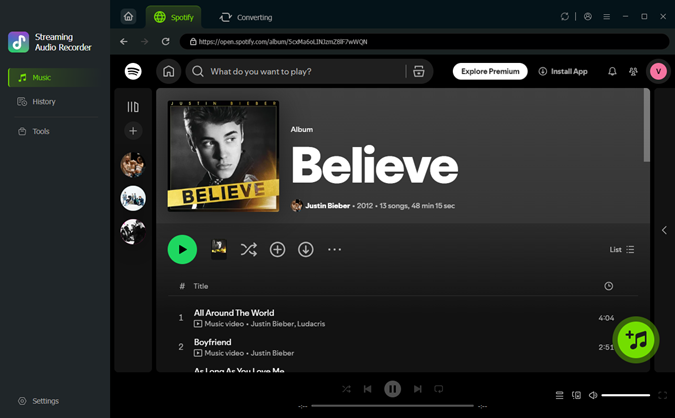
After installing and opening ViWizard Streaming Audio Recorder, you will see a list of supported platforms on the homepage. Select a service such as SoundCloud, then the built-in web player opens inside the app. Sign in with your account to access your library, including tracks, albums, and playlists.
 Step 2: Find and add music
Inside the built-in player, search for music by song, artist, album, or playlist. You can also paste a direct link into the search bar to open content quickly. Once found, open the album or playlist and click the Add Music button to queue tracks. You can review the list, remove songs, or add more before confirming.
 Step 3: Review the conversion list
Open the conversion list to check all selected tracks before processing. Here you can remove unwanted items, reorder songs, or sort them by title, artist, or album to keep everything organized.
 Step 4: Start converting and save files
Click the Convert button to start recording and conversion. The tool processes each track based on your settings and shows progress in real time. When finished, the audio is saved locally in your chosen format and ready for offline use on any device.
Part 6: Conclusion
freyr-js is a CLI tool for users who want more control over turning music links into local files. It focuses on metadata extraction, external audio matching, and structured folder output, which helps keep music libraries organized. However, it requires technical setup and relies on external sources, so it may not suit every user.
ViWizard Streaming Audio Recorder is a dedicated software that downloads and converts audio directly across multiple platforms and saves it in common formats without needing command-line setup. It is worth trying as an easier alternative.
You May Be Interested



Nick Orin, a software developer at ViWizard, focuses on providing solutions for software-related challenges, including reviews, troubleshooting, and optimization tips.

Leave a Comment (0)