



Music listening has mostly moved to streaming. Services like TIDAL give access to millions of songs on different devices. It is easy, but there is a limit. Even with a paid plan, downloads are usually protected by DRM and only work inside the app.
Streaming is also growing fast, while owning music is less common. Some services let you buy a few albums, but most focus on access instead of ownership. TIDAL, for example, is mainly a streaming platform. As people use more services, offline listening can feel limited.
This is where Streamrip comes in. Streamrip is an open-source tool that downloads music from multiple streaming services. It also keeps metadata and album artwork to help organize files. In this guide, we will explain what Streamrip is, how it works, how to install it, and how to use it.
Part 1. What Is Streamrip on GitHub?
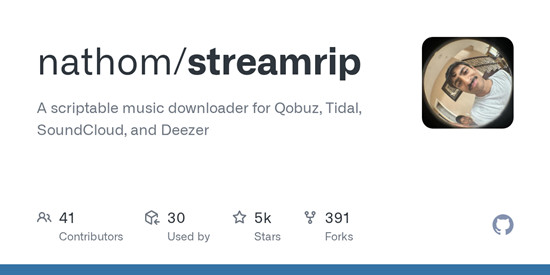
Streamrip, developed by nathom, is an open-source music downloading tool built with Python and hosted on GitHub. It downloads tracks, albums, playlists, artist discographies, label catalogs, and album artwork from supported streaming services. It is built for users who want full control over their music library and are comfortable with command-line tools. Since it is open source, it is actively maintained and can be modified or extended by the community.
What Does Streamrip Do?
Streamrip downloads music from supported streaming services and saves it locally for personal use. It supports TIDAL, Deezer, Qobuz, and SoundCloud directly, and can also process Spotify and Apple Music links through Last.fm metadata matching, making it one of the few community-driven tools that spans multiple streaming ecosystems rather than focusing on a single platform.
It also organizes downloads by adding metadata such as artist names, album titles, release dates, and album artwork for organized storage. Advanced users often integrate it into scripts, home servers, or music archival workflows because nearly every aspect can be controlled through configuration files and command-line options.
- Concurrent downloads: Runs multiple downloads at once for tracks, albums, playlists, discographies, and labels.
- Multi-source support: Downloads from TIDAL, Qobuz, Deezer, and SoundCloud, and supports Spotify and Apple Music playlists via Last.fm matching.
- Automatic format conversion: Saves music in a chosen audio format during download.
- Duplicate-track detection: Keeps track of downloads to avoid repeating files.
- Built-in search: Lets users search music inside the tool.
- Stable downloading: Uses rate limits and parallel downloads to reduce errors.
- Configurable audio settings: Allows users to change quality, file names, and download behavior.
- External support: Works with tools like youtube-dl for more sources.
Part 2. How Does Streamrip Work?
Instead of recording audio, Streamrip connects to supported streaming services and resolves requests through APIs or metadata sources. When a user enters a link or search, it pulls track data, matches the audio source, downloads files, and organizes them into folders with proper tagging. Downloads run asynchronously, allowing multiple files to process at once.
Streamrip is fully command-line based and uses Python async networking to speed up downloads and manage rate limits. It also stores downloaded track IDs locally to prevent duplicates.
Configuration controls maximum bitrates, giving users more control across services once set up.
- Supports multiple music services
- Downloads albums and playlists
- Saves high-quality audio
- Preserves song metadata
- Free and open-source
- Fast batch downloads
- Requires installation and setup
- Uses command-line controls
- Not ideal for beginners
- May require troubleshooting
- No built-in graphical interface
- Service support can change over time
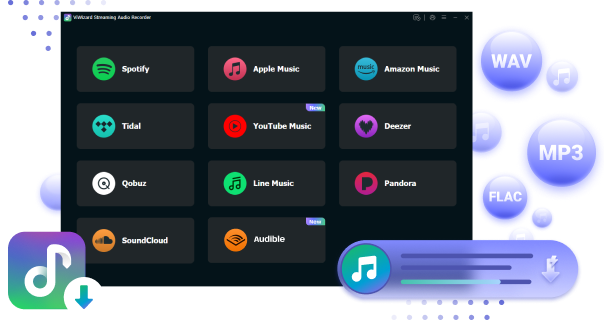
For a simpler multi-platform workflow, ViWizard Streaming Audio Recorder brings 10+ streaming services into one interface with batch conversion and preserved metadata. It is commonly used to avoid switching between separate tools while saving music, audiobooks, and podcasts in both compressed and lossless formats.
Part 3. How to Download and Install Streamrip from GitHub
Streamrip is installed through Python's package manager instead of a traditional installer. Users first set up Python and required dependencies, then install Streamrip via pip or directly from GitHub for the latest version. Once installed, it runs as a command-line tool and can be verified with a simple terminal command. Configuration is done through a built-in config file, where settings like format, quality, and folder structure can be adjusted.
Step 1. Install Python and Required Dependencies
01Install Python 3.10 or newer from the official Python website.
02During installation, enable Add Python to PATH.
03Open your Terminal or command line.
04Verify Python installation by running:

05If Python is not installed, reinstall it and ensure PATH is enabled.
Step 2. Install FFmpeg (Recommended)
01Download FFmpeg from the official website for your operating system.
02Install it and add it to your system PATH.
03Open Terminal or command line.
04Verify installation by running:
05Note: Streamrip works without FFmpeg, but some features may be limited.
Step 3. Install Streamrip via pip (Standard Method)
01Open Terminal or command line.
02Run the installation command:
03Wait for the installation to complete.
04This installs the latest stable version of Streamrip.
Step 4. (Optional) Install Development Version
01Open Terminal or command line.
02Run:
03Wait for installation to finish.
04Use this version only if you need experimental features or early updates.
Step 5. Verify Streamrip Installation
01Open Terminal or command line.
02Run:
03Press Enter.
04If installed correctly, the Streamrip help menu will appear.
05If it does not work, check Python PATH or reinstall dependencies.
Optional Installation Methods by Platform
Arch Linux (AUR)
01Open Terminal.
02Install Streamrip using an AUR helper like paru or build manually.
03Compile the package using makepkg if needed.
macOS (Homebrew)
01Open Terminal.
02Run:
03Wait for installation to complete.
Part 4. How to Use Streamrip to Download Music from Streaming Services
Streamrip is controlled through terminal commands. Users run a command with a streaming URL or search input from supported services. The tool then fetches track data, matches available sources, and downloads files.
It also supports downloading files or discographies in one command. Streamrip uses parallel downloads to speed up processing, making it suitable for batch downloads and larger music libraries.
Step 1. Understand the Basic Command Structure
01Open Terminal or command line.
02Use the main command format:
03Replace command with actions such as url, search, or config.
04Replace input with a link, search term, or playlist reference.
05View all available commands by running:
06Get help for a specific command:
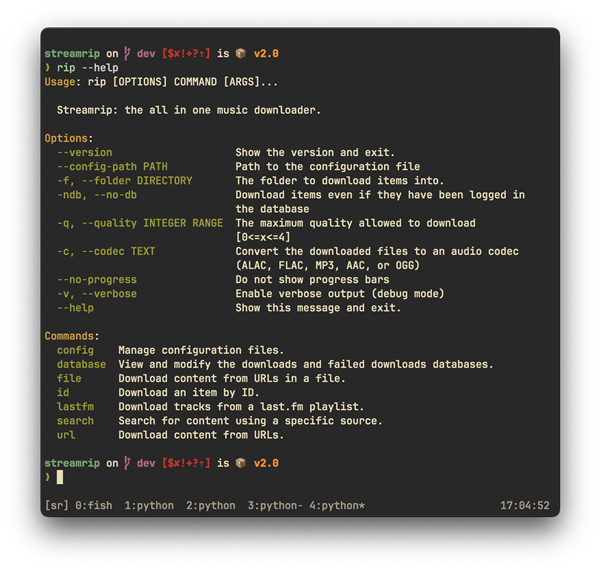
07Open the configuration file:
08Adjust settings such as download folder, format, and quality.
09Save changes before exiting.
Step 2. Download Music Using a URL (TIDAL, Qobuz, Deezer, SoundCloud)
01Copy a track, album, or playlist URL from a supported service.
02Open Terminal or command line.
03Run:
04Press Enter to start downloading.
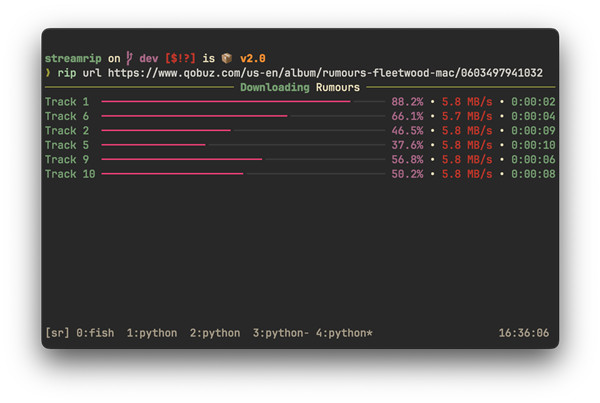
05Add multiple URLs by separating them with spaces.
Step 3. Convert Audio Format
01Open Terminal.
02Run:
03Replace mp3 with other supported formats if needed. Conversion happens automatically during download.
04To adjust the bit rates:
| Level | Quality | Format | Supported Sources |
| 0 | Basic | 128 kbps MP3/AAC | Deezer, Tidal, SoundCloud (most of the time) |
| 1 | High | 320 kbps MP3/AAC | Deezer, Tidal, Qobuz, SoundCloud (rarely) |
| 2 | CD quality | 16-bit / 44.1 kHz | Deezer, Tidal, Qobuz, SoundCloud (rarely) |
| 3 | Hi-Res | up to 24-bit / 96 kHz | Tidal (FLAC), Qobuz, SoundCloud (rarely) |
| 4 | Ultra Hi-Res | up to 24-bit / 192 kHz | Qobuz |
Step 4. Search and Download Content
01Open Terminal.
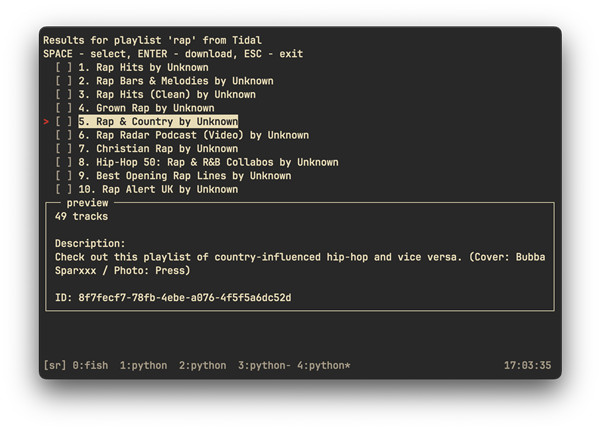
02Search for playlists:
03Search for albums:
04Review results in the terminal.
05Download using the URL of the desired result:
Step 5. Use Last.fm Integration (Spotify & Apple Music)
01Open Terminal.
02Run:
03Press Enter to start processing.
04Streamrip matches and downloads playlist tracks automatically through metadata mapping.
Part 5. Best Streamrip Alternative for Windows and Mac
Streamrip is a powerful tool, but its command-line setup can be difficult for beginners. Setting up dependencies, editing configuration files, and running commands all take time. For many users, the learning curve can feel overwhelming before they even start downloading music.
For Windows and Mac users, ViWizard Streaming Audio Recorder is a more user-friendly alternative. It offers a visual interface and supports more streaming services, including Apple Music, Spotify, TIDAL, Amazon Music, Deezer, Qobuz, LINE Music, YouTube Music, Pandora, and more. Instead of using commands, users can connect to their music libraries to the program, add music tracks, and the software will download convert them in batches.
ViWizard supports both standard and lossless audio formats while keeping metadata such as track titles, artist names, album artwork, and available lyrics. It also lets users organize downloads by artist, album, playlist, and other categories. For users who want support for more streaming services and an easier workflow, ViWizard Streaming Audio Recorder offers a simpler alternative to Streamrip.
 Step 1: Choose Output Settings
Install and launch ViWizard Streaming Audio Recorder on your computer. Open the settings window and choose an output format such as MP3, M4A, WAV, FLAC, or other supported formats. You can also adjust options like audio quality, sample rate, and output location before downloading.
 Step 2: Open a Supported Music Service
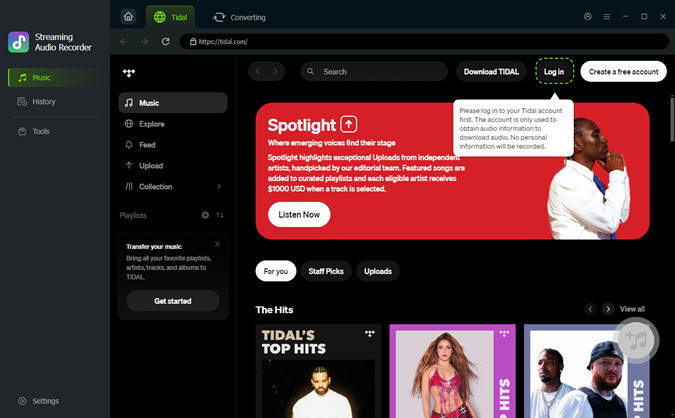
From the main interface, select the streaming service you want to use, such as Spotify, Apple Music, TIDAL, Amazon Music, Deezer, Qobuz, YouTube Music, or another supported platform. Then sign in to your account to access your library, playlists, albums, and saved tracks.
 Step 3: Add Songs, Albums, or Playlists
Browse the service as usual and find the music you want to save. Open a track, album, artist page, or playlist, then add the content to the conversion list. ViWizard will automatically analyze the selected items and prepare them for batch processing.
 Step 4: Download and Save Music
Click the Convert button to start downloading and converting the selected music. Once finished, the files will be saved to your chosen folder with metadata such as track titles, artist names, album information, artwork, and available lyrics preserved for easier library management.
Part 6. Is Streamrip Still Worth Using in 2026?
Streamrip is a strong choice for advanced users who want control over downloading music from multiple streaming services. It also works well for batch downloads and automation.
However, it's not beginner-friendly. Setup requires command-line use, extra dependencies, and some technical troubleshooting. There's no graphical interface, which can make it harder for casual users.
For a simpler option, ViWizard Streaming Audio Recorder is a more accessible alternative. It provides a dedicated interface, supports multiple platforms, and lets users record or download music without technical setup.
Bottom line: Streamrip is best for power users; ViWizard is better for easy, guided music downloading.
You May Be Interested

What Is Tidaluna? How to Install and Use the TIDAL Desktop Mod
How to Install and Use Tidal-HiFi (GitHub) on Linux

Tidal Media Downloader (Tidal‑DL & Tidal‑GUI) Review from GitHub

Tidal Premium APK Review & Best Alternative [2026 Updated]

NoteBurner Tidal Music Converter Review: Download TIDAL Music and Best Alternatives

Nick Orin often turns to tech forums to see what apps people are talking about. He likes testing different software, comparing features, and finding out which tools are worth a try.

Leave a Comment (0)