


TIDAL is a good music streaming service, but the desktop app can feel a bit limited after some use.
Unlike apps that allow a lot of changes and custom settings, TIDAL has fewer options for personal setup. Because of this, some users look for open-source tools that can add more flexibility to the desktop experience.
Tidaluna is one of these tools. It is an open-source project on GitHub. It changes how the TIDAL desktop app works by adding custom themes, plugins, and extra features like Discord RPC. In earlier versions, it was referred to as "Neptune," but it has now continued as Tidaluna.
In this guide, we will explain what Tidaluna is, what it does, and how to install and use it step by step.
Part 1. What Is Tidaluna (Tidal Luna)?
Tidaluna (or Tidal Luna) is an open-source modification framework for the TIDAL desktop app. It runs on top of the official TIDAL client and adds a plugin-based system to extend its features. It injects into the TIDAL desktop application at runtime, modifying and extending it without replacing it.
The goal of Tidaluna is to make the TIDAL desktop app a more flexible platform. It continues the idea from the earlier Neptune project and serves as its successor with an updated structure, and is often used in developer communities rather than mainstream users.
Tidaluna & Neptune:
Neptune is the original project that introduced the plugin-based modification idea for the TIDAL desktop app. Tidaluna is its successor and continues the same concept. As stated in the official project: "Tidaluna is a client mod for the TIDAL client & successor to Neptune." It updates the structure and keeps active development. It also replaces Neptune during installation, making it the newer version of the same idea.
Part 2. What Does Tidaluna Do?
Tidaluna adds a plugin loader to the TIDAL desktop app, allowing it to load, manage, and execute plugins. These plugins run inside the client and interact with the UI and internal systems. This removes fixed limitations in the app, since features like Tidal Connect or Exclusive Mode can be added, changed, or extended through plugins.
- It adds plugin support to the TIDAL desktop app.
- It lets developers create extensions that run inside TIDAL.
- It adds a "Luna Settings" panel inside the app after installation.
- It is the successor to an older mod called "Neptune."
- It adds extra features to the normal TIDAL desktop app.
- It includes a plugin store for installing new features.
- It allows cover customization.
- It works on Windows, macOS, and Linux (TIDAL HiFi app).
Part 3. How to Install Tidaluna on Windows, macOS, or Linux
Tidaluna is installed using its official installer. It integrates directly into the TIDAL desktop app. After installation, it becomes part of the client and can be managed inside it. Users can enable or disable plugins and install them through a plugin store or manual methods, depending on the framework setup.
There are two installation methods: using the installer or manual installation. An installer project is also available to help set up Luna across Windows, macOS, and Linux.
Method 1. Install via TidaLuna Installer
01Open the official TidaLuna Installer GitHub page: https://github.com/jxnxsdev/TidaLuna-Installer
02Go to the Releases section and choose the latest version. Only use files from the official release page.
03Download the installer file for your system (Windows, macOS, or Linux).
04Open the downloaded file on your computer. If it does not open, download it again from GitHub.
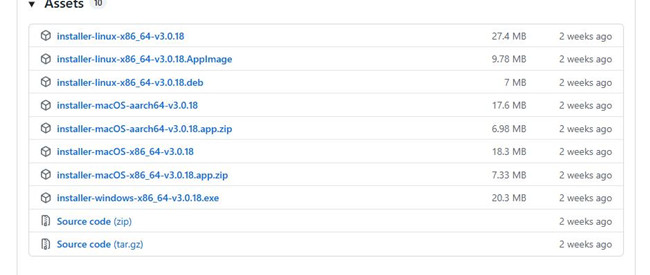
05Pick the latest version or channel inside the installer.
06Click Install to start setup.
07Wait for the process to finish. Do not close the window while it is installing.
08Open the TIDAL app and check if Tidaluna is working.
Method 2. Manual Installation via GitHub Releases
01Open the official TidaLuna releases page: https://github.com/Inrixia/TidaLuna
02Download the latest .zip file that matches your TIDAL version.
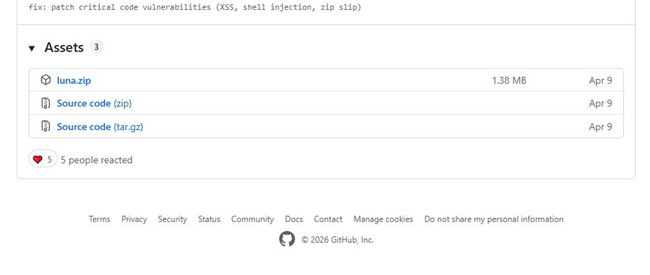
03Extract the .zip file to a folder on your computer.
04Open your TIDAL resources folder:
- Windows: %localappdata%\TIDAL\app-x.xx.x\resources
- macOS: /Applications/TIDAL.app/Contents/Resources
- Linux: /opt/tidal-hifi/resources
05Rename app.asar to original.asar to keep a backup.
06Copy the TidaLuna files into the resources folder.
07Make sure files are placed in the correct folder.
08Restart the TIDAL app to finish setup.
Part 4. How to Use Tidaluna
After installation, Tidaluna appears inside the TIDAL app through a settings section called Luna Settings. From there, users can manage plugins, toggle features, and adjust settings. The experience depends on installed plugins, since each one can modify or extend different parts of the app. It also includes a reset option that restores Tidaluna to its default state by removing plugins and reverting settings, making this panel the central control hub of the system.
How to Install Plugins in TidaLuna
01Open the TIDAL desktop app on your computer.
02Click the menu icon or More option near your profile.
03Select Luna Settings from the menu. This is where TidaLuna controls are found.
04Open the Plugin Store tab inside Luna Settings.
05Browse or search for available plugins:
- Lyrics: Shows lyrics while music plays inside TIDAL.
- Discord Rich Presence: Shows what you're listening to on Discord.
- UI / Visual Themes: Changes TIDAL's look, like colors, layout, or album art style.
- Animation Mods: Adds simple visual effects like moving or spinning album art.
- Spotify Playlist Import: Moves playlists from Spotify into TIDAL.
- Playlist Cleaner: Removes duplicates and helps organize playlists.
- Scroll to Playing: Automatically jumps to the current song in long lists.
06Click Install on the plugin you want.
07Go to the Plugins tab to view installed plugins.
08Restart the TIDAL app if plugins do not appear or changes do not load.
How to Remove TidaLuna
01Open the TIDAL desktop app folder on your computer.
02Go to the TIDAL resources directory inside the installation path.
03Find the file named app.asar.
04Rename app.asar back to its original state if it was changed during installation.

05Remove any added TidaLuna files or folders inside the resources directory.
06Close the TIDAL app completely.
07Reopen the TIDAL app to restore the official version.
Part 5. Is Tidaluna Safe to Use?
Tidaluna changes the official TIDAL desktop app by adding a runtime layer and plugins. It runs inside the client and uses external plugin code, so it is less stable than the normal TIDAL app. According to its official GitHub documentation, it is still in beta. It also uses an installer that modifies the desktop client during setup and can replace older mods like Neptune.
Because of this, safety depends on the plugins you use, and stability depends on TIDAL updates. It fits better for users who like customization and do not mind testing experimental tools. It is not a good fit if you just want a stable, unchanged TIDAL experience for everyday use.
Part 6. Best Tidaluna Alternatives
For TIDAL users, High Tide is another option worth mentioning.
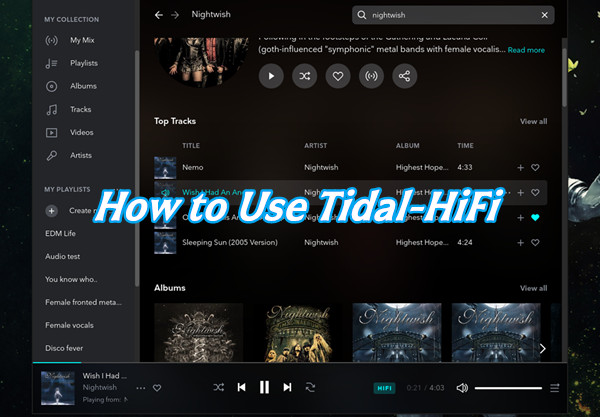
High Tide is a free, open-source TIDAL app for Linux. It lets users log in and use TIDAL in a desktop app instead of a browser. It includes basics like lyrics, background playback, media keys, and notifications. In real use, it works as a simple Linux music player that feels smoother than the web version and fits the system better. This makes it popular for users who want an easy TIDAL setup on Linux. Compared to TidaLuna, High Tide is simpler: no plugins or customization, just a ready-to-use standalone app.
How to Set Up and Use High Tide
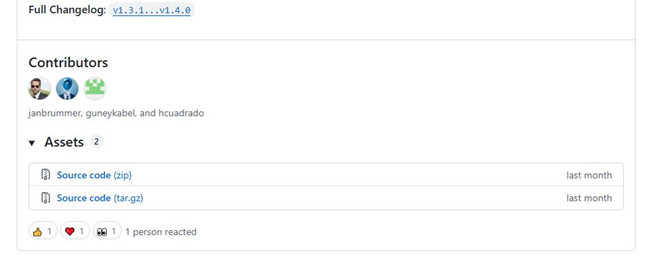
01Open the High Tide GitHub page or official releases page: https://github.com/Nokse22/high-tide
02Install High Tide using the method that matches your Linux system. For Flatpak, use the installer or open the file directly.
03Open High Tide from your application menu after installation.
04Sign in with your TIDAL account when prompted.
05Wait for your music library to load and sync.
06Use the main interface to browse music, search tracks, and play songs.
07Open settings to adjust playback options if needed.
08Restart the app or reinstall it if it does not start or load correctly.
Part 7. Tidaluna vs High Tide
Tidaluna and High Tide both improve the TIDAL experience, but in different ways.
| Feature | TidaLuna | High Tide |
|---|---|---|
| What Is It? | A tool that adds extra features to the TIDAL desktop app. | A separate app that lets Linux users listen to TIDAL. |
| How It Works | Modifies the official TIDAL app. | Works as its own TIDAL app. |
| Who Uses It? | People who want more control over TIDAL. | Linux users who want a better TIDAL experience. |
| Platforms | Windows, Mac, Linux. | Linux only. |
| Customization | Yes. Users can install plugins and change how TIDAL works. | Limited. Focuses on a simple listening experience. |
| Popular Features | Plugins, interface tweaks, extra playback options, playlist tools. | Lyrics, background playback, media controls, Linux desktop integration. |
| Open Source | Yes. | Yes. |
| Requires TIDAL Account | Yes. | Yes. |
| Downloads Music | No. | No. |
Tidaluna improves the official TIDAL app with plugins:
Tidaluna adds plugin support to the official TIDAL desktop app, allowing users to customize the interface and add new features. It is often compared to Spicetify for Spotify because of its focus on customization.
High Tide is a separate TIDAL app for Linux users:
High Tide is a standalone TIDAL app for Linux. Instead of modifying the official app, it offers a simple way to access TIDAL with features like lyrics support and background playback.
Overall, Tidaluna is a better choice for customization, while High Tide is better for a simple Linux-based TIDAL experience. The right option depends on whether you want extra features or a straightforward listening experience.
Bonus. Convert TIDAL Music to MP3 Using ViWizard TIDAL Music Converter
Although there is plugin on Tidaluna can help you to transfer Tidal tracks in FLAC, remember, the github is unstable. It may be unusable for the unconscious project destroy. So, we recommend you a more stable and convenient way: ViWizard TIDAL Music Converter.
ViWizard is a reliable and professional Tidal music converter. It provides many downloading audio formats: MP3, FLAC, M4A, M4B, WAV, and AIFF. Despite the audio format, ViWizard also provides you to personalize the sample rate, bitrate and bit depth of the Tidal downloads, which up to 192 kHz, 24 bit and 768 kbps. ViWizard also support you to edit the original ID3 tags of Tidal tracks, you can personalize the cover of playlists, albums, or single track.

Ready to take your TIDAL music offline? ViWizard TIDAL Music Converter helps TIDAL subscribers save songs, albums, playlists, artists, podcasts, and audiobooks with reliable music conversion. Start converting and keep your TIDAL library within reach.
 Step 1: Choose FLAC as Output Format
Open ViWizard on your computer and log in with your Tidal account. Click the menu icon (three lines) and go to Preferences. Scroll down to the conversion section and select FLAC as the output format. You can also adjust sample rate and bit depth based on your needs. Click OK to save your settings.
 Step 2: Select Tidal Playlist
Go back to the built-in Tidal web player inside ViWizard. Browse your Tidal library, homepage, or collection to find songs and playlists. Click the "Add to List" icon to add them to the conversion queue. You can also paste a Tidal URL directly into the search bar, and ViWizard will automatically load the tracks.
 Step 3: Download Tidal Tracks to Local
After checking your conversion list, click the Convert button to start downloading. The process only takes a few minutes depending on the number of tracks. Once finished, ViWizard will notify you. You can find your downloaded music in the History tab or your selected output folder.
Conclusion:
With Tidaluna, Tidal's desktop client seems more powerful and multifunction. If you want to get advanced Tidal experiences or dissatisfied with functions Tidal official provides, follow the ultimate Tidaluna installation tutorial! We're glad you can have a better user experience on streaming Tidal.
You May Be Interested



Adam Gorden is always looking for new ways to explore music and videos. He likes trying different media tools and learning how to manage audio and video files with ease.

Leave a Comment (0)