


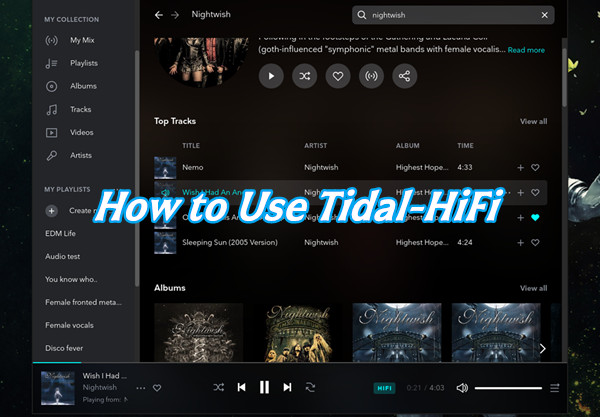
As of early 2026, TIDAL still does not provide an official Linux app. Many users rely on a browser to play their music. It works, but it never feels like a proper desktop app. Some prefer a clean, standalone window that keeps music in focus. For certain systems, there simply is no official TIDAL app available.
Tidal HiFi on GitHub fills that gap. Independent developers continue working on Linux and Python to create a more desktop-like experience for TIDAL users. The project wraps the TIDAL web player in a dedicated window, so you can launch it like any other program. You no longer need to switch between browser tabs. Tidal HiFi GitHub provides a simpler, more focused listening environment.
It is not an official TIDAL product, and that is okay. This guide will help you get started by explaining what Tidal HiFi is, what it isn’t, how to install it, and how to use it to explore its features and a few extras.
Part 1: What Is Tidal HiFi GitHub?
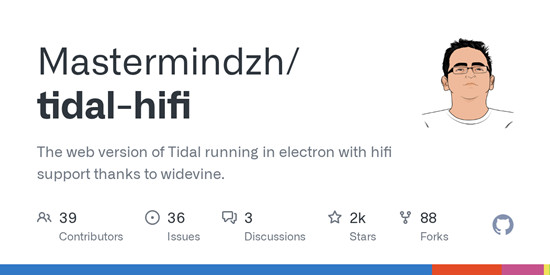
Tidal HiFi GitHub is an unofficial desktop client built by independent developers. It is not part of TIDAL itself. Instead, it is designed to wrap TIDAL's Web Player (https://tidal.com/) into a standalone application for a desktop-style experience. You still need a valid TIDAL subscription to log in and stream, but it works without relying on a browser tab. On Linux, where an official TIDAL client is not available, Tidal HiFi keeps music focused on HiFi and Master qualities and makes it easier to manage alongside other tasks, which can be a big improvement for daily use.
Additional Features of Tidal HiFi GitHub
It also includes extra features that enhance everyday use and remove some limitations of the web interface, including:
- Keyboard shortcuts
- System integrations
- Custom themes
- Notifications for tracks
- Cleaned-up interface
Part 2: What Tidal HiFi GitHub Is Not
At first glance, it is easy to confuse Tidal‑HiFi with official TIDAL apps or TIDAL music downloaders like ViWizard TIDAL Music Converter. Both use similar technologies to provide access to TIDAL’s web player. However, there are some important limitations you should know before trying Tidal‑HiFi.
-

Not an Official TIDAL App or Feature:
Tidal‑HiFi is not made by TIDAL. It looks like a desktop app, but it is built by independent developers on GitHub. Unlike official apps, it does not come with branding, full support, or guaranteed updates. If you encounter bugs, TIDAL support will not be able to help.
-
Not a Way to Get Free Music:
Some users may think an open-source app could avoid subscriptions. That is not true. You still need a paid TIDAL account to play any songs. The app only streams music that your account is allowed to access.
-
Not Guaranteed to Be Fully Stable:
Tidal‑HiFi runs on TIDAL’s web player. This means if TIDAL updates their website or streaming service, parts of the app may stop working. It is not as reliable as official apps that are maintained by TIDAL. Users must rely on community updates for fixes.
-
Not a Mobile App Replacement:
The app is designed for desktop use, especially Linux users. It does not offer offline downloads for mobile phones or tablets. If you want full mobile features, you still need the official TIDAL app.
-
Not Officially Supported by TIDAL:
Tidal‑HiFi is not supported by TIDAL customer service. Any problems must be solved through the GitHub community or by troubleshooting yourself. TIDAL will not provide official help for this app.

Better Options for TIDAL: ViWizard TIDAL Music Converter
For users who feel limited by what Tidal‑HiFi does not offer, there is a reliable companion tool: ViWizard TIDAL Music Converter. Unlike Tidal‑HiFi, ViWizard lets you download TIDAL songs as MP3 files on Windows or Mac. It makes offline listening, transferring songs to other devices, or using music for personal projects simple and convenient. It is a great companion for anyone who wants more from their TIDAL experience.

A splendid Tidal downloader for both free and paid users that downloads full songs, albums, playlists, artists, and audiobooks to MP3, FLAC, WAV, and more while keeping the original lossless audio and ID3 tags so you can save Tidal music offline on Windows, Mac, or any device without streaming restrictions.
Part 3: How Does Tidal HiFi GitHub Work?
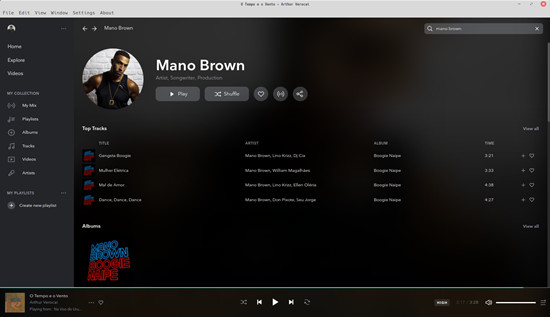
Tidal HiFi GitHub is not an official TIDAL product or feature, and it is not a TIDAL music downloader. It is a TIDAL player built with technologies like Electron, a web framework that allows developers to run the TIDAL web version in a desktop app format. This provides a desktop-style window and support for HiFi audio.
To stream safely, the app uses Widevine, a digital rights management module. This is the same kind of system official apps use to deliver secure, high-fidelity sound. Behind the scenes, Tidal HiFi GitHub combines web technologies with system integrations to keep streams stable and responsive, even on systems without an official client.
Part 4: How to Install TIDAL‑HiFi GitHub
Getting started with TIDAL‑HiFi is not complicated, but a few setup steps can cause problems if skipped. There are three installation methods, suitable for users and developers at all levels. Keep in mind that TIDAL‑HiFi is an unofficial client, so it may stop working if Tidal updates its service, and it does not receive support from Tidal’s official channels.
Method 1: Prebuilt Release (Recommended)
- Go to the TIDAL‑HiFi GitHub Releases page: https://github.com/Mastermindzh/tidal-hifi/releases
- Download the package that matches your system: .deb for Ubuntu/Debian, .AppImage for general Linux, or .snap for Snap-enabled systems.
- For .deb packages, open a terminal, navigate to the download folder, and run:
sudo dpkg -i tidal-hifi_*.deb

- Then run sudo apt-get install -f if prompted.
- For .AppImage packages, right-click the file, select Properties → Permissions, check Allow executing file as program, then double-click to launch.
- For .snap packages, open a terminal and run:
sudo snap install --dangerous tidal-hifi_*.snap
- Open TIDAL‑HiFi from your system menu.
Log in with your Tidal account to start using the app.
Method 2: Flatpak Install
- Make sure Flatpak is installed on your Linux system.
- Open a terminal and run:
flatpak install flathub com.mastermindzh.tidal-hifi
- Wait for the installation to complete.
- Run the app using:
flatpak run com.mastermindzh.tidal-hifi
- Log in with your Tidal account.
- Verify that the interface loads your library and playlists correctly.
Method 3: From Source (Advanced Users)
- Go to the TIDAL‑HiFi GitHub repository: https://github.com/Mastermindzh/tidal-hifi
- Click Code → Download ZIP or clone the repo using Git:
git clone https://github.com/Mastermindzh/tidal-hifi.git
- Open a terminal and navigate to the folder:
cd tidal-hifi
- Install dependencies by running
npm install
- Start the app using
npm start
- Log in with your Tidal account and confirm your library loads.
- Optional: run
npm run watch
to auto-refresh the app while testing changes.
Part 5. How to Use TIDAL‑HiFi GitHub
Once installed, TIDAL‑HiFi is straightforward to use and comes with several features. Users should be aware that updates to Tidal may affect the app’s performance, and official Tidal support is not available for this client.
Tip 1: Log in and Open the App
Step 1 Open TIDAL‑HiFi from your system menu or terminal.
Step 2 Enter your Tidal username and password on the login screen.
Step 3 Click Sign In.
Step 4 Wait for your library, playlists, and albums to load.
Step 5 Verify the interface matches the Tidal web UI and that you can navigate playlists.
Tip 2: Enable Discord Rich Presence
Step 1 Click the Settings (gear icon) in the top-right corner.
Step 2 Select Integrations → Discord Rich Presence.
Step 3 Toggle the switch to On.
Step 4 If prompted, authorize the connection to Discord.
Step 5 Open Discord and go to User Settings → Activity Privacy, make sure Display currently running game as a status message is enabled.
Step 6 Play any track in TIDAL‑HiFi.
Step 7 Confirm your Discord profile shows the song and album art.
Tip 3: Enable MPRIS / Media Key Support
Step 1 Open Settings → Integrations → MPRIS Support.
Step 2 Toggle the switch to On.
Step 3 Press your keyboard’s media keys (Play, Pause, Next, Previous).
Step 4 Confirm that TIDAL‑HiFi responds while minimized or in the background.
Tip 4: Enable Scrobbling
Step 1 Open Settings → Integrations → Scrobbling.
Step 2 Toggle the switch On for ListenBrainz (or your supported service).
Step 3 Click Authenticate and log in to your account.
Step 4 Start playing music in TIDAL‑HiFi.
Step 5 Verify your listening history updates in the scrobbling service.
Tip 5: Apply a Custom Theme
Step 1 Go to Settings → Theming.
Step 2 Browse the available themes or click Choose File to upload a .css file from your computer.
Step 3 Select your uploaded theme as the Current Theme.
Step 4 Close and reopen TIDAL‑HiFi to apply the theme.
Step 5 Confirm the interface changes colors, fonts, and layout as expected.
Tip 6: Set Up Hotkeys
Step 1 Go to Settings → Hotkeys.
Step 2 Click Add Hotkey or select an existing one to edit.
Step 3 Choose an action (Play/Pause, Next, Previous, Volume Up/Down).
Step 4 Press the key combination you want to assign.
Step 5 Save the hotkey settings.
Step 6 Test the hotkeys while TIDAL‑HiFi is running to confirm they work.
Tip 7: Use Developer / Advanced Features
Step 1 Go to Settings → Developer → API / Logs.
Step 2 Check playback information, track status, and debug logs.
Step 3 Optionally, use the internal API to query playback or automate scripts.
Step 4 Monitor events like track changes, playlist updates, or volume changes to test your integration.
Part 6: Best Alternatives to Tidal HiFi GitHub for Downloading Tidal Music
Tidal‑HiFi cannot download audio files, which can be disappointing for users who want offline copies. It streams music through the web player but does not save tracks as MP3 or other audio formats.
Best Workaround to Download Tidal Music
For downloading TIDAL music, ViWizard TIDAL Music Converter is the best option. It focuses on offline listening and file conversion, allowing TIDAL subscribers to download tracks, albums, playlists, and podcasts, including lossless and high-resolution streams. You can convert them to MP3, FLAC, WAV, M4A, or AIFF while keeping all metadata intact.
ViWizard TIDAL Music Converter has an easy-to-use interface for both Windows and Mac. It integrates TIDAL’s Web Player so you can access music, radio stations, and podcasts directly. For example, you can add a playlist to the conversion list, choose an output format, and start converting. The software supports batch downloads and preserves lyrics and metadata. It can convert music up to 15 times faster, making it simple to manage a large library. Most find it reliable for creating DRM-free copies that can be transferred to any device, including Linux.
| Tool | Advantages | Disadvantages | How They Work Together |
|---|---|---|---|
| tidal‑hifi | Free, plays Hi‑Fi and Master audio, works on Windows/Mac/Linux, has hotkeys and custom themes | Can need setup, sometimes media keys or audio have issues | Great for high-quality desktop streaming |
| ViWizard TIDAL Music Converter | Lets you download Tidal songs to MP3/FLAC/WAV, keeps song info, can do many files at once, DRM-free | Paid, trial has limits | Lets you listen offline and play music on any device |
Key Features of ViWizard TIDAL Music Converter
Free Trial Free Trial* Security verified. 5, 481,347 people have downloaded it.
- Download full songs, albums, playlists, and artists from Tidal without ads offline
- Convert Tidal tracks in bulk at up to 40x faster speed
- Export Tidal music to MP3, FLAC, WAV, AIFF, M4A, and M4B
- Support various quality options up to a maximum of 24-bit, 192 kHz
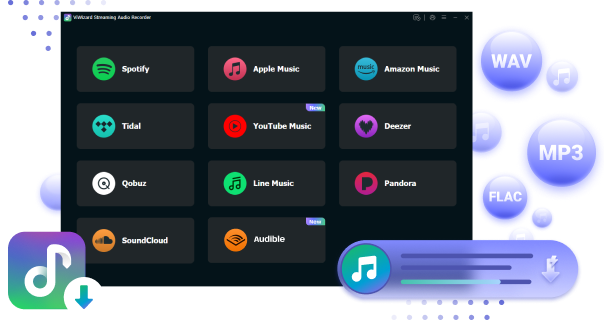
Conclusion:
TIDAL‑HiFi GitHub is very popular among Linux users because TIDAL does not offer a native Linux desktop app. It is easy to use, but it is an unofficial client, so updates to Tidal may affect performance, and official support is not available.
While ViWizard TIDAL Music Converter does not work on Linux directly, Windows and Mac users find it very useful for downloading Tidal music and podcasts as real audio files, a feature many Tidal users have requested. You can try both tools together to enhance your Tidal experience.
You May Be Interested


Nick Orin often turns to tech forums to see what apps people are talking about. He likes testing different software, comparing features, and finding out which tools are worth a try.

Leave a Comment (0)