


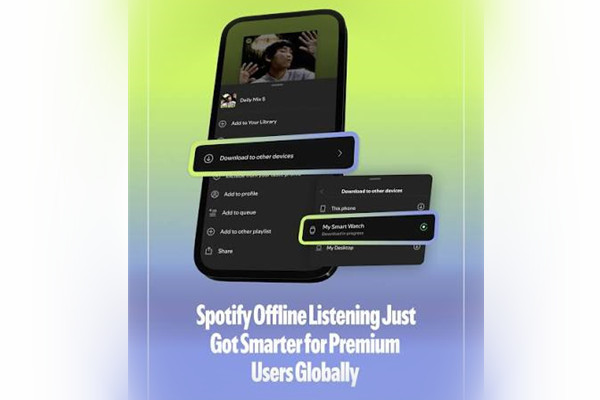
Spotify's offline listening feature lets you enjoy music and podcasts without an internet connection. By downloading content in advance, you can keep listening while traveling, commuting, or in places with limited network coverage. However, the available download options depend on your subscription: Spotify Premium users can download music and podcasts for offline playback, while Spotify Free users can download podcasts only.
In this guide, you'll learn how to download Spotify music and podcasts on your phone or computer, play your downloads offline, and manage your saved content. We'll also cover common Spotify offline listening problems and how to troubleshoot them. If you want to save supported Spotify tracks as regular local audio files instead of keeping them exclusively in the Spotify app, we'll also introduce ViWizard Spotify Music Converter as an alternative.
Part 1. Can You Listen to Spotify Offline?
Yes. Spotify lets you download eligible content while online and play it without an internet connection. As Spotify puts it, downloads let you "Take your music and podcasts anywhere your internet can't go." Premium users can download music, podcasts, and audiobooks when listening hours are available, while Free users can download podcasts only. Premium supports up to 10,000 downloaded tracks per device across five devices, including phones, tablets, computers, laptops, smartwatches, and supported portable players.
Spotify can automatically switch to downloaded content when your internet connection drops. You can also turn on Offline Mode to restrict playback to downloads, preventing Spotify from trying to stream over a weak or unavailable connection. Content you have not downloaded will appear greyed out or unavailable.
To keep your downloads, connect to the internet at least once every 30 days. This allows Spotify to sync your listening activity and account information.
Part 2. How to Download Spotify Music for Offline Listening
Spotify lets you download eligible music and podcasts while connected to the internet. The available download options vary by subscription and device, but all downloads remain within the Spotify app. Neither the mobile nor desktop app supports direct downloads of individual songs. To save specific tracks, add them to a playlist and download it instead.
2.1Download on iPhone and Android

On iPhone and Android, you can download albums, playlists, and podcast episodes directly from their Spotify pages. Open an album or playlist and tap Download. Since individual songs cannot be downloaded directly, add specific tracks to a playlist and download it instead. Free and Premium users can also download podcasts by opening an episode and tapping its Download icon.
Spotify uses Wi-Fi for downloads by default. To use mobile data, tap Profile picture > Settings and privacy > Data-saving and offline and enable Downloads over cellular. After downloading, go to Your Library > Downloaded to find your saved content.
01Open the Spotify app on your iPhone or Android device.
02Sign in to your Spotify Premium account.
03Search for an album or playlist you want to download.
04Select the album or playlist to open it.
05Tap the Download button (downward-facing arrow) near the top of the album or playlist page.
06Wait for Spotify to finish downloading the selected music.
2.2Download on Windows and Mac

On Windows and Mac, you can download eligible albums and playlists for offline listening. Open the album or playlist you want to save and click Download near the top of its page. Once the download is complete, you can play the saved content offline in Spotify.
01Open the Spotify desktop app on your Windows PC or Mac.
02Sign in to your Spotify Premium account.
03Search for a playlist or album you want to download.
04Select the playlist or album to open it.
05Click the Download button (downward-facing arrow) near the top of the playlist or album page.
06Wait for Spotify to finish downloading the selected music.
Part 3. How to Listen to Downloaded Spotify Music Offline
Once your downloads are complete, you can listen offline in two ways: let Spotify switch to downloaded content automatically when your connection drops, or enable Offline Mode to restrict playback to downloads. The first option is convenient when you occasionally lose internet access, while the second gives you more control over streaming.
3.1Listen Without an Internet Connection
This method requires no changes to your Spotify settings. Simply disconnect from Wi-Fi or mobile data and play your saved albums, playlists, or podcast episodes through the app. Spotify can automatically switch to downloaded content when it detects that your connection is unavailable. This works well when traveling, commuting, or passing through areas with unreliable coverage. However, content that has not finished downloading will still require an internet connection.
For iPhone and Android
01Open the Spotify app on your iPhone or Android device.
02Make sure the albums or playlists you want to listen to have been downloaded.
03Turn off Wi-Fi and mobile data on your device.
04Open Your Library in Spotify.
05Select Downloaded to view your downloaded albums and playlists.
06Select an album or playlist you want to listen to.
07Tap a song to start playing your downloaded music offline.
For Windows and Mac
01Open the Spotify desktop app on your Windows PC or Mac.
02Make sure the albums or playlists you want to listen to have been downloaded.
03Disconnect your computer from the internet by turning off Wi-Fi or disabling your network connection.
04Open Your Library in Spotify.
05Select a downloaded album or playlist.
06Click a song to start playing your downloaded music offline.
3.2Enable Spotify Offline Mode
Offline Mode prevents Spotify from trying to stream content and restricts playback to downloads stored on your device. This is useful when traveling without reliable internet access or when you want to avoid mobile data usage. Once enabled, you can browse and play your downloaded content as usual, while anything you have not downloaded remains unavailable until you reconnect. Keep in mind that Offline Mode does not download content automatically, so make sure everything you need is saved beforehand.
For iPhone and Android

01Open the Spotify app on your iPhone or Android device.
02Tap your profile picture in the upper-left corner of the screen.
03Select Settings and privacy.
04Tap Data-saving and offline.
05Locate Offline mode.
06Switch on Offline mode to restrict Spotify playback to downloaded content.
07Open Your Library and select Downloaded to view your saved albums and playlists.
08Select an album or playlist to start listening to your downloaded music offline.
For Windows and Mac
01Open the Spotify desktop app on your Windows PC or Mac.
02Click the three-dot menu at the top of the Spotify window.
03Select File on Windows or Spotify from the menu bar on Mac.

04Click Offline Mode to enable offline listening.
05Open Your Library to access your downloaded albums and playlists.
06Select a downloaded album or playlist to start playing music without an internet connection.
Part 4. How to Manage Your Spotify Offline Downloads
After downloading content, it is useful to know where Spotify stores it and how to manage the space it uses. You can view or remove downloads through your library and storage settings, or clear the app's cache to free up space without deleting your saved content.
4.1Find Offline Downloads
To view your downloads on mobile, go to Your Library > Downloaded. You can remove individual items from their album, playlist, or podcast pages.
Keep in mind that Spotify stores downloads within the app rather than as transferable audio files. On iPhone, they remain in encrypted app storage, which iOS may clear when space is needed. On Android, you can choose an available SD card through Spotify's storage settings. For reliable downloads and playback, keep at least 1 GB of free storage on your device.
4.2Remove Offline Downloads
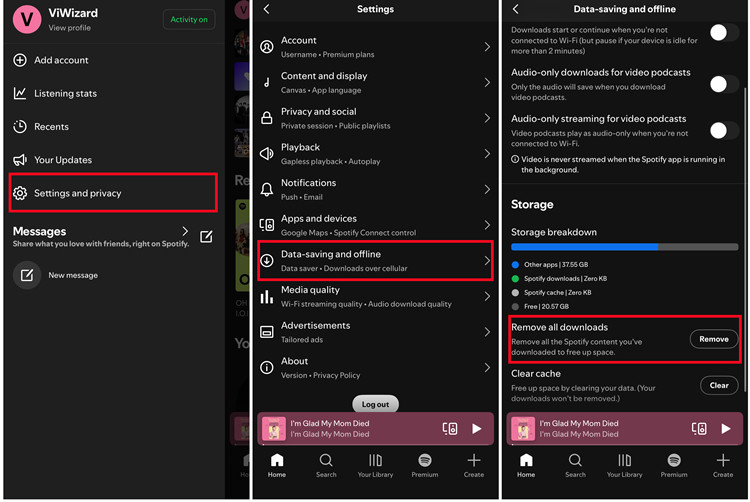
If you want to free up space by deleting your saved content, Spotify lets you remove all downloads at once. Go to Profile picture > Settings and privacy > Data-saving and offline > Remove all downloads, under Storage. This removes your downloaded content, so you will need to download it again if you want to listen offline.
4.3Clear Spotify Cache
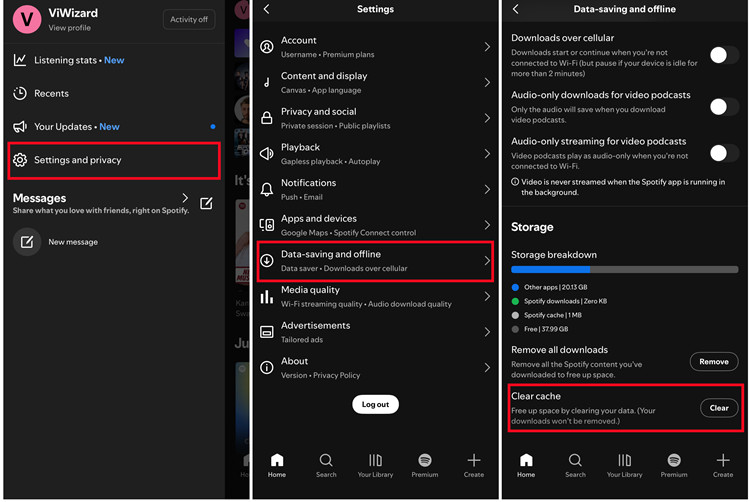
If Spotify is using more storage than expected, clearing its cache can help free up space without removing your downloads. On mobile, go to Settings and privacy > Data-saving and offline > Storage. On desktop, go to Settings > Storage > Clear cache. Unlike removing downloads, clearing the cache does not delete your saved offline content.
Premium users can download content on up to five devices. If they use more than five, Spotify removes downloads from the least recently used device. Reinstalling Spotify also deletes downloaded content, so you will need to download it again.
Part 5. How to Fix Spotify Offline Listening Problems
Even when your downloads are set up correctly, you may occasionally run into offline playback or storage issues. These problems often result from incomplete downloads, limited storage, outdated apps, or inaccessible files. The following fixes cover common situations and explain what to check in each case.
-

1. Spotify downloads are not playing offline:
If downloaded songs or podcasts will not play offline, first confirm that the downloads are complete under Your Library > Downloaded. Restart Spotify and try playing them again. You can also enable Offline Mode under Profile picture > Settings and privacy > Data-saving and offline > Offline mode on mobile. This restricts playback to downloaded content. If the problem continues, update Spotify and check whether battery-saving or cache-cleaning apps are interfering with playback.
-
2. Downloaded songs are missing or grayed out:
If songs appear grayed out or are missing from your library, check whether Offline Mode is enabled. Content that has not been downloaded will be unavailable in this mode. If previously downloaded songs have disappeared, make sure you are using the correct Spotify account and check Your Library > Downloaded. On Android, also confirm that your SD card is accessible if you use one.
-
3. Spotify downloads are no longer available:
Spotify may remove downloads if you have not connected to the internet in the past 30 days, exceeded the five-device limit, or reinstalled the app. If this happens, reconnect to the internet and download the content again. If you use Spotify on multiple devices, keep in mind that downloads are removed from the least recently used device when you exceed the limit.
-
4. Spotify downloads are stuck or will not finish:
If downloads do not progress, check your internet connection and available storage. Spotify recommends keeping at least 1 GB of free space. Downloads use Wi-Fi by default; to use mobile data, enable Downloads over cellular under Profile picture > Settings and privacy > Data-saving and offline. Also check that you have not exceeded the five-device limit. If downloads are still stuck, restart Spotify and try again.
-
5. Spotify does not recognize the SD card:
If Spotify cannot detect your SD card, first check whether your Android phone recognizes it under Settings > Storage. Make sure the card is properly inserted and has at least 1 GB of free space. If your phone still cannot detect it, remove and reinsert the card. Once your phone recognizes it, select it as the download location under Spotify Settings and privacy > Data-saving and offline > Storage.
-
6. Spotify downloads disappear from the SD card:
If downloads stored on an SD card disappear, check that the card is properly inserted and accessible. Then confirm that Spotify is still using it under Settings and privacy > Data-saving and offline > Storage. Update Spotify and reconnect to the internet if you have not been online in the past 30 days. This allows the app to verify your downloads and restore access when they are still available.
-
7. Spotify keeps having storage problems:
If Spotify continues to report storage errors, check your device's available space and remove content you no longer need. You can also clear the cache under Settings and privacy > Data-saving and offline > Storage on mobile or Settings > Storage > Clear cache on desktop. This does not delete your downloads. If you use an SD card, check that it is accessible and has enough space. Reinstall Spotify only as a last resort, as this deletes offline downloads and requires you to save them again.
Part 6. How to Save Spotify Music as Local Audio Files with ViWizard
For users who want more flexibility than Spotify's in-app downloads provide, ViWizard Spotify Music Converter offers a way to create a local music library. It converts Spotify songs, albums, playlists, and supported podcasts into formats such as MP3, M4A, WAV, FLAC, and AIFF. You can then play these files on compatible phones, MP3 players, computers, and car audio systems without opening Spotify.
ViWizard supports batch conversion, so you can process entire playlists or music collections without handling tracks one by one. Its conversion speed of up to 15× reduces waiting time, while retained track details, including titles, artists, album information, and track numbers, help keep your local library organized. You can also adjust the output format, bitrate, sample rate, and audio channel to suit your storage space, sound-quality preferences, and playback devices.
To convert Spotify music to MP3, install ViWizard on your Windows or Mac computer and sign in to Spotify through its built-in player. Add the music you want to convert, choose your audio settings, and start the conversion. Once the files are ready, find them in the output folder and transfer them to compatible devices. This makes it easier to prepare music for trips, organize a personal collection, and enjoy offline playback across different devices.

Key Features of ViWizard Spotify Music Converter
Free Trial Free Trial* Security verified. 5, 481,347 people have downloaded it.
- Convert Spotify songs, playlists, albums, podcasts, and audiobooks
- Export Spotify music in 6 formats for different devices and players
- Support Spotify Premium and free accounts for music conversion
- Preserve music metadata when organizing converted collections
- Batch download Spotify playlists and large music libraries
 Step 1: Install ViWizard Spotify Music Converter
First, download and install ViWizard Spotify Music Converter on your Windows or Mac computer. Launch the program and connect your Spotify account to access your music library. ViWizard supports both Spotify Free and Premium accounts, so you don't need to upgrade your subscription to get started. Once connected, you can browse your Spotify library and select the music you want to save as local audio files.
 Step 2: Add Spotify Songs or Playlists
Find the Spotify songs, playlists, or albums you want to keep for offline listening. You can search for your favorite tracks directly in ViWizard or copy and paste a Spotify link into the program. ViWizard will load the selected content and prepare the tracks for conversion. Depending on your needs, you can add individual songs, entire playlists, or full albums.
 Step 3: Choose MP3 as the Output Format
Open the settings panel and select MP3 as the output format for your Spotify music. MP3 is a widely supported audio format that works with most devices and media players, making it convenient for managing and playing local music files offline. ViWizard also supports other output formats, including WAV, FLAC, M4A, M4B, and AIFF. You can further customize the audio quality and organize your output files to make them easier to find and manage.
 Step 4: Convert Spotify Music and Save It for Offline Listening
Click the Convert button to start processing your selected Spotify tracks. When the conversion is complete, open the output folder to locate your saved audio files. You can then organize them locally or transfer them to compatible devices and music players for offline playback. Unlike Spotify's built-in Offline Mode, this approach is designed to let you manage local audio files independently of the Spotify app, subject to applicable usage rights and restrictions.
Part 7. Final Thoughts
Listening to Spotify offline is simple once you know how to download your content and manage your settings. Premium users can download music and podcasts, while Free users can download podcasts only. Just remember to connect to the internet at least once every 30 days and keep an eye on your storage and device limits to avoid playback issues.
If Spotify's in-app downloads feel too limiting, consider using ViWizard Spotify Music Converter to create your own local music library. Convert your favorite songs and playlists, choose your preferred audio formats, and transfer the files to compatible devices for more flexible offline listening.
Want more control over your offline music collection? Give ViWizard Spotify Music Converter a try and see how it fits your listening needs.
You May Be Interested


Adam Gorden is always looking for new ways to explore music and videos. He likes trying different media tools and learning how to manage audio and video files with ease.

Leave a Comment (0)