


With the rise of AI in music production, AI-generated tracks are flooding mainstream streaming platforms like TIDAL. Many of these songs have been deemed fraudulent or simply of poor quality. The issue is most severe on Spotify, where millions of low-effort synthetic tracks are uploaded to manipulate royalty systems. However, the AI problem on TIDAL is also serious, driving many users to switch to other music platforms.
In this article, you'll learn about the current state of AI on TIDAL, TIDAL's AI policies, and how to avoid AI-generated music. You'll also discover how to enjoy your favorite tracks offline without AI interruptions.
Part 1. Does Tidal Use AI?
Yes, TIDAL does use AI-powered tools to enhance its services and improve the user experience.
TIDAL employs an AI tool for metadata tagging, which automatically labels uploaded music with BPM, genre, tone, and other relevant details. There's also an AI-powered tool for detecting explicit language. Once it identifies explicit content, it automatically marks the track accordingly.Additionally, TIDAL's lyric transcription feature is powered by AI. The platform uses AI to analyze tracks and generate transcriptions, offering great convenience for TIDAL users.

Part 2. Does TIDAL Allow AI Music?
TIDAL does allow AI-generated music on its platform, as do most major streaming services today. At one point, this led to an influx of low-quality AI tracks flooding the platform, and many users complained that this "AI rubbish" was seriously hurting their listening experience.
However, TIDAL has recently introduced a new AI policy that significantly curbs the chaotic spread of AI content. According to the newest TIDAL AI Policy, "Tidal labels recordings that it determines are wholly AI-generated." Yet, due to the limitations of detection technology, TIDAL may not catch every single 100% AI-generated track. The platform also calls on content distributors to identify AI-generated music before uploading.
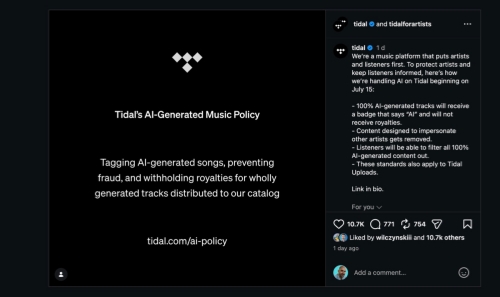
So, will AI music still appear on TIDAL after this policy? The answer is yes. AI-tagged music can remain on the platform as long as it complies with TIDAL's guidelines.
However, these tracks are stripped of royalty eligibility, eliminating the financial incentive for bad actors. As for music that is only partially AI-generated, TIDAL takes no action against it. This means you still have the choice to enjoy high-quality, AI-assisted music that genuinely resonates with you. Creators can still upload carefully crafted tracks with excellent melodies, rhythms, or lyrics.
Part 3. Does TIDAL Have AI Artists?
Yes, AI artists do exist on TIDAL. Streaming fraud is a serious issue on TIDAL, like on many other streaming platforms. Numerous real artists have been impersonated by faulty artist profiles, including Greta Morgan, Gregory Porter, Luke Temple, and bands such as Hurts, Liturgy, and Muse.
The people behind these AI profiles use them to siphon royalties away from genuine artists. As a result, not only have real artists' earnings been harmed, but the listening experience for TIDAL users has also suffered. It's disheartening to see your favorite artist appear to release new music, only to discover it's AI-generated trash.
Fortunately, TIDAL is now actively removing tracks and profiles detected to be involved in streaming fraud or other illegal activity. Also, according to its AI Policy, "Recordings that Tidal identifies as wholly AI-generated are not eligible for royalty attribution." This action represents a significant step toward addressing AI music issues.
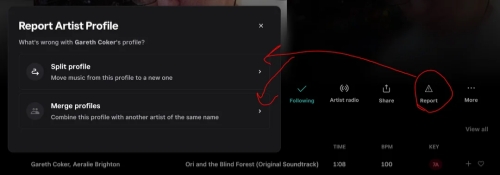
If you come across any possible faulty artist profile, you can report it directly to TIDAL. Open its profile, click the Report button, and choose between Split profile and Merge profiles. Note, however, that this feature is currently only available on desktop, and in some regions like Germany, the option may not yet be visible.
It's worth noting that AI artists who comply with TIDAL's policies are still allowed to upload music to the platform. TIDAL respects listeners' rights to choose whether to listen to AI music or not. This is good news for creators looking to build an audience around an AI artist. Carefully crafted AI artists producing high-quality music will continue to exist on TIDAL, offering genuinely enjoyable listening experiences.
Part 4. How to Avoid TIDAL AI Music
When TIDAL rolled out its new AI policy, it also introduced an official way for users to avoid AI-generated music. You can now toggle off AI-labeled titles directly in your TIDAL settings. Additionally, you can use AI music detectors to identify AI tracks and skip them automatically or manually. Another widely used approach is to create a personal playlist and fill it with your favorite, carefully selected TIDAL tracks.
Set Your AI Preference on TIDAL
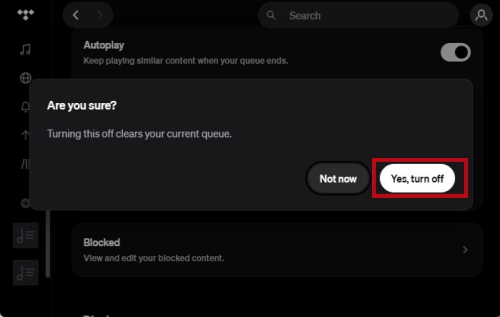
In July 2026, TIDAL introduced its official AI filter to give users greater control over AI-generated music. This feature appears as a simple toggle switch. When turned off, AI-tagged tracks become unplayable and are removed from TIDAL's recommendations. If you come across an AI track you'd like to try, simply click it, and a pop-up will prompt you to re-enable the feature.
However, this doesn't mean you will never see any AI-tagged music on TIDAL. Turning the switch off only stops AI-tagged music from playing in TIDAL playlists. To some extent, this can protect you from being interrupted while immersed in music. Yet, AI music without tags will not be filtered out.
01Open TIDAL on your device. It's available whether you enjoy TIDAL with the website, the desktop app, or the mobile app. However, if you're used to listening to TIDAL on the app, you must update it to the latest version.
02Sign in to your TIDAL account if you've been logged out.
03Click the profile icon on TIDAL. Next, on desktop, choose Settings in the drop-down menu. You'll then be navigated to the General section by default. On mobile, tap the settings icon and select Audio & Playback.
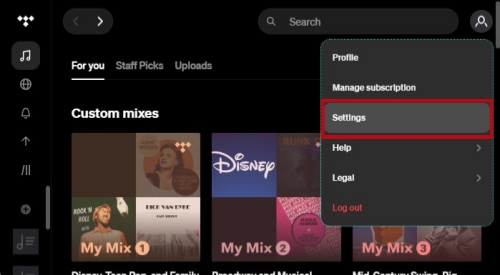
04Scroll and locate the Allow AI content switch or the AI content switch. It will be under the Playback section.
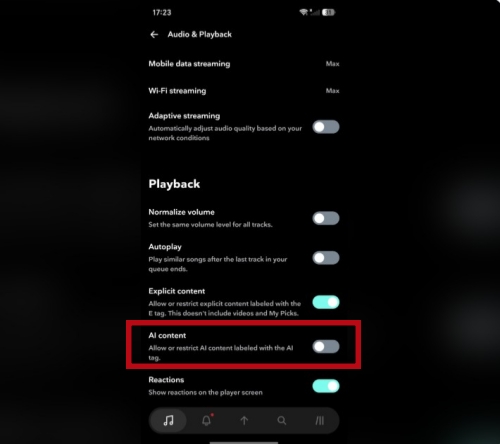
05Toggle off the switch. A message will pop up to confirm your choice. It says, "Turning this off clears your current queue."
06Select "Yes, turn off" to confirm your change.
Use an AI Music Detector App
Since not all AI-generated music can be detected and labeled by TIDAL, you can use an AI music detector app as an extra layer of protection. Most of these apps can help you identify whether a track is AI-generated, so you can choose to skip it or remove it from your playlist. Some apps even support an auto-skip feature, such as SkipIfFake.
On Android, you can choose the SkipIfFake app, which is completely free. It works by running quietly in the background while you listen to music on TIDAL or other streaming apps. If you've enabled auto-skip, it will automatically skip any detected AI tracks for you.
01Install SkipIfFake from the Google Play Store on your phone or tablet.
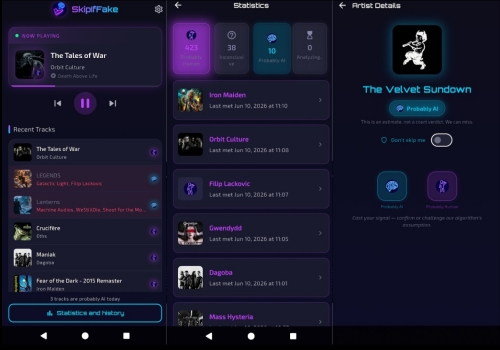
02Open SkipIfFake by tapping its app icon on your home screen.
03Follow the on-screen prompts to grant the app background monitoring and notification access so it can read what track is playing.
04Open the settings menu on the app.
05Choose TIDAL from the list of supported streaming platforms.
06Turn on the Auto-skip toggle for tracks identified as artificial intelligence.
On iOS, you can use the Genre AI app for manual detection. This is especially useful when you're unsure whether a particular track is AI-generated. For a more powerful solution on both iOS and desktop, try the Deezer AI Music Detector, which can scan entire playlists once you upload them to its website.
Create Your Personal Playlist
Before AI music detectors and TIDAL's built-in AI filter became available, many users avoided AI-generated music by simply creating their own personal playlists. This method still works perfectly today. You can handpick tracks from real artists that you genuinely enjoy, add them to a custom playlist, and listen in a queue free of AI interruptions.
On desktops
01Open the TIDAL desktop app or website and make sure you are signed in.
02Click the add icon in the left sidebar.
03Click Playlist. Set title, description, and image for the personal playlist.
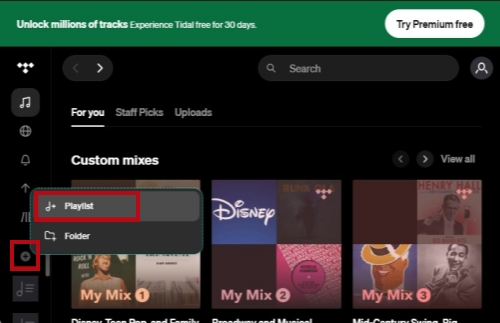
04Open the tracks or playlists you're fond of.
05Click the add icon next to a track and choose your personal playlist. To add all the songs in an album or a playlist to your playlist, click More, Add to playlist, and then your playlist.
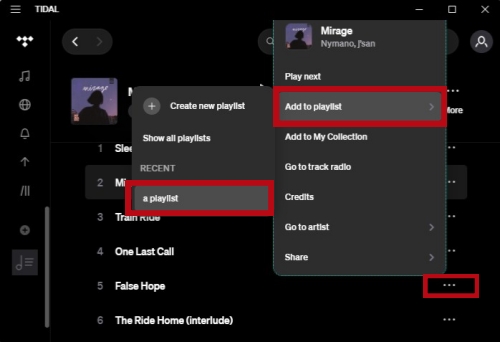
06Click the playlist icon of your personal playlist in the left sidebar and enjoy the carefully selected music seamlessly.
On Mobile Devices
01Open the mobile app of TIDAL and sign in to it.
02Click the collection icon in the bottom navigation bar and choose My Playlists or Playlists.
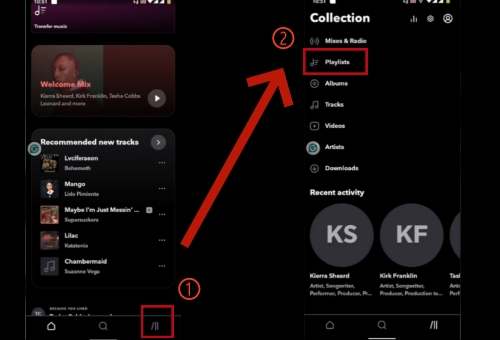
03Click Create new playlist and select Create playlist.
04Type the name for your newly created playlist. Tap Add description to properly describe it if you want. Tap the Create playlist button.
05Open songs or playlists you're interested in. Tap the three horizontal dots next to the song title. Select Add to playlist and choose your playlist.
Part 5. How to Enjoy TIDAL Music Offline without AI Music
This method is similar to creating your own playlist. You can first download your carefully selected TIDAL tracks, or simply download an AI-free playlist you've already built. Then, you can enjoy your songs offline without any AI interruptions.
However, TIDAL's offline mode has its limitations: it's only available on mobile, and downloaded tracks can only be played within the TIDAL app. For many music lovers, these restrictions can be frustrating. So how can you get around them?
ViWizard TIDAL Music Converter offers a better solution. This professional desktop app lets you download TIDAL tracks, playlists, and albums in formats like MP3, WAV, FLAC, and more. Once downloaded, your music can be played on any device, whether mobile or desktop, without the TIDAL app. No AI music, no platform restrictions, just pure listening freedom. Ready to give it a try with a free trial?

Key Features of ViWizard TIDAL Music Converter
Free Trial Free Trial* Security verified. 5, 481,347 people have downloaded it.
- Convert TIDAL songs, playlists, albums, artists, podcasts, and audiobooks
- Export TIDAL music in 6 formats for different devices and players
- Preserve Hi-Res FLAC and original audio quality
- Preserve Dolby Atmos audio and metadata during conversion
- Batch download TIDAL playlists, albums, and large music collections
 Step 1: Add Tracks to the Conversion List
After logging in to TIDAL, open a playlist, album, or tracks. Next, click the blue add icon. You can also uncheck tracks in a playlist or an album. Then, click Add to List.
 Step 2: Confirm Conversion Settings
Click the three-line icon and choose Conversion. Select a suitable output format for your downloads. You can also set the audio channel, sample rate, and bitrate, if needed.
 Step 3: Initiate Music Conversion
Click the conversion icon next to the internet icon. In the conversion list, you can edit the title for tracks or remove a song by clicking the delete icon. Click Convert to initiate the conversion process.
 Step 4: Enjoy Your TIDAL Downloads
In the history section, you can see a list of TIDAL downloads. Double-click a song to enjoy it in the built-in music player. Hover over any track and click the folder icon to locate it on your desktop.
Part 6. Conclusion
To summarize, an AI music problem does exist on TIDAL. Poor-quality AI tracks and fraudulent AI artist profiles have significantly affected the user experience. In response, TIDAL has introduced a new policy to address the issue by labeling fully AI-generated music and stripping those tracks of royalty eligibility. That said, TIDAL still permits AI music on the platform. You can avoid it by using the official AI filter, third-party AI music detectors, or by creating your own personal playlists.
For a better offline listening experience free from AI interruptions, you can use ViWizard TIDAL Music Converter to download your carefully selected tracks and enjoy them on any device.
You May Be Interested



Adam Gorden is always looking for new ways to explore music and videos. He likes trying different media tools and learning how to manage audio and video files with ease.

Leave a Comment (0)