


The Tidal Family Plan is a great way to share premium music with your loved ones while saving money. But how does it work, and how can you set it up? In this guide, we'll answer all your questions, walk you through the setup process, and help you troubleshoot common issues from real-case examples. Let's dive in!

Part 1. What Is the TIDAL Family Plan?
The TIDAL Family Plan is a subscription for up to six members, allowing personalized, ad-free music streaming in high-fidelity for a single monthly fee, typically around $16.99 plus tax in the US. It's worth it for people who want to save money or share music with family or friends. Then, let's explore Tidal's subscription tiers. Tidal offers three plans: Individual, Family, and Student. Prices range from $5.49 to $16.99 per month. The most cost-effective option is the Family Plan. For just $16.99 a month, it supports up to six members. This plan gives you access to Tidal's full music library, HiRes FLAC, Dolby Atmos quality, and seamless online and offline listening. For more details, see the table below:
| Tidal Plan | Price | Key Features |
|---|---|---|
| Individual | $10.99/month+applicable sales tax $19.99/month+applicable sales tax for DJ Extension |
110M+ tracks in HiRes FLAC, and Dolby Atmos Personalized mixes, editorial playlists, and live sessions Offline listening Ad-free |
| Family (up to 6 members) | $16.99/month+applicable sales tax | 110M+ tracks in HiRes FLAC, and Dolby Atmos Curated playlist for kids Offline listening Ad-free |
| Student | $5.49/month+applicable sales tax | 110M+ tracks in HiRes FLAC, and Dolby Atmos Curated study playlists Offline listening Ad-free |
Part 2. Understanding TIDAL Family Plan
How does Tidal Family Plan work?
The Tidal Family Plan allows up to six people to share one subscription while keeping their own accounts. The primary account holder subscribes and invites five more members, including kids. Anyone can join, even if they don't have a Tidal account, as the process includes creating a new account.
How much is Tidal Family Plan?
The Tidal Family Plan costs differently depending on where you subscribe: on official website, Tidal Family Plan costs $16.99/month. In Google Play Store/Apple App Store, Tidal Family Plan costs $19.99/month (due to a 30% platform fee).
Tip: Always subscribe directly through Tidal's website to avoid extra charges.
How many devices can you have on Tidal Family Plan?
The Tidal Family Plan includes six separate accounts. No matter when or what device others use, all six members can stream Tidal music online at the same time without affecting others.
However, for your own account, you can only use one device for online streaming and up to five devices for offline listening. To avoid issues, it's best not to share your account or use it on multiple devices at the same time.
Can you add an existing Tidal account to a family plan?
Yes! If you already have a Tidal account, you can switch to the Family Plan. Your playlists, favorites, and settings will stay the same. If you're invited to join a Family Plan, you can still use your existing account. However, your old billing cycle will be replaced by the Family Plan's structure. Unfortunately, refunds for unused time are not available.
Can I add the DJ extension to the family plan?
No, the DJ Extension (which allows DJs to integrate Tidal with software like Serato) is only available for individual accounts and student accounts. Family Plan members cannot use this feature.
Is TIDAL worth it over Spotify?
Tidal is worth it over Spotify if your priority is superior, lossless audio quality (HiFi/Master) and better artist payouts, especially for audiophiles with good equipment. If you have high-quality headphones or speakers and care deeply about sound fidelity and artist fairness, Tidal is likely worth the extra cost. If you value ease of use, broad device support, and a vast, well-curated music ecosystem, Spotify remains a strong choice.
Can multiple people use TIDAL?
Add up to 5 family members to your plan. All members must have Tidal accounts located in the same country as the primary account holder in order to be invited to the Tidal Family Plan.
How do I change my TIDAL subscription?
At first, navigate to Subscription. Once you log in, click on the 'Subscription' tab. Here, you have the option to modify your subscription or purchase an add-on. After making your choice, confirm the selection to initiate the change.
Part 3. How to Set Up Tidal Family Plan
Setting up a Tidal Family Plan is simple, but the steps vary depending on whether you already have a Tidal account. In this section, I'll show you how to sign up for the Family Plan if you're new to Tidal, or how to switch to it if you already have an account.
If You Do Not Have a Tidal Account:
Step 1 Visit Tidal's official website for subscription (https://tidal.com/pricing).
Step 2 Click on Start Free Trial.
Step 3 Choose the Family Plan option.
Step 4 Create your account and add payment details.
You can't add members to the Tidal Family Plan during the free trial. Once the trial ends and regular billing begins, you can add up to five more members. For a detailed guide, go to Part 4.
If You Have a Tidal Account:
Avoid upgrading to the Family Plan on the mobile app. Google Play Store and Apple Store charge 30% more. Instead, use Tidal's official website. Here's how to upgrade:
Step 1 Log in to your Tidal account on the official website.
Step 2 Click the profile icon and select Manage Account.

Step 3 Go to the Subscription section and click View Plans.

Step 4 Choose the Family Plan and click Continue.

Step 5 Enter your payment details and confirm the upgrade.

- What you CAN do on a Tidal Family Plan:
- Enjoy personalized recommendations, playlists, and saved songs.
- Remove members at any time from the account management page if you are the primary account holder.
- Set up password for your own profile.
- What you CANNOT do on a Tidal Family Plan:
- Share listening history or playlists across family members.
- Add members from different countries.
- Add family members who have already in another Family Plan.
- Add family members who have already used a free trial until the trial ends.
- Use the Tidal DJ extension as part of the family plan.
Part 4. How to Add Someone to Tidal Family Plan
After you have set up and pay for the Family Plan on Tidal, you are free to add the members to this plan by following these steps:
On Computer:
Step 1 Log in to your Tidal account on Tidal's official website.
Step 2 Click Profile > Manage Account > Family.
Step 3 Under "Invite family member" section, enter the members' email address.
Step 4 Click "Invite" to send the invitation.
Step 5 The recipient will get an invitation to join the plan.

On Mobile:
Step 1 Open the Tidal app on your phone.
Step 2 Tap the Settings gear icon.
Step 3 Go to Manage Account and find the Subscription section. Tap it.
Step 4 Select Family > Add a Family Member (plus icon).
Step 5 Enter their email address and tap Invite.
Step 6 The invited member must accept the request via email.

Part 5. How to Join the Tidal Family Plan
If you've been invited to a Tidal Family Plan, your steps vary depending on whether you already have an account.
If You Already Have a Tidal Account:
Step 1 Open your email invitation and click Accept Invitation and Join Family.
Step 2 Log in to your Tidal account.
Step 3 Accept the Family Plan invitation.
Step 4 Your subscription will switch to the new family plan.
If You Do Not Have a Tidal Account:
Step 1 Click Join Family link in the invitation email.
Step 2 Click Continue and select forgot your password? to create the password for your new Tidal account.
Step 3 Once you set up the password and logs in, you are now added to the Tidal Family Plan.
Part 6. How to Remove Members from & Cancel a TIDAL Family Plan (For Plan Owners)
There is still a problem: how to remove members from a Tidal family plan? If you want to remove someone or change your family members on Tidal, we will help you to remove their memberships in the following:
There is a step-by-step guide:
Step 1 Go to account.tidal.com and log in with your primary TIDAL account credentials.
Step 2 Look for a "Family" section or tab within your account settings; this is where you manage invited members.
Step 3 You'll see a list of invited members.
Step 4 Click the arrow or option next to the member you want to remove.
Step 5 Select the option to remove the member you want to remove.
How to Cancel Your Family Plan on TIDAL
If you want to cancel your family plan, you can cancel it on your account setting. This is a guide on the TIDAL Website:
Step 1 Visit account.tidal.com and log in to your primary account.
Step 2 Click your account and go to manage account. Tap on the "Subscription" under the Profile.
Step 3 Click "Cancel Subscription" and follow the prompts to confirm.
If you subscribed through a third party (Apple/Google), you must cancel directly through that provider's app store settings (Apple App Store or Google Play Store).
Part 7. How to Fix Common TIDAL Family Plan Problems
I've gathered some common issues Reddit users have reported regarding the Tidal Family Plan, particularly problems with adding members and simultaneous playback. Below, I'll go through each issue and provide possible solutions.
Problem 1: Couldn't Add Members to Tidal Family Plan
A Reddit user, Benji25_17, shared that they encountered an error while trying to add members. Tidal prompted them to "reload the page and try again."
🌟 FYI: Couldn't Add Members to Tidal Family Plan

Solution:
- Double-check that the invited member's email address is correct.
- Ensure the member lives in the same country (IP address must match).
- Confirm that the invited member is not currently part of another family plan.
- Make sure the member is not on a trial subscription.
Problem 2: Can't Listen to Music Simultaneously
Another user mentioned that they and their wife couldn't listen to music at the same time under the Family Plan. This issue is already covered in the "How many devices can you have on Tidal Family Plan?" section of the FAQ.
🌟 FYI: Can't Listen to Music Simultaneously

Solution:
- To stream simultaneously, each family member should use their own individual Tidal account, not the same login.
- The Family Plan includes six separate accounts, not one account for six people.
Problem 3: Can't Listen at the Same Time or Share Playlists
This issue is similar to Problem 2 but also highlights another frustration: Tidal Family Plan member has a separate music collection, meaning they cannot co-create or share playlists directly.
🌟 FYI: Can't Listen at the Same Time or Share Playlists

Solution:
- Follow each other's Tidal profiles and save each other's playlists to your library.
- Check out this complete guide on transferring Tidal playlists for workarounds.
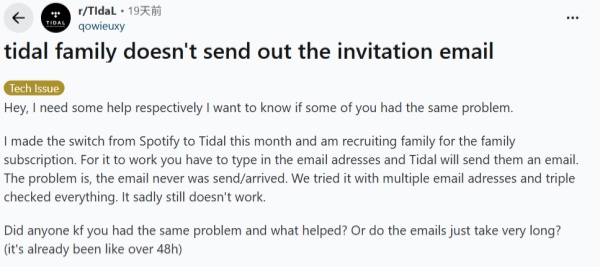
Problem 4: Don't Receive the Invitation Email
If you're not receiving a TIDAL Family Plan invitation, this problem may be caused by the wrong invite email or a mistake by Tidal.
🌟 FYI: Don't Receive the Invitation Email
Solution:
First, check your spam folder, then let the primary account holder resend the invitation from account.tidal.com, ensuring the email is correct. If it still fails, try accepting the invite in a private browser/a different browser, or contact TIDAL Support directly. Also, you can try closing your VPNs, ad-blockers, or browser issues might interfere.
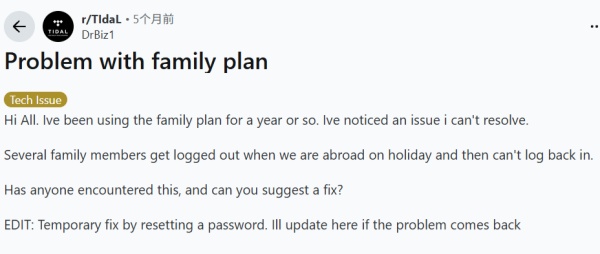
Problem 5: Can't Log In Abroad
Family members get logged out or can't log back in while on holiday in different countries.
🌟 FYI: Can't Log In Abroad
Solution:
Try resetting passwords as a temporary solution, but contacting Tidal support for persistent issues is best.
Bonus Tip: How to Share Playlists without Tidal Family Plan
While the Tidal Family Plan allows up to six accounts to stream music separately, each account remains independent. The Tidal Family Plan restrictions may frustrate some users as it is difficult to share music with family members. More importantly, once the family plan expires, all members lose access to their Tidal music collections.
To fully enjoy sharing music without restrictions, the best solution is to download your Tidal music to your local device. This way, you have complete control over your library—even without an active subscription!
ViWizard TIDAL Music Converter is the perfect tool for this! It works for all Tidal users, whether you have a subscription or not. With ViWizard, you can download any Tidal track you like. If you already have a Tidal account, you can even bulk-download your entire music collection directly to your computer.
The best part? ViWizard converts Tidal music into multiple formats, including lossless FLAC, MP3, AAC, WAV, and more. Thanks to its advanced and reliable conversion technology, ViWizard ensures that your music retains Hi-Res audio quality. You can then transfer your downloaded tracks to any device—whether it's your phone, DJ software, car stereo, or professional speakers.

A splendid Tidal downloader for both free and paid users that downloads full songs, albums, playlists, artists, and audiobooks to MP3, FLAC, WAV, and more while keeping the original lossless audio and ID3 tags so you can save Tidal music offline on Windows, Mac, or any device without streaming restrictions.
Download Tidal Music with ViWizard & Share Freely
Step 1Select Your Tidal Music
Install ViWizard TIDAL Music Converter on your computer and launch the program. Within the built-in Tidal web player, browse through songs, albums, or playlists you want to download. Next, click the "Add Music" button at the bottom right to select your tracks.

Step 2Customize Your Download Settings
Click the menu icon in the top-right corner and go to Preferences > Conversion. Here, choose your preferred audio format (e.g., MP3, AAC, FLAC, or WAV). Once done, click "OK" to save your settings.

Step 3Select the Music to Download
Once you've customized your settings, return to Tidal's Web Player inside ViWizard. You can search for specific songs, albums, or playlists to download. Alternatively, paste the URL of a Tidal playlist or album into the address bar to go directly to that content. Browse through your collection and select the tracks you'd like to convert.

Step 4Download and Share Tidal Music Freely
Now, go to the conversion list and hit "Convert" to start downloading your selected tracks. Once completed, your Tidal songs will be saved as actual audio files on your computer.

Step 5Access Your Downloaded Tidal Music
Once the conversion is complete, ViWizard TIDAL Music Converter will save the downloaded tracks in your chosen output folder. To access them, click the History button to view all your downloaded music. The Open Folder icon will take you directly to the folder where the converted tracks are stored. You can now share the downloaded music with friends or family through email, cloud services, USB drives, or any other method you prefer.

Conclusion
The Tidal Family Plan is a cost-effective way to enjoy premium music with your loved ones. By following this guide, you can easily set up the plan, add members, and troubleshoot common issues. And if you ever need to share playlists beyond your Family Plan, tools like ViWizard TIDAL Music Converter make it simple. Happy listening!
You May Be Interested


Matt Smith, a digital entertainment industry enthusiast at ViWizard, is dedicated to providing insightful commentary and solutions for music and media-related topics, including industry trends, analysis, and recommendations.

Leave a Comment (0)