



Tidal provides fabulous audio quality and the special Tidal exclusive mode for its users. However, Deezer's "Flow" feature provides superior, personalized music suggestions compared to Tidal's algorithms, helping users discover new music easily. So, some people want to switch to Deezer. There is a problem: How can we transfer our Tidal Playlist to Deezer?
This article may help you relieve the worry. You will find it's easy to transfer a Tidal playlist to Deezer seamlessly. So, how to transfer? Are there tools to help you transfer Tidal to Deezer quickly and effortlessly? Of course! Let's learn how to convert Tidal to Deezer in this article.
Method 1. Transfer Tidal Playlist to Deezer Using Deezer's Built-in Feature
Deezer has a function that allows you to transfer your prized music library from any streaming service to Deezer, including Tidal. We recommend that you use this function, because it’s free to you and really easy. However, for some Tidal songs unavailable on Deezer, we need some other tools to help us, like ViWizard TIDAL Music Converter. Anyway, you can open your Deezer and follow the guide below:
Step 1 Open the Deezer app or web player.
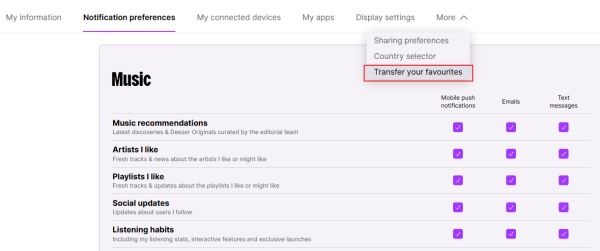
Step 2 Navigate to your Profile at the top right of the page and click Account Settings.
Step 3 Select Transfer your favorites (Under more), like this picture.
Step 4 Choose TIDAL as the source platform and log in.
Step 5 Select the playlists, albums, or tracks you wish to move.
Step 6 Start the transfer; the music will appear in your Deezer library once finished.
Method 2. Transfer Tidal Playlist to Deezer Using ViWizard Free Music Transfer
To transfer your playlist to other music platforms, sometimes you need a tool make everything easy. ViWizard Free Music Transfer makes it simple to move your playlists, albums, artists, and favorite tracks from Tidal to Deezer without missing a beat. With ViWizard Free Music Transfer, you can transfer unlimited music without any loss. There is a simple guide for you to transfer your favorite playlist to Deezer.

Easily move and save playlists and songs across major music services to rebuild your music collection anywhere.
Step 1 Sign in to Source and Destination Accounts
From the main interface, you'll see a list of supported platforms such as Spotify, Apple Music, Tidal, Deezer, and more. First, select Tidal. A login window will appear. Sign in with your account to link it with ViWizard. Next, repeat the same process to sign in to Deezer, where you want the playlists transferred.

Step 2 Select Music to Transfer
Once both accounts are connected, click Start. You'll now have access to your full source library. From here, choose which playlists, albums, artists, or individual tracks you want to transfer. You can move everything at once or hand-pick specific items.

Step 3 Transfer to Deezer
When transferring albums or artists, ViWizard Free Music Transfer will automatically save them on the destination platform. For playlists and tracks, you can choose to move them to a matched playlist.

Step 4 Start Transfer
Click the Start Transfer button to begin moving your selections. The program will process each track in sequence, showing progress in real time. During the process, you can see which tracks are transferring and which are complete. If any have failed, you can retry it.

Step 5 Verify on Deezer
Finally, open your Deezer to confirm the results. You can click the Folder icon next to a record in the history to preview the transferred playlists immediately, or check directly in the streaming app to ensure everything appears correctly. Now, you have finished the transfer! Congratulations!

Method 3. Transfer Tidal Playlist to Deezer Using ViWizard TIDAL Music Converter
If you encountered a situation where your favorite song is only accessible on Tidal. We prepared this tool - ViWizard TIDAL Music Converter. Just ripping the target music from Tidal with our tool. Most importantly, ViWizard allows you to get it quickly and not lose the audio quality.
ViWizard TIDAL Music Converter will help you save the whole playlist from Tidal to your local computer in high audio quality (up to 192 kHz, 320 kbps). So, you can stream these downloaded songs on Deezer, and with Tidal's max audio quality. Also, there are many output formats ViWizard TIDAL Music Converter provides: Lossless, AIFF, MP3, M4A, M4B, WAV, and FLAC. You can export the download from Tidal in one format according to your needs.

Ready to take your TIDAL music offline? ViWizard TIDAL Music Converter helps TIDAL subscribers save songs, albums, playlists, artists, podcasts, and audiobooks with reliable music conversion. Start converting and keep your TIDAL library within reach.
Step 1 Set up Preferences
Open ViWizard TIDAL Music Converter on your PC, log in with your Tidal HiFi account in the built-in Tidal web player. The login process is safe, cause ViWizard TIDAL Music Converter keeps your information secret and does not lose it. After successfully loading the Tidal initial interface, click the menu icon at the top right of the window and choose Preferences. And you will enter the next small window to personalize the audio quality. You can adjust the audio format, sample rate, bit rate and whether to save the lyrics. Once you set up, click the OK button to save the change.

Step 2 Choose the Playlist You Want to Convert to Deezer
After setting the download audio quality, you can head back to the built-in Tidal web player. Enter your collection to choose the playlist to download. Hit the playlist and tap on the Add to List icon, ViWizard will automatically read the playlist and copy it to the convert list within seconds.

Step 3 Start to Download
Click the convert button, and you will see the tracks start to download. Within seconds, you can check the downloads in your designated folders or History window. You can edit the tracks' information to better manage the downloads.

Step 4 Convert Tidal Playlist to Deezer
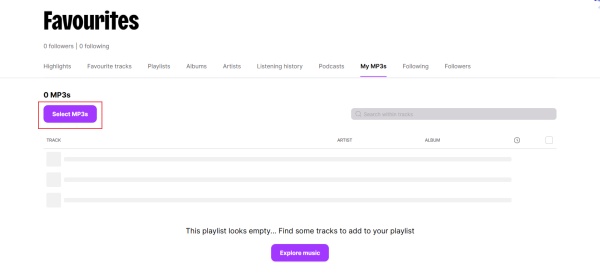
Once ViWizard finishes the downloading process, you can locate the downloaded file's path and visit the Deezer website. Just sign in to your account with your credentials. Then, click the Favorite Tracks on the left side of the page. Find “My MP3” and Select MP3. Finally, choose your downloaded Tidal tracks to upload them to Deezer. After finished upload, you can enjoy the lossless songs on Deezer anytime and anywhere!
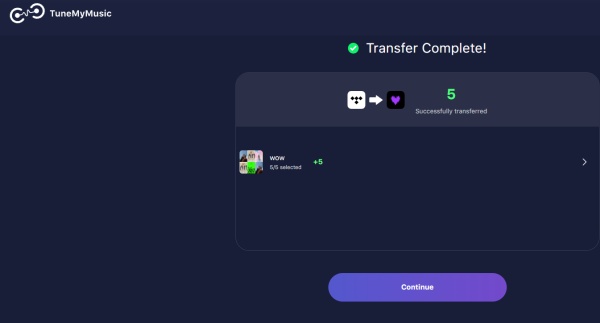
Method 4. Transfer Tidal Playlist to Deezer Using Tune My Music
TuneMyMusic is a tool especially designed for users who want to convert content between music streaming services, like Apple Music, Deezer, Tidal, or other music streaming services. It can help you transfer your Tidal music to Deezer. Here's how to:
Step 1 Visit the TuneMyMusic website using a web browser on your computer or mobile device. Once you're on the TuneMyMusic website, click on the "Let's Start" button to begin the transfer process.
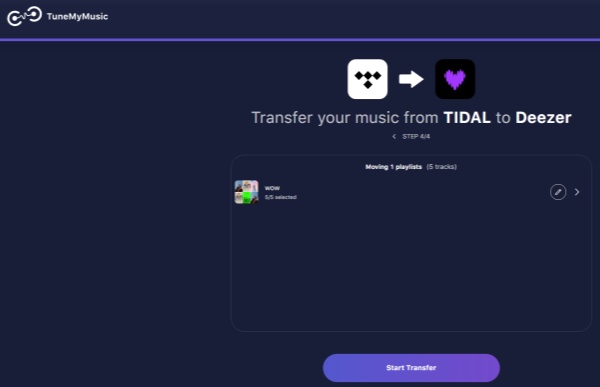
Step 2 On the next page, you'll be prompted to select the source platform. To transfer from Tidal, click on "Tidal" in the list.
Step 3 TuneMyMusic will ask you to log in to your Tidal account. Just use your Tidal credentials to proceed.
Step 4 On the next page, you can access your music and playlists on TuneMyMusic. Select the playlists you want to transfer to Deezer.
Step 5 Once you've selected the playlists, click "Choose Destination". Click the Deezer to select it as the music service to which you want to transfer the selected Tidal playlists.
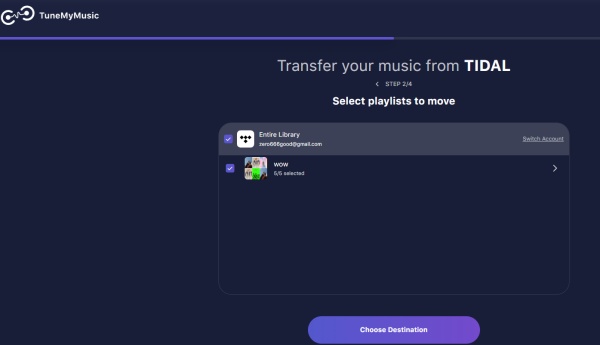
Step 6 Similarly, you will need to sign in to Deezer with your email and password to facilitate the transfer process. Once both your Tidal and Deezer accounts are connected, TuneMyMusic will start transferring your playlists.
Method 5. Transfer Tidal Playlist to Deezer Using Soundiiz
Soundiiz is a popular online music management tool that lets you transfer, convert, and sync your music libraries like playlists, favorite tracks, albums, or artists between various streaming services like Spotify, Apple Music, Deezer, Tidal, and YouTube Music. You can use it to transfer Tidal to Deezer or even other music streaming services. Just walk through the steps below:
Step 1 Visit the Soundiiz website, and click on the "Start for Free" button. If you don't have an account, you can sign up for Soundiiz. Or you can choose to connect your Tidal account to Soundiiz by clicking on Sign in with a music service > Sign in with TIDAL.
Step 2 If you haven't connected your Tidal account to Soundiiz, click on "Tidal" in the left menu > Connect. Soundiiz will display the playlists that are going to be transferred from your Tidal music. Select the playlists you want to transfer to Deezer.
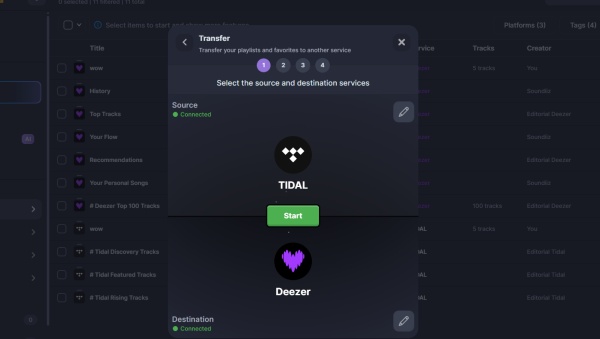
Step 3 Once you've selected Tidal playlists, click on the Convert button.
Step 4 Soundiiz will show you the steps to edit or confirm your playlists and tracks you want to transfer.
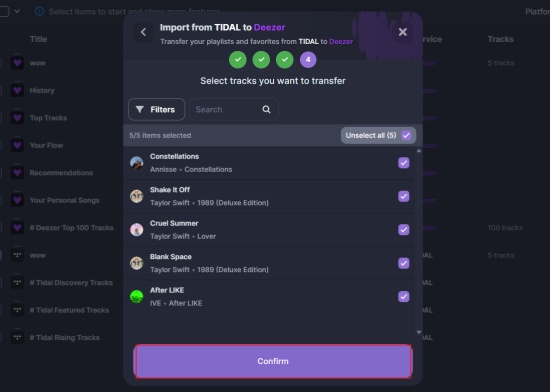
Step 5 Then, select Deezer as the destination and log in to your Deezer account.
Step 6 Once logged in, Soundiiz will start transferring your Tidal playlists to Deezer.

Method 6. Transfer Tidal Playlist to Deezer Using Soundiiz
FreeYourMusic is a tool that makes playlist transfer fast and effortless. You can easily move playlists between Spotify, Apple Music, YouTube Music, TIDAL, and more. This tool allows you to keep your songs, playlist names, and structure intact.
Step 1 Install Free My Music from its official website.
Step 2 Enter the Transfer interface, tap on the Tidal icon, set it as the Source, and log in to Tidal.
Step 3 Tap the Deezer icon to set it as the Destination, and log in to Deezer with your email and password.
Step 4 Then, select the playlist you want to transfer from Tidal to Deezer.
Step 5 Click Begin Transfer option. And the selected Tidal playlist will be saved to your Deezer library. After the transfer is finished, we can enjoy our favorite song on Tidal playlist on Deezer!
Conclusion
We have gathered 5 methods to help you transfer your Tidal Playlist to Deezer. Absolutely, the best way is to use the Deezer official function. But if some songs on Tidal are unavailable on Deezer, you can choose ViWizard TIDAL Music Converter to save them and upload them to Deezer. So, you can enjoy them on Deezer with lossless quality. Now, let’s do it!
You May Be Interested




Adam Gorden, the digital media specialist at ViWizard, is dedicated to providing the best solutions for digital media management, including audio and video conversion, file optimization, and media workflow enhancements.

Leave a Comment (0)