


Have you ever wanted to add your own songs, remixes, or MP3 files to Deezer because they are not available on the platform? Or are you an artist who wants to release your music on Deezer? Deezer supports music uploads, but the process depends on your goal. Regular users can add personal MP3 files for private listening, while artists need to use a music distributor to publish songs on Deezer.
In this guide, we will show you how to upload music to Deezer and transfer music from other streaming services. At the end of this passage, there are some troubleshooting tips and a workaround for saving Deezer music. Let's go!
Part 1. Can You Upload Music to Deezer?
Yes, you can upload music to Deezer, but the method depends on what you want to do. Deezer supports two different types of music uploads: adding your own personal music files for private listening and uploading original music as an artist for public release.
For regular listeners, you can add your own MP3 files to your Deezer personal library through the My MP3s feature. This is useful if you have songs, remixes, live recordings, or other audio files that are not available on Deezer. However, these uploaded files are only available for your own account and cannot be shared with other Deezer users.
For musicians and artists, Deezer does not provide a direct upload button for releasing songs. Instead, artists need to use a music distributor such as TuneCore, DistroKid, CD Baby, or other Deezer-supported distribution services. The distributor sends your music to Deezer and other streaming platforms, where it can become publicly available to listeners.
| Upload Type | Who Is It For? | How It Works | Who Can Listen? |
|---|---|---|---|
| Personal MP3 Upload | Listeners | Add local music files to your Deezer library | Only you |
| Music Release | Artists & Labels | Submit songs through a music distributor | Deezer users worldwide |
Part 2. How to Upload Music to Deezer
If you want to release your music on Deezer for public streaming, you need to use an approved digital music distributor, such as DistroKid, TuneCore, or iMusician. If you simply want to listen to your personal MP3s on Deezer, you can upload them through the web or desktop app.
For Listeners: Add Personal MP3s
If you have your own MP3 files saved on your computer, you can upload them to Deezer's My MP3s library for personal listening. However, this feature is only available for paid Deezer subscribers.
- File format: MP3 files encoded with CBR (Constant Bit Rate) are recommended.
- File size: Each track must be smaller than 200 MB.
- Upload limit: You can upload up to 2,000 tracks in total.
- Account type: A paid Deezer account is required. Deezer Free users cannot upload personal MP3s.
01Launch the Deezer web player or desktop app on your computer.
02Enter your Deezer account details to sign in.
03Go to Favorites or Library, then select My MP3s.
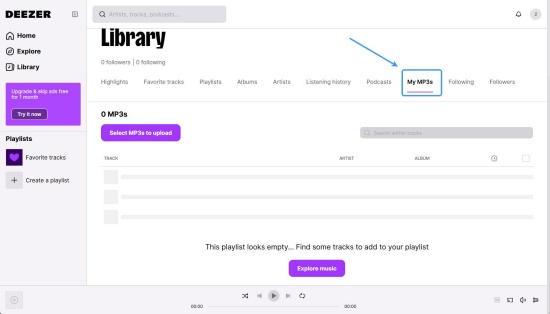
04Click SELECT MP3S TO UPLOAD.
05Select the MP3 files from your computer.
06Click Open to add the selected files to your Deezer library.
For Artists: Release Music
Deezer does not allow independent artists to upload music directly to the platform. Instead, artists need to work with a digital music distributor such as DistroKid, TuneCore, or CD Baby. These distributors help deliver your music to Deezer, manage licensing, and collect royalties from streams.
- Audio files: Use high-quality WAV files (at least 16-bit/44.1 kHz) or FLAC files.
- Cover art: Prepare a square image, usually 3000 × 3000 pixels, in JPG, PNG, or TIFF format.
- Metadata: Provide details such as song title, artist name, songwriter/composer credits, genre, and language.
- Release date: Schedule your release at least 2 weeks in advance to allow time for promotion and playlist consideration.
01Select a digital music distributor, such as DistroKid, TuneCore, or RouteNote and sign up.
02Open your distributor's dashboard and start a new music release.
03Add your audio files and upload your mastered tracks.
04Enter your song information, including titles, artist details, and copyright information.
05Add your album or single artwork.
06Choose Deezer as one of the streaming platforms for distribution.
07Send your music for review and wait for approval.
08After your music is available on Deezer, use Deezer for Creators to claim your artist page, check streaming data, and manage your releases.
Part 3.How to Upload Music to Deezer from Other Streaming Services
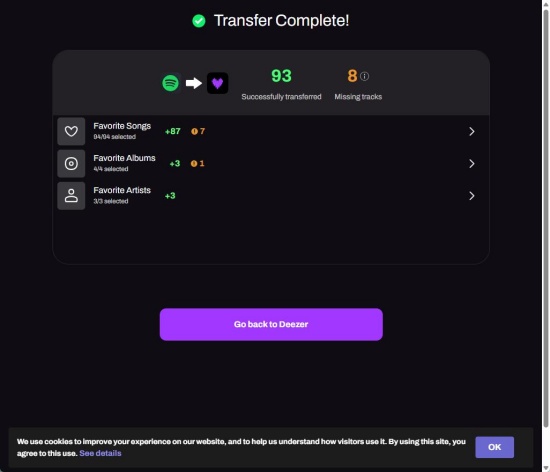
There are different ways to add music to Deezer depending on your goal. If you simply want to switch from platforms like Spotify, Apple Music, or Amazon Music, you can use a third-party transfer service to move your playlists, albums, and saved tracks to Deezer. Here we recommend TuneMyMusic, the official playlist transfer tool.
TuneMyMusic is a web-based tool. You can start the transfer from the TuneMyMusic website or through Deezer's built-in music import option.
Upload Music to Deezer from Other Streaming Services
01Visit the TuneMyMusic websiteand click Let's Start.
02Select the music platform you want to transfer from, such as Spotify, Apple Music, or YouTube Music.
03Log in to your current streaming service account.
04Choose Deezer as the destination platform.
05Log in to Deezer and allow TuneMyMusic to access your account.
06Choose the playlists, liked songs, albums, or artists you want to transfer.
07Click Start Moving My Music to begin moving your library to Deezer.
Part 4. How to Fix Deezer Upload Issues
If you have trouble uploading music to Deezer, check your file settings first. Make sure your MP3 files use CBR (Constant Bit Rate) instead of VBR, are smaller than 200 MB, and are less than 20 minutes long. Since Deezer does not show upload progress, wait a few minutes after starting the upload, then refresh the page and check the bottom of your music list. Here are some troubleshooting tips:
Check Your MP3 Format: Deezer only supports MP3 files for personal uploads. If your files use VBR (Variable Bit Rate), convert them to CBR to avoid upload or playback problems.
Fix Browser Upload Problems: If the upload gets stuck, clear your browser cache, disable ad-blocking extensions, and try uploading from a new browser tab. Using a separate tab only for Deezer uploads can help prevent errors.
Try the Deezer Desktop App: If the web uploader does not work properly, use the Deezer desktop app instead. It can be more stable for uploading multiple files at once.
Check Your Deezer Subscription: Personal MP3 uploads are only available for paid Deezer users. Make sure your account supports this feature.
Refresh Your Music Library: If uploaded songs appear greyed out or cannot be played, delete the affected tracks and reupload them. You can also sign out of Deezer and sign back in to refresh your library.
Bonus Tip: How to Convert Your Deezer Music Library for Offline Listening
Although Deezer allows you to upload personal MP3 files, the offline listening feature is only available to subscribers. If you want to save your favorite Deezer songs as common audio files and listen to them on any device without the Deezer app, a music converter can be a practical solution.
ViWizard Deezer Music Downloader is a desktop tool that helps convert Deezer songs, albums, playlists, and favorites into widely used formats such as MP3, FLAC, WAV, AIFF, M4A, and M4B. It keeps the original ID3 tags, including song titles, artists, albums, and cover art, so your downloaded music library stays organized. You can then transfer the converted files to a phone, MP3 player, USB drive, or other devices for offline playback.

Ready to build your own Deezer music collection? ViWizard Deezer Music Converter helps Deezer subscribers save songs, albums, playlists, and artists with reliable music conversion. Convert your favorites and create a personal audio library.
How to Use ViWizard Deezer Music Downloader
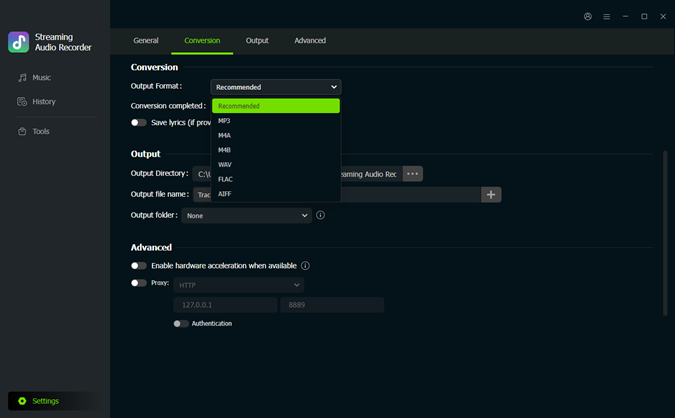 Step 1: Set the Output Preferences
Launch ViWizard Deezer Music Downloader on your computer. Click the Settings icon at the bottom left and open the Conversion section. Choose your preferred output format, including MP3, FLAC, WAV, AIFF, M4A, or M4B. You can also adjust the audio quality, output folder, and other file settings. Once finished, return to the Music interface.
 Step 2: Find Deezer Music in ViWizard
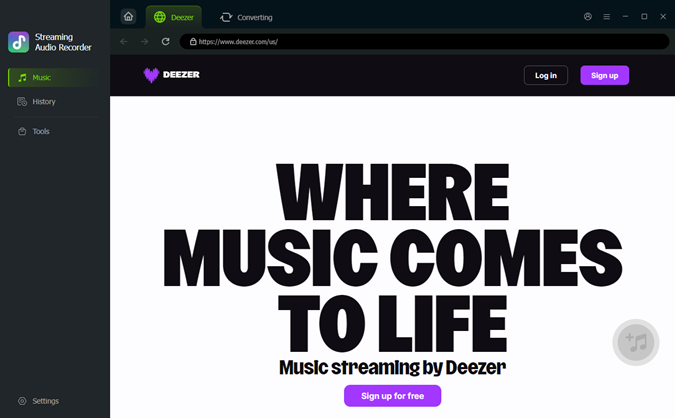
Click the Deezer icon in ViWizard to open the built-in Deezer player. Search for the songs, albums, playlists, or artists you want to save, then open the music page you need.
 Step 3: Add Deezer Music to the Download List
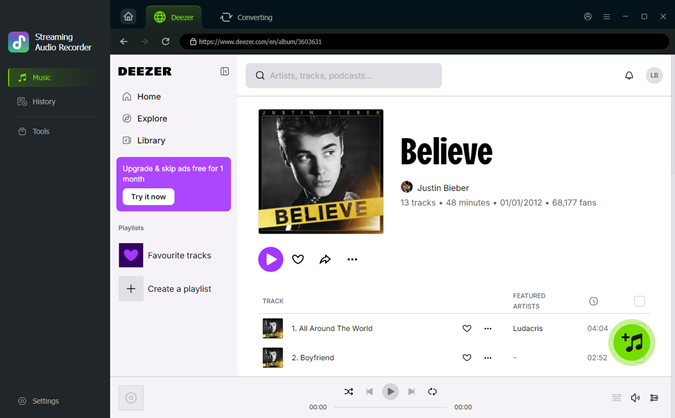
Open a Deezer song, album, or playlist and click the + button. ViWizard will analyze the music page and display the available tracks. Select the songs you want and add them to the download list.
 Step 4: Convert Deezer Music to Audio Files
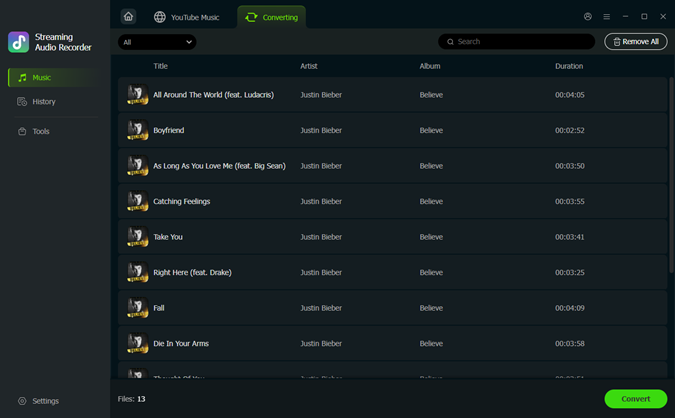
Go to the download list and check the selected Deezer tracks. Click Convert to start converting the music into your chosen audio format. After the conversion is complete, open the History section to find your saved files and transfer them to any device for offline listening.
Conclusion
Uploading music to Deezer is easy. Listeners can add personal MP3 files to their library, while artists can publish music through a digital distributor. You can also transfer playlists from other streaming services and solve common upload problems with ease.
If you want more flexible offline listening, ViWizard Deezer Music Downloader can help convert Deezer songs, playlists, and albums into common audio formats, such as MP3, FLAC, and WAV, making it easier to enjoy your music collection on different devices. Just give it a shot!
You May Be Interested



Dave Henry loves movies and all things video. He likes checking out different video formats and trying new media players to see how they change the viewing experience.

Leave a Comment (0)