


YouTube Music lets you stream millions of songs, but not every track you love is available online. That's why the YouTube Music upload feature matters. It allows you to upload your own music files, including MP3s, live recordings, demos, or local tracks, directly to your YouTube Music library.
Once uploaded, your music sits alongside streaming songs in the same app. You can play it on any device, add it to playlists, and download it for offline listening.
In this guide, you'll learn how to upload music to YouTube Music, how to view and manage your uploads, and extra tips for downloading uploaded or streaming tracks.

Part 1. FAQs About YouTube Music Upload
Can I upload music on YouTube Music using my phone?
Do I need to subscribe to YouTube Music Premium for uploading?
Can other YouTube Music users listen to my uploaded music?
What file formats are supported for uploading to YouTube Music?
Can I upload music to YouTube Music and monetize it?
Is there a limit to how many songs I can upload?
Can I edit the song titles or album art after uploading?
Will my uploaded music count toward YouTube Music recommendations?
Part 2. How to Upload Music to YouTube Music
Currently, the YouTube Music upload feature is not available on mobile devices. To upload your own local music files, you must use a computer. On desktop, YouTube Music offers two simple ways to upload music.
Step 1 Go to the official YouTube Music web player and sign in to your account.
Step 2 Open File Explorer (Windows) or Finder (Mac), then drag and drop the music files directly onto the YouTube Music web player.
Step 3 Alternatively, click your profile icon in the top-right corner and select Upload music. This will open File Explorer or Finder, allowing you to choose files manually.

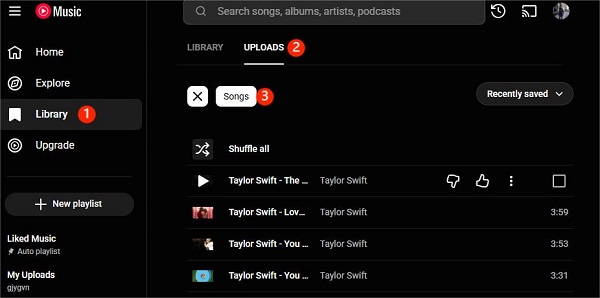
Step 4 After uploading, go to Library > Uploads > Songs to view, play, and manage your uploaded music.

Things You Need to Know:
- You can create playlists that mix uploaded tracks with songs from the YouTube Music streaming catalog.
- Uploaded music is private and can only be accessed by the account that uploaded it.
- If you share a playlist that includes uploaded songs, others will not be able to play those uploaded tracks.
- Uploaded songs can be played in the background, offline, and without ads, even without a YouTube Music Premium subscription.
- Premium users can cast uploaded music or play it on smart speakers such as Alexa and Sonos.
- You may see an upload error if the same song has already been uploaded to your library.
Part 3. How to View and Manage Your YouTube Music Upload
Before we start, keep in mind that it is normal not to see your uploads immediately. According to Google, "Your uploaded music may take some time to show up in your library, even after it has been successfully uploaded." So if your songs don't appear right away, don't worry, give it a few minutes and refresh your library.
How to View YouTube Music Uploads on PC (Web Browser)
Step 1 Go to music.youtube.com and sign in.
Step 2 Click on Library in the left-hand menu.
Step 3 Select Uploads. You'll see all the music files you have uploaded under the Songs tab.
How to View YouTube Music Uploads on Mobile (Android & iOS)
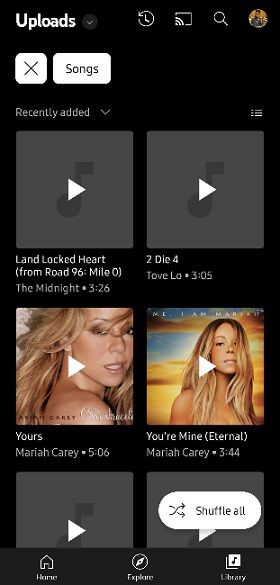
Step 1 Open the YouTube Music app on your phone or tablet and sign in.
Step 2 Tap on Library at the bottom of the screen.
Step 3 Scroll down and select Uploads. Your uploaded tracks will appear here.
How to Manage and Organize Your YouTube Music Uploads
Managing your uploads is a critical step. It is highly recommended that you add your tracks to a playlist immediately, as many users find that uploaded songs are difficult to locate or fail to appear in the main library.
How to Add Uploads to a Playlist
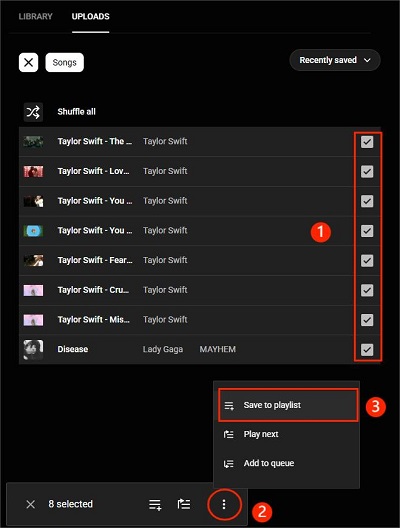
Step 1 Go to Library > Uploads > Songs.
Step 2 Select the checkbox for each track you want to add.
Step 3 A small bar will appear at the bottom. Click the three-dot menu (⋮) and choose Save to playlist.
Step 4 Choose an existing playlist or create a New playlist.
Step 5 Your uploads will now appear in the playlist you selected in your library.
You can also download your uploads for offline listening, which is available to both Free and Premium users. If you want to remove a track from a playlist or from your uploads, click the three-dot menu next to the track and select Delete song.
Part 4. How to Make Your YouTube Music Upload Discoverable
While the Upload Music feature in the YouTube Music library is strictly private, you can make your music public and searchable by uploading it as a video to the main YouTube platform.
Note: This method should only be used for non-copyrighted content or music that you personally own.
How to Make Your YouTube Music Uploads Public
Step 1 Use a simple video editor to combine your audio track with a static image, such as your album art, to create an MP4 file.
Step 2 Go to YouTube.com and click Create > Upload video. Follow the prompts to upload the video to your YouTube channel.
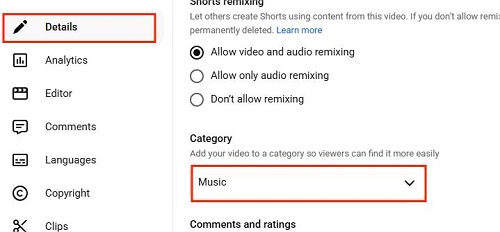
Step 3 Once uploaded, go to YouTube Studio and open the Details page of your video.
Step 4 Scroll down and click Show More.
Step 5 Find the Category dropdown menu, select Music, and click Save.
Once processed, the video will be indexed and your music will become:
- Searchable: Other users can now find your song by typing its title or your artist name in the YouTube Music search bar.
- Shareable: You can share your music with friends and family by sending them the video URL. They can open the link directly in the YouTube Music app to listen.
Extra Tip: How to Download Uploaded or Streaming YouTube Music
If you are in the area of weak connection of internet, or you just want to listen to your uploads offline, you can download your uploads within the YouTube Music by clicking on the three-dots besides the uploaded music. Then click on Download.

Even with your own uploads, you might still want to download official streaming songs for times when you don't have internet. Usually, this requires a paid YouTube Music Premium subscription. If you want to download streaming songs without a subscription, you can use ViWizard YouTube Music Converter . This tool allows both Free and Premium users to save YouTube songs directly to a computer.
Why Use ViWizard YouTube Music Converter?
- Download any song, album, playlist, or podcast from YouTube Music with just one click.
- Convert music to MP3, FLAC, WAV, AIFF, M4A, or M4B so you can play it on any device, including MP3 players and car stereos.
- Keep the original sound quality and preserve all ID3 tags, like artist name and album art.
Unlike official downloads that expire after 30 days offline, these files are yours to keep forever.

Download songs, playlists, albums, and your whole music library from 10 major streaming platforms, including YouTube Music, to MP3, FLAC, WAV, AIFF, M4A, or M4B with original sound quality and full song info and keep your music forever.
How to Get YouTube Music Downloads with ViWizard
Step 1 Set the Output Format
Launch ViWizard YouTube Music Converter. Click the Menu icon and go to Preferences, then select the Conversion tab. Choose your preferred output format, such as MP3, which works on all devices. For the best sound quality, set the bitrate to 320 kbps. Choose a folder to store the output files. Click OK to save your settings.

Step 2 Open YouTube Music in ViWizard
Back in the main interface, click the YouTube Music icon to open the built-in web player. Sign in to your YouTube Music account to access your library, including uploaded songs, playlists, albums, and liked tracks.

Step 3 Add Music to the Conversion Queue
Browse your library and find the songs, albums, or playlists you want to download. Click the green Plus (+) button next to each track. In the pop-up window, select the tracks you want or click Select All, then choose Add to List.

Step 4 Convert and Save Your Music
Go to your conversion list and click Convert. ViWizard will download and convert your selected music to MP3 (or your chosen format). When the process is complete, open your output folder to access the files. Now, you play the downloaded music on any device, offline, and without restrictions.

Conclusion
YouTube Music offers a seamless way to upload and enjoy your personal music collection alongside a vast streaming library. With easy steps for uploading on desktop and advanced tools like ViWizard YouTube Music Converter, you can customize your music experience to suit your needs. Whether you're a casual listener or a music enthusiast, YouTube Music ensures you never miss a beat.
You May Be Interested
4 Ways to Transfer Spotify Playlists to YouTube Music Easily

How to Convert YouTube Videos to MP3 Safely [PC & Mobile]

How to Sync Apple Music to YouTube Music

How to Add Music to Google Drive from YouTube [4 Ways]

How to Record Audio from YouTube on Desktop and Mobile
How to Upload Music to Deezer: A Complete Guide


Matt Smith, a digital entertainment industry enthusiast at ViWizard, is dedicated to providing insightful commentary and solutions for music and media-related topics, including industry trends, analysis, and recommendations.

Leave a Comment (0)