



Amazon Music is one of the most popular music streaming services that provides many useful features, like built-in EQ, Audible integrations, allowing users to enhance the streaming experience. However, there is still no crossfade on Amazon Music even though many users express their wishes to the official center.
Crossfade is a playback feature that allows one song to gradually fade out while the next fades in, creating a smooth, continuous listening experience without abrupt gaps or silence. If you also want to enjoy the immersive listening experience on Amazon Music, this post will show you practical ways to simulate a crossfade-like experience with your Amazon Music tracks, including options that utilize Spotify, Apple Music, and Sonos speakers.
Part 1. Does Amazon Music Have Crossfade?
Amazon Music has an autoplay setting and a gapless play setting. Unfortunately, there is no native crossfade feature integrated with Amazon Music. Amazon Music focuses on streaming high-quality audio and curated playlists, but seamless transitions between tracks remain limited compared to competitors like Spotify or Apple Music. This can be particularly noticeable in party playlists or when listening to albums meant to flow continuously.
Will Amazon Music support Crossfade in the future?
At this time, Amazon has not announced plans to implement Crossfade. Users interested in this feature can provide feedback to Amazon via their support channels, but currently, no official solution exists within the app or web player. As more people require this feature, maybe Amazon Music will launch the feature in the future. Don't feel down about the unavailable feature of Amazon Music. We will display 3 workable ways for you to get crossfade experience with Amazon Music in the following part.
Part 2. How to Get a Crossfade-Like Experience with Amazon Music
Even though Amazon Music doesn't support Crossfade natively, there are workarounds to simulate a smooth listening experience. It's easy to play Amazon Music in other crossfade-supported streaming services or devices. So, you have 3 options to get crossfade experience with Amazon Music, and the following are the detailed steps.
Option 1. Crossfade Amazon Music via Sonos Speaker
If you use a Sonos speaker to stream Amazon Music, you must not miss the built-in crossfade feature on the Sonos app, which allows you to stream Amazon Music with the crossfade feature! Let's follow the steps below to crossfade Amazon Music on Sonos.
Read More: How to Play Amazon Music on Sonos [4 Proven Ways]
Step 1 Launch the Sonos app on your mobile phone.
Step 2 Tap the Settings icon on Sonos' main interface to go to the detailed Sonos Settings page.
Step 3 Scroll down to choose the Services & Voice option and then tap the Add a Service option.
Step 4 You can browse the supported music streaming services listed in Sonos and choose Amazon Music to set it as the default music streaming service on Sonos.

Step 5 Then you can select any songs or playlist on Amazon Music within the Sonos app.
Step 6 Tap the Now Playing tab at the bottom of Sonos to look for the More menu.
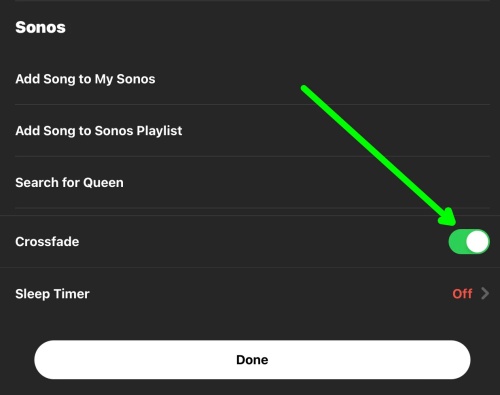
Step 7 Click it, and you can see there is a crossfade option on the More page. Turn it on, and your Amazon Music will crossfade to the next song.
Despite the available device, you can also import your Amazon Music library to Spotify or Apple Music, which both support the crossfade feature. To export your Amazon Music collection to another music streaming service, you need to rip it to a local format so that you can fully transfer your Amazon Music library to Spotify or Apple Music without loss.
The Tool You Need – ViWizard Amazon Music Downloader
ViWizard Amazon Music Downloader is a robust and reliable audio converter designed for all Amazon Music users, including Amazon Music Free, Prime, and Unlimited subscribers. Featuring a built-in format converter and an advanced ID3 tag editor, ViWizard lets you download Amazon Music to six popular audio formats such as MP3 and FLAC. You can also customize track metadata, including album artwork, title, artist, and genre. Best of all, ViWizard preserves the original sound quality, ensuring a premium listening experience.

Download songs, playlists, albums, and your whole music library from 10 major streaming platforms, including Amazon Music, to MP3, FLAC, WAV, AIFF, M4A, or M4B with original quality and ID3 tags for permanent offline listening.
Here is the step-by-step guide:
Step 1 Launch ViWizard and Set MP3 Output
Open ViWizard on your computer. Click Menu > Conversion > Output Format, select MP3, and choose your preferred audio quality (64–256 kbps). Click OK to confirm.

Step 2 Log in to Amazon Music
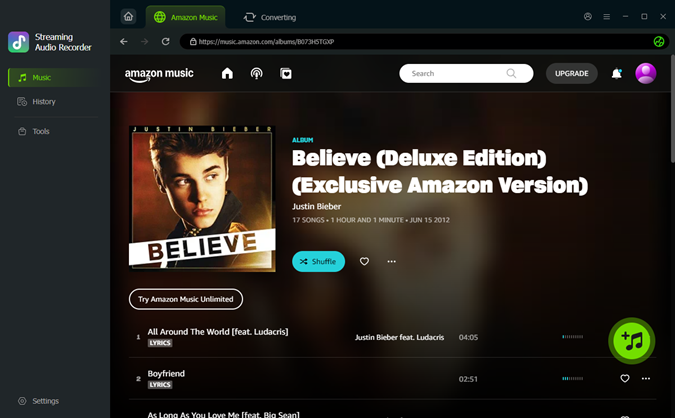
Click the Amazon Music icon in ViWizard and enter your account credentials. The built-in web player will load your music library, including playlists, albums, and favorite tracks securely inside ViWizard.

Step 3 Add Music and Start Conversion
Browse Amazon Music to find the songs, albums, or playlists you want to download. Click Add to List to queue the tracks, then click Convert to start recording and converting them into MP3 automatically.
Step 4 Access and Enjoy Your Downloads
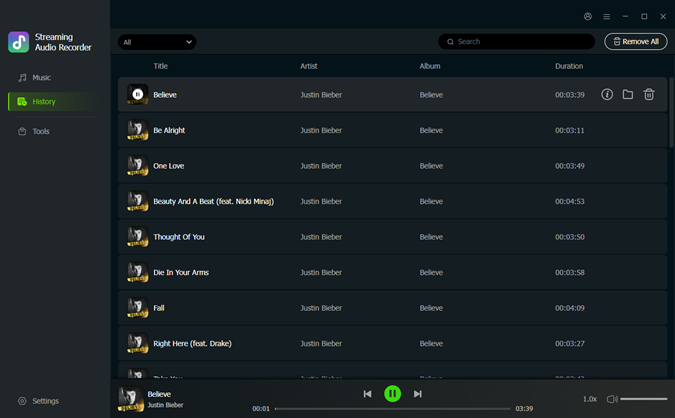
After the conversion is complete, open the History tab to view your downloaded tracks. Click the folder icon to locate your MP3 files on your computer. You can now play them offline, transfer to other devices, or organize your music library.
Option 2. Crossfade Amazon Music via Spotify
Spotify allows flexible Crossfade durations, typically between 1 and 12 seconds, giving a near-seamless listening experience. This method combines Amazon Music's catalog with Spotify's Crossfade feature.
Step 1 Launch the Spotify desktop app on your Windows PC or Mac.
Step 2 Click your profile icon in the top-right corner and select Settings. Alternatively, open the app menu, choose Edit, then click Preferences.
Step 3 Scroll down to the Library section and turn on Show Local Files. This will display additional options under Show songs from.
Step 4 Click Add a Source to open the file browser. Navigate to the folder where your music is stored—such as Downloads, Music, or iTunes—and click OK (Windows) or Open (Mac).

Step 5 The selected folder will appear under Show songs from. Make sure the toggle next to each folder is enabled so Spotify can access your local music files.
Step 6 Head back to Spotify Settings, scroll down to locate the Playback section.
Step 7 You will see the Crossfade songs option under Playback. Toggle it to enable the Spotify crossfade feature. Adjust the crossfade to the desired duration; the higher the value, the longer Spotify's crossfade will affect.
Step 8 Back to Spotify library to see your Amazon Music uploads, then you can crossfade Amazon Music to enjoy immersive listening.

Option 3. Crossfade Amazon Music via Apple Music
Apple Music offers fine-tuned Crossfade settings, allowing for smooth transitions and better control over the listening experience.
Step 1 Open the iTunes app on your Windows PC or Mac.
Step 2 Click File in the top-left corner of the screen.
Step 3 Choose Add File to Library or Add Folder to Library.

Step 4 In the file browser window, navigate to the folder where your converted Amazon Music files are stored.
Step 5 Select the files or folders you want to import, then click Open.
Step 6 iTunes will start importing the music. Wait for the process to complete.
Step 7 Click Edit at the top of the iTunes window.
Step 8 Select Preferences from the menu.

Step 9 In the Preferences window, go to the Playback tab.
Step 10 Check the box next to Crossfade Songs to enable the feature.
Step 11 Adjust the crossfade duration using the slider (1–12 seconds). Return to iTunes and start playing music to enjoy smooth transitions between songs.

Bonus: Is Amazon Music's gapless playback equivalent to Crossfade?
Although Amazon Music has no crossfade feature, there is a feature that perform similar to the crossfade function. Amazon Music gapless playback. However, Amazon Music's gapless playback is not equivalent to crossfade; they are distinct features with different purposes.
- Gapless Playback on Amazon Music: This feature ensures every track plays without any silence or interruption between each song. With this feature, you can listen to songs on Amazon Music's album, flowing seamlessly into another. However, the gapless playback only works on some specific albums.
- Crossfade: This feature intentionally overlaps the end of one song with the beginning of the next, fading out the first while fading in the second. It is typically used for playlists to create a "DJ-style" transition. Amazon Music also provides several unique DJ-Mode stations that have a similar effect to allow you to enjoy the immersive listening experience.
Conclusion
Amazon Music does not offer crossfade, but by using ViWizard Amazon Music Downloader in combination with players or devices like Spotify, Apple Music, or Sonos speakers, you can simulate a smooth, seamless listening experience. Of course, you can try to employ the gapless feature on Amazon Music to enhance your listening experience. But if true fade-in and fade-out transitions are what you're looking for, using third-party players or speakers remains the most effective solution.
You May Be Interested


Adam Gorden, the digital media specialist at ViWizard, is dedicated to providing the best solutions for digital media management, including audio and video conversion, file optimization, and media workflow enhancements.

Leave a Comment (0)