


Amazon Music users are facing higher prices and fewer Prime benefits, with features like offline downloads now requiring a separate Amazon Music Unlimited subscription. As costs rise, many subscribers are considering switching to another service like Apple Music.
Both services offer over 100 million songs, lossless audio, and Dolby Atmos with Spatial Audio. However, Apple Music works better with Apple devices while supporting Android as well. With tools like SongShift, users can move from Amazon Music more easily.
In this guide, we will show you how to transfer Amazon Music to Apple Music or iTunes using different methods, including playlist transfers and local file options for offline listening.
Part 1. Transfer Amazon Music to Apple Music/iTunes Manually
For smaller collections, manual transfer can be a simple way to rebuild your Amazon Music library in Apple Music. Since songs and playlists are stored separately on each service, you need to search for the same tracks in Apple Music and add them again. This works best on a Windows or Mac computer with the Amazon Music app and Apple Music app or iTunes open at the same time.
01Open the Amazon Music app or website and sign in to your account.
02Go to Library and review your saved songs, albums, and playlists.
03Open the Apple Music app or iTunes on your computer or device.
04Use the Search bar to find the same songs, albums, or artists.
05Click Add or + to add matching music to your Apple Music library.
06Create new playlists in Apple Music and manually add the transferred songs.
Part 2. Transfer Amazon Music Local Files to Apple Music with ViWizard
For users who want to keep Amazon Music songs as local files, a music downloader offers another option. Tools like ViWizard Amazon Music Downloader can convert Amazon Music tracks into common formats such as MP3, AAC, ALAC, WAV, and AIFF, which can then be imported into Apple Music or iTunes. This lets users save, back up, and play their music outside the Amazon Music app or without a subscription.
ViWizard Amazon Music Downloader works on both Windows and Mac. After signing in to Amazon Music, users can select songs and convert them into a format supported by Apple Music or iTunes. The tool keeps important details like song titles, artists, album covers, and available lyrics. After conversion, the files can be added to Apple Music or iTunes and synced across devices manually or through Sync Library.

Key Features of ViWizard Amazon Music Converter
Free Trial Free Trial* Security verified. 5, 481,347 people have downloaded it.
- Convert Amazon Music songs, albums, playlists, and artists
- Export Amazon Music in 6 formats for different devices and players
- Support Amazon Music Prime and Unlimited accounts
- Remove ads automatically during music conversion
- Batch download Amazon Music playlists and large collections
Step 1Download Your Purchased Amazon Music to MP3 Files
01Open the Amazon Music website and sign in with your Amazon account.

02Go to Library and find your purchased songs or albums.
03Select the music you want to download.
04Click Download to save the purchased Amazon Music files to your computer.

05If prompted, choose No thanks, just download music files directly.
Step 2Convert Your Amazon Music to MP3 Files
01Open ViWizard Amazon Music Converter and go to the conversion settings.
02Select MP3 as the output format and save your changes.
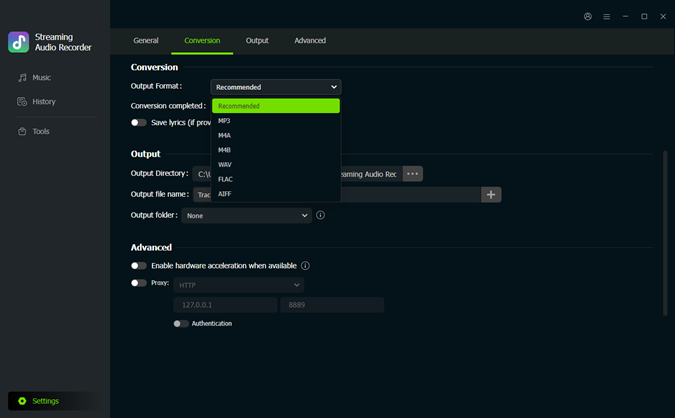
03Open the built-in Amazon Music web player and sign in with your Amazon account.

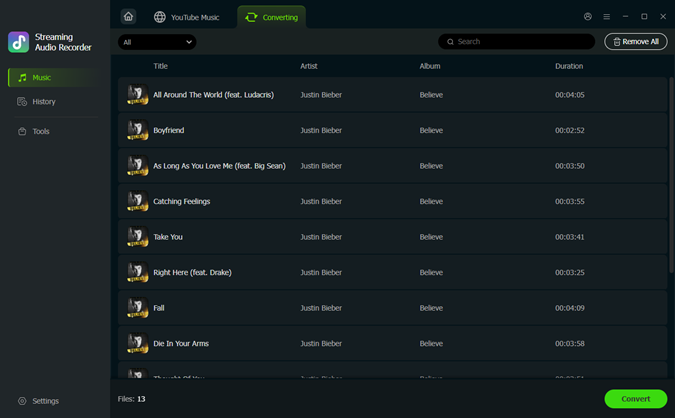
04Search for the songs, albums, or playlists you want to convert and click Add to List.
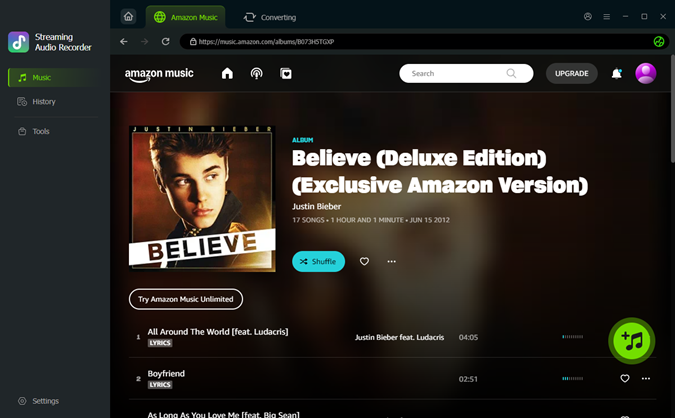
05Click Convert to start converting Amazon Music songs to MP3 files.
Step 3Import Amazon Music MP3 Files to Music App or iTunes
On Apple Music app:
01Open the Apple Music app on your computer.
02Click File in the menu bar.
03Select Import.
04Browse to the folder where your converted Amazon Music files are saved.
05Select the files or folders you want to import.
06Click Open to add the songs to your Apple Music library.
On iTunes:
01Open iTunes on your Windows computer.
02Click File in the top-left corner.
03Select Add File to Library or Add Folder to Library.

04Choose the folder containing your converted Amazon Music files.
05Click Open to import the songs.
06Wait until the tracks appear in your iTunes library.
Part 3. Transfer Amazon Music Playlists to Apple Music with ViWizard
Playlist transfer tools help move larger collections with only a few clicks. They compare song information between services and find matching tracks in Apple Music. ViWizard Free Music Transfer helps move playlist data while keeping the original order and structure as much as possible. The free trial supports up to 100 tracks, while a subscription allows unlimited transfers.

Key Features of ViWizard Free Music Transfer
Free Trial Free Trial* Security verified. 5, 481,347 people have downloaded it.
- Transfer songs, playlists, albums, and collections across 7 platforms
- Move music libraries when switching between streaming services
- Transfer playlists without rebuilding collections manually
- Keep music organization during platform migration
- Manage playlist transfers across supported streaming services
01Download and launch ViWizard Free Music Transfer on your computer.
02Select Amazon Music as the source platform.

03Sign in with your Amazon account.
04Select Apple Music as the destination platform.
05Sign in with your Apple account.
06Choose the Amazon Music playlists you want to transfer.

07Click Start Transfer to begin moving your playlists.

08Open Apple Music and check your transferred playlists.
Part 4. Transfer Amazon Music Playlists to Apple Music with SongShift
For mobile users, SongShift provides a convenient way to transfer music from supported services to Apple Music. After connecting Amazon Music, users can select songs, albums, or playlists, and SongShift matches available tracks before adding them to the Apple Music library. It also helps combine music collections from different services into one Apple Music library.
01Open the Apple Music app on your iPhone, iPad, or Android device, or go to music.apple.com.
02Tap your profile icon in the top-right corner.
03Open Settings.
04Select Transfer Music from Other Music Services.
05Choose Amazon Music as the source service.
06Sign in to your Amazon Music account.
07Select the playlists, albums, or songs you want to move.
08Tap Add to Library to start the transfer.
09Wait for Apple Music to find and add your music.
Part 5. Sync Amazon Music to Apple Music on Other Devices
After transferring Amazon Music to Apple Music or iTunes, you can sync your library across devices like iPhone, iPad, and iPod. You can connect a device through USB and manually sync selected music, or turn on Sync Library to access your music collection across supported devices automatically. Sync Library uploads your music and keeps your library updated, but it requires an Apple Music or iTunes Match subscription.
Step 1Sync Amazon Music to Other Devices
Option 1: Sync Manually
01Connect your iPhone, iPad, or iPod to your computer using a USB cable.
02Open iTunes or Finder on your computer.
03Click the device icon when it appears.
04Select Music from the sidebar.
05Turn on Sync Music.

06Choose Entire music library or select specific playlists, artists, albums, or genres.
07Click Apply or Sync to start transferring your music.
08Disconnect your device after syncing is complete.
Option 2: Use Sync Library (iCloud Music Library)
01Open the Apple Music app or iTunes on your computer.
02Click Music > Settings on Mac or open Edit > Preferences on Windows.
03Go to the General tab.
04Turn on Sync Library or iCloud Music Library.

05Click OK to save the settings.
06Open Settings on your iPhone or iPad.
07Tap Music.
08Turn on Sync Library.
Step 2Access Synced Amazon Music on Other Devices
01Open the Apple Music app on your iPhone, iPad, or iPod.
02Tap Library at the bottom of the screen.
03Browse or search for your synced Amazon Music tracks.
04Tap a song to start playing.
05Tap the Download button to save the song for offline listening.
Part 6. Final Thoughts
Transferring Amazon Music to Apple Music or iTunes can be done in different ways, depending on what you want to move. For a small collection, adding songs manually may be enough. If you want to keep music files locally, ViWizard Amazon Music Downloader can convert songs into formats supported by Apple Music or iTunes. For playlist transfers, tools like ViWizard Free Music Transfer and SongShift can make the process easier.
After moving your music to Apple Music, you can keep your library organized and access it across your devices. Choose the method that works best for you.
You May Be Interested


Nick Orin often turns to tech forums to see what apps people are talking about. He likes testing different software, comparing features, and finding out which tools are worth a try.

Leave a Comment (0)